
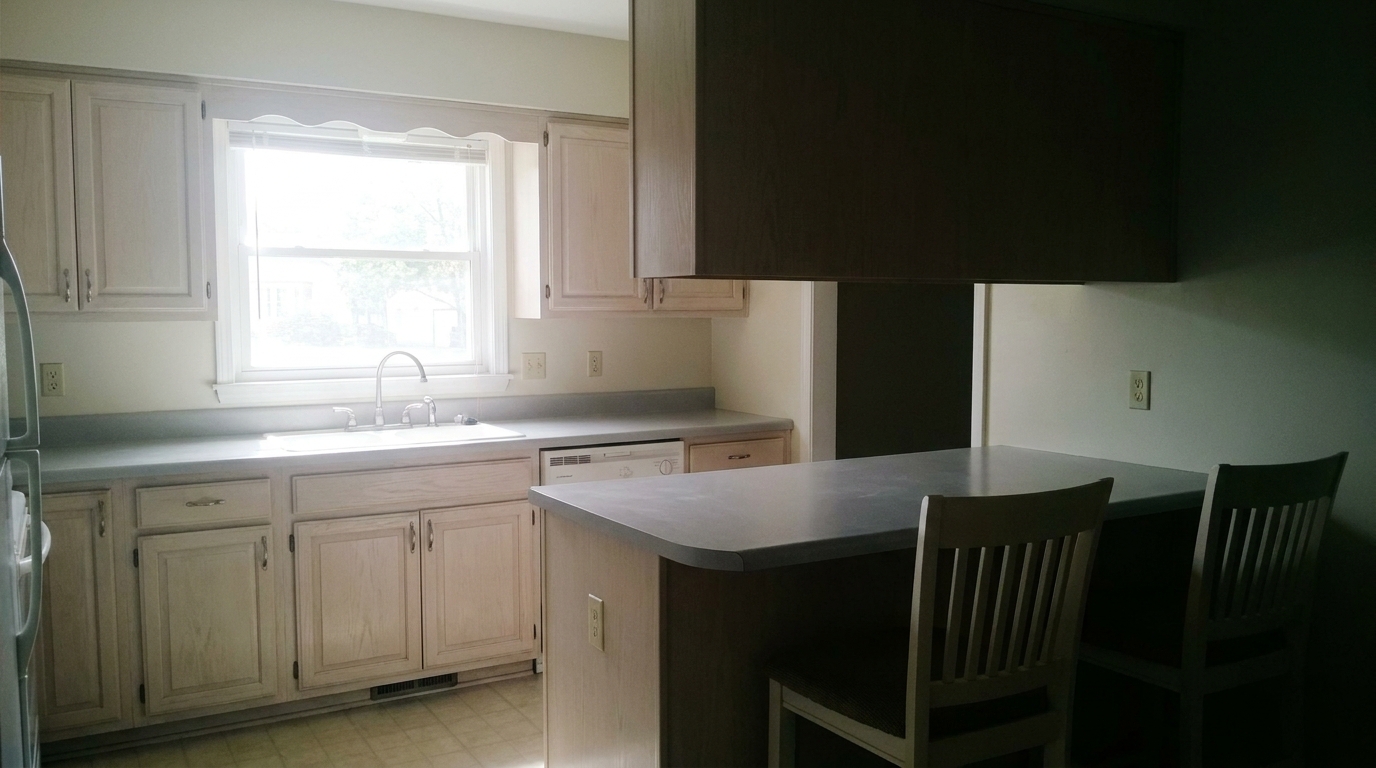
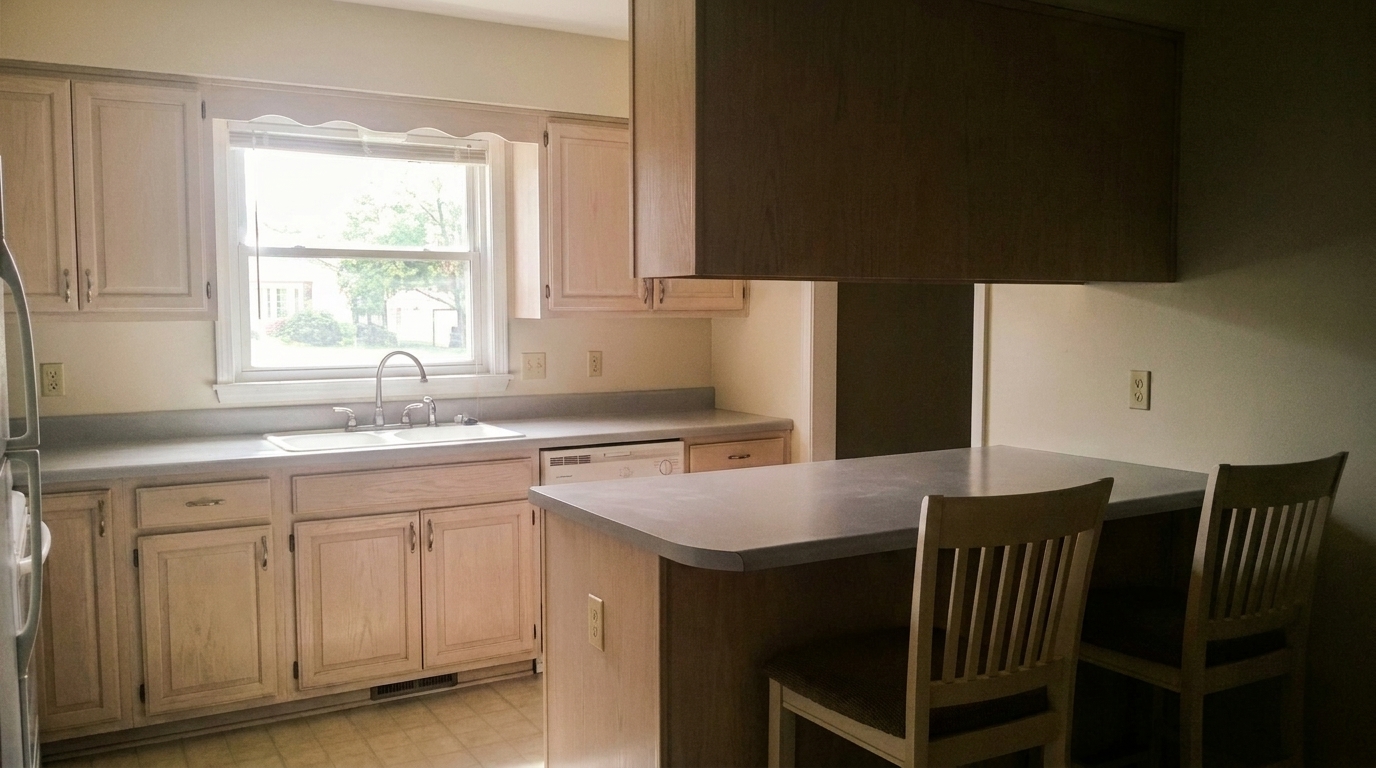

Kitchen with Window Glare
Kitchen with Window Glare updated with interior exposure balancing styling.
Instantly balance dark corners and bright window-adjacent areas. Create bright, welcoming, and naturally lit interior photos that attract buyers.
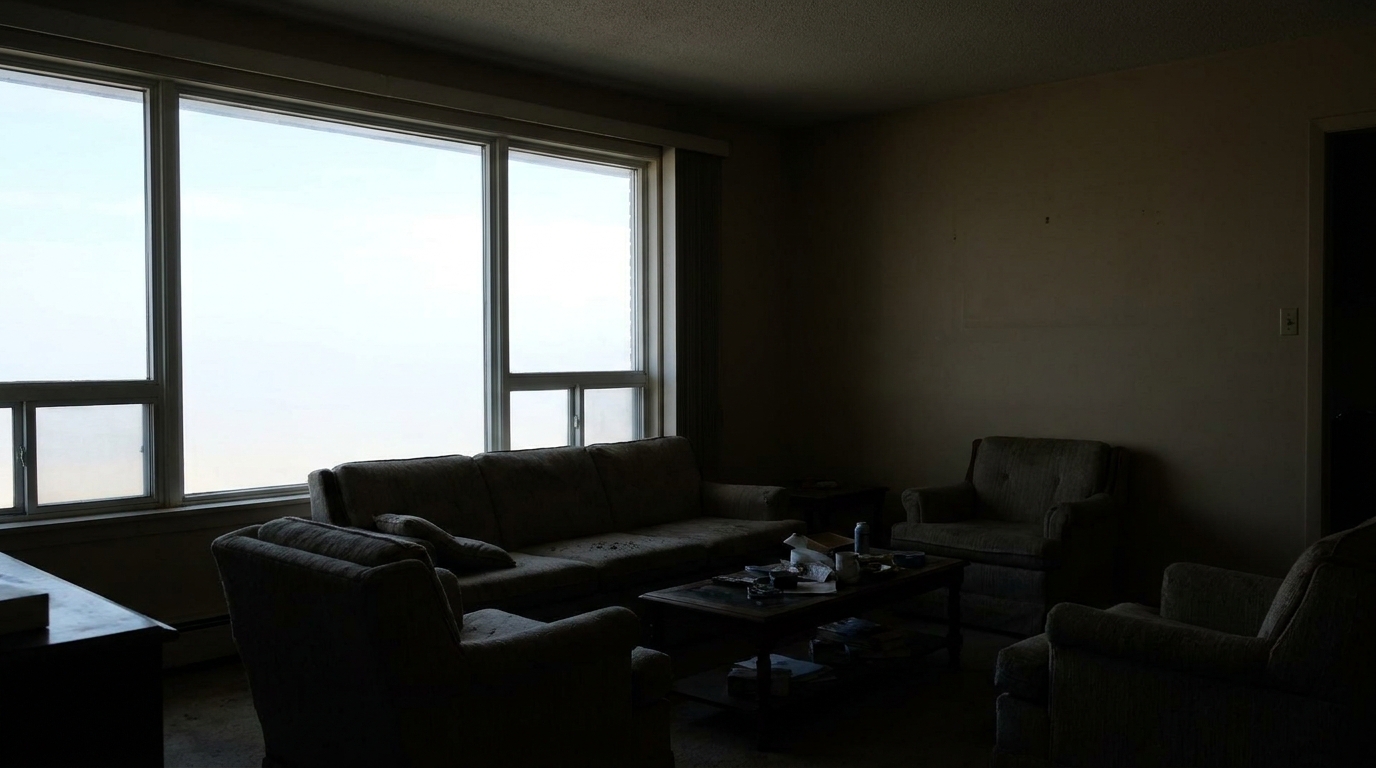
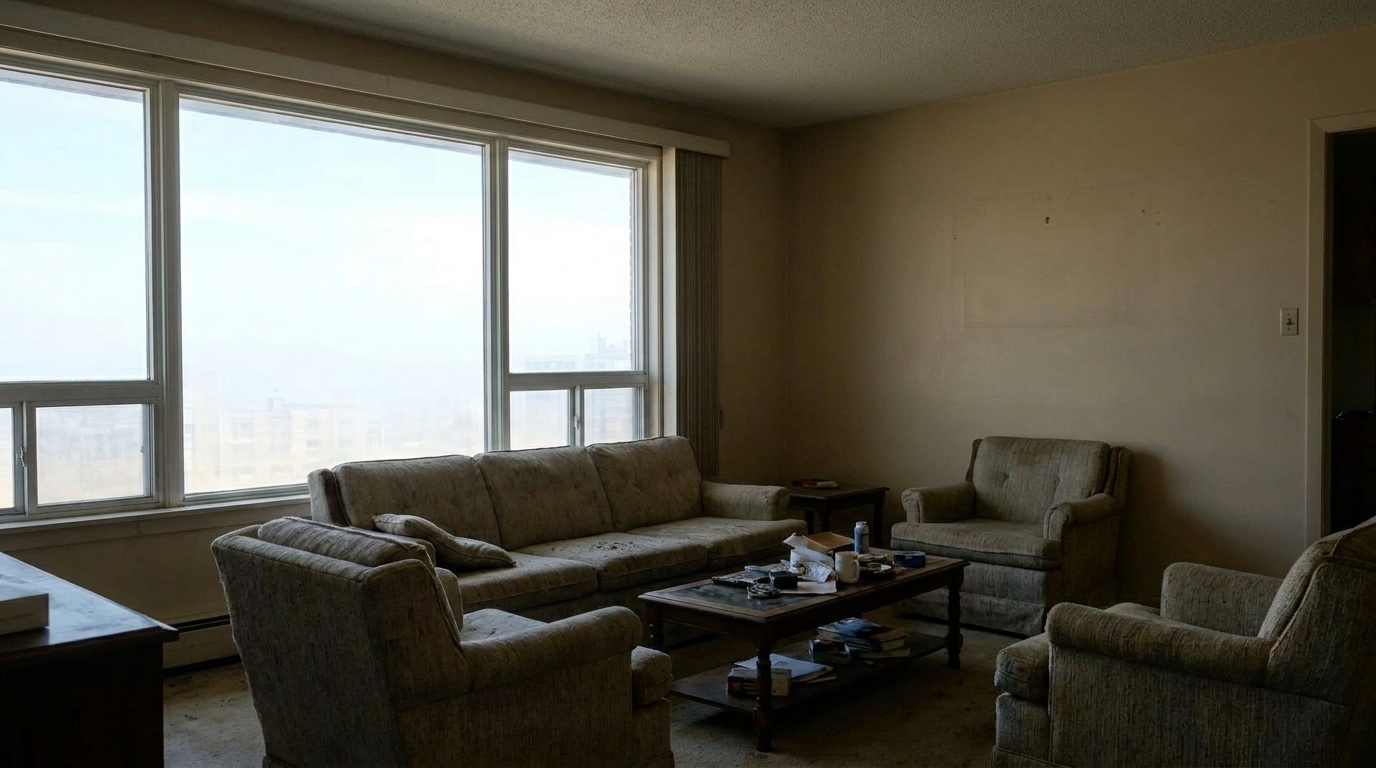
Compare the difference between uneven indoor lighting and perfectly balanced exposure.
Kitchen with Window Glare updated with interior exposure balancing styling.
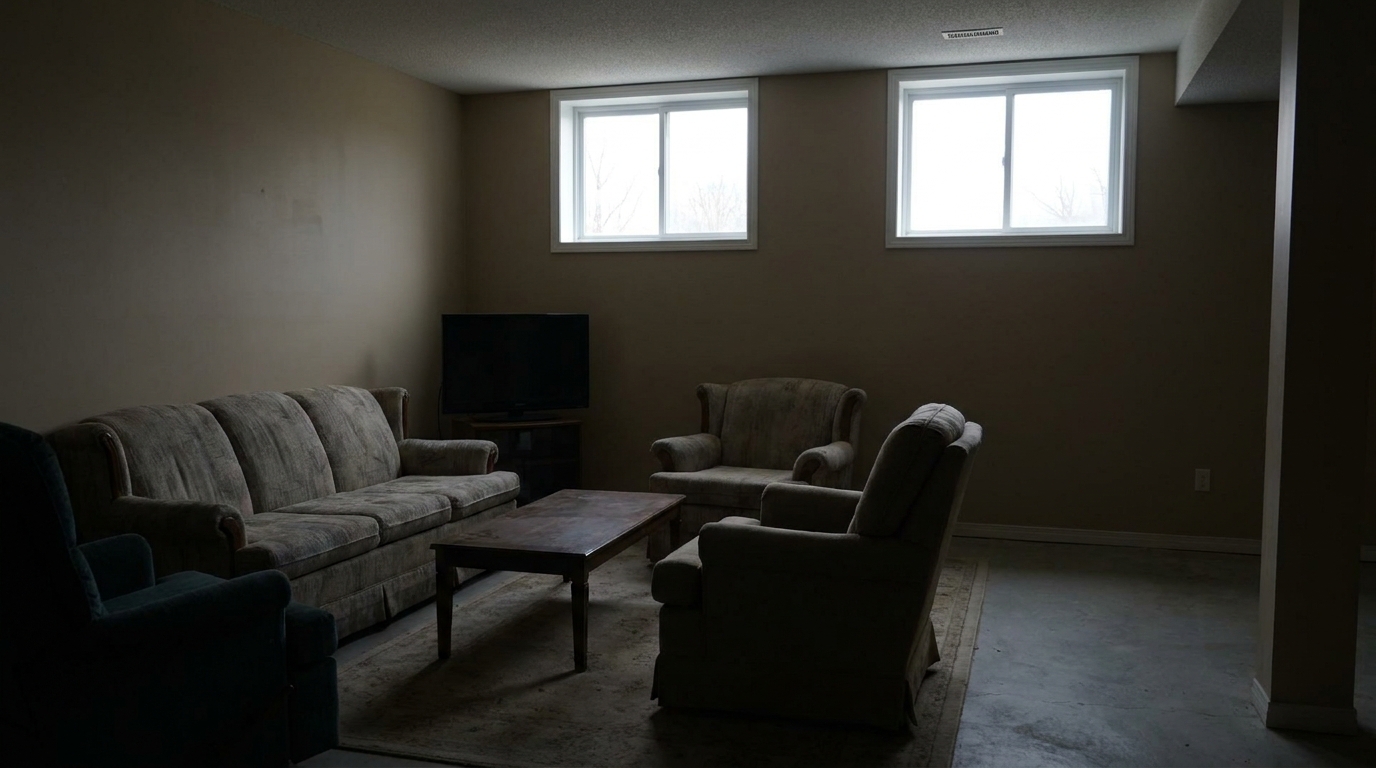
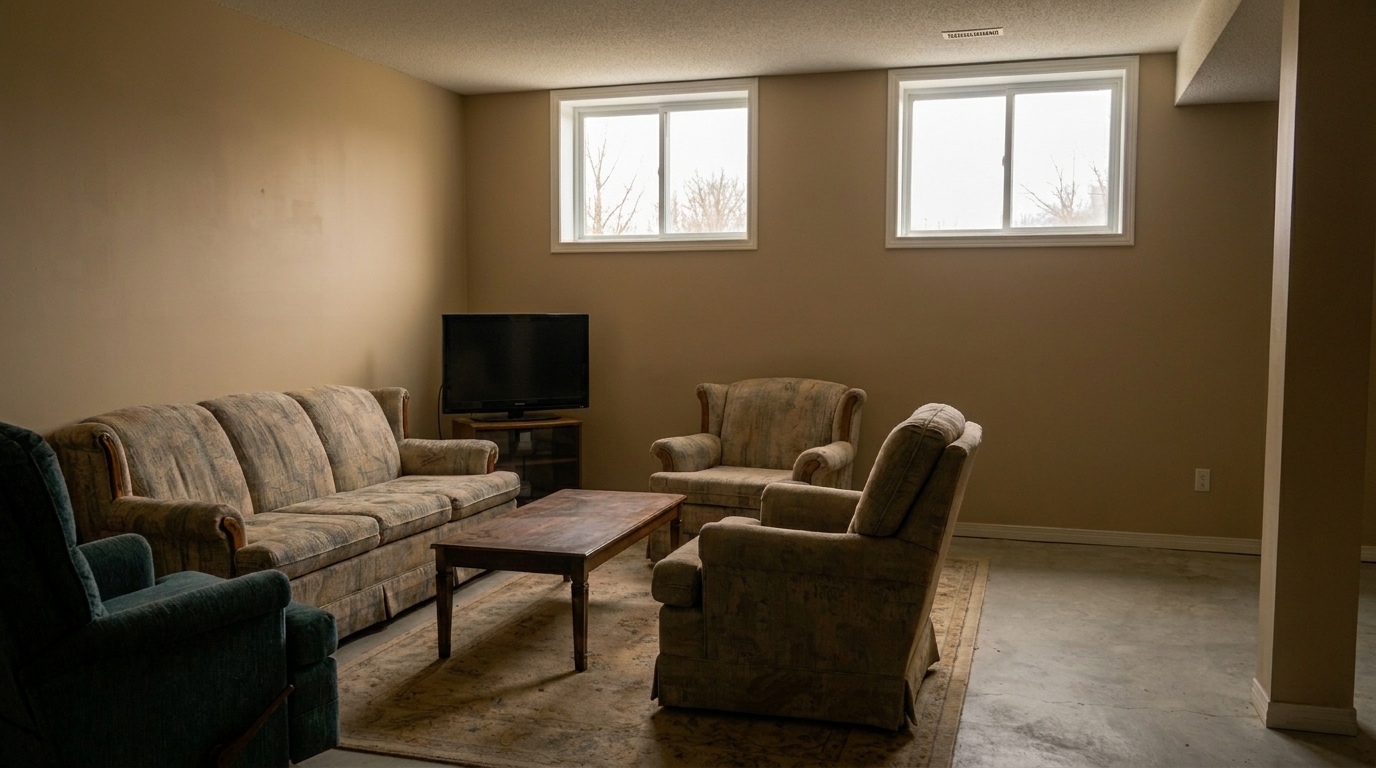
Basement Family Room updated with interior exposure balancing styling.
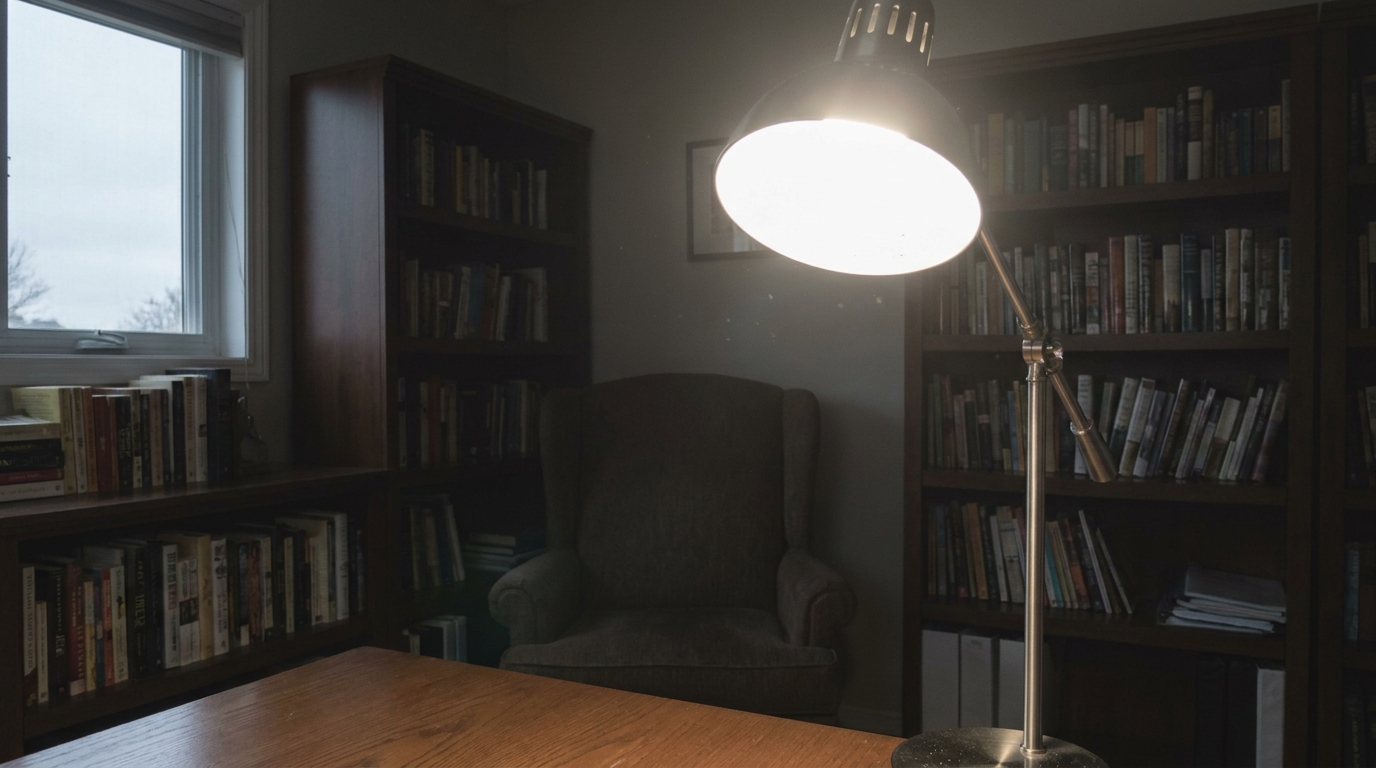
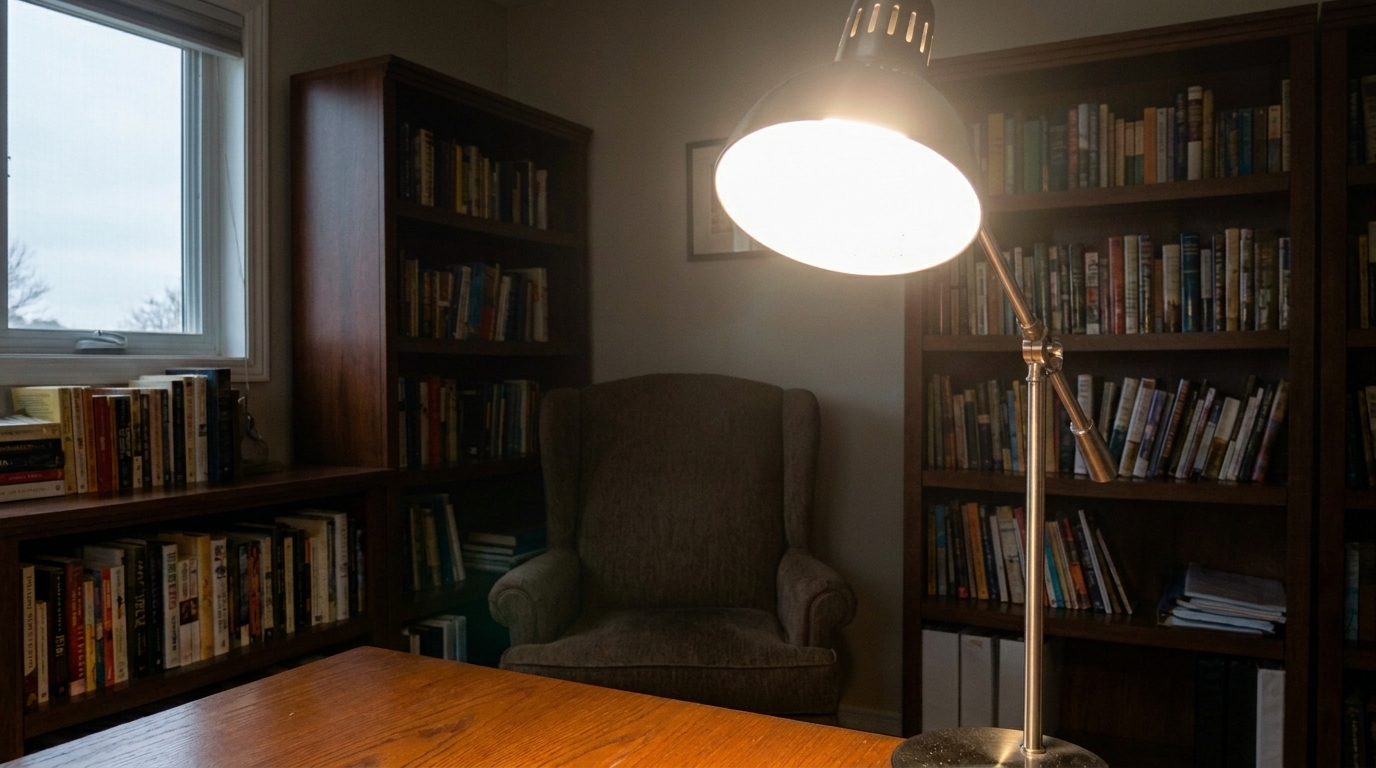
Home Office with Desk Lamp updated with interior exposure balancing styling.
Discover how our AI intelligently handles complex indoor lighting challenges.
Gently brightens dark corners and recessed areas of a room without introducing digital noise or grain.
Prevents bright areas near windows and light fixtures from blowing out, keeping fine details intact.
Smooths out the transitions between light and dark zones to create a cohesive, realistic room atmosphere.
Retains the authentic look of wood grain, fabrics, countertops, and wall textures during exposure adjustments.
Maintains realistic depth and dimension so the interior space never looks flat, washed out, or artificially edited.
Apply consistent exposure balancing across an entire set of interior listing photos simultaneously to save time.
See how real estate professionals use exposure balancing to elevate their listings.
Perfect for spaces where bright outdoor daylight causes the indoor seating area to appear dark and uninviting.
Living AreasBalances dark, narrow transition spaces that connect to brighter, open-concept rooms.
Foyers & HallwaysEvens out the contrast between bright overhead lighting, window views, and dark under-cabinet prep areas.
KitchensLifts deep shadows in rooms with limited natural light while keeping the cozy atmosphere realistic and clean.
Lower LevelsSmooths out the harsh contrast of golden hour light streaming directly through interior windows.
Golden HourEnsures a consistent, high-end, and evenly lit aesthetic across all interior photos in a listing portfolio.
PortfoliosFollow these simple steps to harmonize the lighting in your indoor property shots.
Select and upload any interior real estate photo that suffers from uneven lighting, dark corners, or high-contrast window glare.
Our AI automatically analyzes the scene, independently adjusting dark shadows, midtones, and bright window areas for a harmonious look.
Save your high-resolution, listing-ready photo featuring natural, balanced lighting that makes the space feel open and welcoming.
Source-backed context for why interior exposure balancing edits matter inside lighting, color & exposure workflows.
Interior Exposure Balancing within Lighting, Color & Exposure evidence
Photos are one of the most valuable website features for home buyers; NAR's 2025 generational trends report says 83% of internet-using buyers rated photos as very useful. For Interior Exposure Balancing pages, this supports showing how a focused Lighting, Color & Exposure edit can make the listing photo feel clearer, more polished, and easier for buyers to evaluate.
Source: NAR 2025Interior Exposure Balancing within Lighting, Color & Exposure evidence
Zillow Research's 2025 prospective buyer report ranked high-resolution photos as the number two most important listing feature, selected by 26% of prospective buyers; floor plans ranked first at 33%. For Interior Exposure Balancing pages, this supports showing how a focused Lighting, Color & Exposure edit can make the listing photo feel clearer, more polished, and easier for buyers to evaluate.
Source: Zillow 2025Interior Exposure Balancing within Lighting, Color & Exposure evidence
Redfin reported that professionally photographed homes in the $400,000 range sold three weeks faster and for more than $10,000 relative to list price compared with amateur photos. Use this as supporting context, not as a guaranteed result. For Interior Exposure Balancing pages, this supports showing how a focused Lighting, Color & Exposure edit can make the listing photo feel clearer, more polished, and easier for buyers to evaluate.
Source: RedfinCapturing the perfect balance of light inside a home is one of the biggest challenges in real estate photography. Learn how to use AI exposure balancing to create professional, inviting listing photos.
Interior spaces naturally present extreme dynamic range challenges. Cameras struggle to capture both the bright sunlight streaming through a window and the subtle details in a room's darker corners. This often results in photos that are either washed out near the windows or muddy and dark in the corners. Manual editing to fix this requires complex masking and brushwork, which is time-consuming for busy agents and photographers.
Our AI-powered Interior Exposure Balancing preset analyzes the entire image to identify highlights, midtones, and shadows. Instead of applying a global adjustment, it selectively lifts deep shadows to reveal furniture and architectural details while simultaneously dampening harsh highlights. This localized approach mimics the way the human eye naturally adjusts to different light levels, resulting in a photo that feels bright, open, and authentic.
To get the best results, it is important to match your photo's specific issue with the right tool. Use Interior Exposure Balancing when you have a room with mixed lighting—such as dark corners combined with bright window-adjacent areas. If the entire room is uniformly dim or underexposed, use the Brighten Dark Interior Photo preset instead. For situations where the interior looks great but the windows are completely blown out with white glare, choose the Overexposed Window Fix. Avoid using this interior-focused preset on exterior shots, as outdoor lighting requires different contrast and shadow handling.
While our AI tool is highly capable, starting with a good base photo ensures the highest quality output. When shooting, try to turn on all interior lights to add warmth and fill in shadows. Avoid shooting directly into intense, direct sunlight if possible; instead, shoot at an angle to the windows. If your camera supports it, shooting in high-quality JPG or RAW formats will provide the AI with more pixel data to recover details in the brightest and darkest areas of the room.
Choose from a range of specialized lighting tools to perfect your property photos.
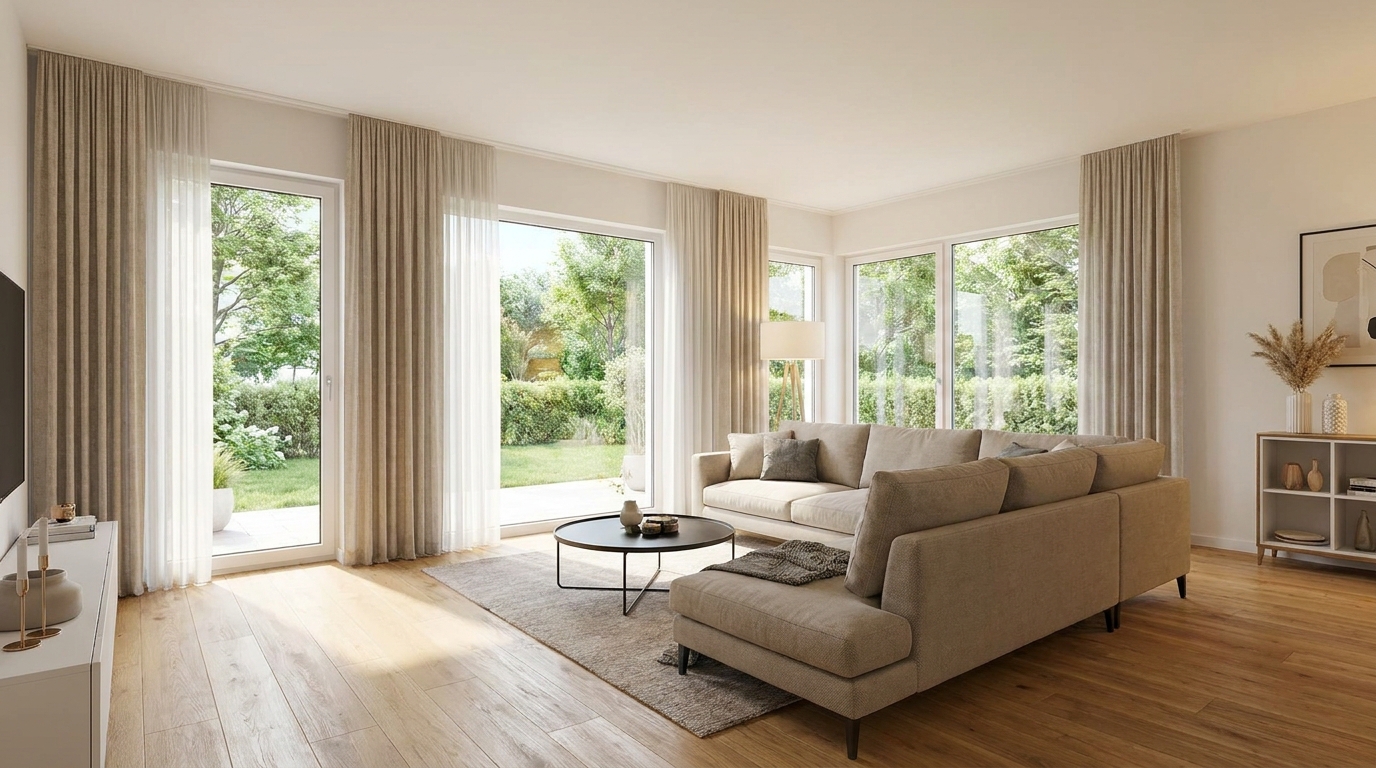
Recover highlight and shadow detail for a more balanced, high-end image.
Try This Tool →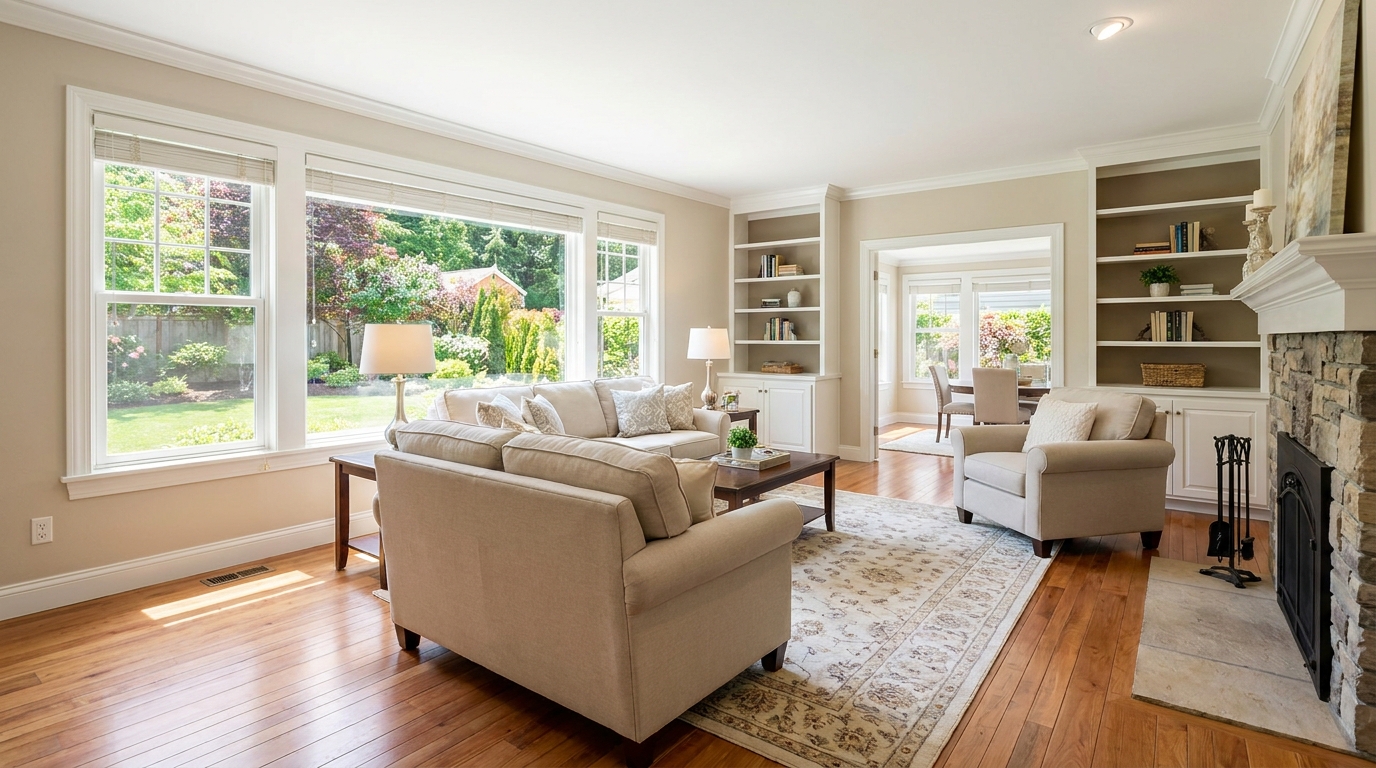
Brighten dim rooms while keeping materials and light natural.
Try This Tool →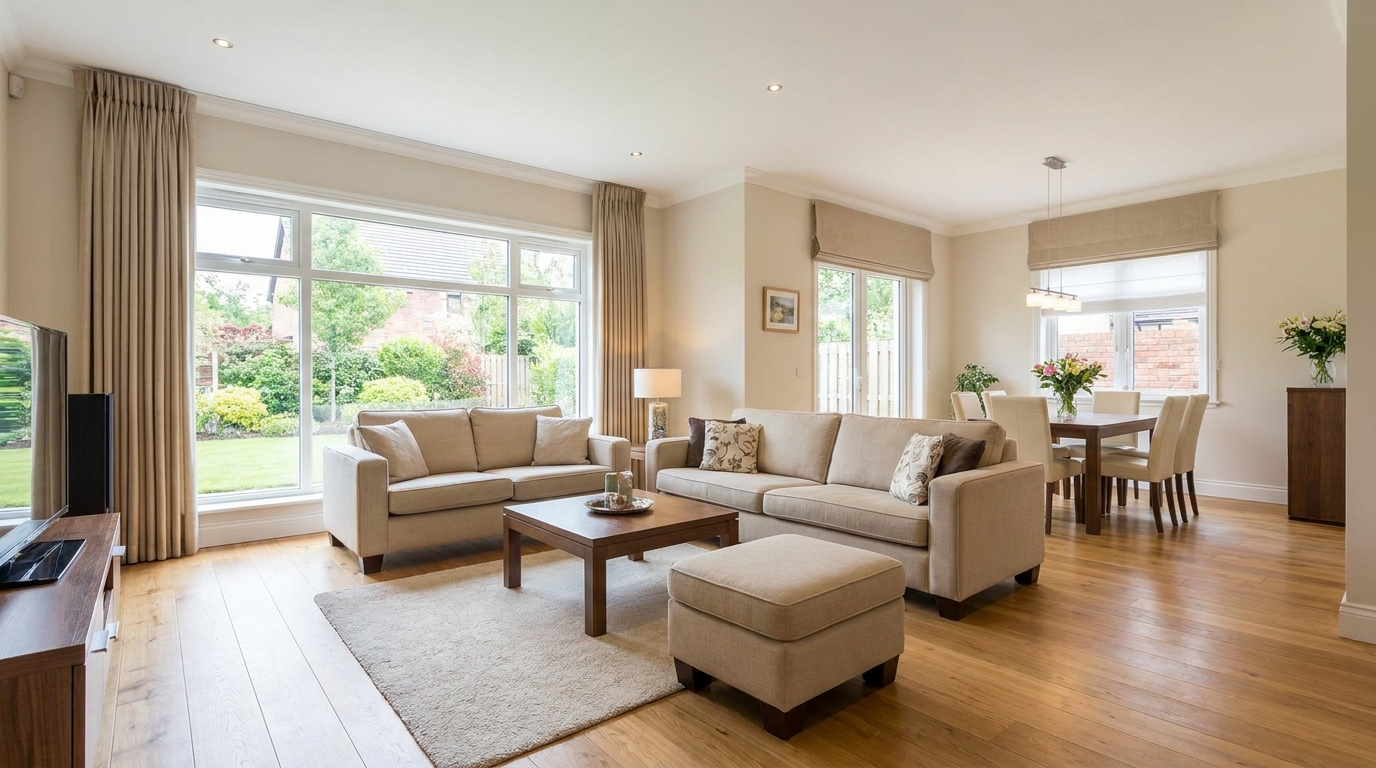
Lift overall exposure so listings feel cleaner, brighter, and easier to browse.
Try This Tool →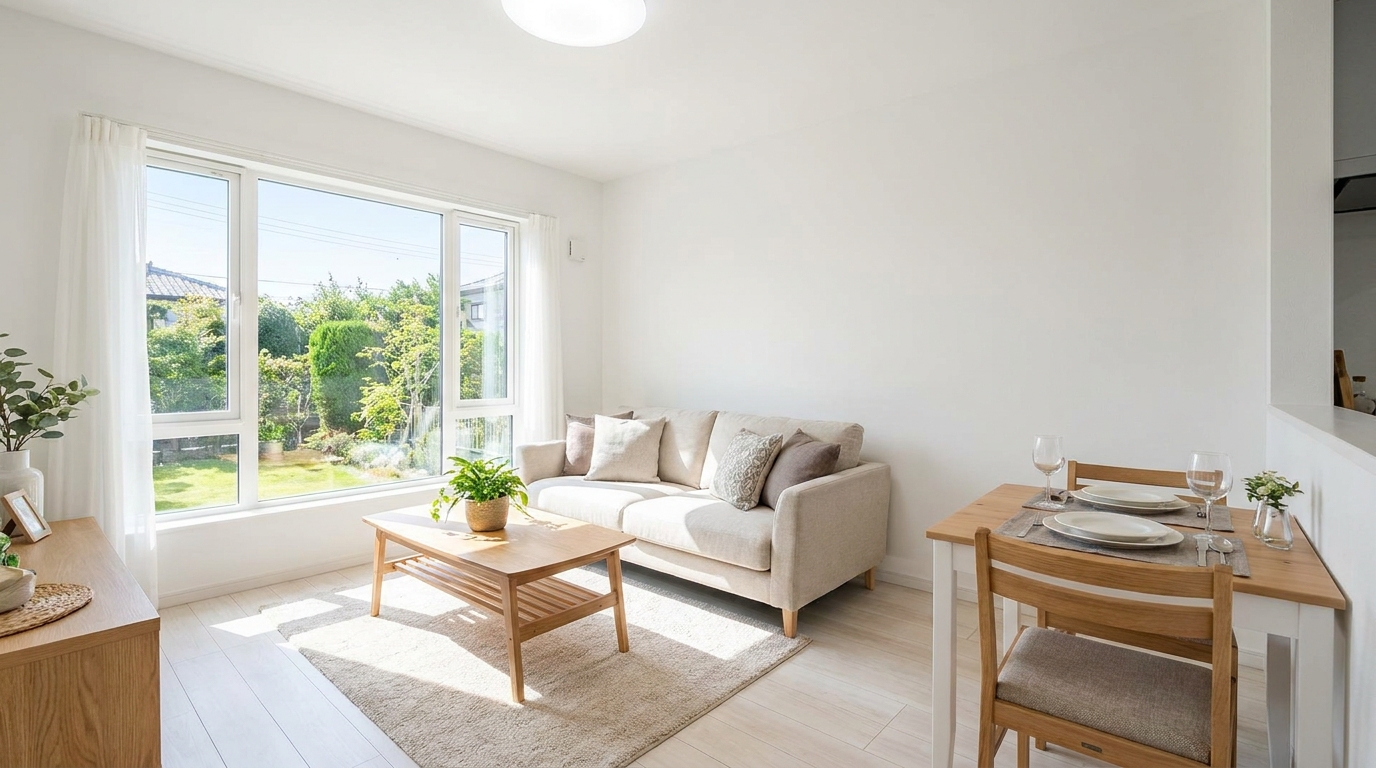
Add clean overall brightness for a fresher, more marketable photo.
Try This Tool →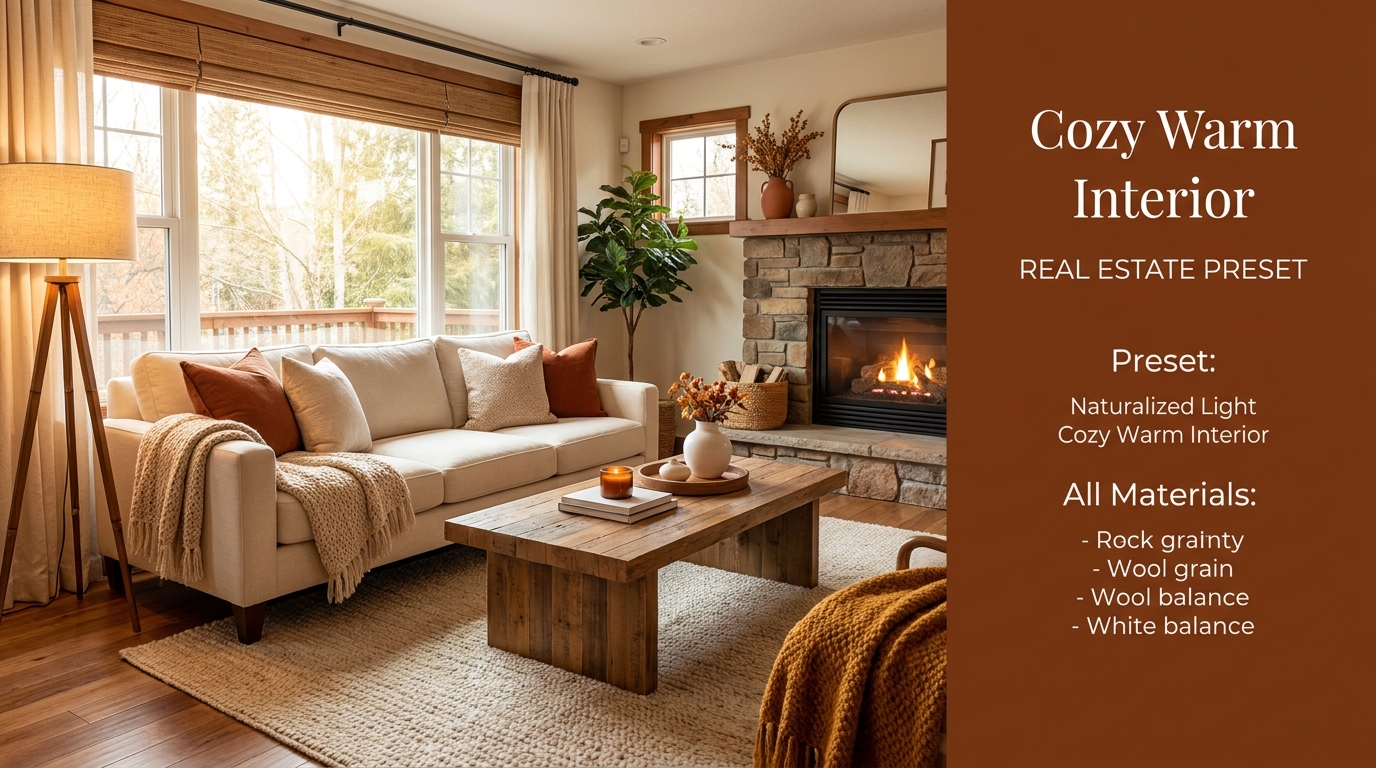
Introduce warm, welcoming tones that make interiors feel more inviting.
Try This Tool →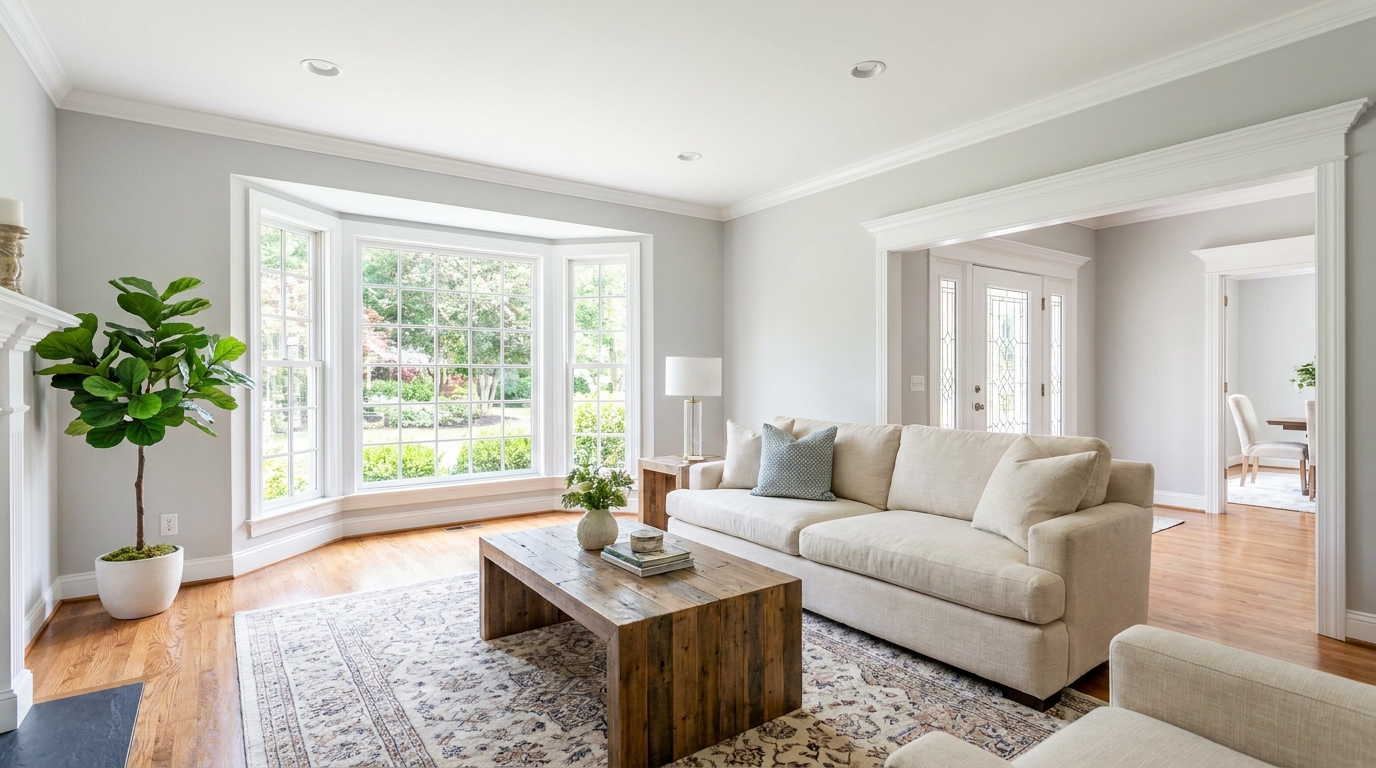
Increase brightness without washing out color, texture, or depth.
Try This Tool →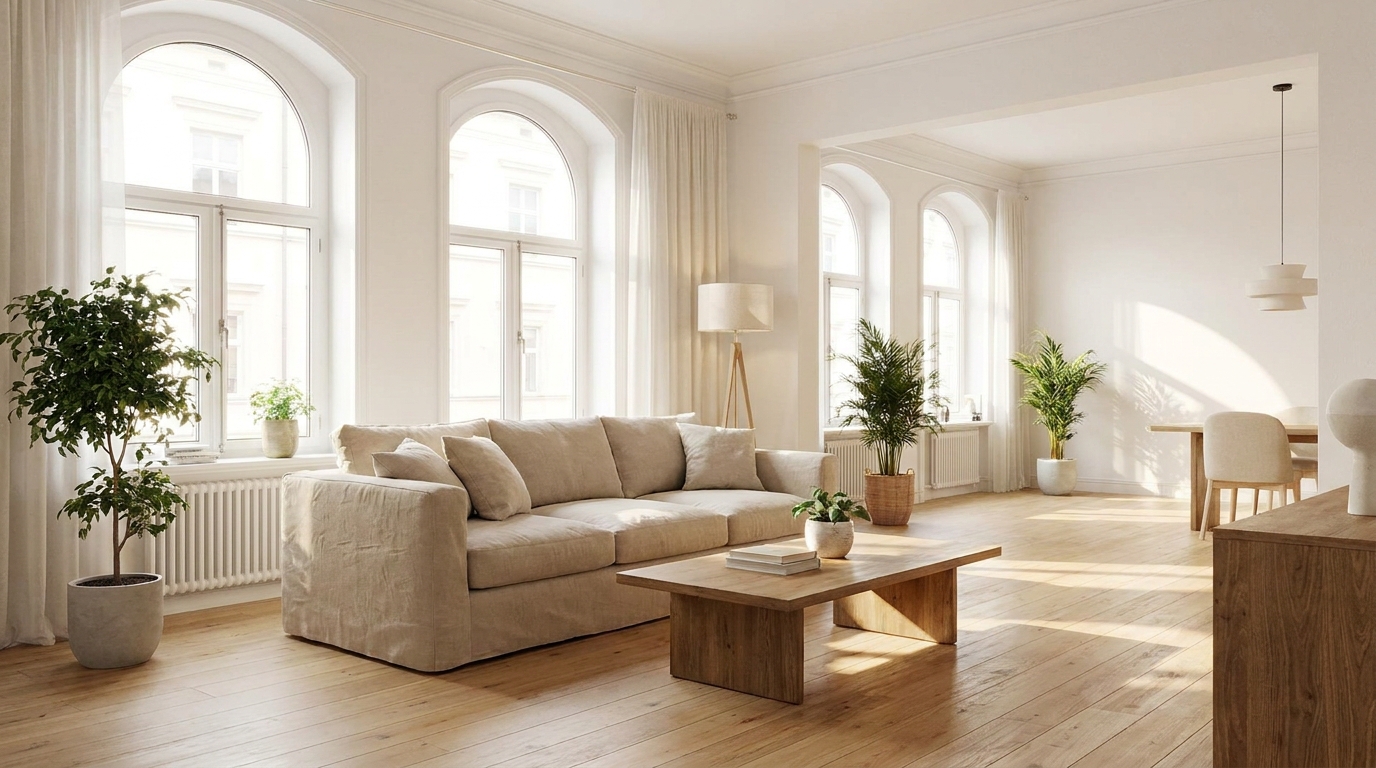
Create an airy natural-light feel that opens up the room beautifully.
Try This Tool →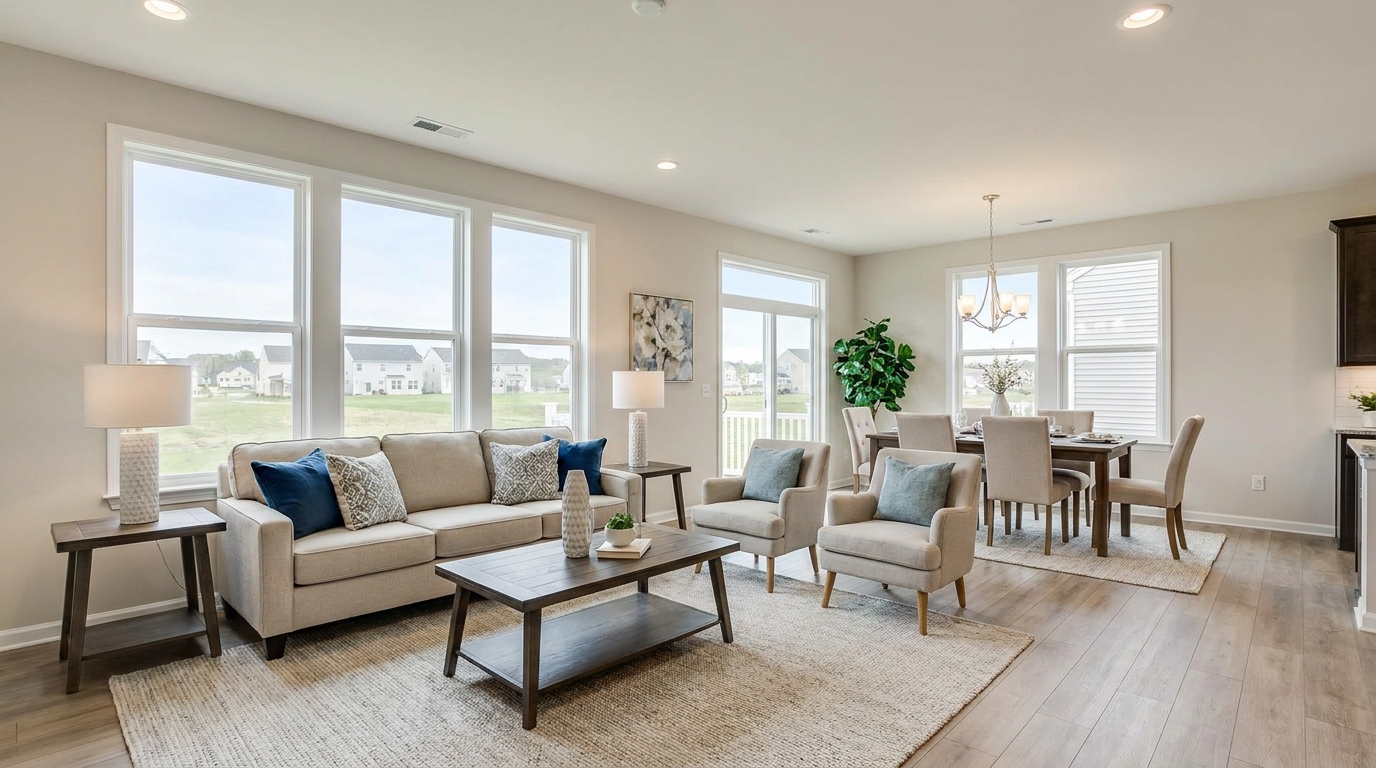
Smooth out uneven exposure for a bright, polished, professionally balanced look.
Try This Tool →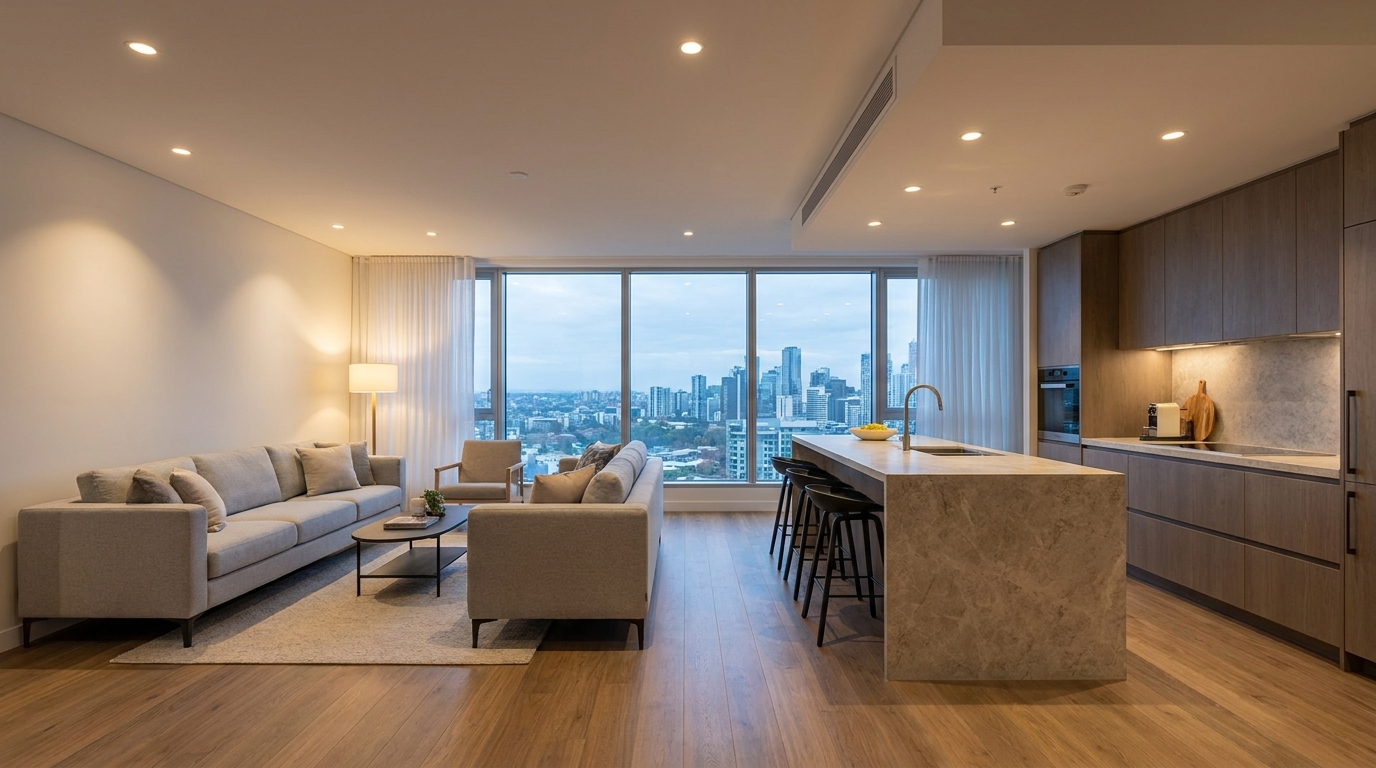
Correct mixed color temperatures for a cleaner, more cohesive image.
Try This Tool →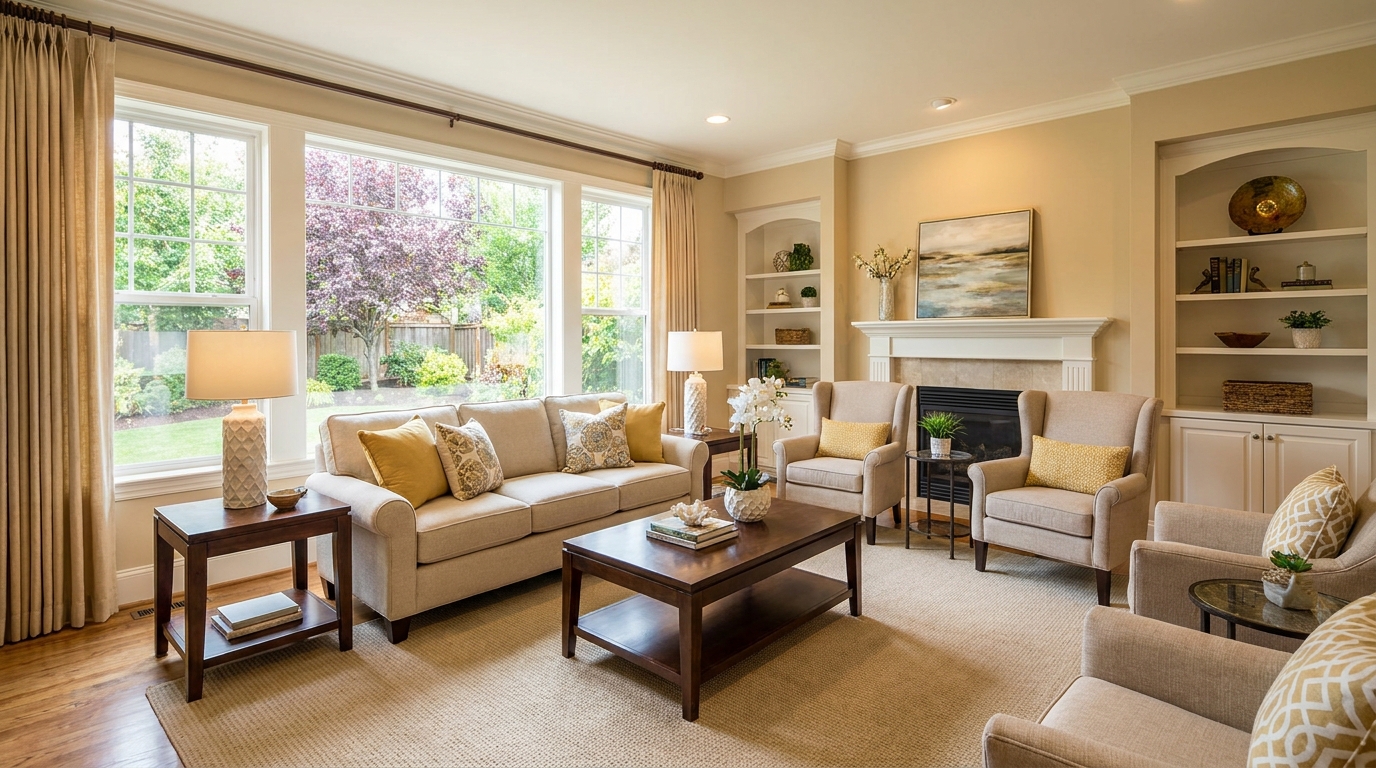
Restore depth and separation to flat photos with natural-looking contrast.
Try This Tool →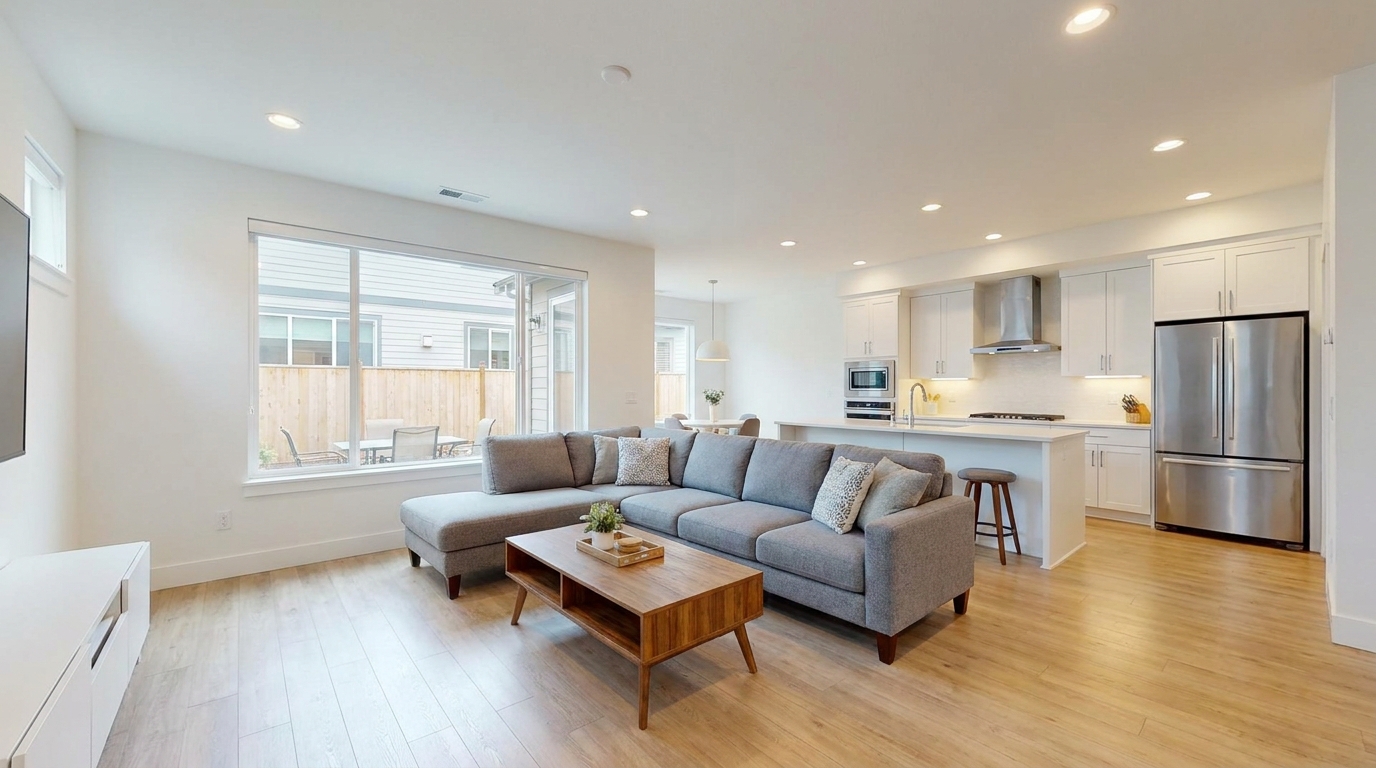
Neutralize green fluorescent casts for cleaner, more attractive indoor color.
Try This Tool →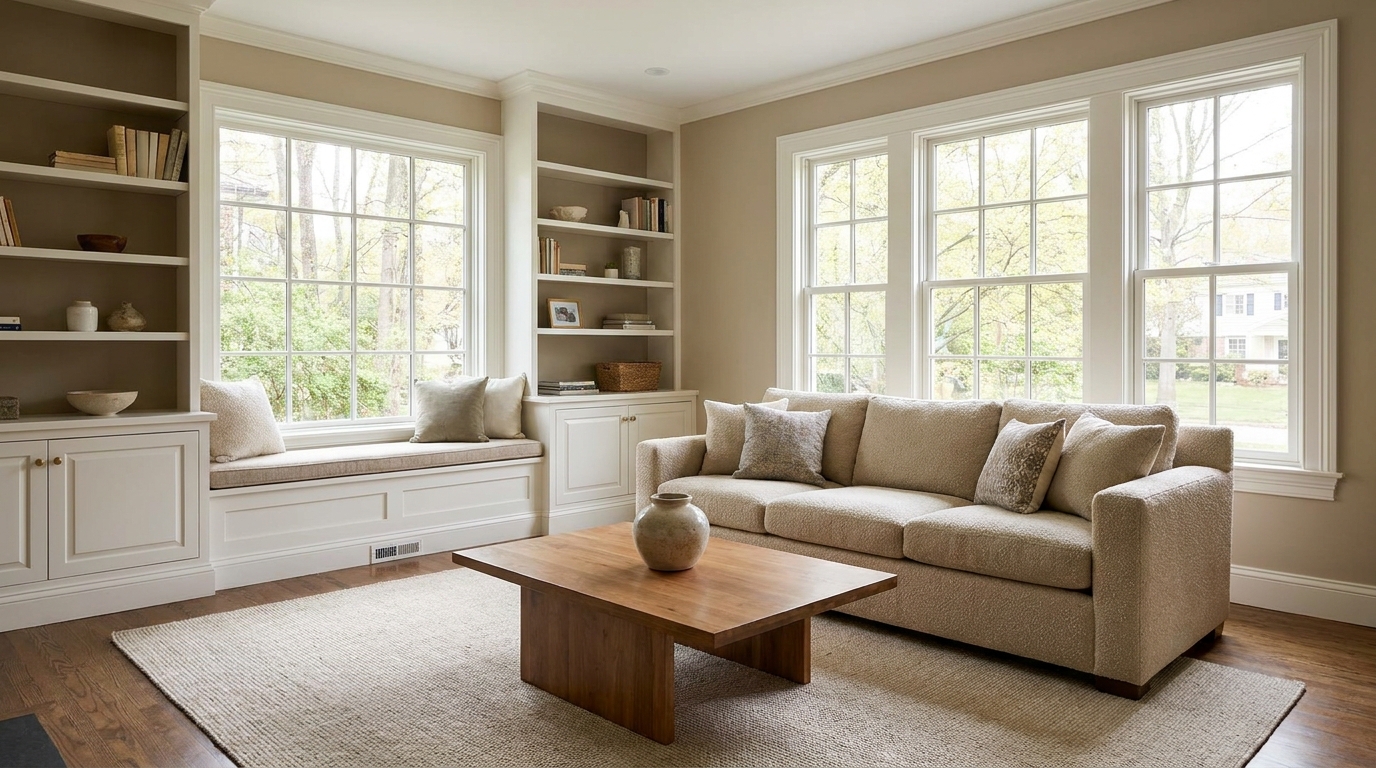
Lift dark images with natural brightness and clearer visible detail.
Try This Tool →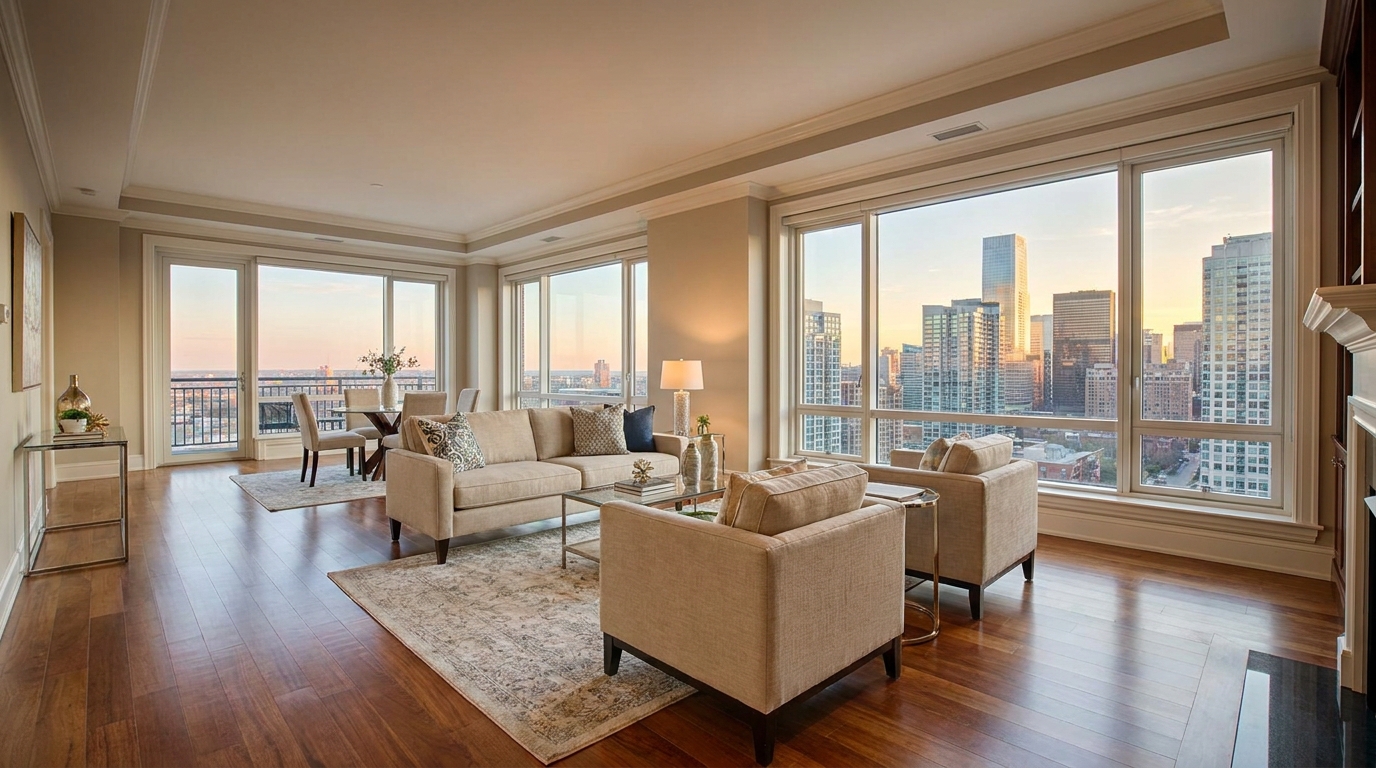
Add depth and definition for images that feel sharper and more dimensional.
Try This Tool →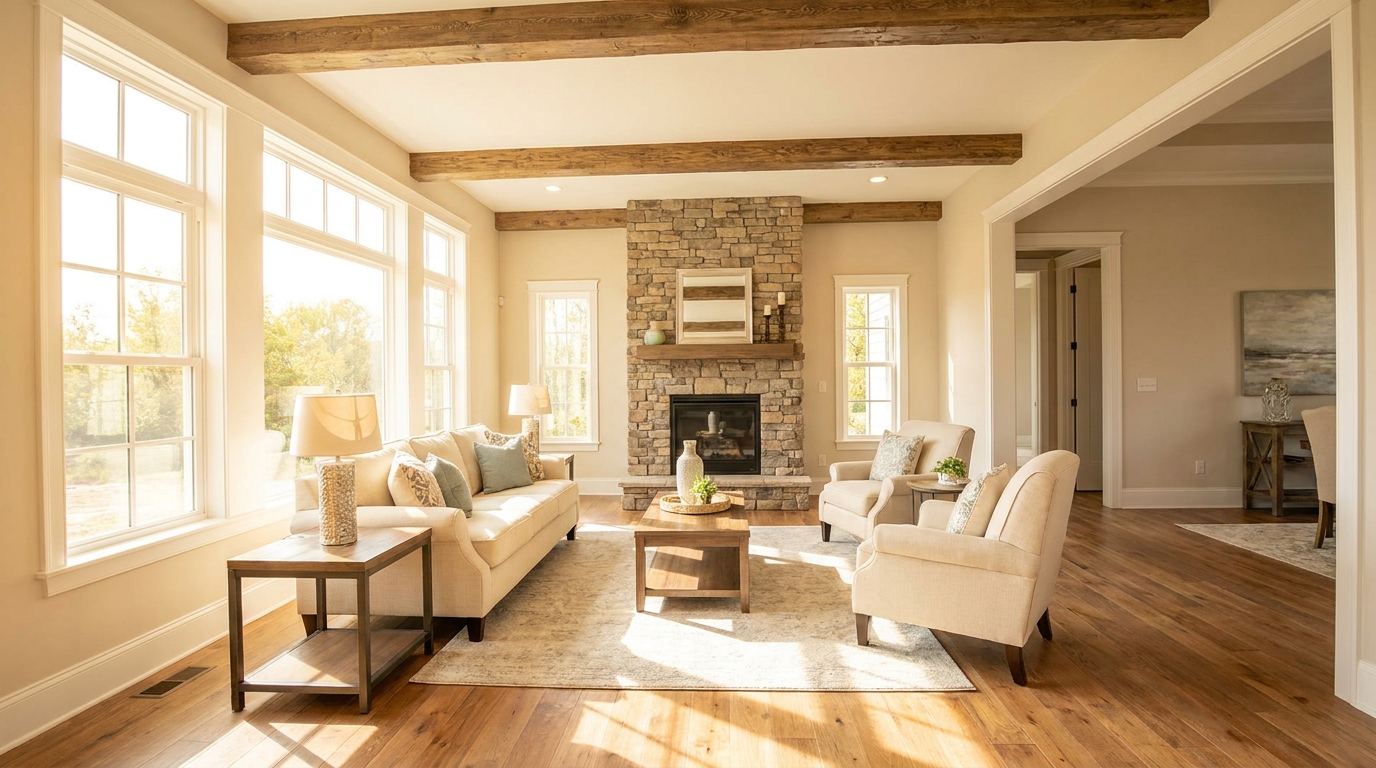
Make listing photos brighter and more open without losing realism.
Try This Tool →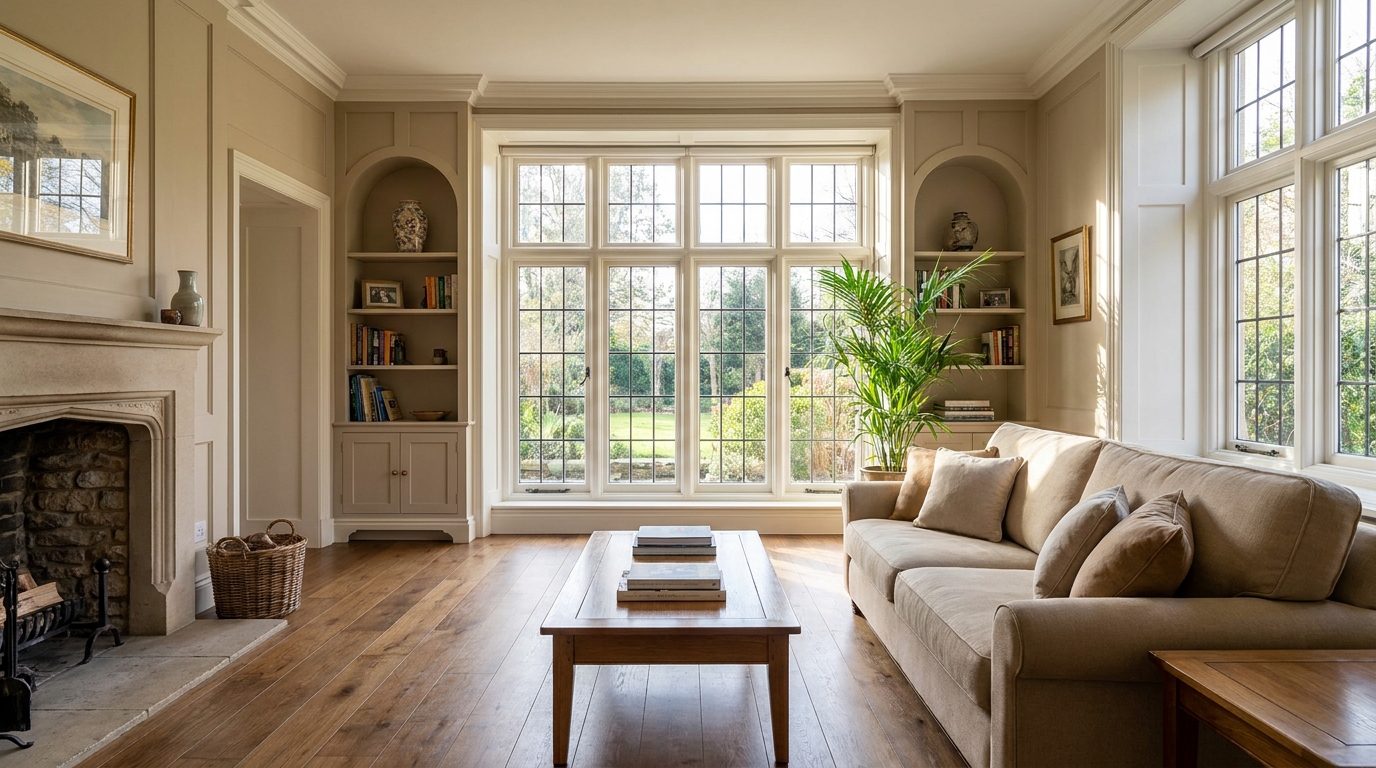
Reveal shadow detail while keeping contrast realistic and clean.
Try This Tool →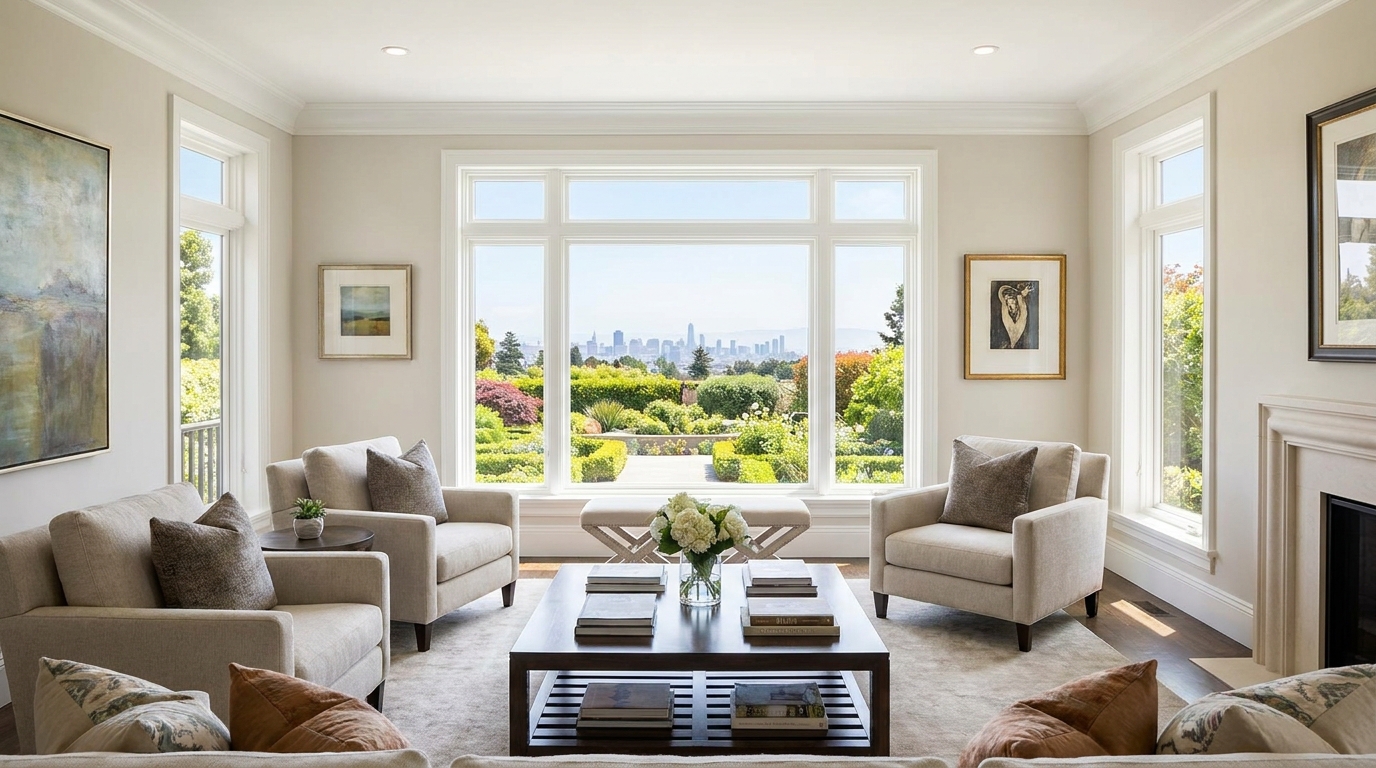
Recover blown window areas for brighter rooms with believable exterior views.
Try This Tool →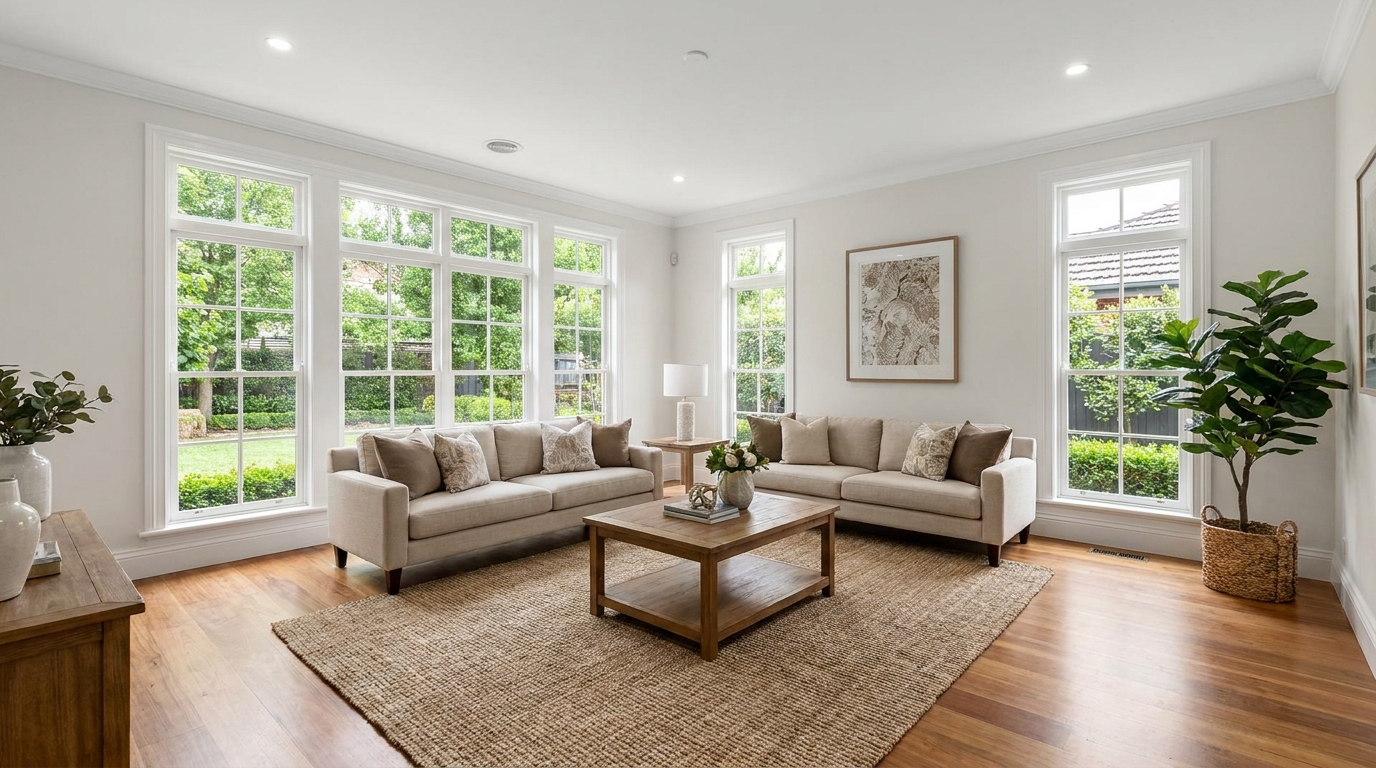
Neutralize color issues for truer tones, cleaner whites, and a polished finish.
Try This Tool →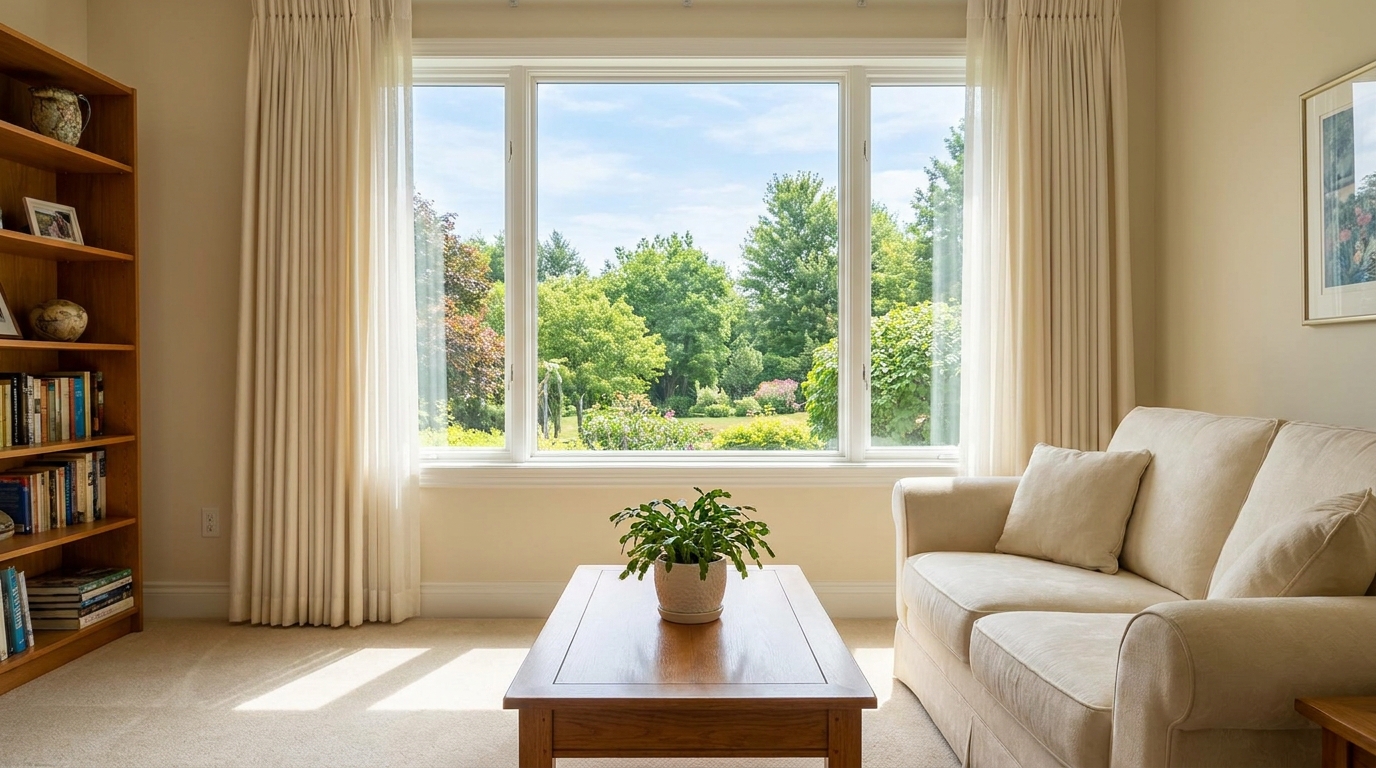
Bring back bright-area detail for a smoother, more controlled exposure.
Try This Tool →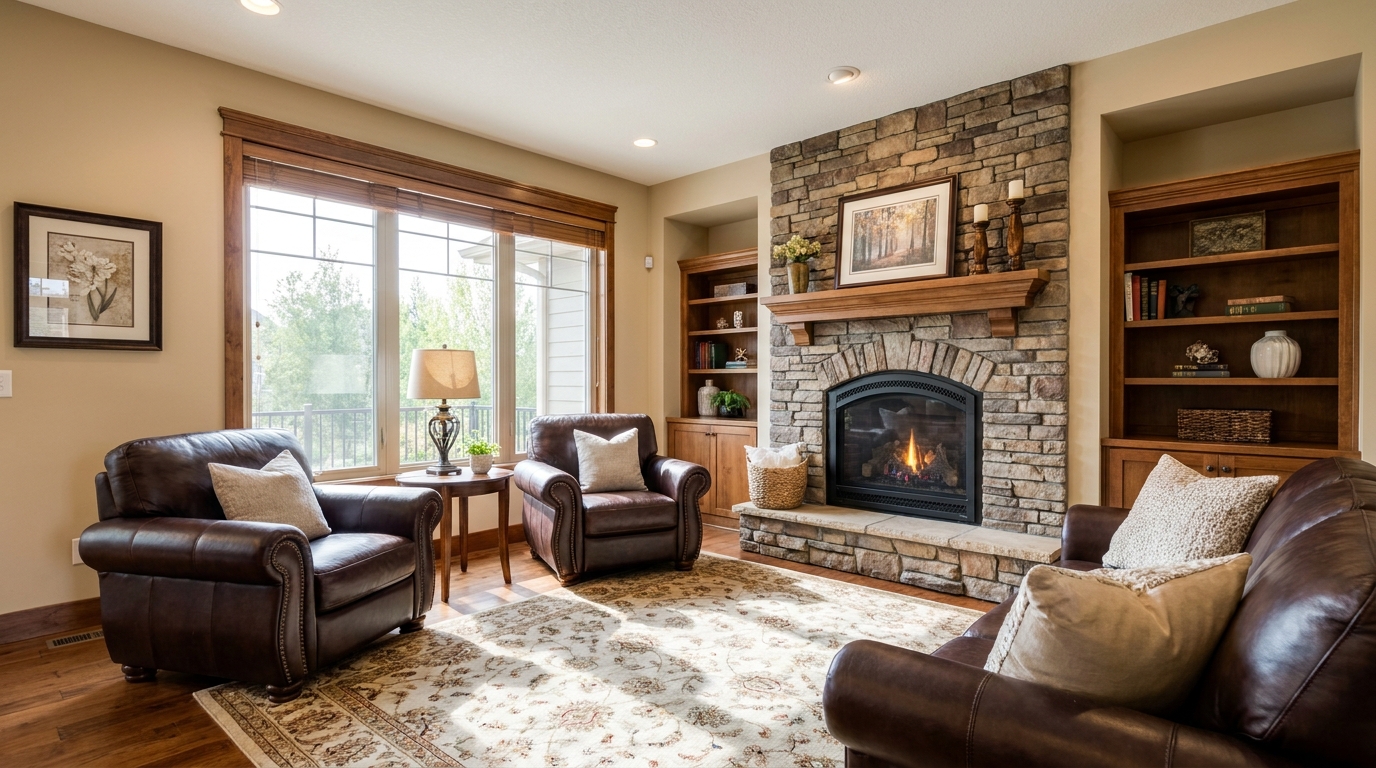
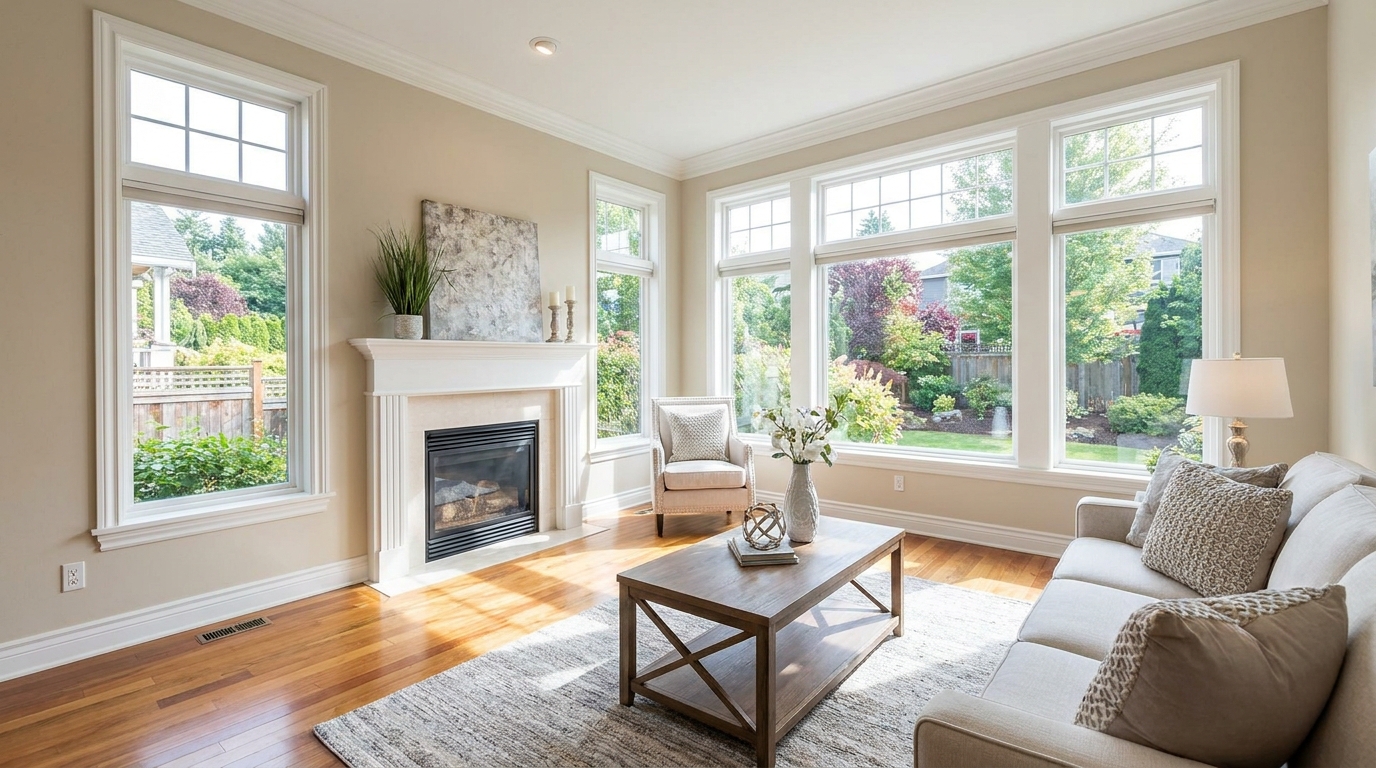
Soften harsh highlights to create a more even, natural-looking image.
Try This Tool →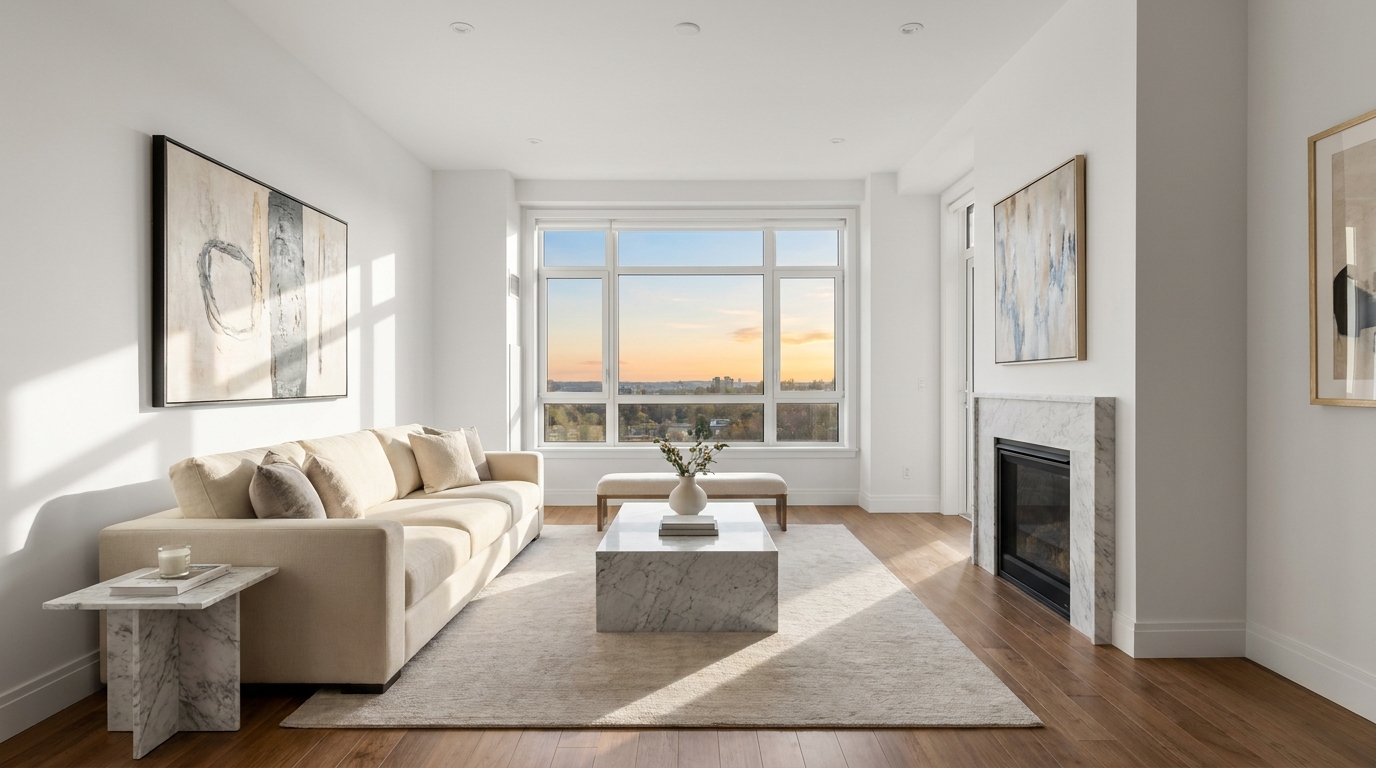
Remove unwanted tints so surfaces and whites look accurate and consistent.
Try This Tool →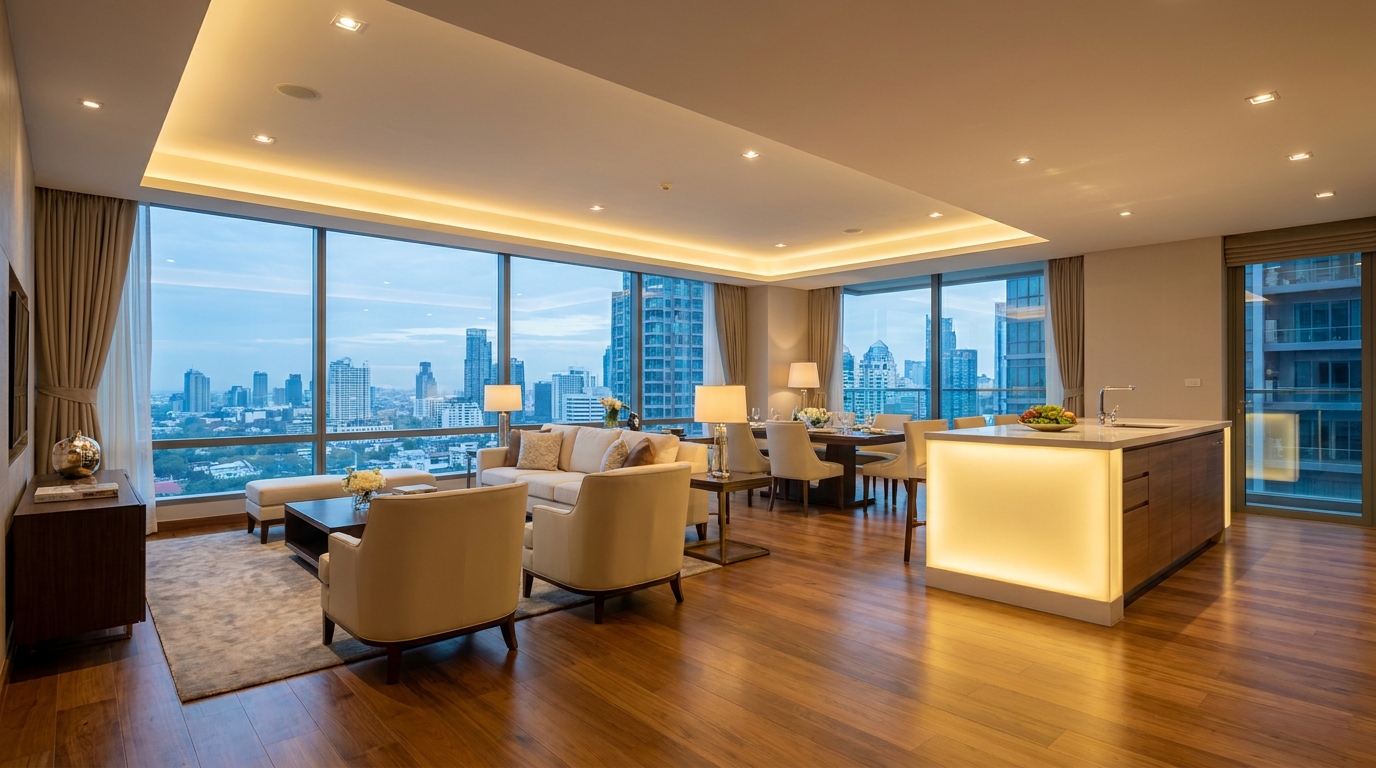
Blend warm and cool light sources into one natural, cohesive scene.
Try This Tool →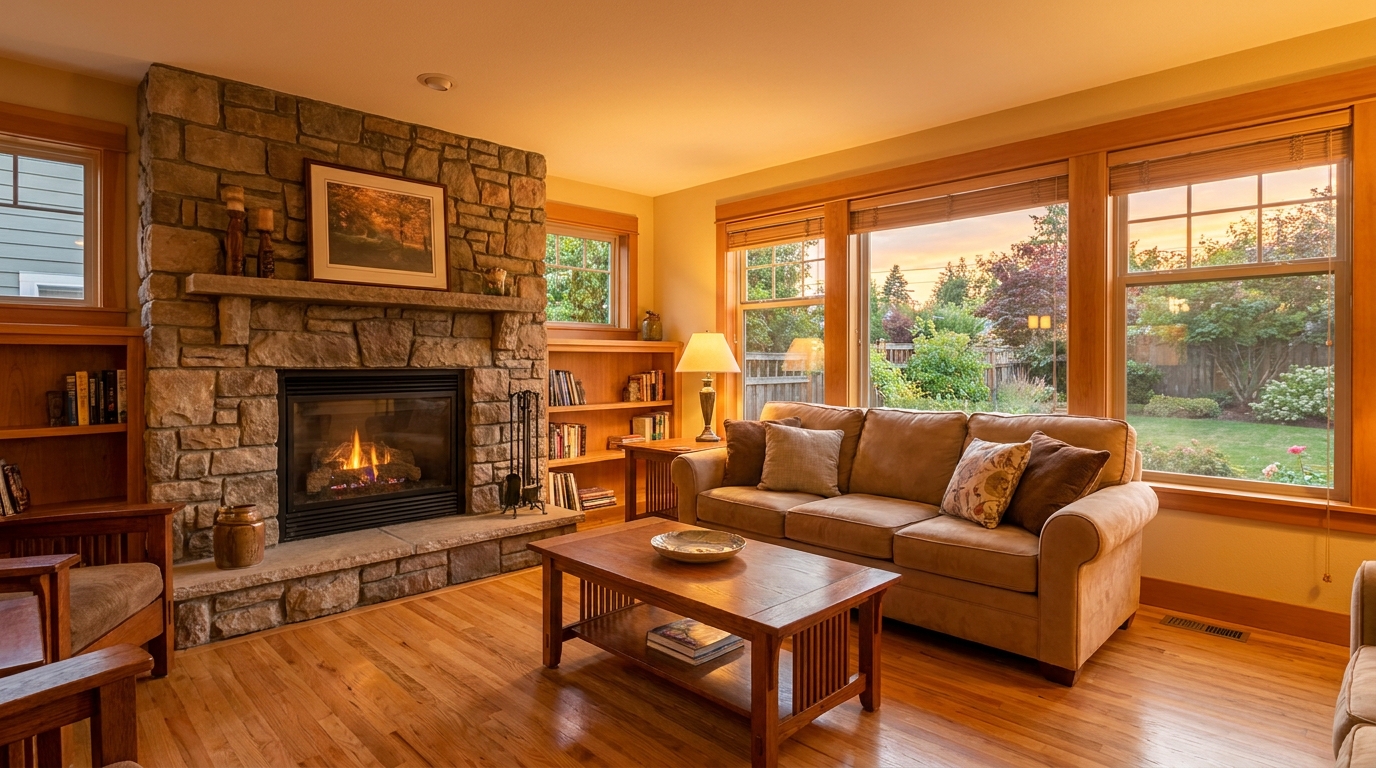
Add tasteful warmth for a friendlier, more inviting presentation.
Try This Tool →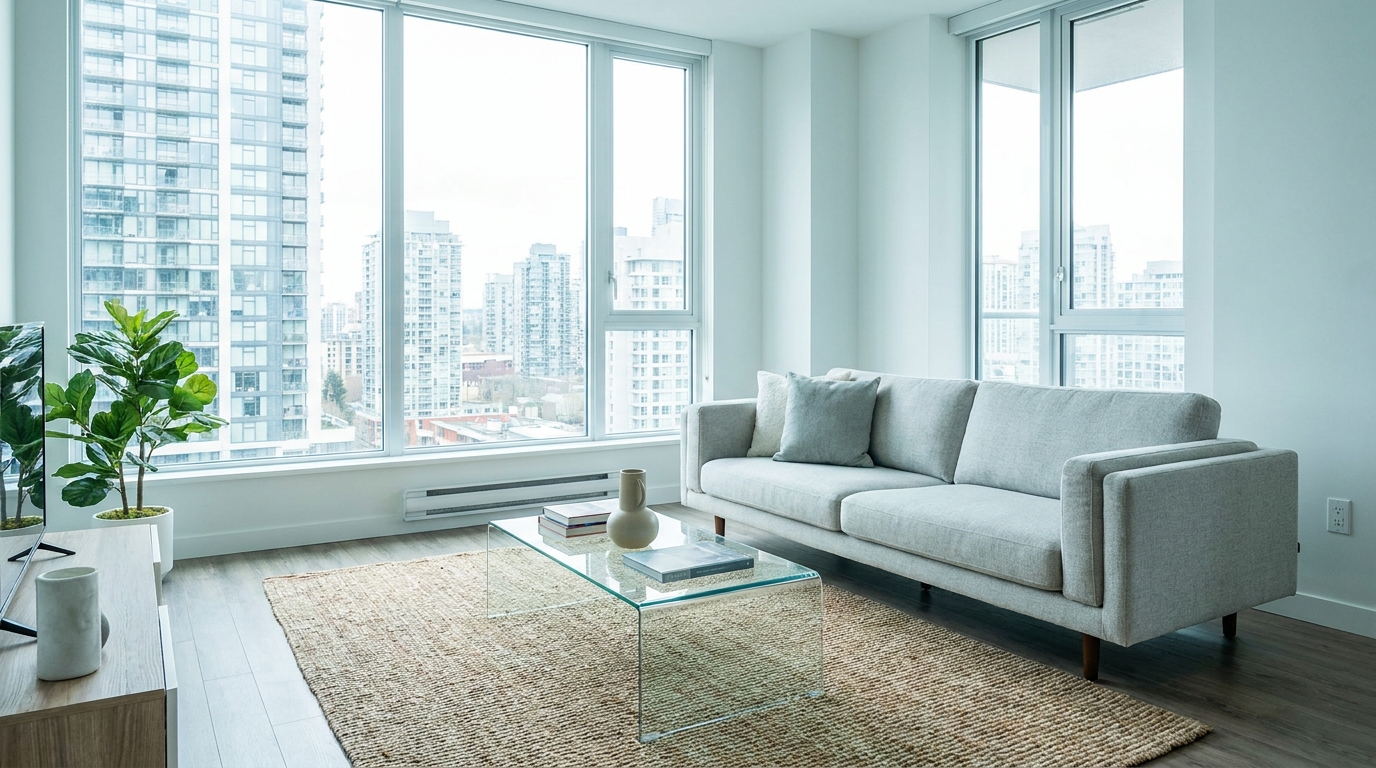
Introduce crisp, modern cool tones without making the image feel cold.
Try This Tool →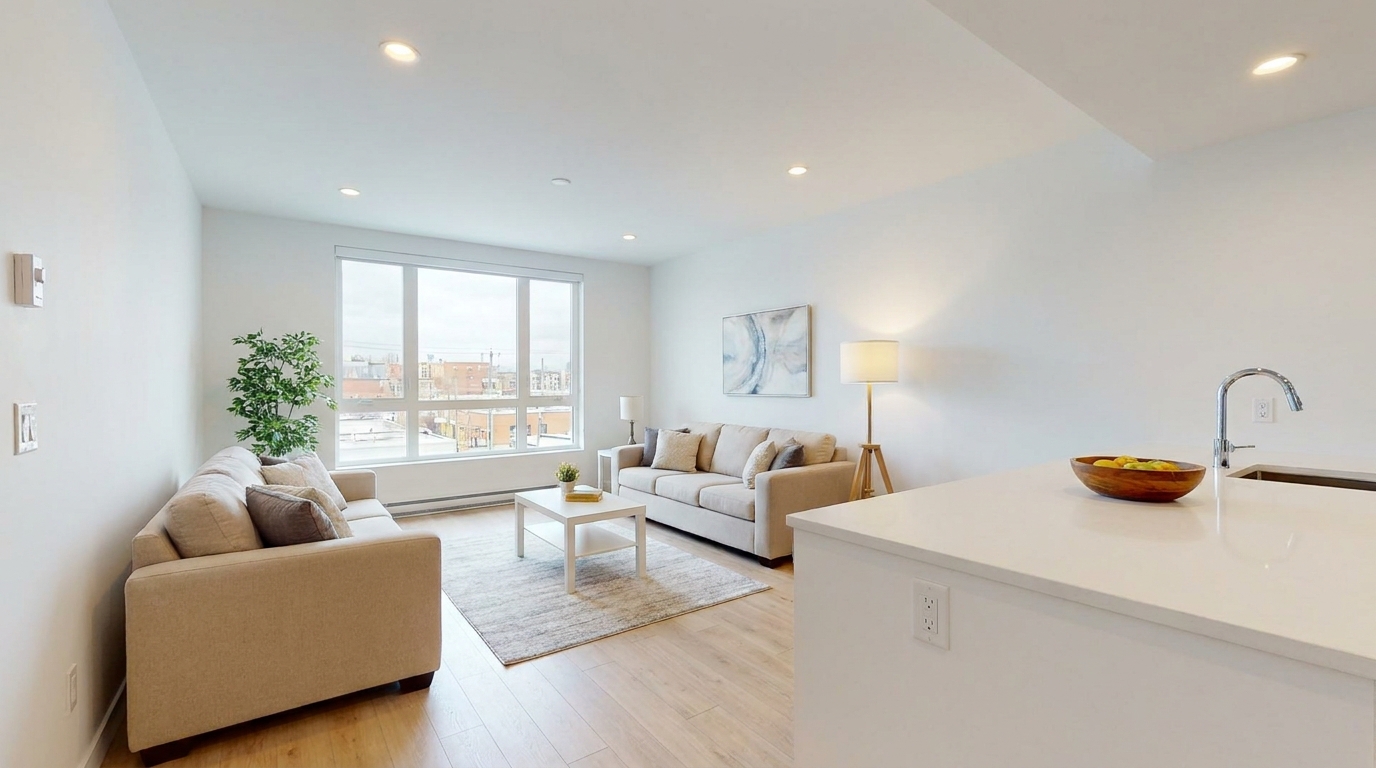
Correct white balance for interiors that feel clean, natural, and professionally edited.
Try This Tool →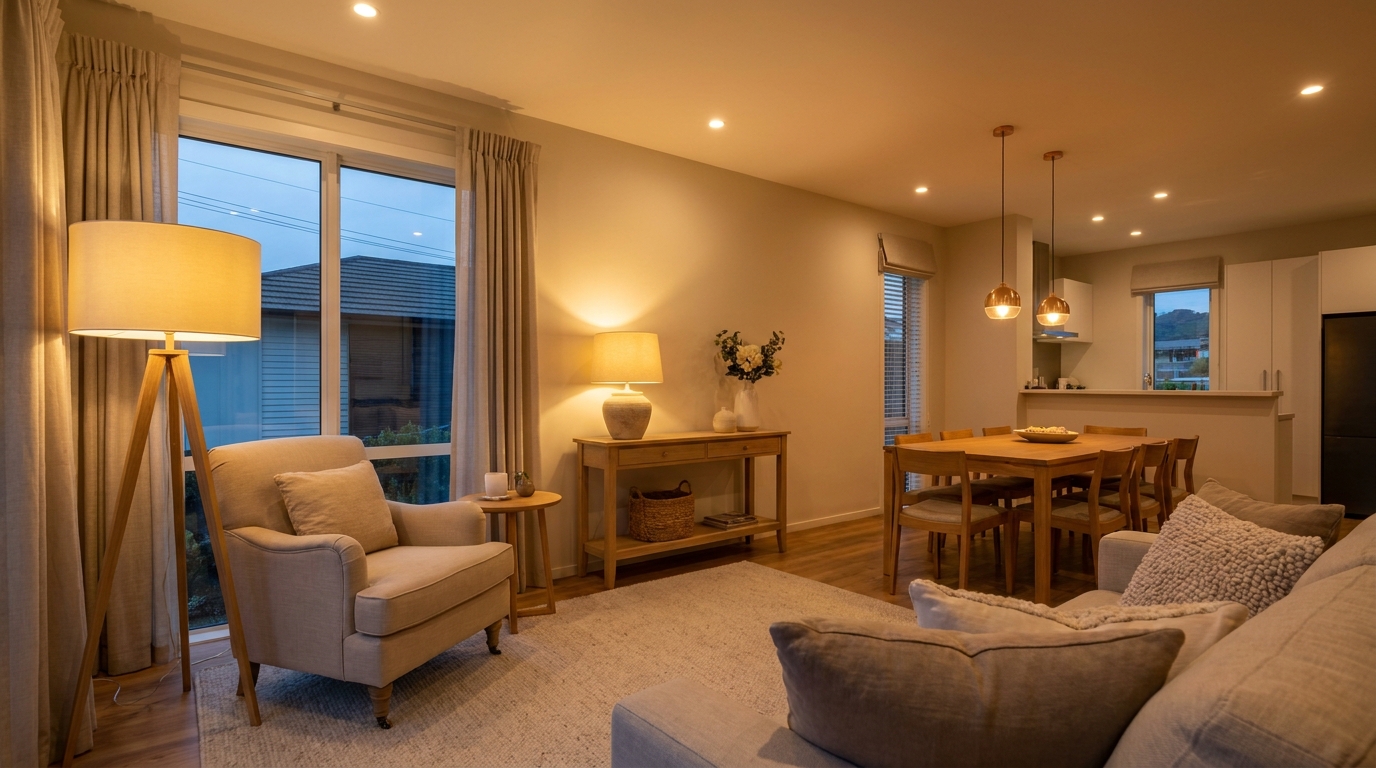
Add realistic lamp and fixture glow to make rooms feel warmer and more welcoming.
Try This Tool →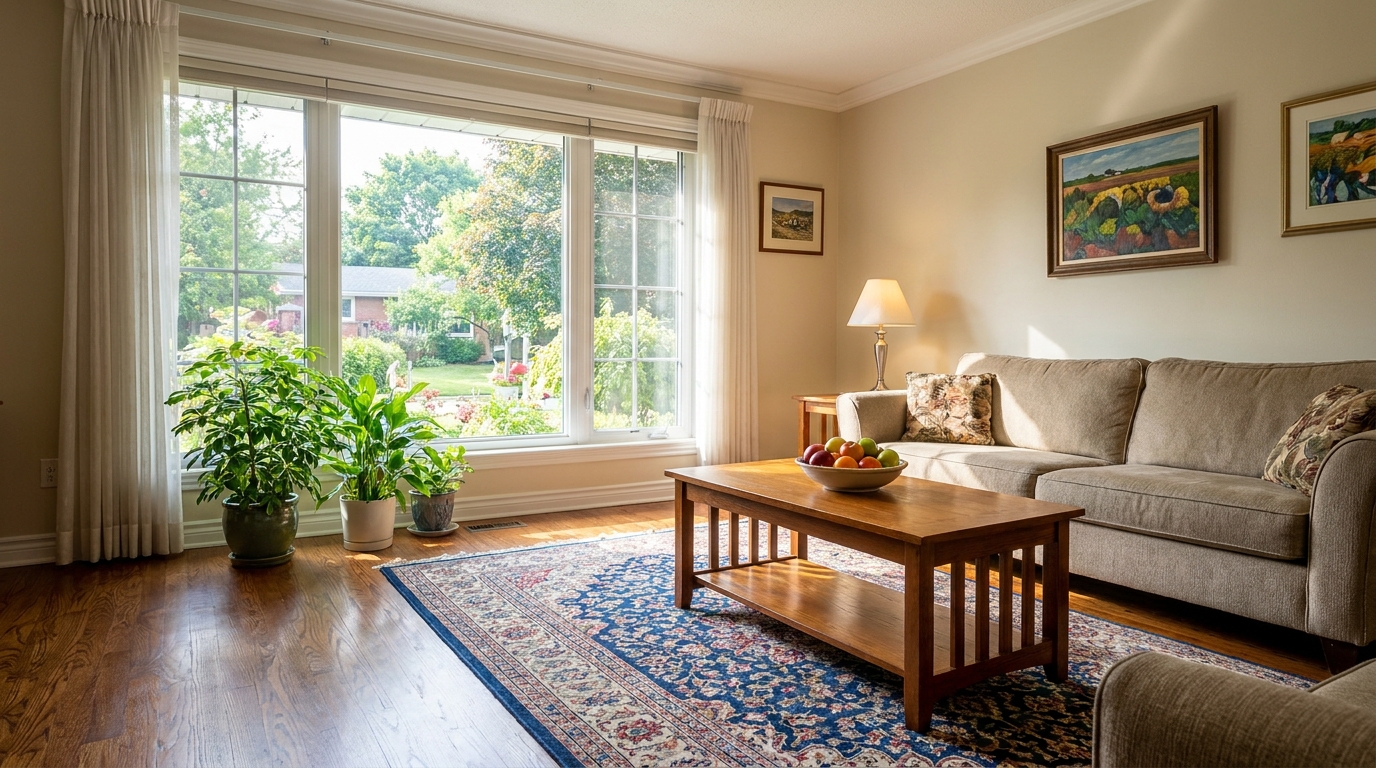
Gently enrich color for more eye-catching photos without oversaturation.
Try This Tool →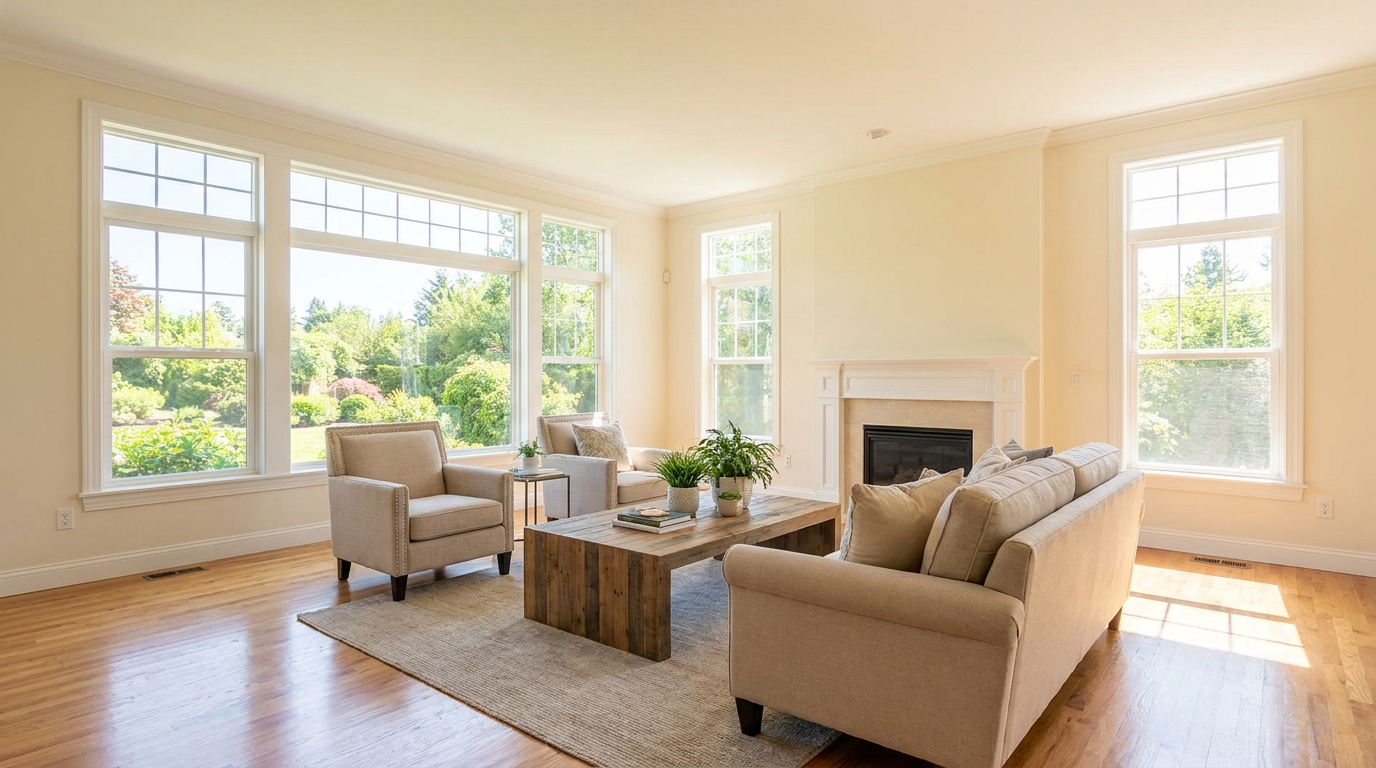
Boost daylight presence for spaces that feel bright, airy, and open.
Try This Tool →Explore other powerful AI tools designed to optimize your property marketing.
AI image-to-video generation for turning home, room, and property photos into more vivid presentation videos.
02AI exterior renovation for visualizing facade updates, curb appeal improvements, and home exterior remodel ideas.
03AI landscaping design for exploring outdoor concepts, curb appeal upgrades, planting ideas, and yard layout directions.
04AI virtual staging for furnishing empty rooms and creating listing-ready interiors for real estate marketing.
05Free AI image generation for turning text prompts into unlimited visual ideas for home design, interiors, landscaping, renovation
06AI object removal for cleaning up distracting items from room, home, and property photos.
Don't let poor lighting hide your property's best features. Use our AI-powered exposure balancing to create bright, welcoming, and professional listings today.