
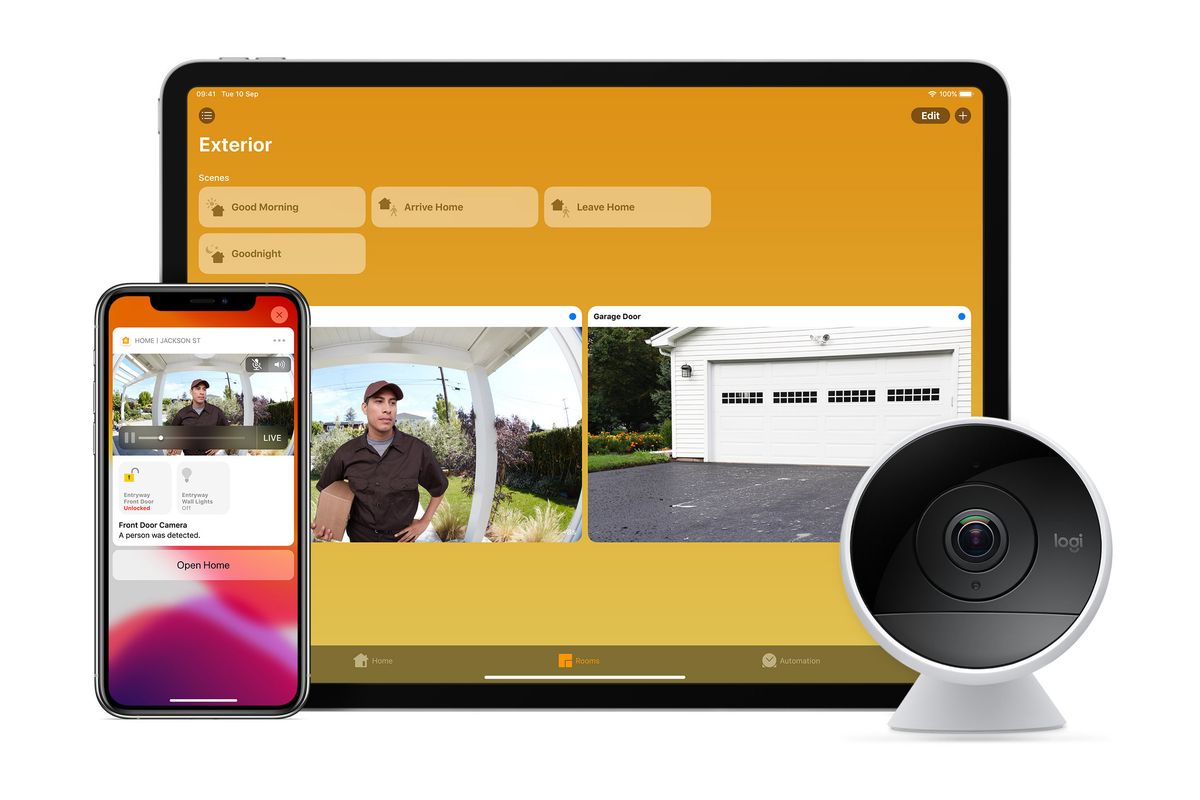
How to add a new smart home device to the Apple Home app
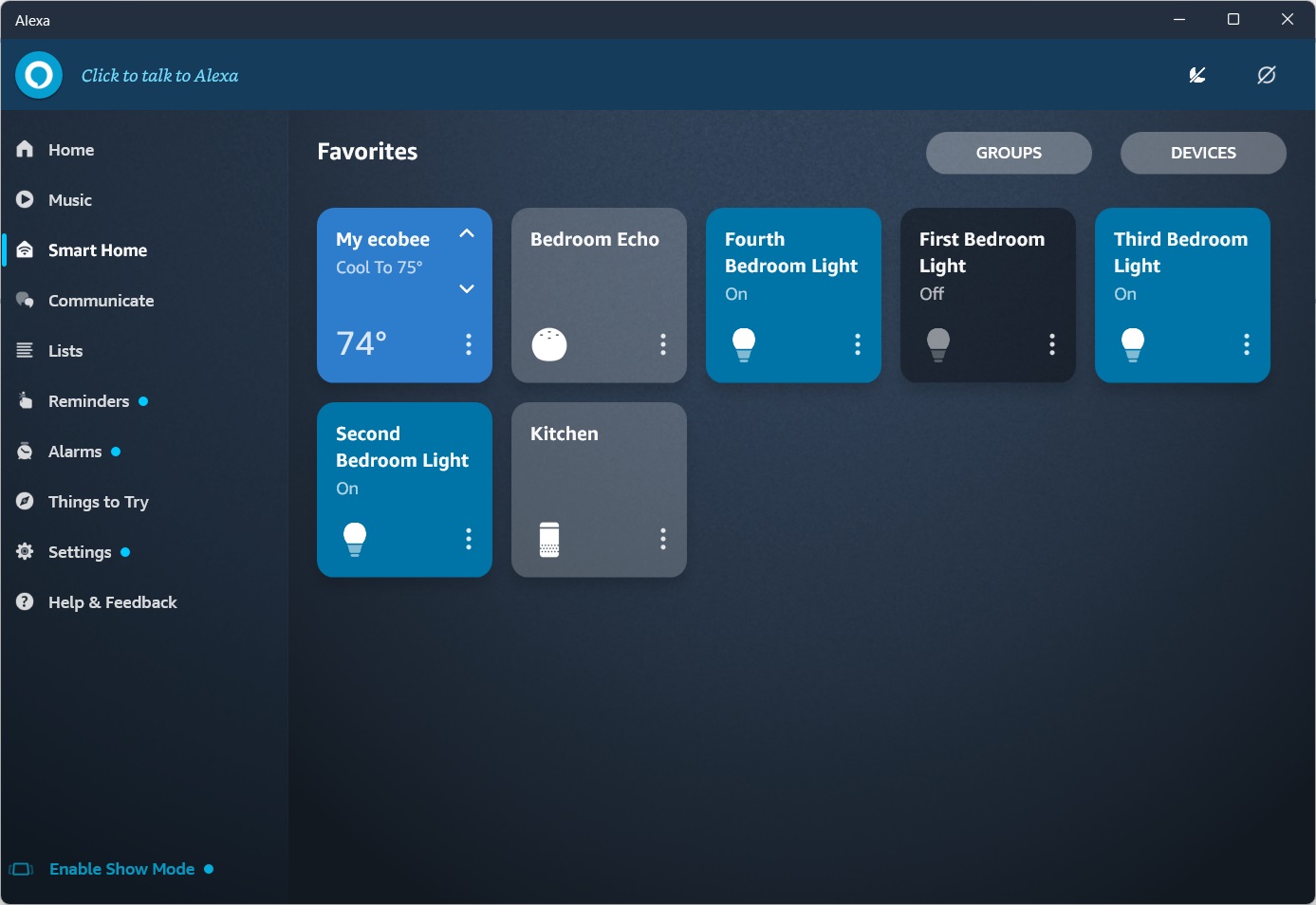
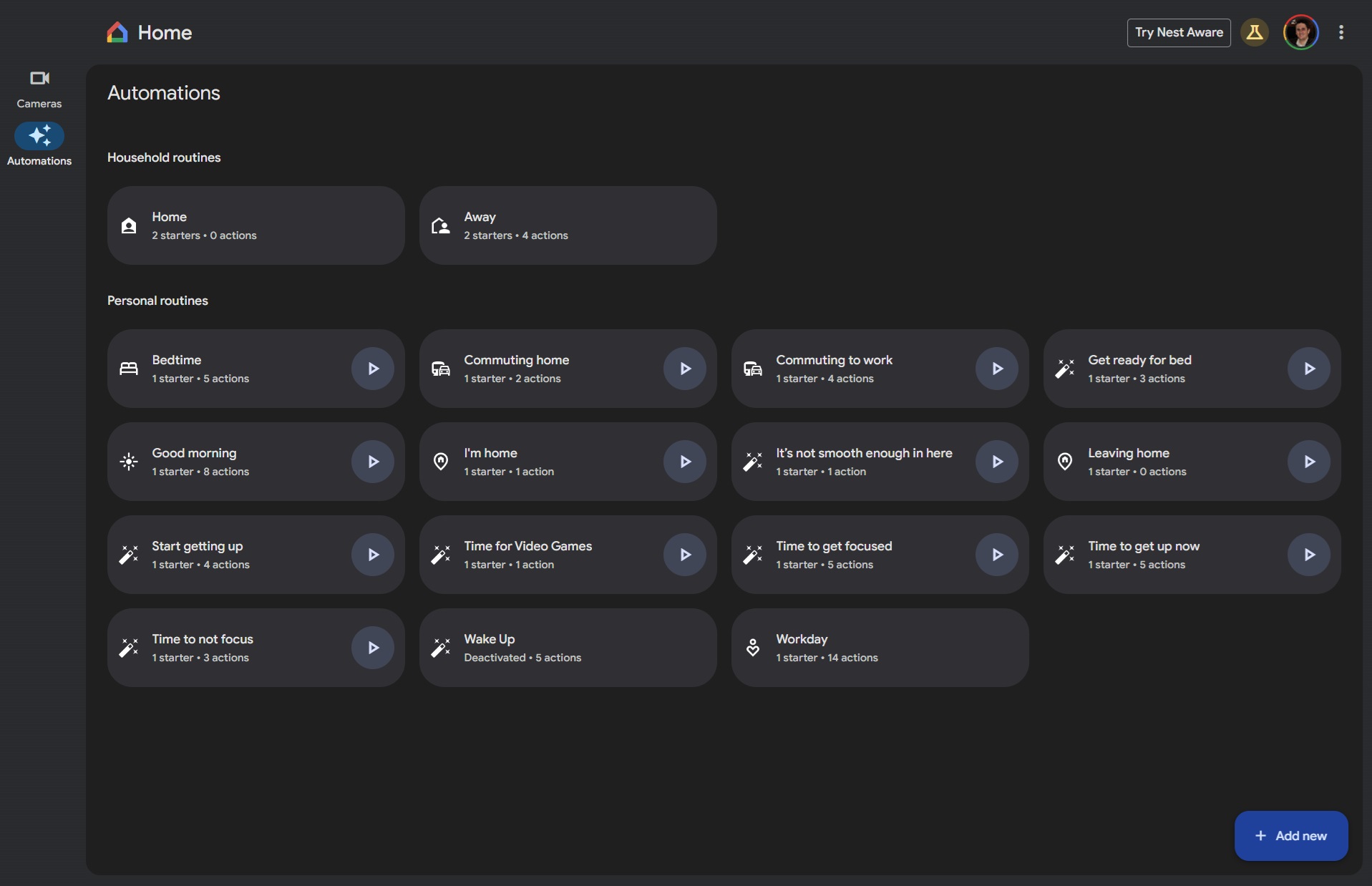
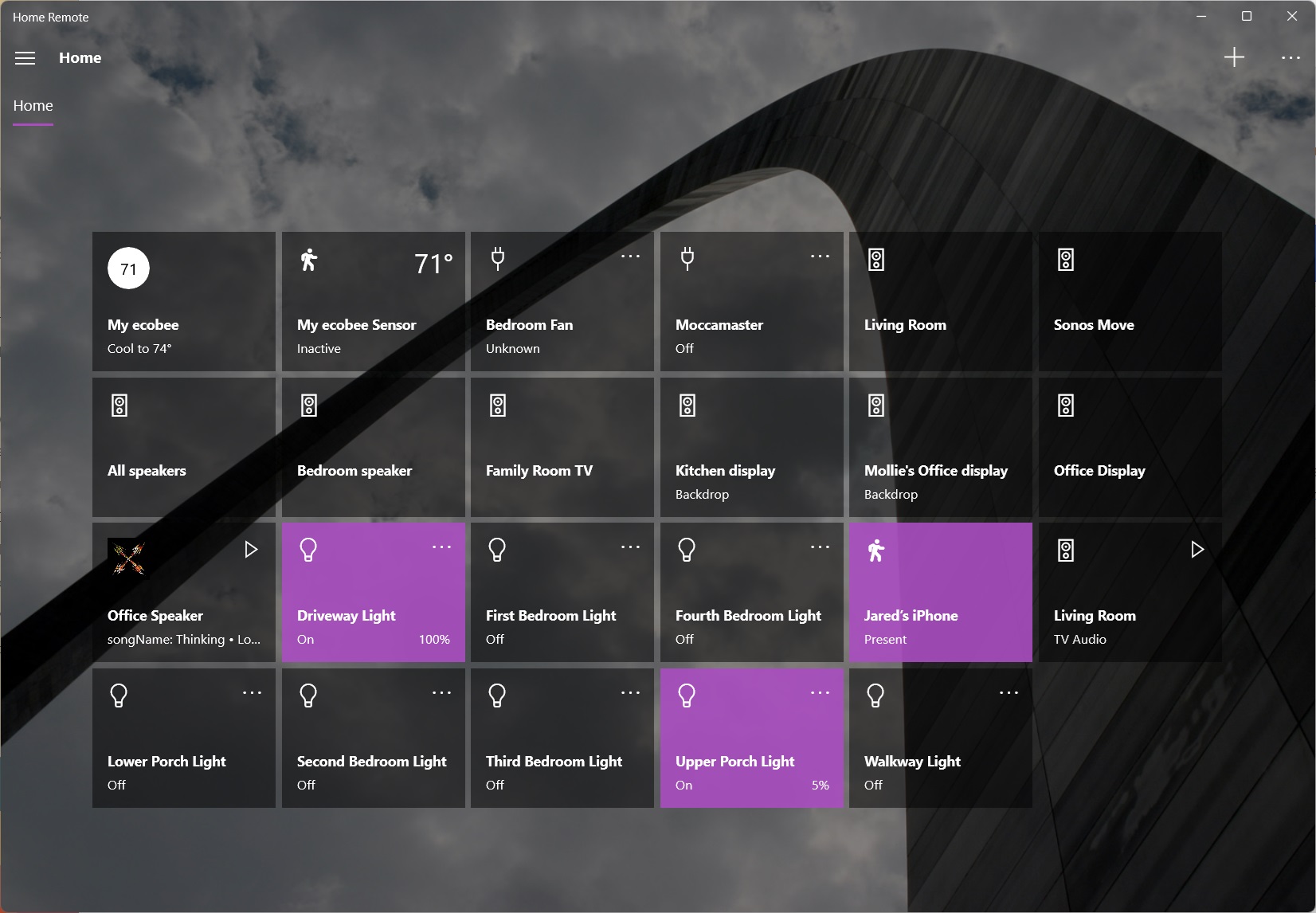
Adding new smart home accessories to the Apple Home app is a straightforward process, similar to how devices are integrated into other smart home ecosystems like Amazon Alexa and Google Home. While Apple's HomeKit platform might not be as widely adopted by professional smart home installers as its competitors, it supports a substantial array of smart home products. Apple provides a comprehensive list of compatible accessories on its website.
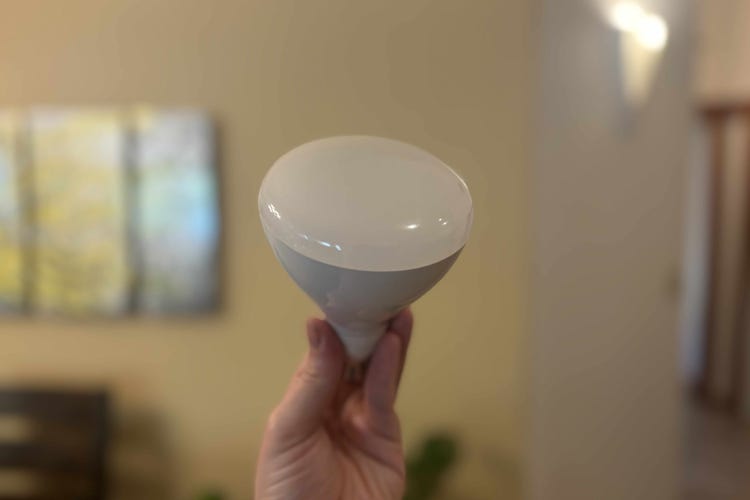
The Apple Home app serves as the central control for HomeKit devices and is pre-installed on Apple iPhones and Macs, with functionality also extending to iPads and Apple Watches. Before integrating a smart device into the Home app, it is often necessary to set it up first using its own dedicated application. For instance, Philips Hue smart light bulbs require initial setup with their Hue Bridge hub and the Hue app before they can be added to the Apple Home app.
To initiate the addition of a new device, users need an iPhone or iPad, as the Mac version of the Home app does not support accessory addition. The process begins by opening the Home app on an iPhone, tapping the '+' icon located in the top-right corner of the screen, and then selecting 'Add Accessory'. Apple uniformly refers to all smart home devices as 'accessories' within its ecosystem.
Upon selecting 'Add Accessory', the Home app activates the iPhone's camera, prompting the user to scan the HomeKit Setup Code. This code, resembling a QR code, is typically found on the product's packaging or directly on the device itself. Some devices may instead feature an eight-digit code. In certain cases, accessories can be paired wirelessly by simply holding the iPhone near an icon on the device that symbolizes Wi-Fi signal strength. If these methods are unsuccessful, users can tap the 'I Don't Have a Code or Cannot Scan' option, which will prompt the iPhone to search for the device wirelessly, provided the accessory is powered on and in close proximity.
Once the device is discovered, users may be asked to allow it to join their network. Following this, they will assign a name to the accessory, such as 'Desk Lamp' or 'Front Door Lock,' and allocate it to a specific room within their home layout. The process concludes by tapping 'Next' and then 'Done'. It is advisable for users to retain a record of their devices' QR or eight-digit setup codes, either by keeping the original packaging, manually noting the codes, or using third-party applications like HomePass. This ensures that if a device ever needs to be re-added to the Home app, its unique code is readily accessible, simplifying future setup and management.
#AppleHomeKit #SmartHome #HomeApp #Siri #iPhone #iPad #SmartDevices #HomeAutomation #TechTutorial #AppleHomeKit #SmartHome #HomeApp #Siri #iPhone #iPad #SmartDevices #HomeAutomation #TechTutorial
0 opmerkingen in totaal
 Nog geen opmerkingen
Dit vindt u mogelijk ook leuk

17 Best Smart Home Devices for Apple HomeKit and Siri in 2026 | Reviews by Wirecutter


Smart home technology still isn't good enough for my latest home upgrade project and this is a huge problem

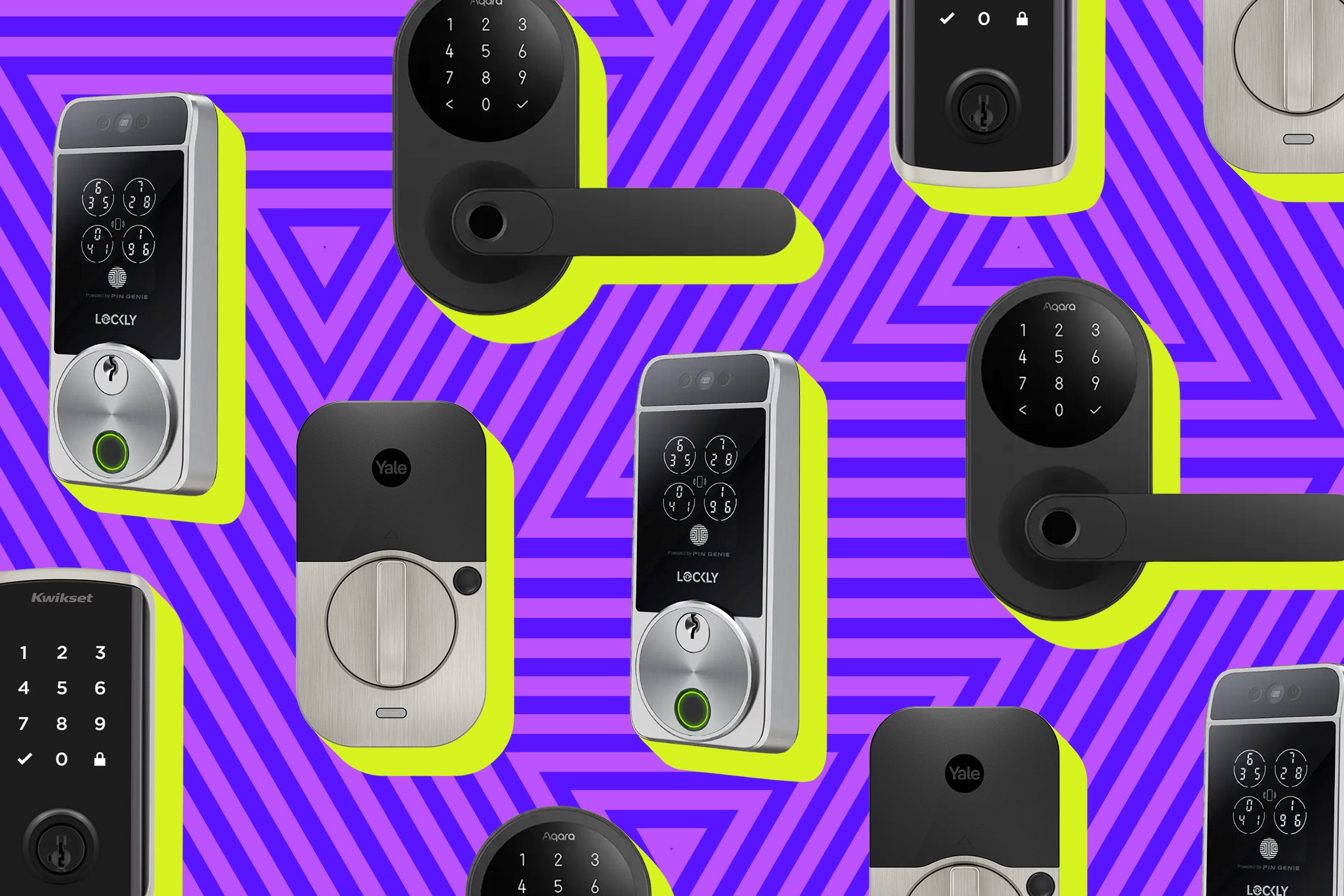
Here are the best smart locks you can buy right now
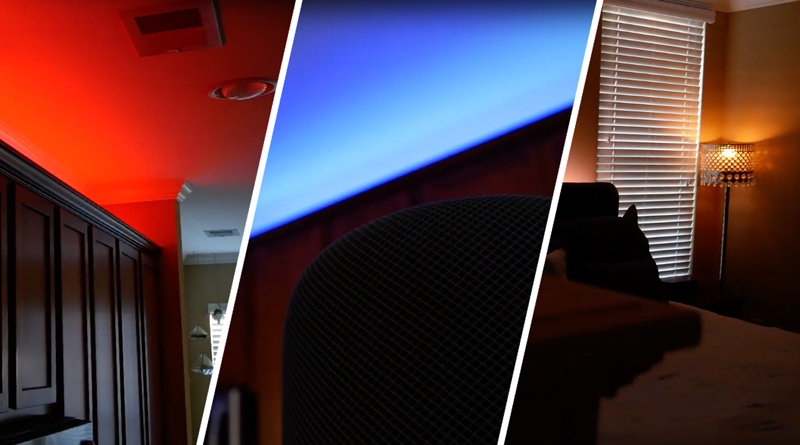
How To Make Light Effects in HomeKit


17 Best Smart Home Devices for Apple HomeKit and Siri in 2025 | Reviews by Wirecutter
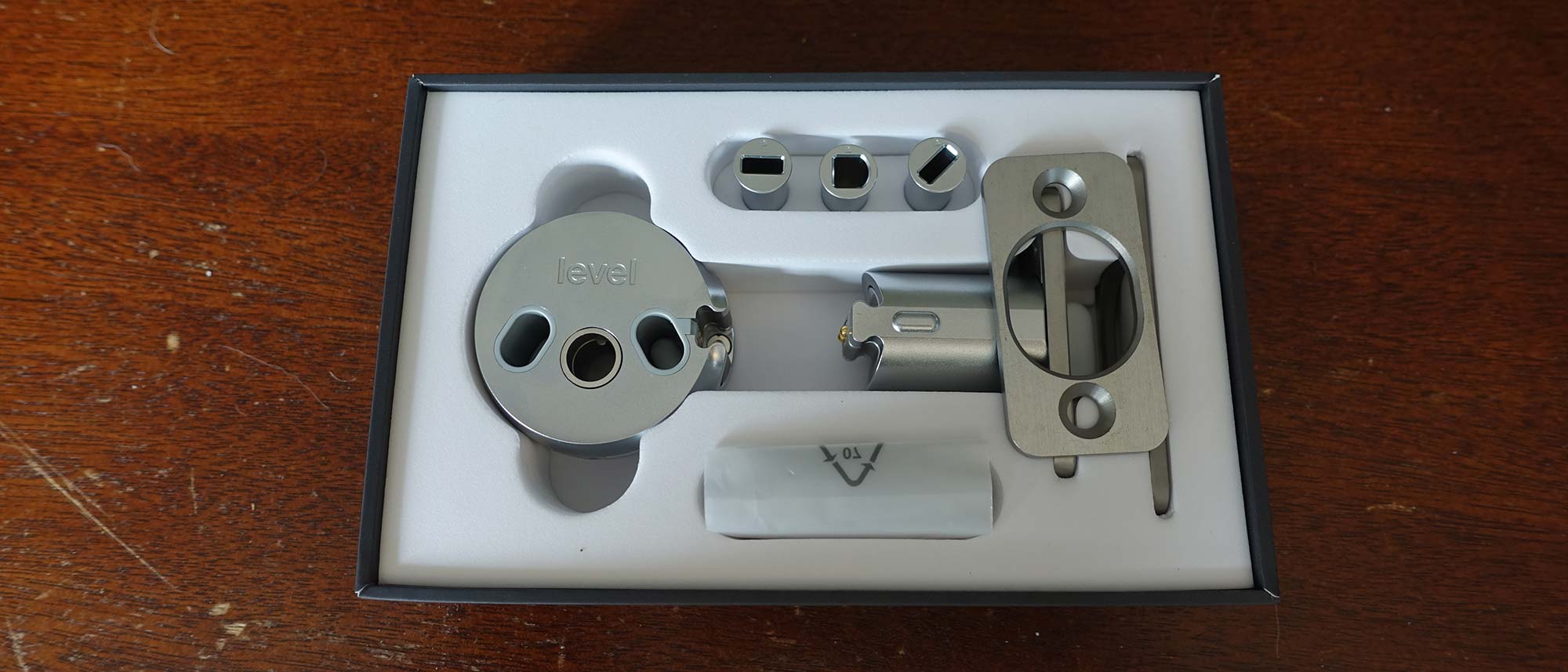
Level Bolt smart lock review


The Best Google Home–Compatible Smart-Home Devices in 2026 | Reviews by Wirecutter

6 ways to control your smart home from your PC

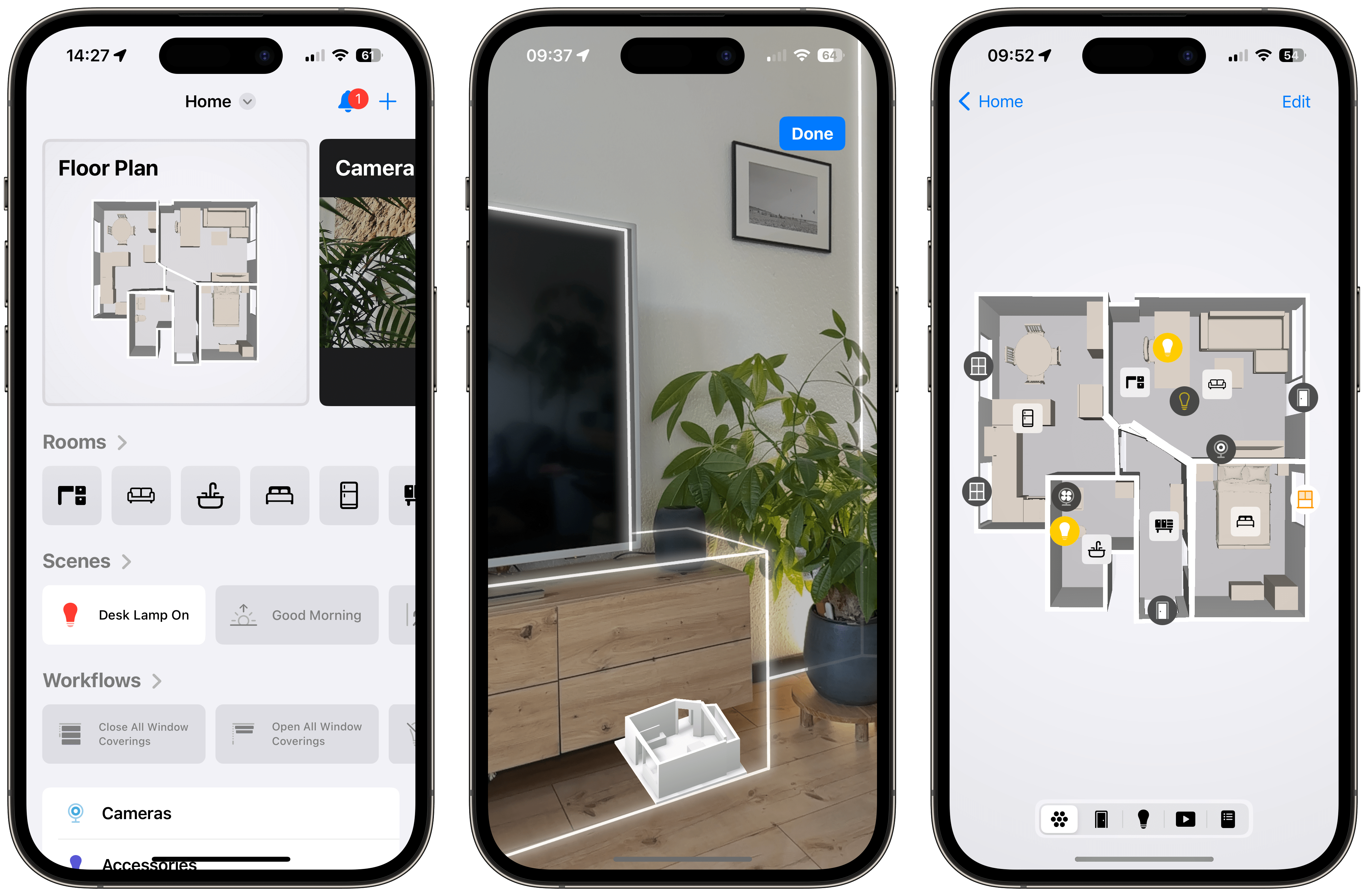
This app put my Apple Home smart devices into an interactive map

Installing smart-home technology in an old house? It’s a lot easier — now

The next generation Nest thermostat
These smart home gadgets work with both Siri and Alexa

Alexa Gets The Smart Button She Deserves

2024 Gift Guide: The Best Smart Home Gifts

Best Smart Home Devices of 2026: Home Upgrades for Anyone

The Best Smart Assistive Devices for People With Disabilities
Apple’s first smart display needs to make the smart home just work

IPORT Home LUXE WallStation iPad Mount Review
15 Cool Tech Gadgets That Turn Your Home into a Smart House

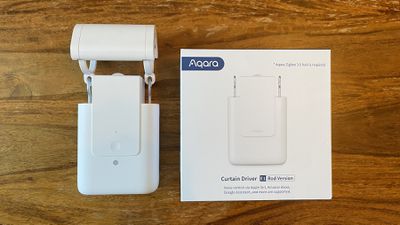
Review: Aqara's Curtain Driver E1 Provides an Easy Way to Retrofit Curtains With HomeKit