

1/7
6 ways to control your smart home from your PC
This article explores various methods for controlling smart home devices directly from a Windows PC, offering alternatives to voice assistants or mobile phone apps. It highlights that while voice control has its merits, using a PC can be more convenient for managing smart lights, security cameras, thermostats, and other connected devices, depending on the specific ecosystem.
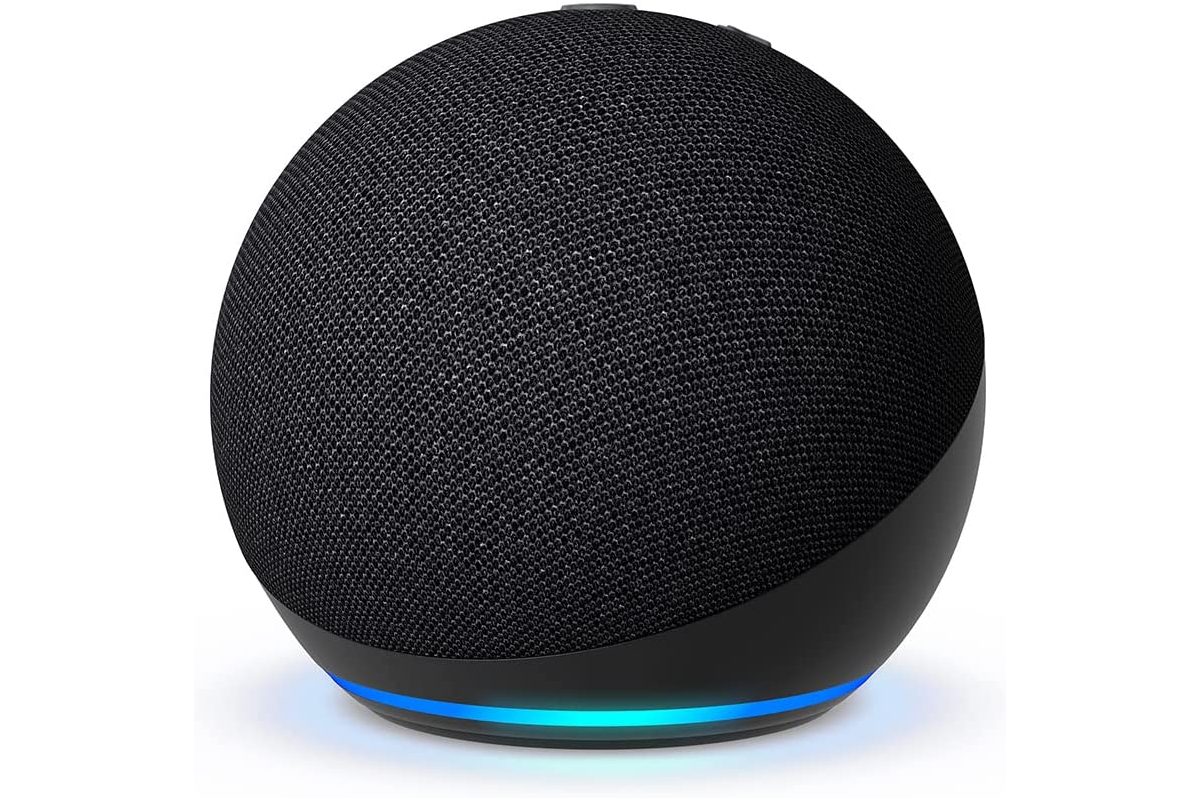
The first method discussed is the Amazon Alexa app for Windows. Although it is not readily discoverable in the Microsoft Store and appears to be deprecated, it can still be installed using a direct link. This app allows users to control Alexa-enabled smart devices through its Smart Home tab. It also supports voice control with a customizable keyboard shortcut, though new device setup still requires a mobile phone.
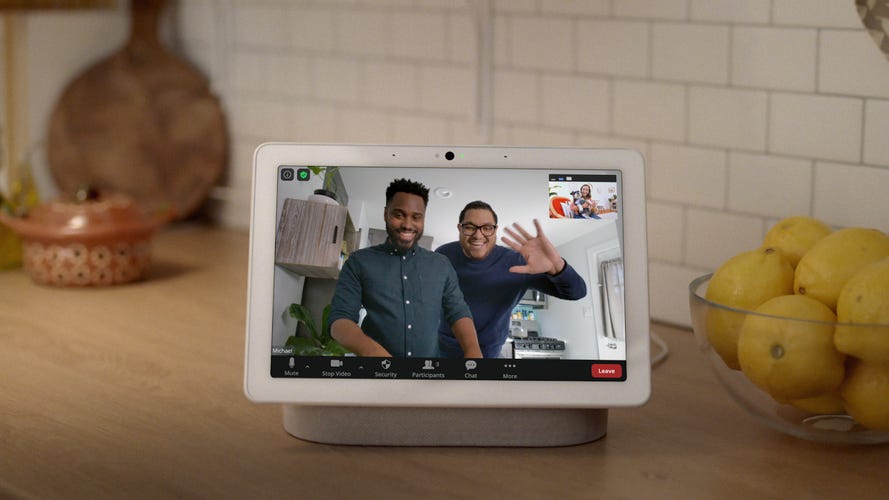
Next, the Google Home web dashboard is presented as a way to manage Google Home devices from a PC. While it offers less functionality than its mobile counterpart, it enables viewing live Nest camera feeds and executing automation routines. Users can create advanced routines using a script editor that requires familiarity with the YAML scripting language, with Google's documentation available for guidance. Joining the public preview for the script editor is also outlined.
The Home Remote app, a paid application available in the Microsoft Store for Windows, offers a unified platform for controlling various smart home devices. It integrates well with Chromecast and Sonos speakers, providing controls for media playback. However, it has compatibility limitations, notably lacking support for Ring, Wyze, and Nest devices, thus requiring users to check its compatibility list before purchase.
The article also covers the use of individual smart home device manufacturers' web portals. Many companies, such as Ring, Wyze, Ecobee, and SmartThings, provide web-based dashboards that allow users to access camera feeds and control devices directly through a web browser. The recommendation is to check the device manufacturer's website for such portals and bookmark them for easy access.
Microsoft's Phone Link app (previously Your Phone) is introduced as a solution for Samsung phone users. This app allows mirroring Android applications onto a PC screen, which is useful for smart home apps that do not have dedicated Windows versions or web interfaces. Once set up, users can open Android apps in a pop-up window on their PC and even add them to favorites or the Windows Start menu. A key point is that the phone must be unlocked for the mirrored apps to function.
Finally, for Apple HomeKit users, HomeBridge is suggested as the only PC-based option. Since Apple does not offer a Home app for Windows and there are no third-party Windows-compatible HomeKit controllers, HomeBridge, a free server application, bridges HomeKit with other smart home ecosystems. It can be installed on Windows, macOS, or Linux, though a Linux virtual machine is recommended for Windows users. The HomeBridge interface is accessible via a web browser on the local Wi-Fi network, although the article notes that using an iPhone might be a simpler alternative.
#SmartHome #HomeAutomation #PCHomeControl #AlexaApp #GoogleHome #HomeRemote #WebPortals #PhoneLink #HomeBridge #WindowsSmartHome #SmartHome #HomeAutomation #PCHomeControl #AlexaApp #GoogleHome #HomeRemote #WebPortals #PhoneLink #HomeBridge #WindowsSmartHome
0 comment in total
 No comments yet
You may also like
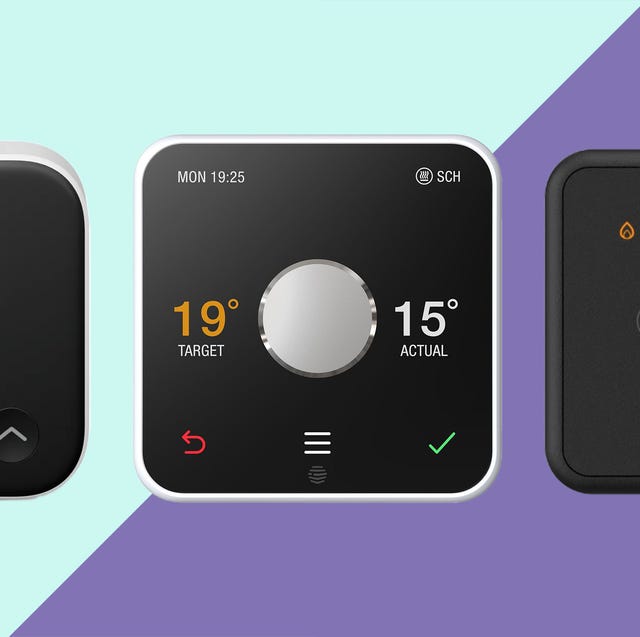
The 6 best smart thermostats to control your heating from anywhere

How to control your home lights by voice command

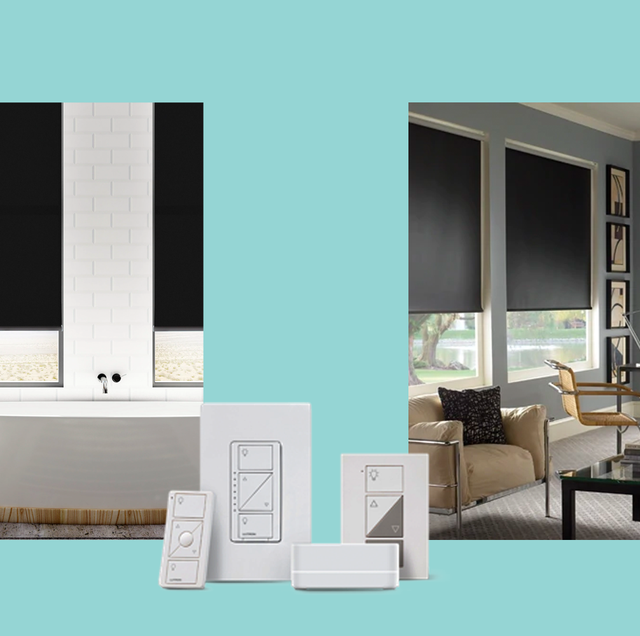
7 Best Smart Blinds and Smart Shades, According to Pros

You Don’t Have to Ditch the Switch When You Switch to Smart Lights
Best Smart Home Devices of 2026: Home Upgrades for Anyone

These smart home gadgets work with both Siri and Alexa
Our Favorite Smart Switches Add Convenient Hands-Free Controls to Any Light

Renters, rejoice! 8 easy smart home upgrades that won’t leave a trace
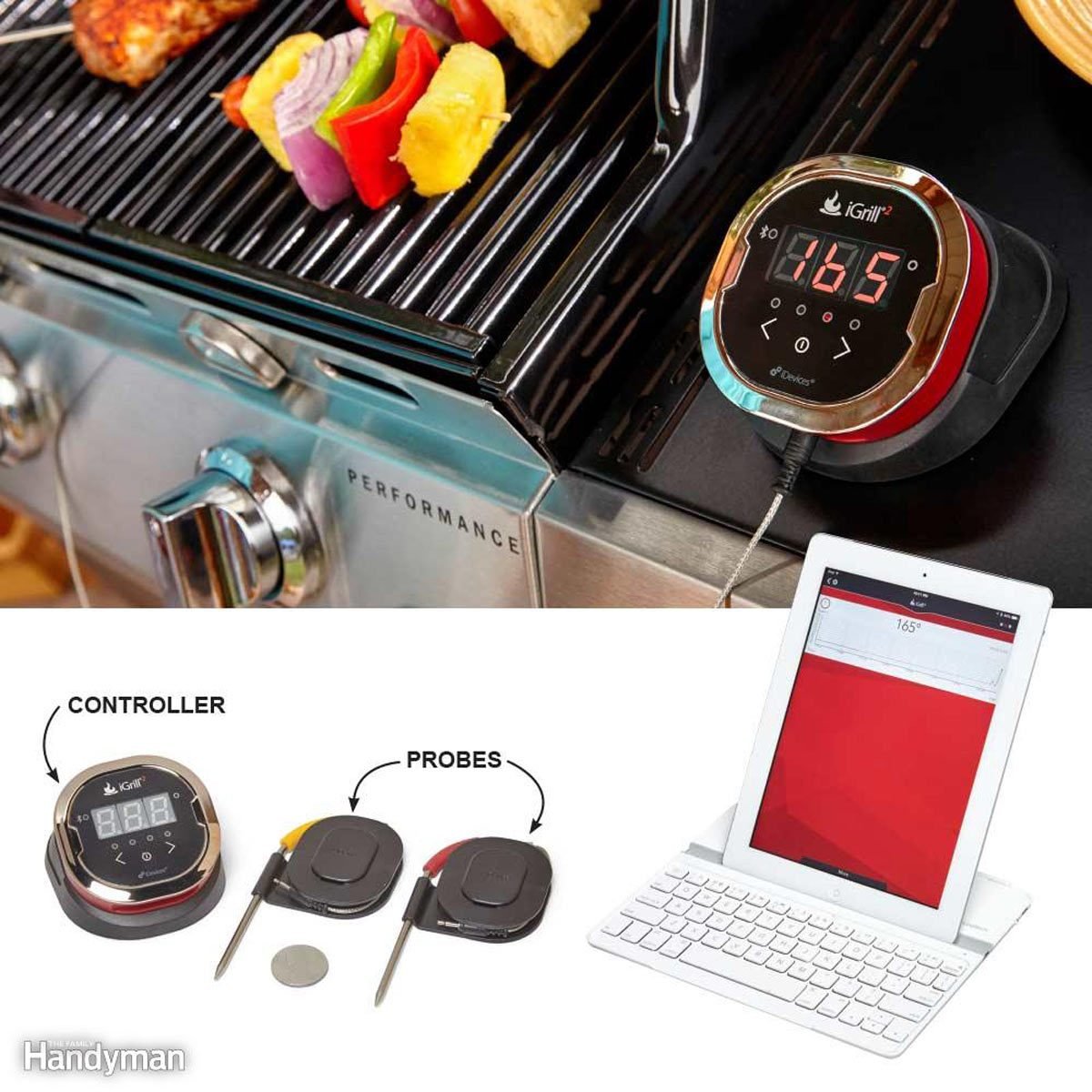
15 Cool Tech Gadgets That Turn Your Home into a Smart House


The Best Google Home–Compatible Smart-Home Devices in 2026 | Reviews by Wirecutter

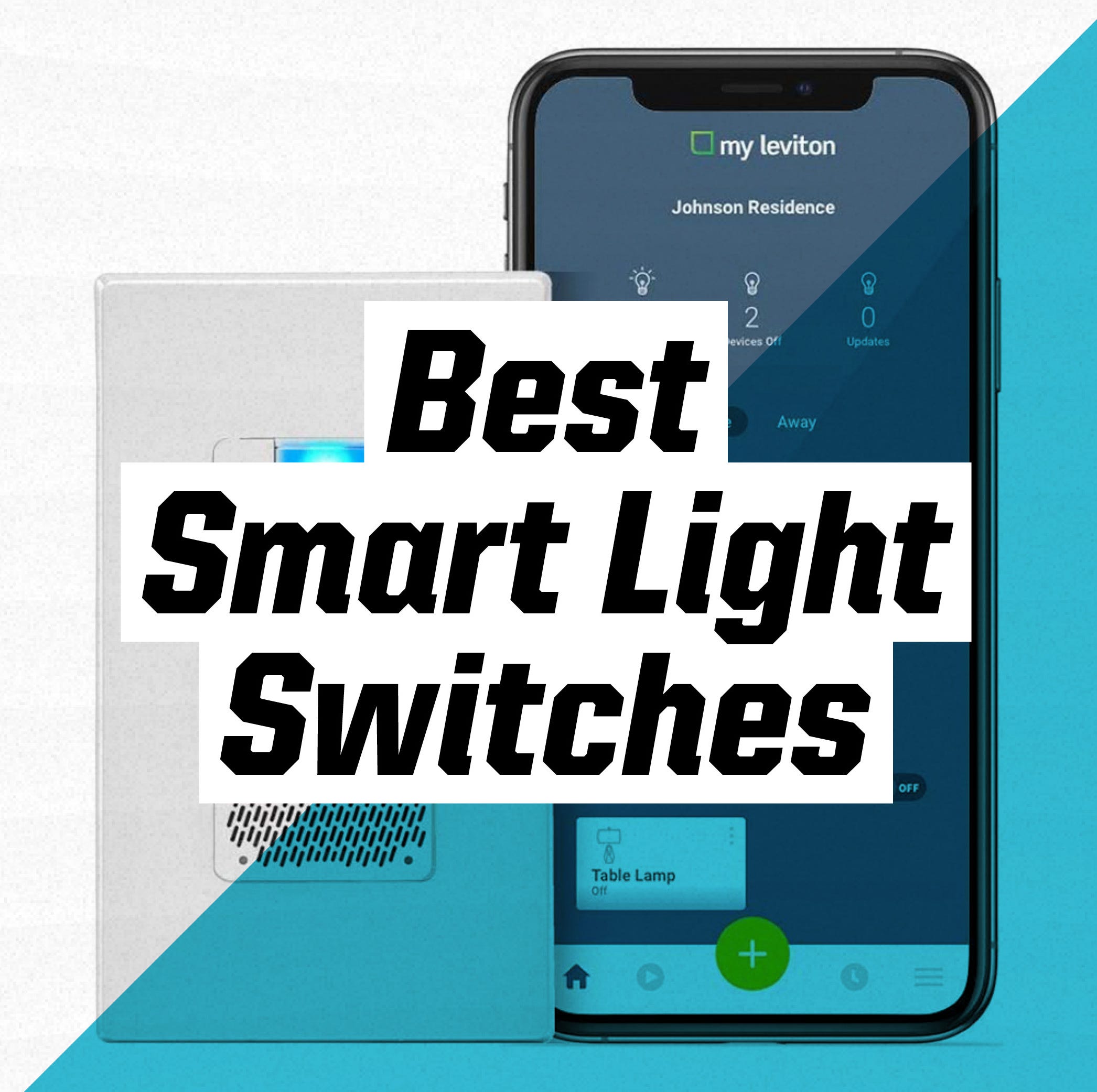
Upgrade Your Lighting With These Smart Light Switches

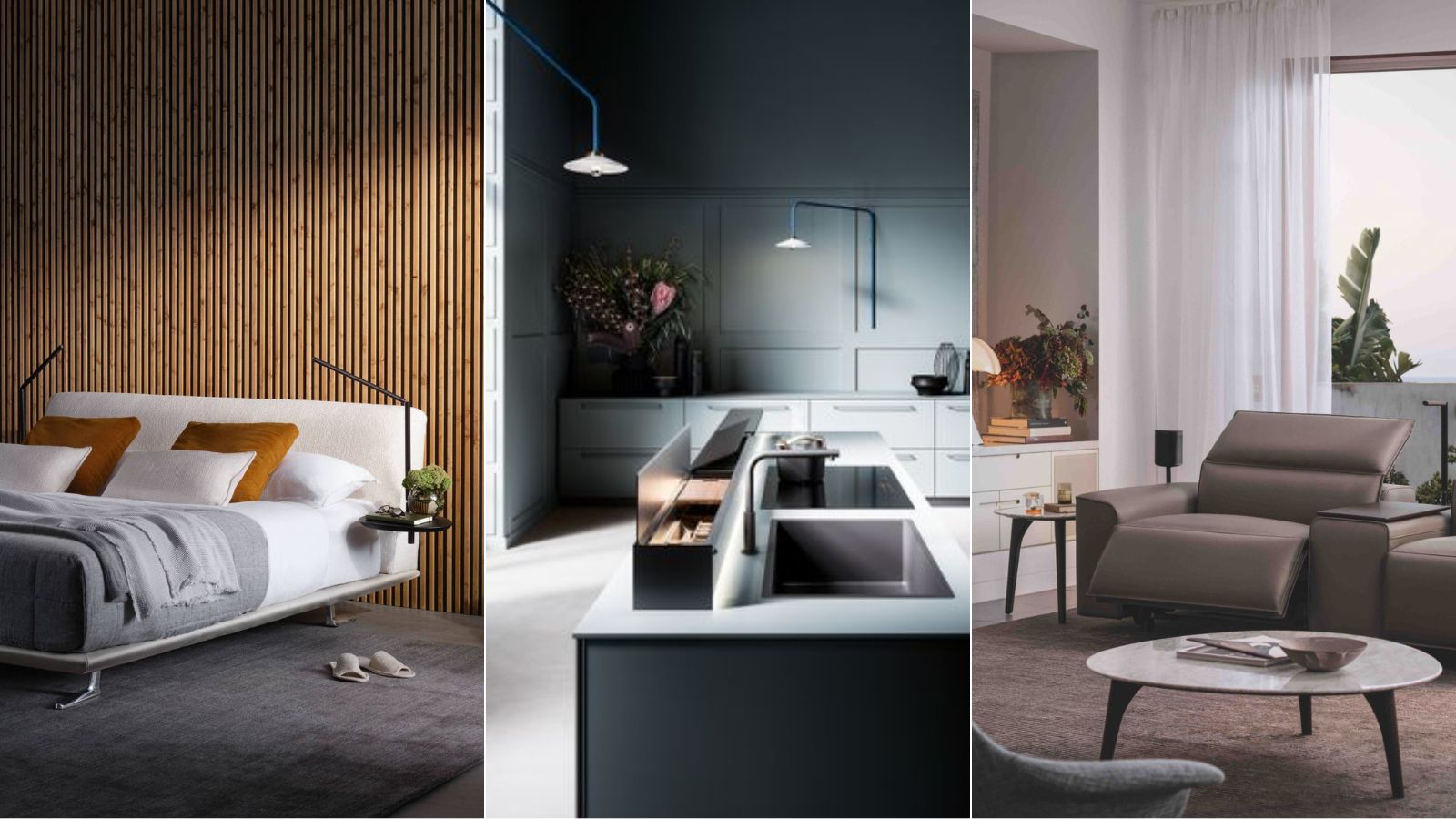
Smart home must-haves – the 8 smart products to upgrade your home and lifestyle

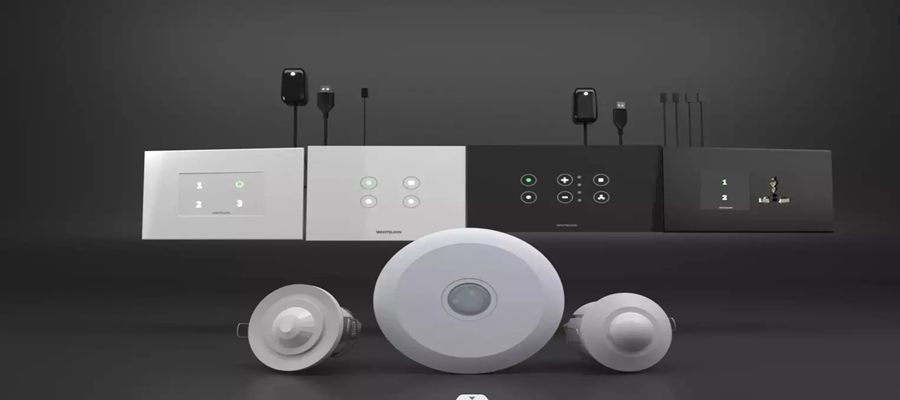
10 Best Smart Switches for Home Automation

Turn Any Garage Into A Smart Garage With The MyQ Hub

The 4 Best Smart Retrofit Shade, Blind, and Curtain Openers of 2025 | Reviews by Wirecutter
These 6 Gadgets Make Life Easier and More Energy Efficient | Wirecutter
6 Easy Smart Home Essentials for Renters
The Best Smart Switches for Your Smart Home


Smart bulbs vs. smart switches: The pros and cons of connected lighting
15 brainy gadgets that bring the smart home outside