1/18
How to declutter, quiet down, and take the AI out of Windows 11 25H2
This guide provides comprehensive instructions for decluttering and customizing a fresh installation of Windows 11 25H2, aiming to reduce Microsoft's aggressive advertising and integration of its services, as well as AI features. The article acknowledges that this is not a guide for creating an extremely stripped-down, telemetry-free version of Windows, but rather focuses on officially supported methods for configuration. It highlights that continuous Windows 11 updates mean the operating system is constantly evolving, making such a cleanup guide essential for users. The target audience includes those performing a fresh Windows install or upgrading from Windows 10, especially since Microsoft is winding down support for the older operating system.
The initial section of the guide addresses the contentious requirement of signing in with a Microsoft account during Windows 11 setup. It offers three workarounds: using the command line with `OOBE\BYPASSNRO` to enable a local account setup, utilizing the "work or school" setup option for Windows 11 Pro users to access a "domain join instead" alternative, and employing the open-source Rufus tool to create customized installation media that inherently bypasses the Microsoft account requirement. This section emphasizes the benefits of avoiding Microsoft account sign-in during setup, such as circumventing aggressive upsells for Microsoft 365, OneDrive, and Game Pass, and allowing for a preferred local user folder structure. It also covers the importance of reviewing and disabling privacy settings during initial setup, recommending that users turn off location services, 'Find My Device', and telemetry data collection to enhance privacy, with the caveat that 'Find My Device' might be useful for theft concerns.
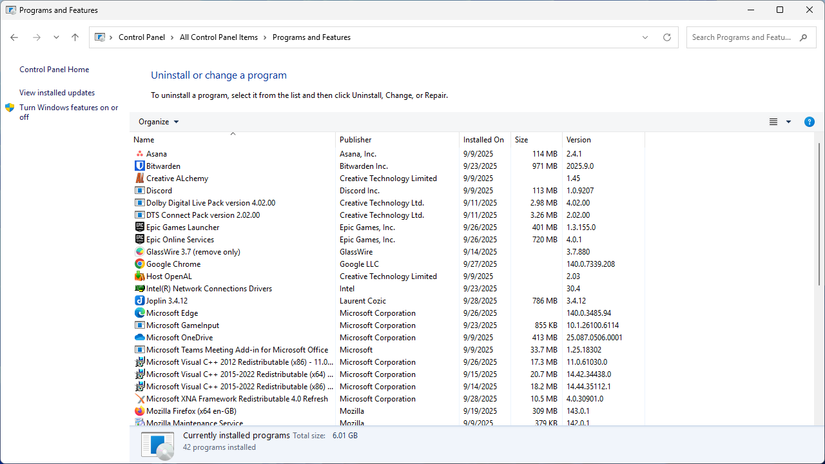
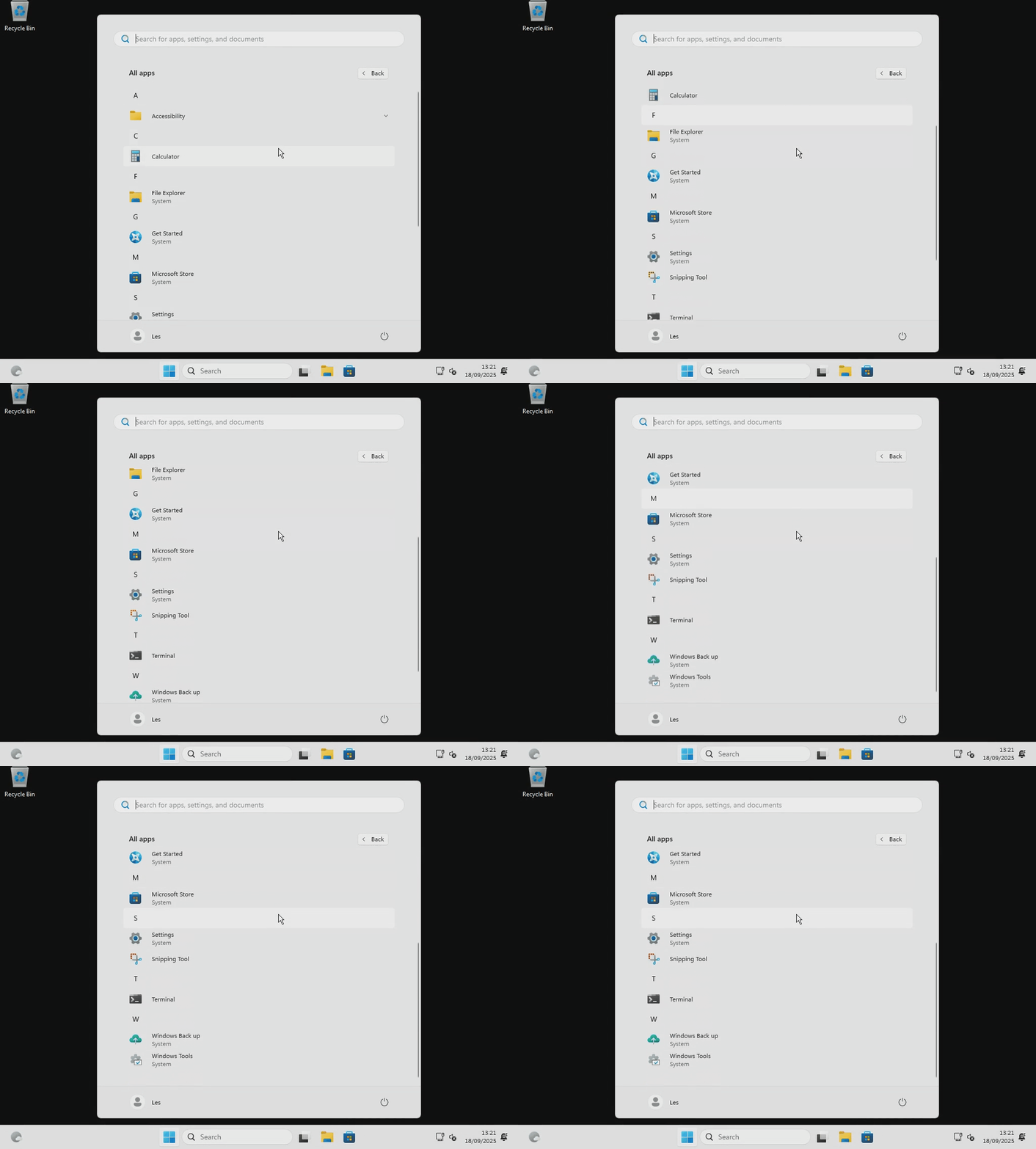
The subsequent part details how to clean up Windows 11 post-installation. It advises users to install necessary drivers and updates, then uninstall unwanted pre-installed third-party applications like Spotify or Grammarly from the Start menu. The guide lists a variety of first-party Microsoft applications that can be uninstalled from the Settings app, including Microsoft OneDrive, Microsoft Teams, Clipchamp, and several Xbox-related apps, allowing users to decide which to keep based on their needs. Essential system components like Edge and its associated updater are noted as non-removable, while others like Phone Link and the Microsoft Store are moved to a 'System Components' section where they can be configured but not uninstalled.
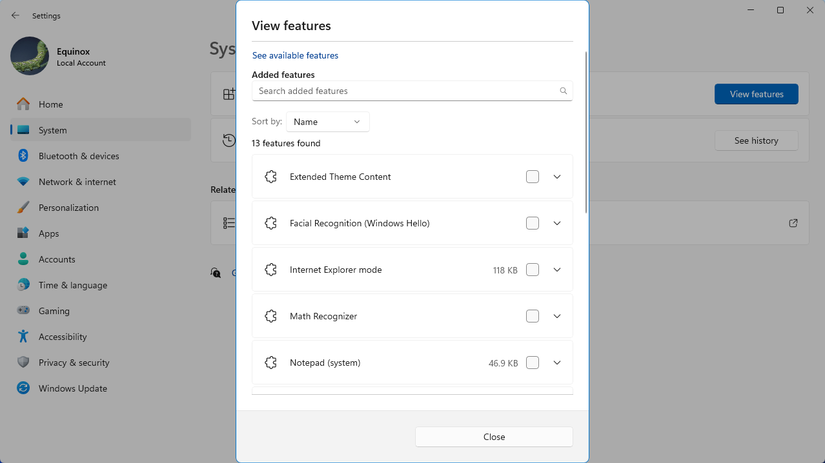
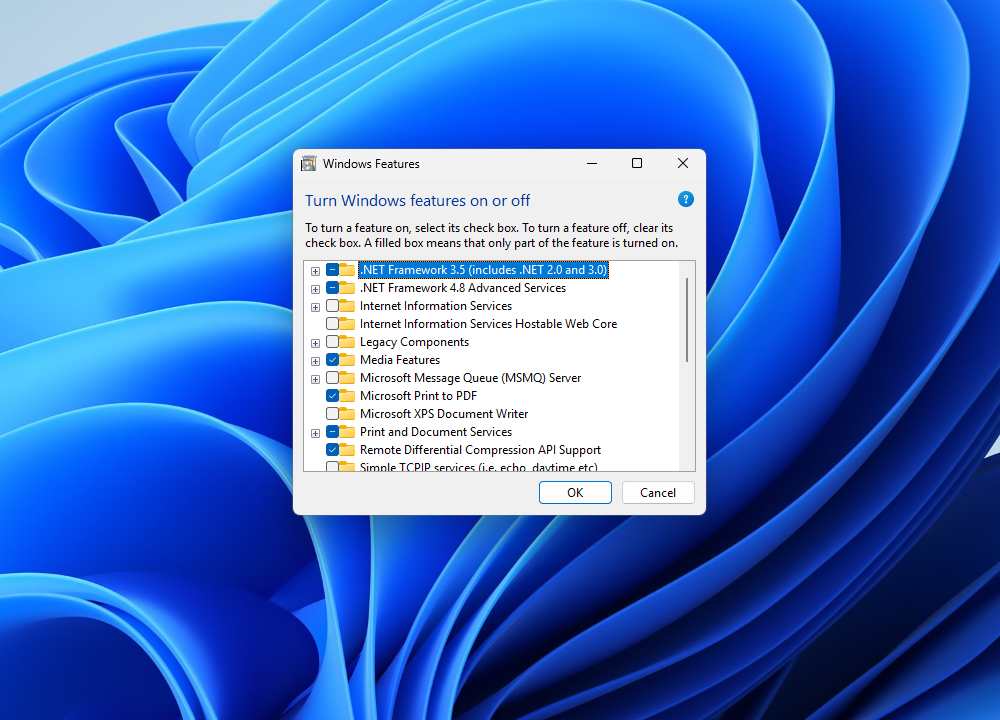
Further customization steps focus on decluttering the Start menu, Taskbar, Search, and Lock screen. Recommendations include disabling dynamic wallpapers, widgets, and changing the Search field to an icon-only display to save space and remove distracting news articles. Users are advised to navigate through various privacy and personalization settings to turn off personalized offers, recommendations, feedback requests, and search highlights. The guide also explains how to simplify the lock screen by disabling 'Windows Spotlight' and associated widgets, and how to configure the dedicated Copilot key on newer PCs. It points out that while AI features in apps like Paint or Notepad are often not directly toggleable, users can often ignore them or, in the case of Copilot+ PCs, remove specific features like 'Recall' through the 'Turn Windows features on or off' Control Panel applet, due to past privacy concerns. It also details the removal of the 'ImageCreationHostApp' extension for AI-powered image generation if installed.
Finally, the article provides extensive instructions for cleaning up Microsoft Edge, acknowledging its pragmatic utility while criticizing Microsoft's aggressive promotion of its services and AI features within the browser. It outlines steps to customize the new tab page, disable sponsored links and content, and adjust privacy settings to minimize data sharing. Specific instructions are given to turn off Microsoft Rewards, set tracking prevention to 'strict', disable optional diagnostic data, and prevent the browser from saving browsing activity. It also explains how to switch the default search engine from Bing, disable search suggestions, turn off the Copilot button and sidebar, and configure language settings to disable AI-powered writing assistance and switch to a basic spellchecker. The guide concludes by emphasizing that while these steps don't solve all issues, they significantly improve the user experience by reducing nuisances and allowing users to better control their Windows 11 environment.
#Windows11 #OperatingSystem #MicrosoftAccount #PrivacySettings #SystemCleanup #SoftwareCustomization #AIFeatures #MicrosoftEdge #PCMaintenance #Windows11 #OperatingSystem #MicrosoftAccount #PrivacySettings #SystemCleanup #SoftwareCustomization #AIFeatures #MicrosoftEdge #PCMaintenance
 No comments yet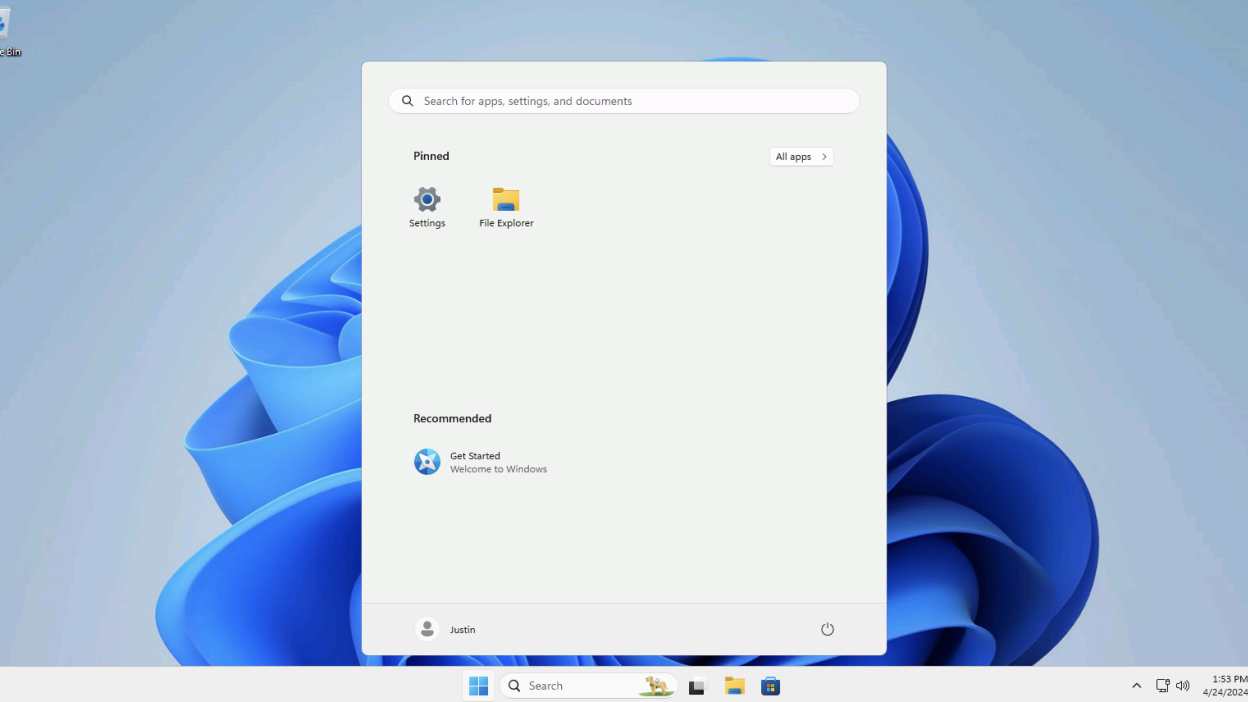
How to Install Windows 11 Without All the Extra Junk

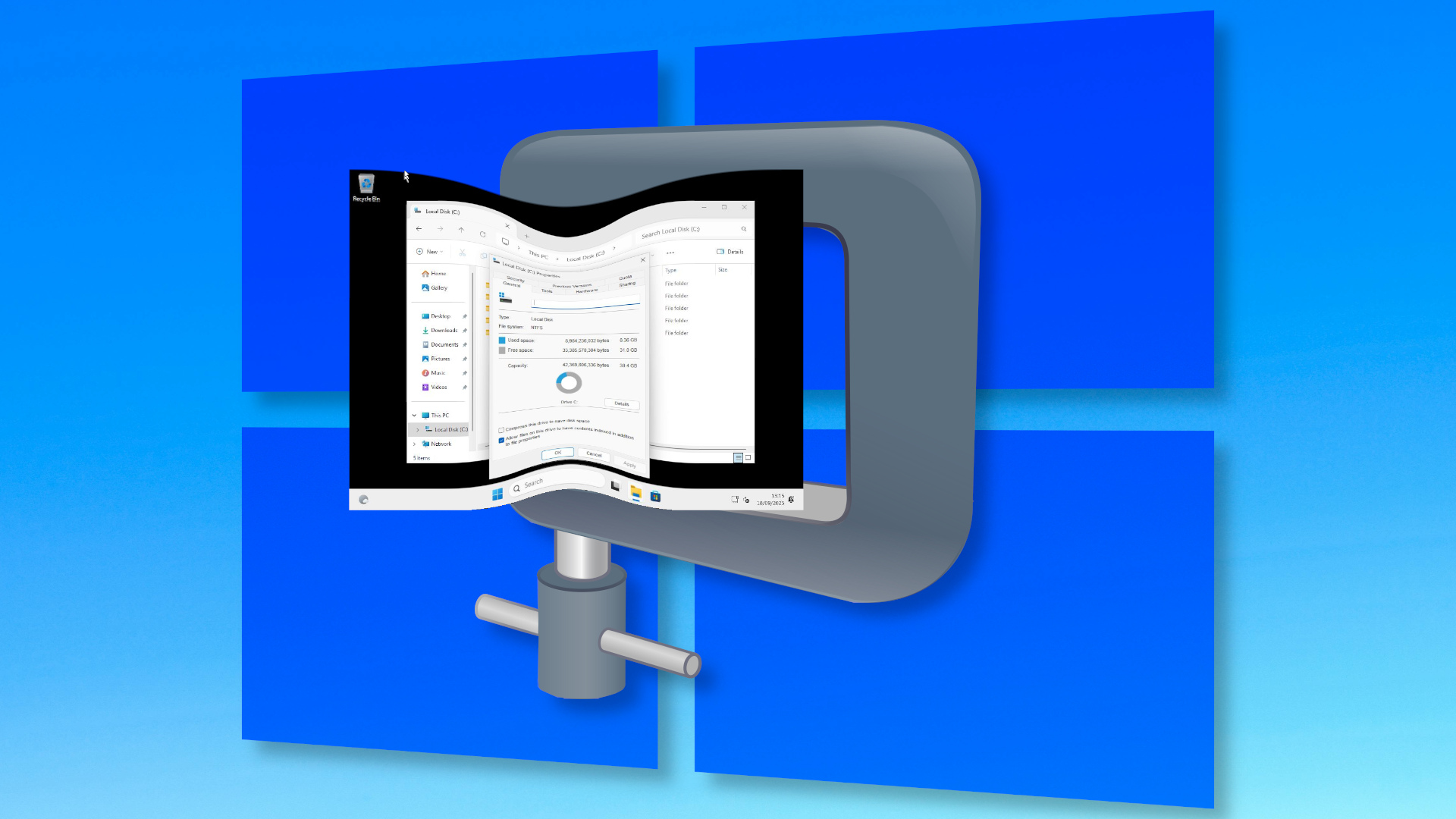
Here's how I installed Windows 11 using a nano-sized 2.4GB ISO — final install weighed in at a mere 8.36GB, two-thirds the size of a normal Windows install, courtesy of Nano11 Builder
How to Install or Remove Optional Features in Windows 11


This Is How to Declutter Your Home Without Getting Overwhelmed

How to Fix Windows Modules Installer Worker's High CPU Usage

47 Storage Solutions That Will Make Clutter *Poof* Disappear
How to Download Windows 11 and Install It
Here's How to Make Your Windows Installation More Private