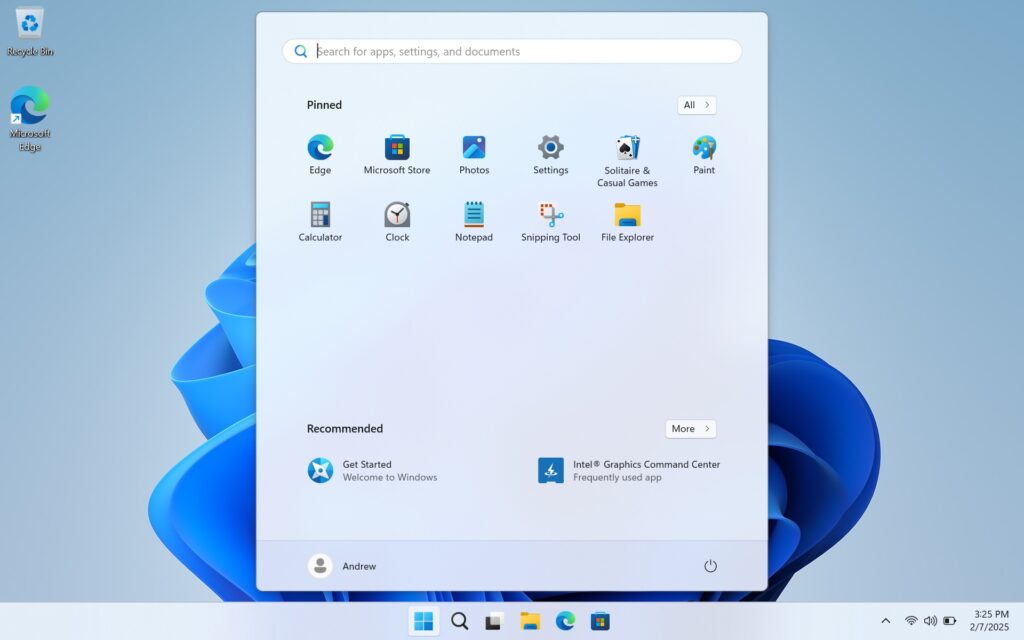
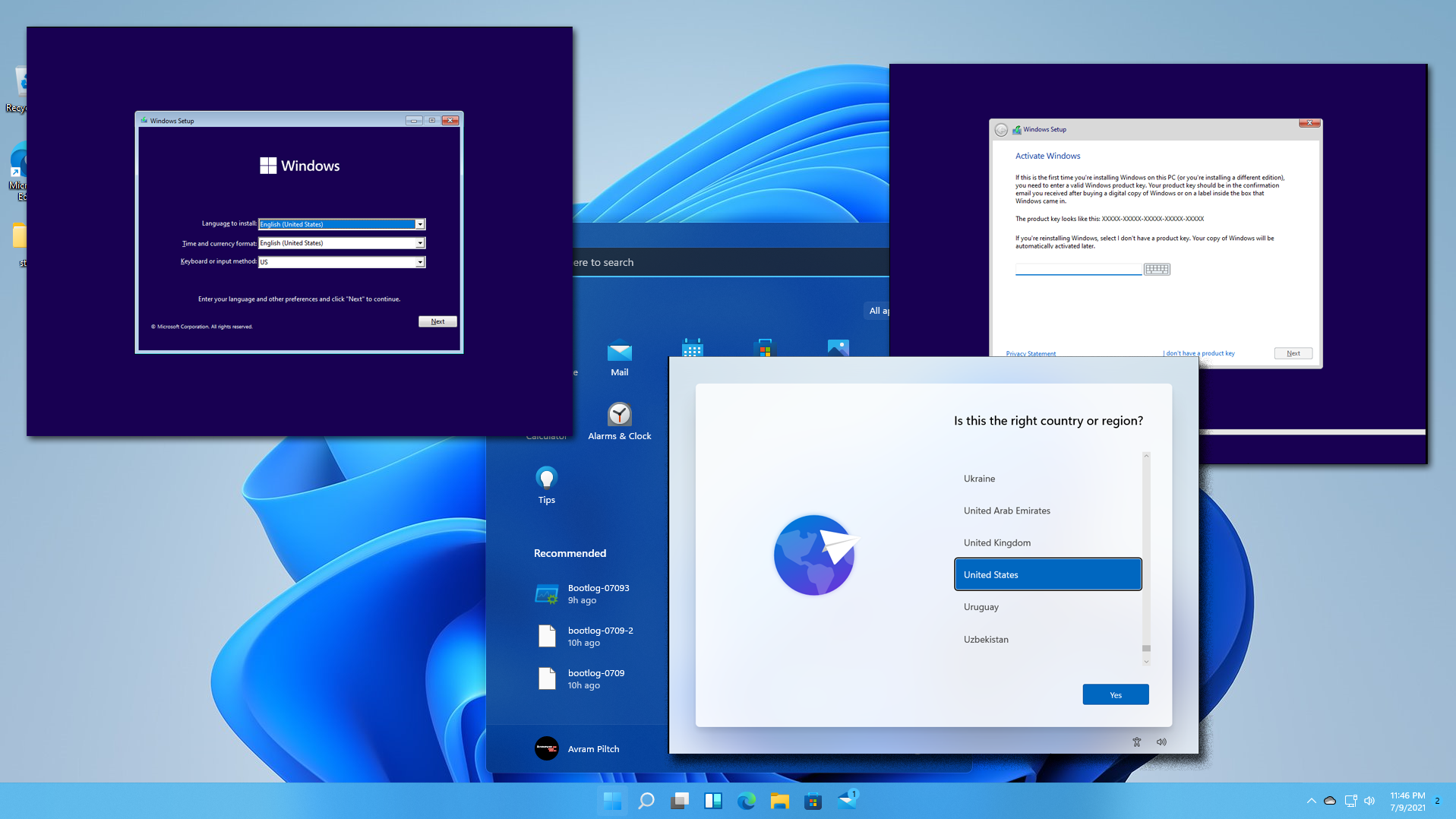
1/42
How to Download Windows 11 and Install It
This article outlines the comprehensive process of downloading and installing Windows 11, catering to both new PC builds and clean installations on existing systems. It details three primary methods for obtaining a Windows 11 ISO file: directly from Microsoft, using Microsoft's Media Creation Tool, and utilizing UUP Dump for insider builds. The guide emphasizes the importance of creating a bootable installation disk and provides step-by-step instructions for each method.
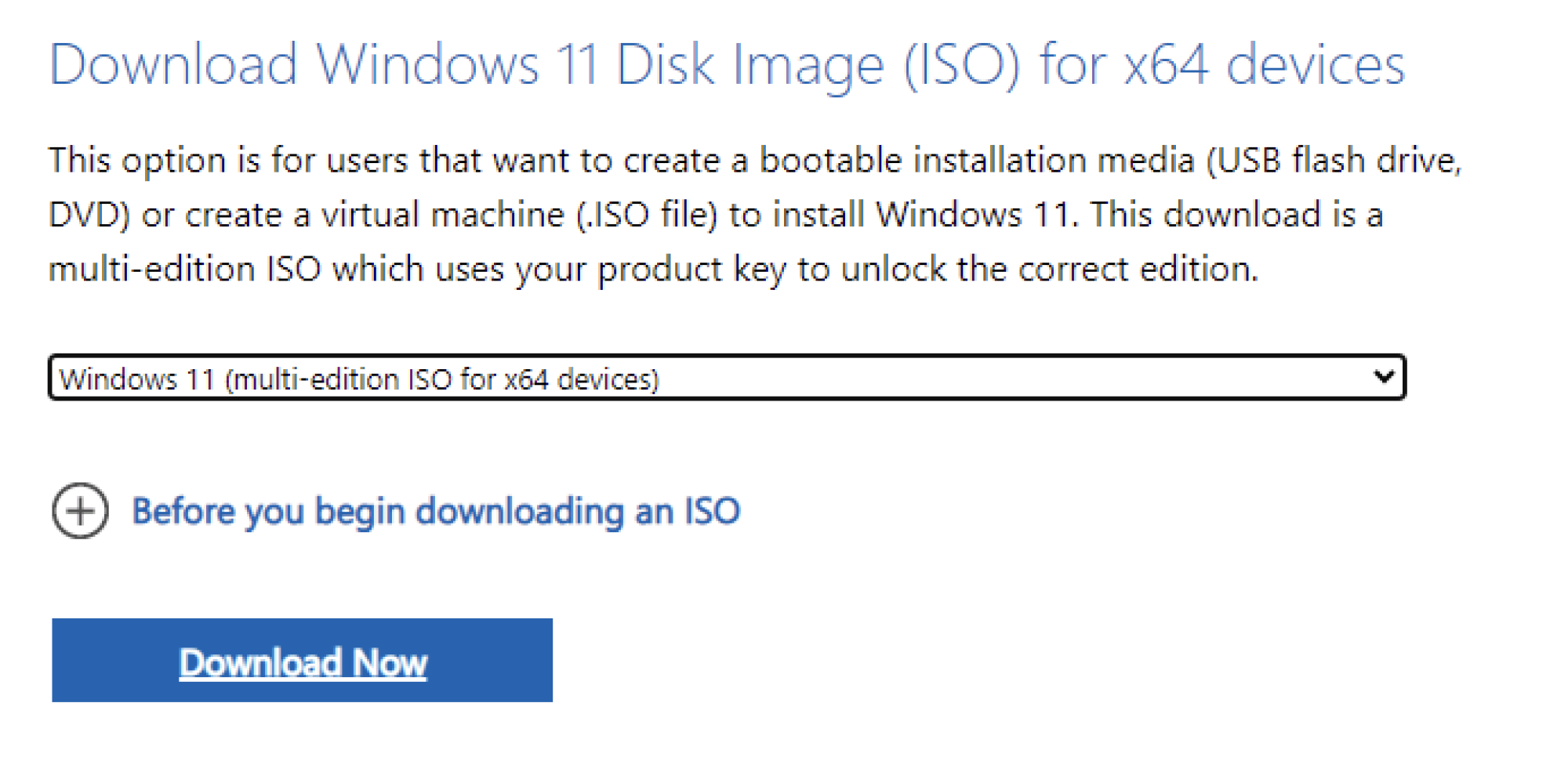
The first method involves downloading the Windows 11 ISO directly from Microsoft's official website. Users navigate to the Windows 11 ISO page, select the appropriate version for their processor (Intel/AMD or Arm64), confirm their language, and then proceed with the download. This method is straightforward and provides the latest official release version of Windows 11.
Alternatively, users can employ Microsoft's Media Creation Tool to download Windows 11 and directly create a bootable USB flash drive. This process requires an 8GB or larger USB drive, which will be overwritten. After downloading and launching the tool, users accept the license agreement, select their language and edition, and then choose the USB flash drive option. The tool then downloads the necessary files and prepares the bootable drive, simplifying the installation media creation process.
For users interested in installing Windows 11 Insider Preview builds (Release Preview, Beta, Dev, or Canary channels), the article introduces UUP Dump. This third-party website facilitates the download of files directly from Microsoft's update servers to create a custom, up-to-date ISO. Users select their desired build, language, and edition(s), then download a small batch file. Executing this batch file initiates the download of Windows 11 components and their conversion into an ISO file. A notable advantage of ISOs created via UUP Dump is their ability to bypass TPM and Secure Boot requirements during installation.
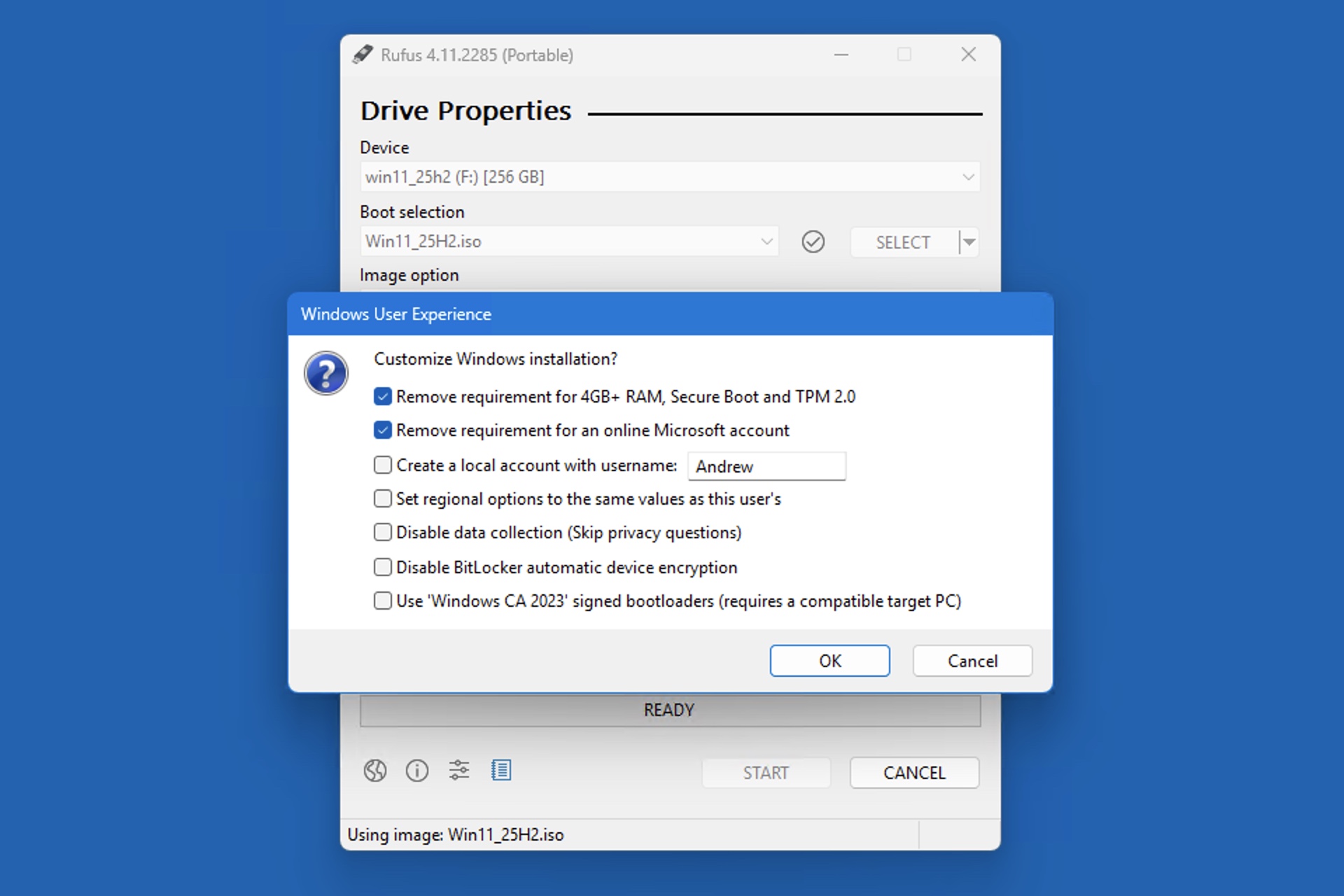
Once a Windows 11 ISO is obtained, the article guides users on creating a bootable installation disk using Rufus. Rufus is a free, third-party utility recommended for its efficiency in burning ISO files to USB flash drives, correctly arranging partitions, and making the disk bootable. It also offers the option to bypass Windows 11's TPM and Secure Boot requirements. Users connect a USB drive (at least 8GB, with all data erased), launch Rufus, select the USB drive and the downloaded ISO file, and then initiate the process. Optional steps include creating an NTFS partition and disabling system requirements if needed.
Finally, the guide details the actual installation of Windows 11 on a target PC. This involves booting the computer from the newly created USB installation drive, selecting language preferences, clicking "Install now," and entering a product key (or choosing to enter it later). Users then accept the license agreement, select a custom installation, choose the installation drive, and complete initial setup steps such as selecting region, naming the device, signing in with a Microsoft account (or opting for a local account), and creating a PIN. The article notes that the installation process may vary slightly based on the specific version and timing of the installation.
#Windows11 #CleanInstall #ISODownload #MediaCreationTool #UUPDump #Rufus #BootableUSB #OperatingSystem #InstallationGuide #Windows11 #CleanInstall #ISODownload #MediaCreationTool #UUPDump #Rufus #BootableUSB #OperatingSystem #InstallationGuide
 No comments yet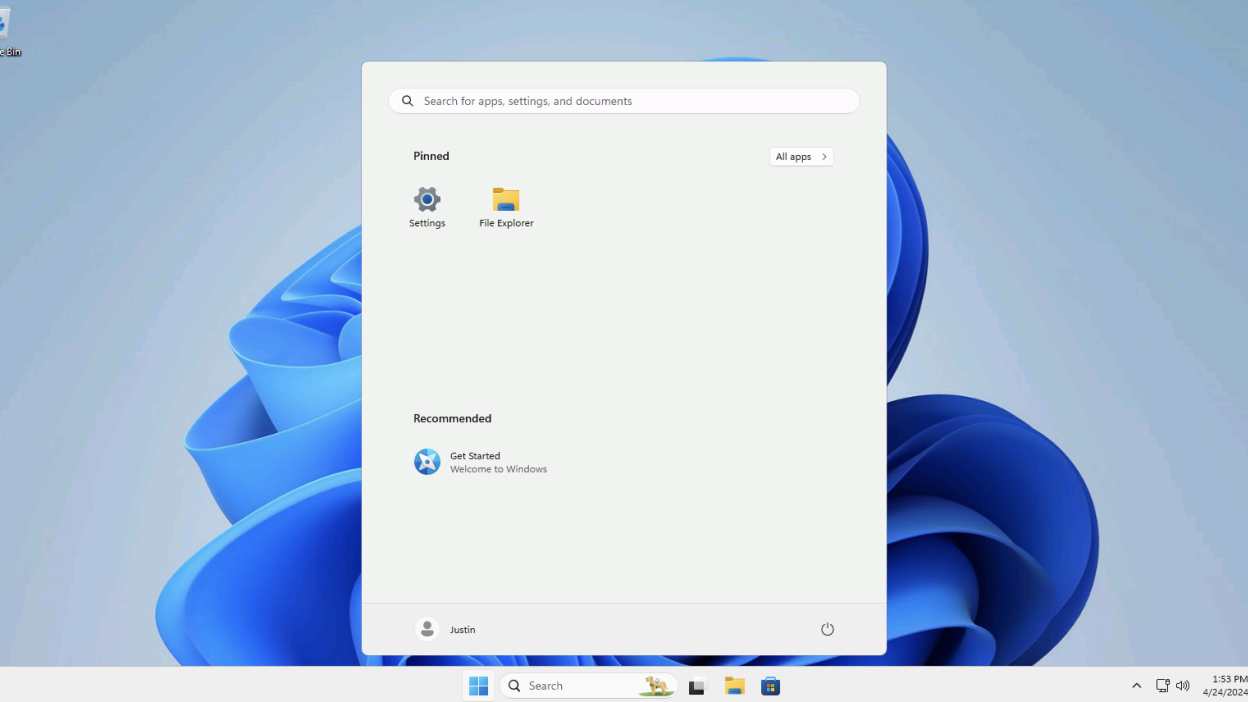
How to Install Windows 11 Without All the Extra Junk

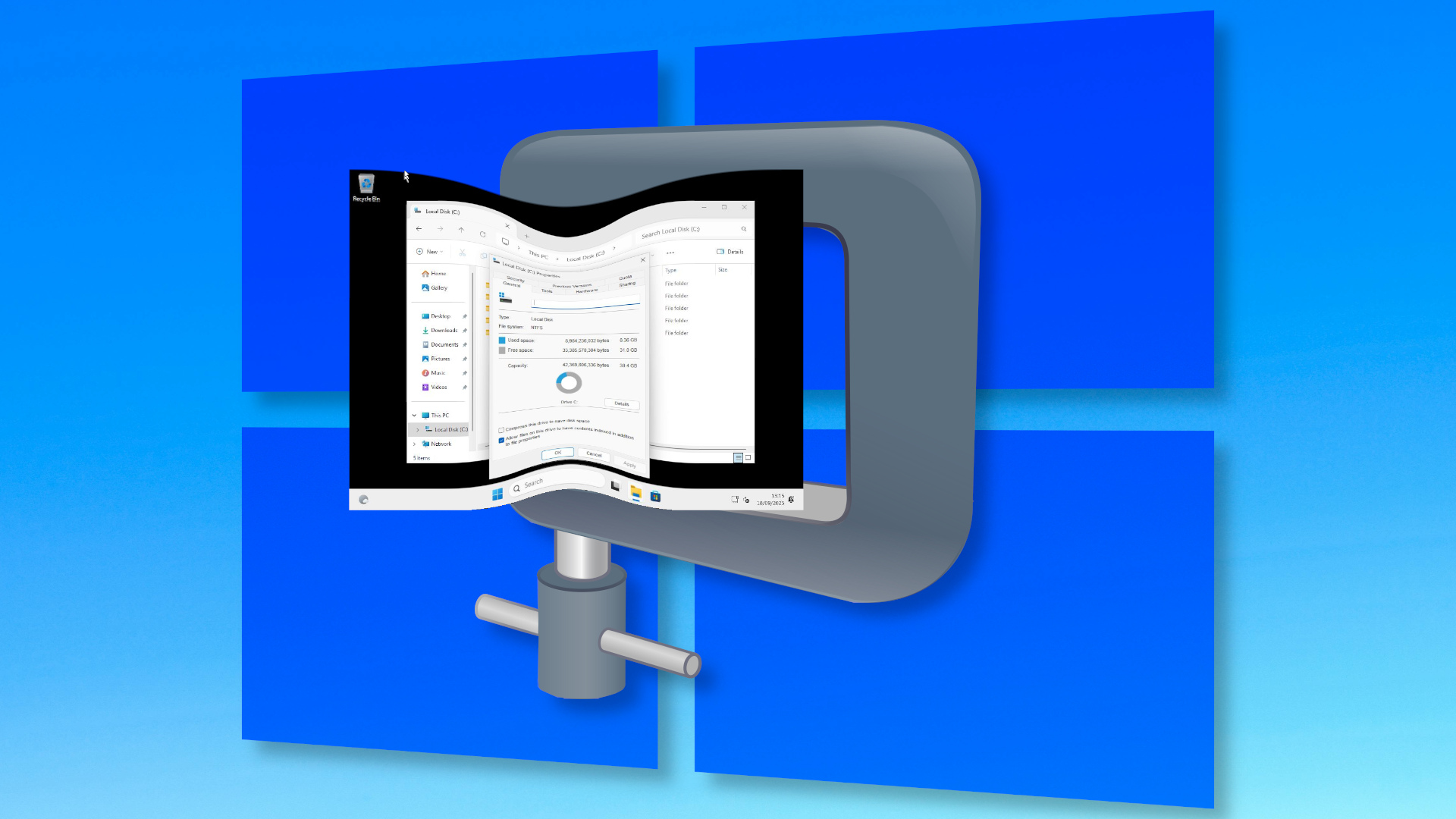
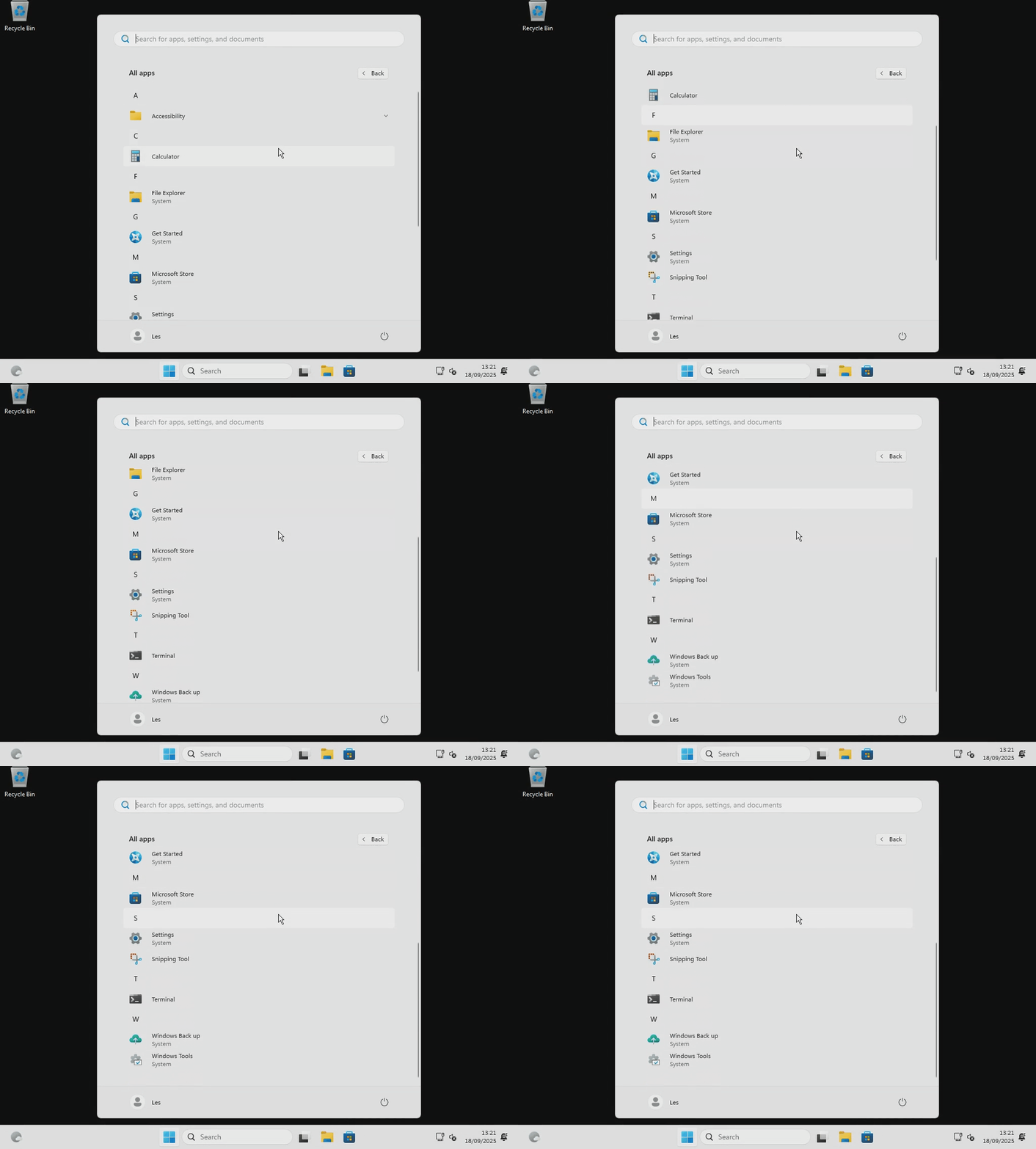
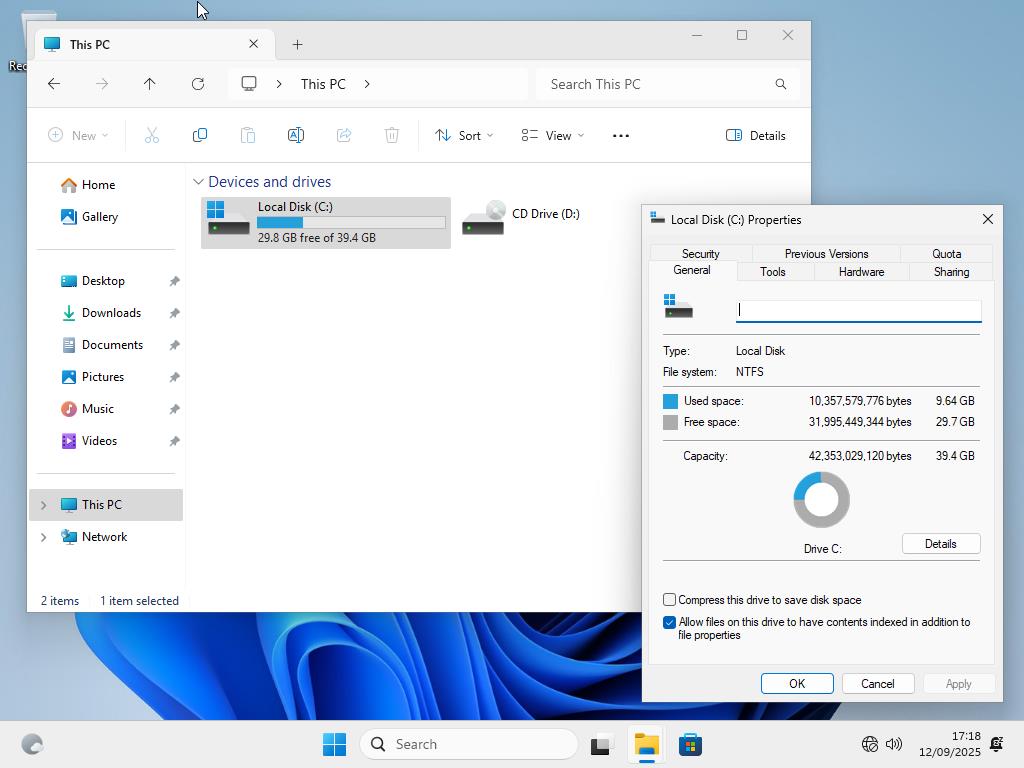
Here's how I installed Windows 11 using a nano-sized 2.4GB ISO — final install weighed in at a mere 8.36GB, two-thirds the size of a normal Windows install, courtesy of Nano11 Builder
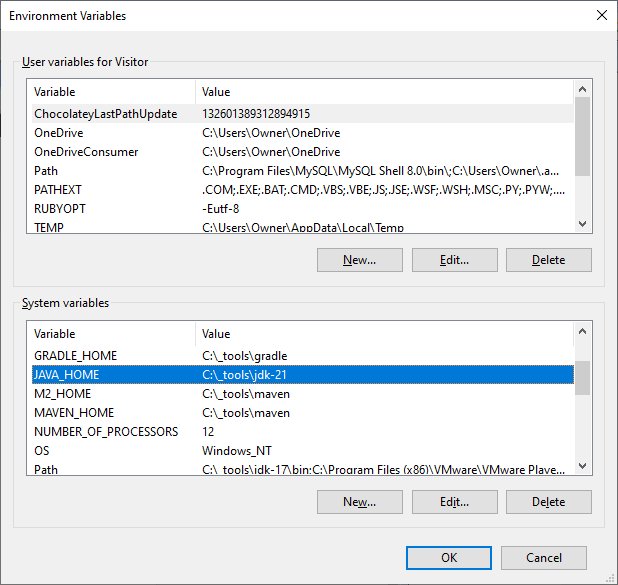
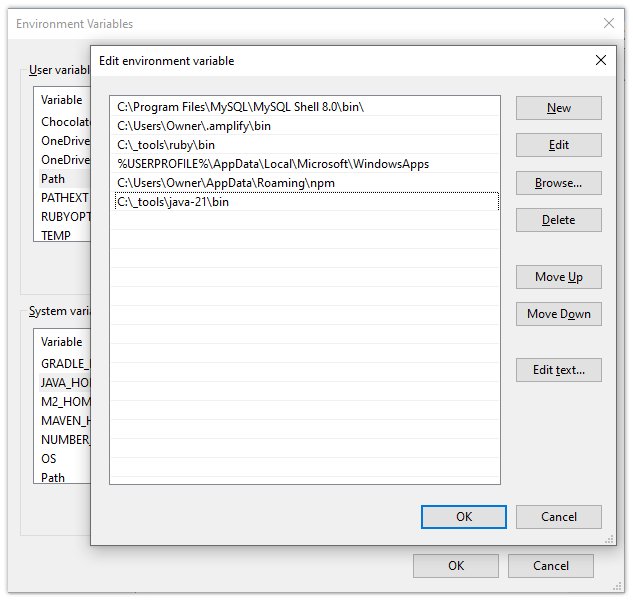
How to download and install Java 21 on Windows

7 Windows 11 apps I install first on every laptop and desktop PC I review

How to declutter, quiet down, and take the AI out of Windows 11 25H2