
1/11
How to Install Windows 11 Without All the Extra Junk
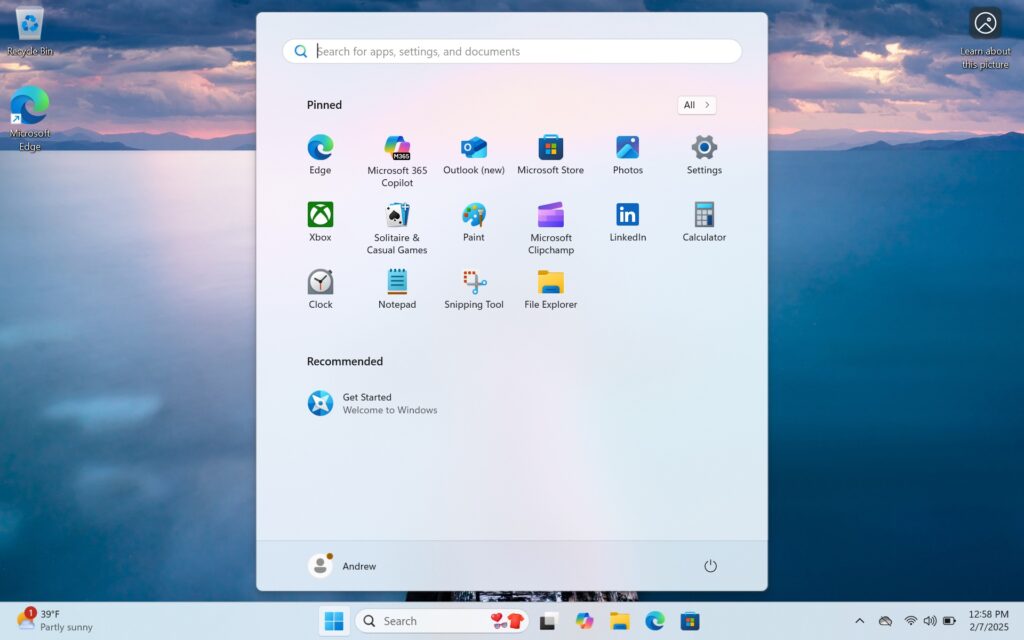
This article outlines a method for installing a streamlined version of Windows 11, devoid of pre-installed applications and services typically bundled by Microsoft. Standard Windows 11 installations often include features like a forced Microsoft account sign-up, cloud storage promotion, and aggressive pushes for Microsoft Edge and Copilot, which many users perceive as unnecessary bloatware.
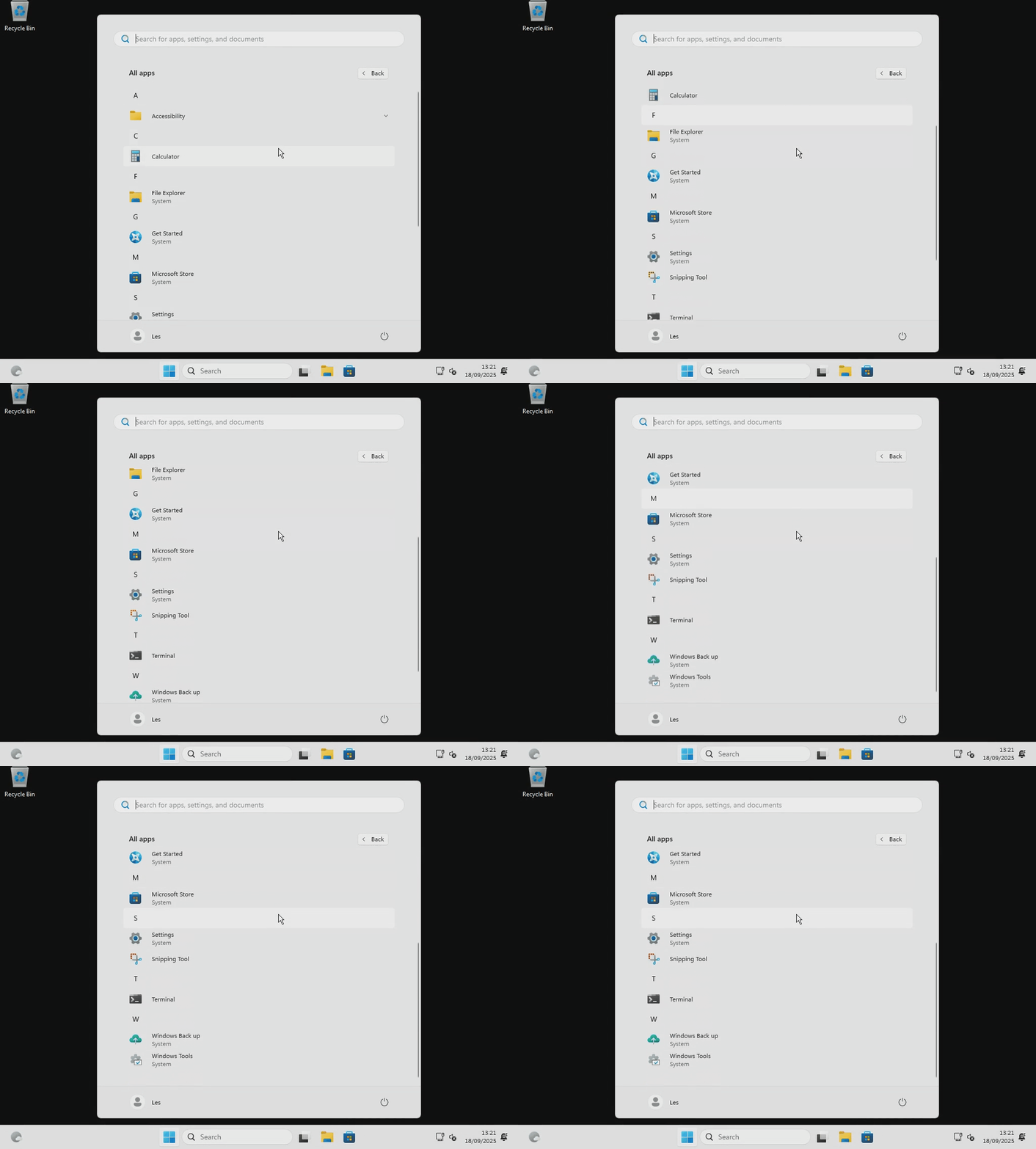
The core of this method involves using a third-party script called Tiny11Builder. This script processes an official Windows 11 installation ISO file, removing unwanted components to create a genuinely clean installation. The result is a Windows environment free from applications such as News, OfficeHub, and GetStarted prompts, offering a minimalistic start menu. Users retain the option to install these features later if desired, but the initial setup provides a clean slate.
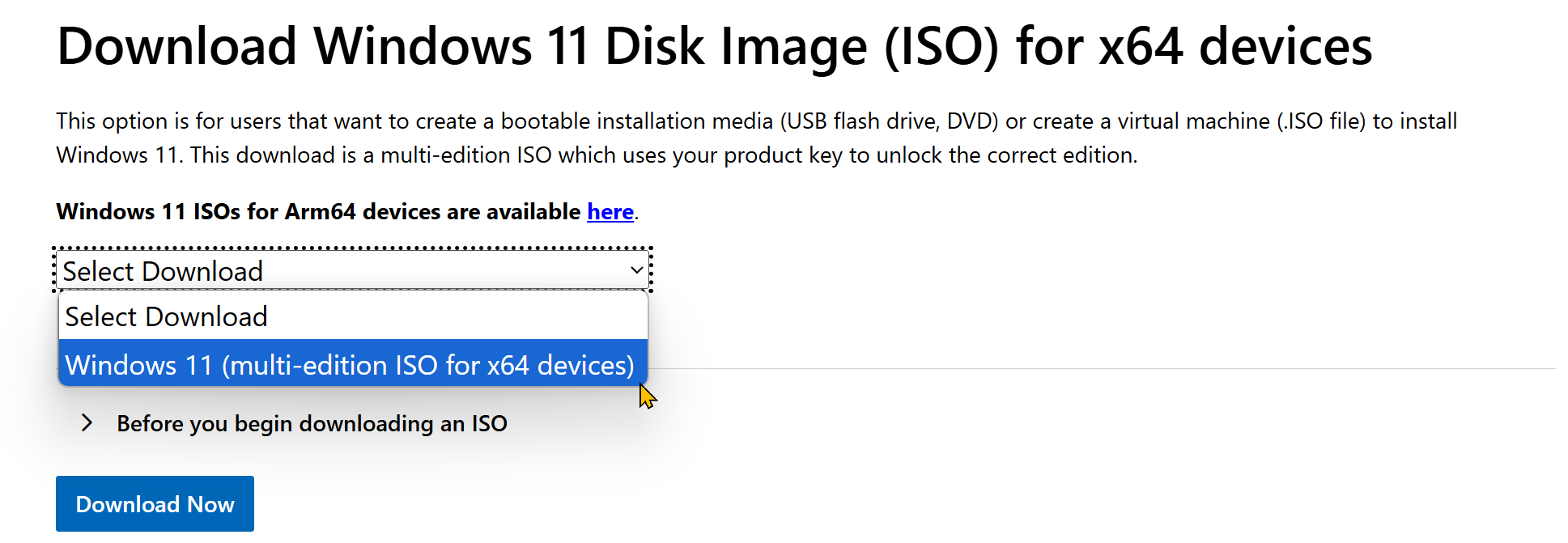
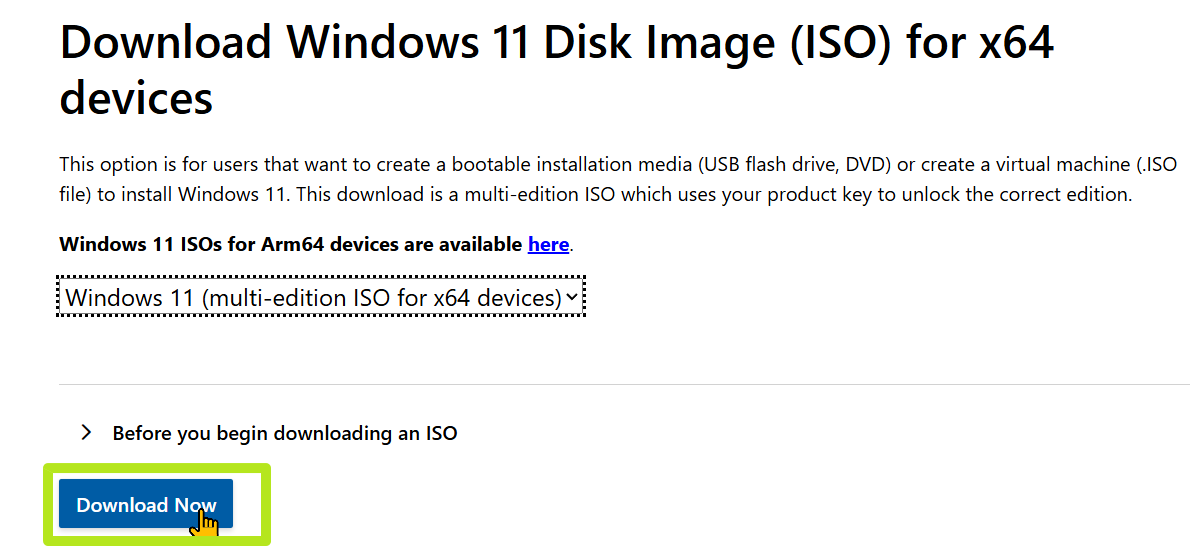
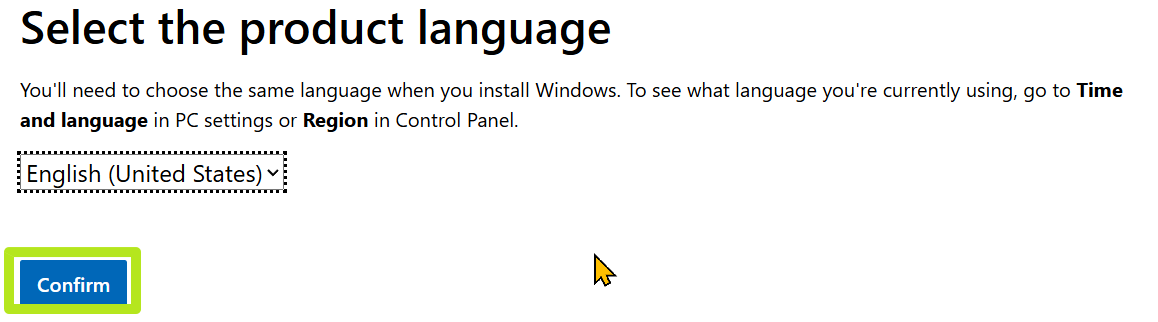
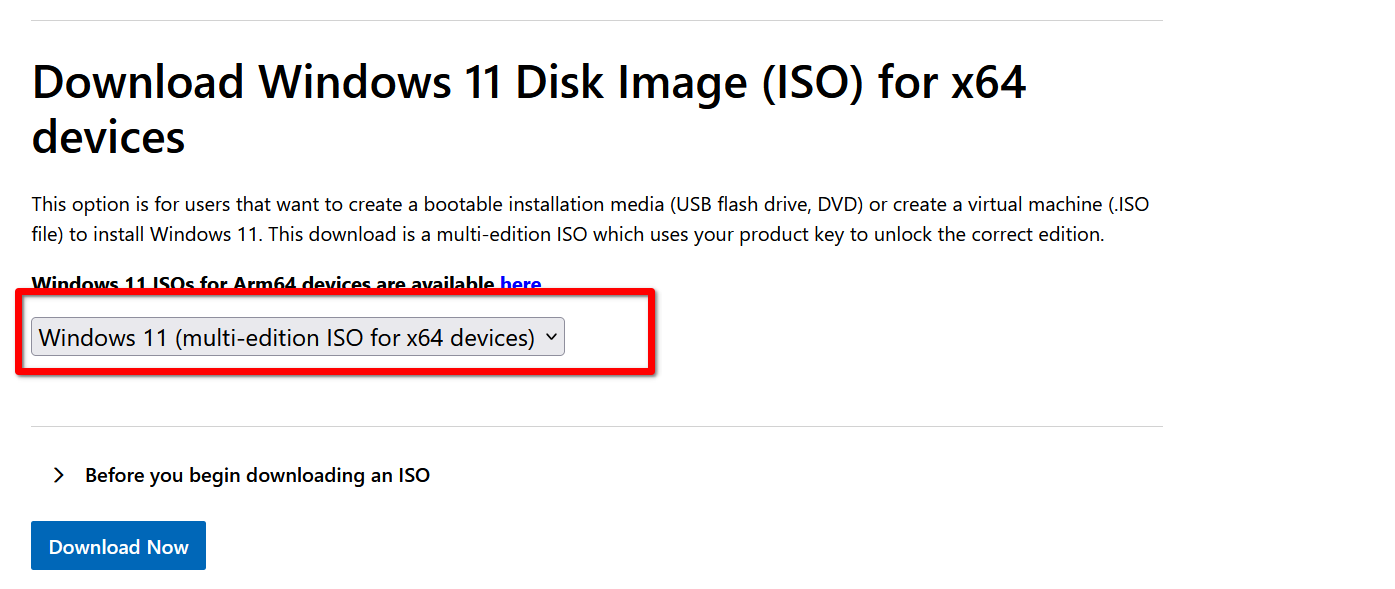
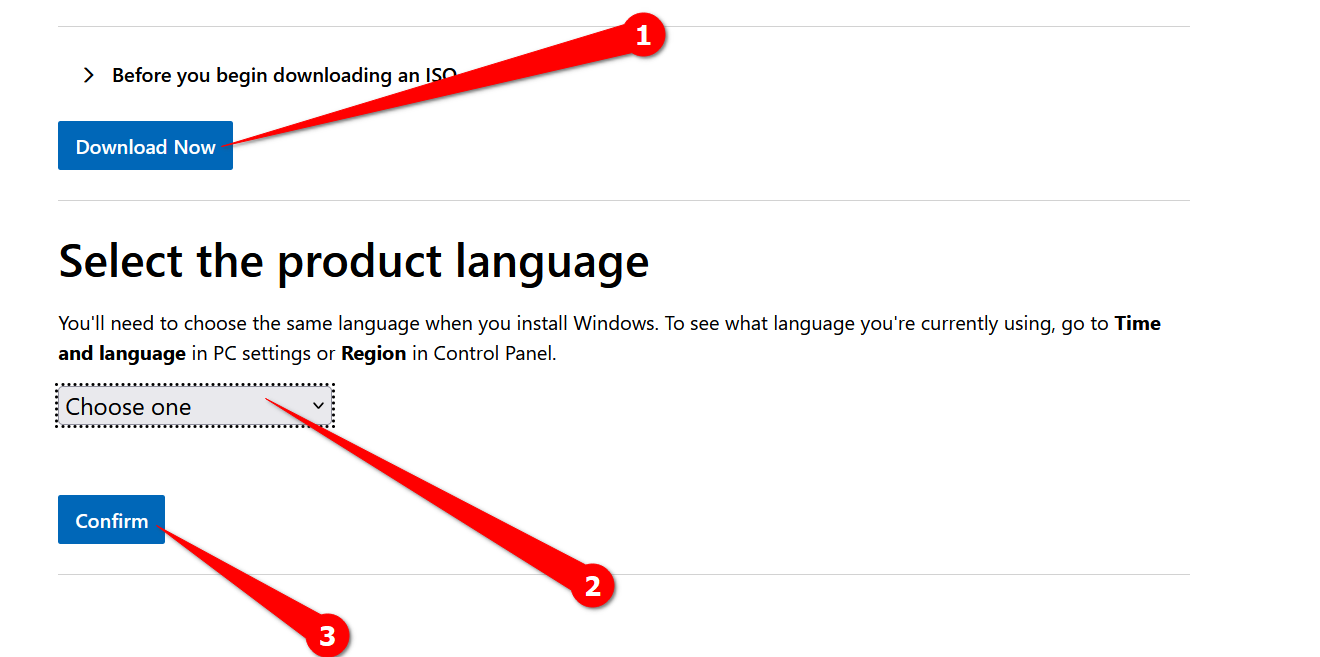
The process begins with downloading an official Windows 11 Disk Image (ISO) for x64 devices from Microsoft's software download page. Users are instructed to select the Windows version corresponding to their product key. The download duration typically ranges around 15 minutes, depending on internet speed.
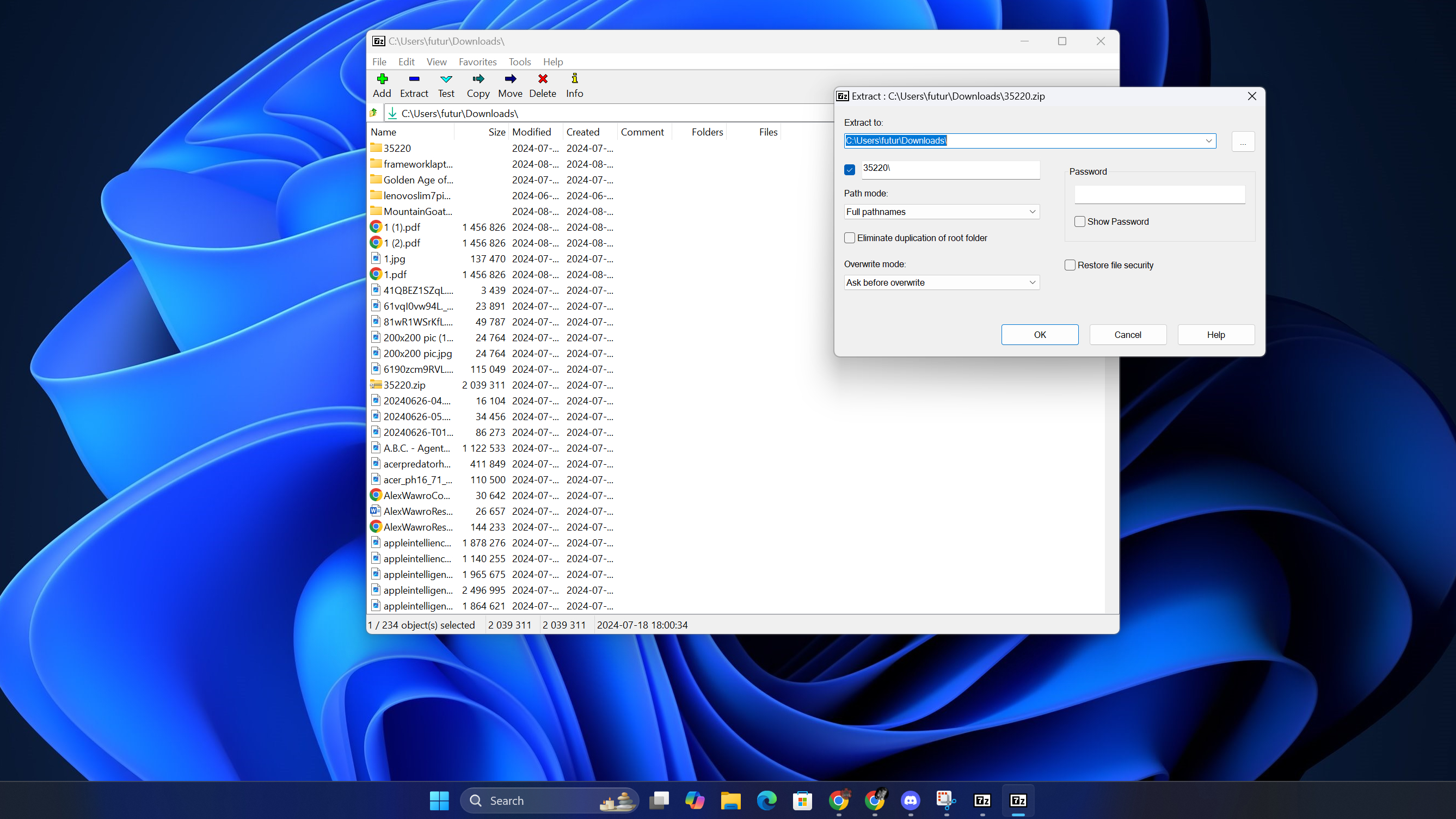
Following the ISO download, the next step involves acquiring the Tiny11Builder script from its GitHub page by downloading the ZIP file. After extracting the contents, the system needs configuration to allow PowerShell to execute administrative changes. This is achieved by opening PowerShell as an administrator and executing the command `Set-ExecutionPolicy unrestricted`. A security warning appears, requiring user confirmation, but the change can be reverted later using `Set-ExecutionPolicy restricted`.
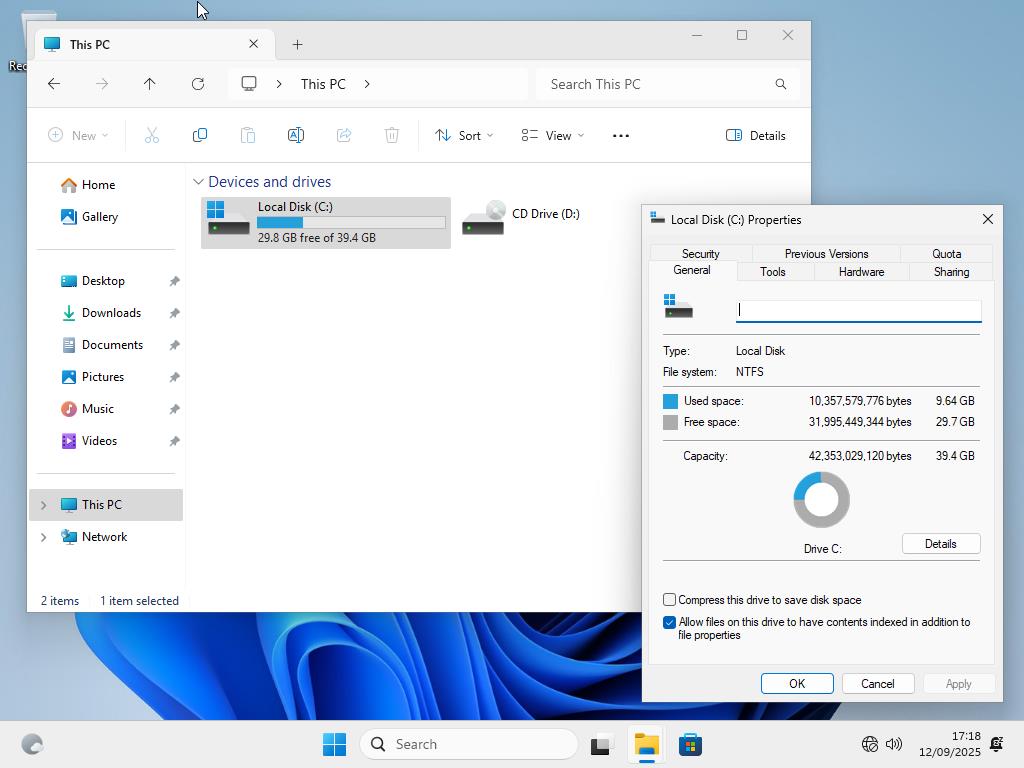
Once the Windows 11 ISO download is complete, the file is mounted as a virtual CD by right-clicking it and selecting 'Mount.' This action makes the ISO's contents accessible as a virtual drive, identifiable in Windows Explorer. The `tiny11maker.ps1` script, obtained earlier, is then run with PowerShell. The script prompts the user to enter the drive letter of the mounted virtual drive and specify the desired Windows version based on their product key.
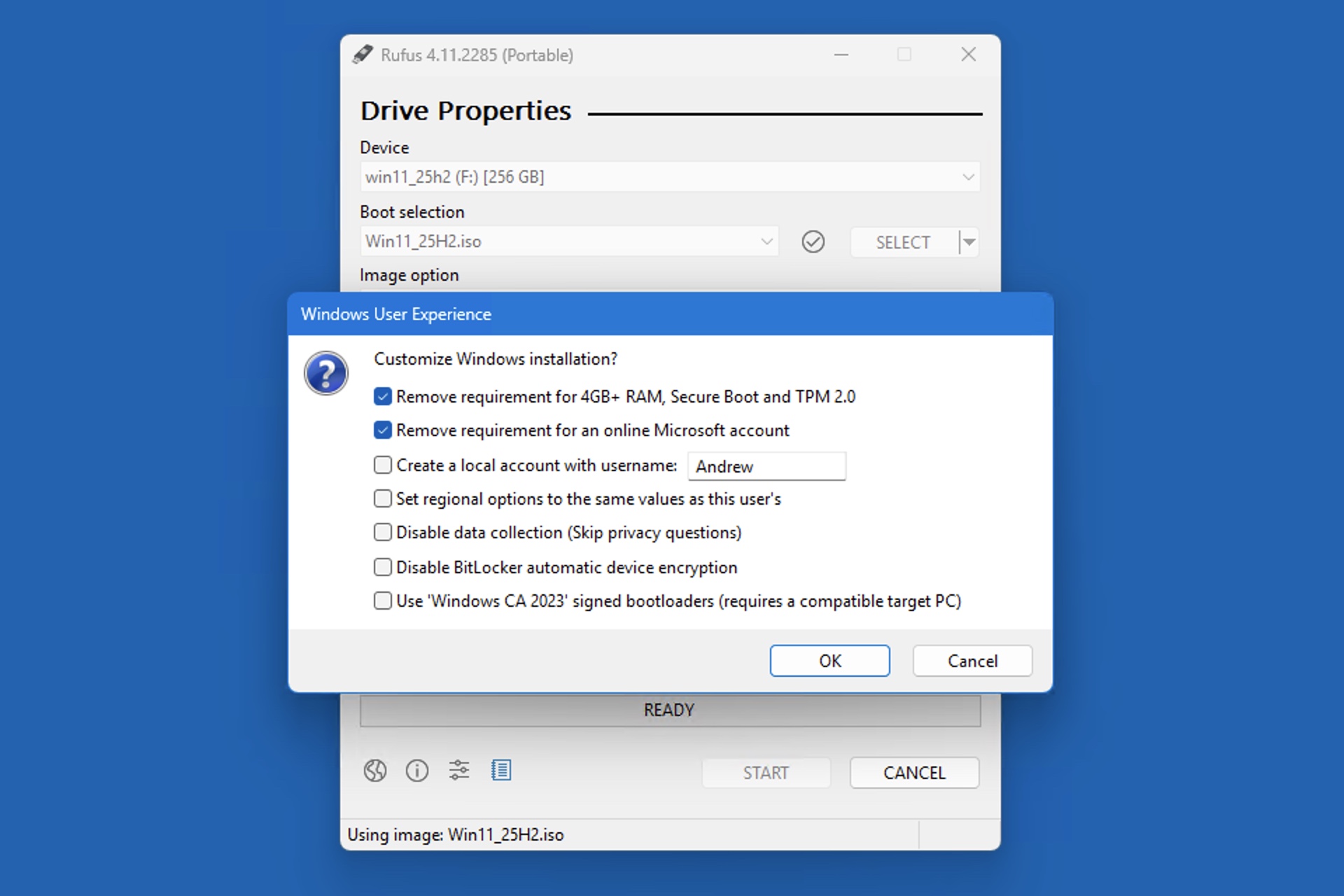
The script then proceeds with the stripping process, which can take some time. Upon completion, a new, clean ISO file is generated in the script's directory. This customized ISO can be used for installing Windows 11 in a virtual machine or directly onto a physical device. Installation can be performed by burning the ISO to a DVD or creating a bootable USB drive, for which Microsoft provides official instructions.
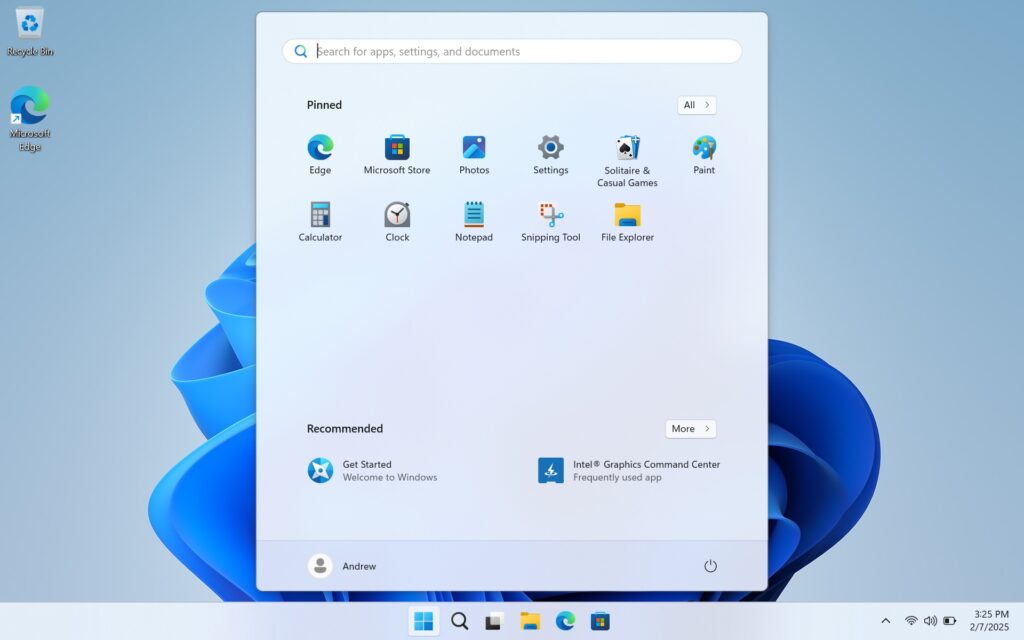
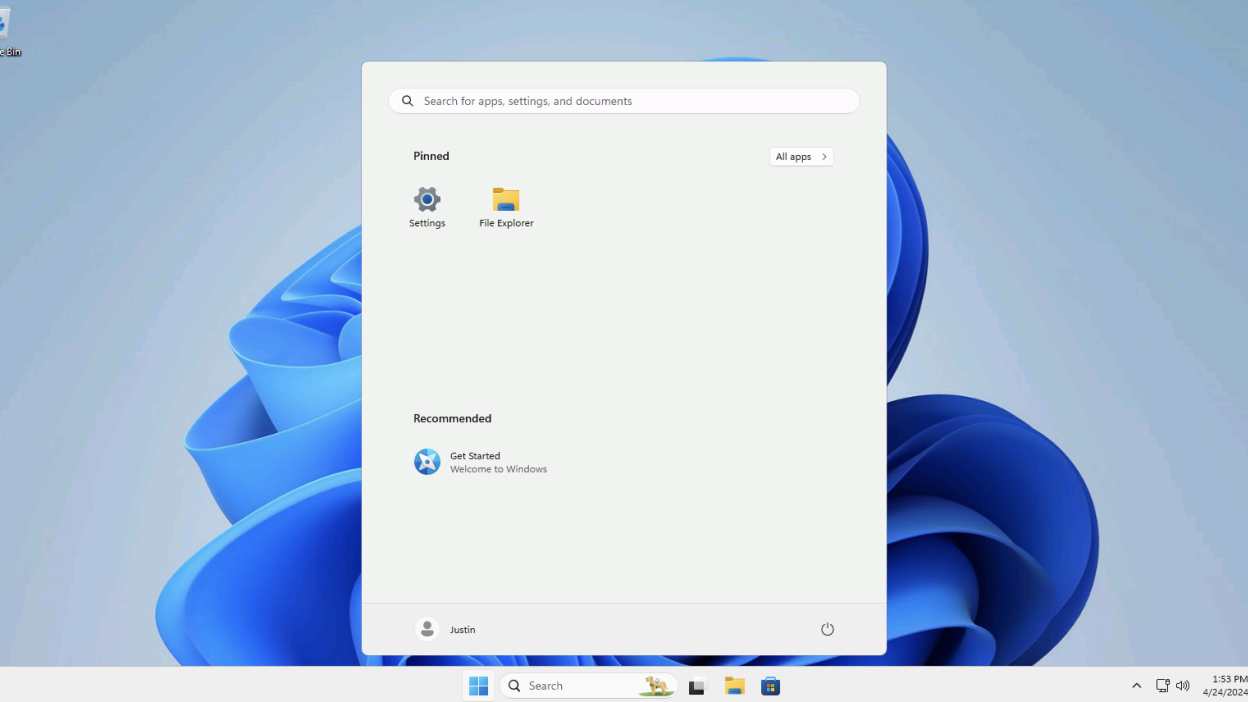
The resulting Windows 11 installation is completely clean, eliminating prompts for Microsoft account creation or sign-in, and excluding non-essential Microsoft services. The start menu of this customized installation is notably clutter-free, allowing users to add only the applications they genuinely wish to use. While Microsoft does not officially offer such a streamlined installation, the Tiny11Builder provides a valuable solution for power users seeking a minimalist Windows 11 experience.
#Windows11 #CleanInstall #BloatwareRemoval #Tiny11Builder #PowerShell #ISO #OperatingSystem #TechTutorial #Windows11 #CleanInstall #BloatwareRemoval #Tiny11Builder #PowerShell #ISO #OperatingSystem #TechTutorial
 No comments yet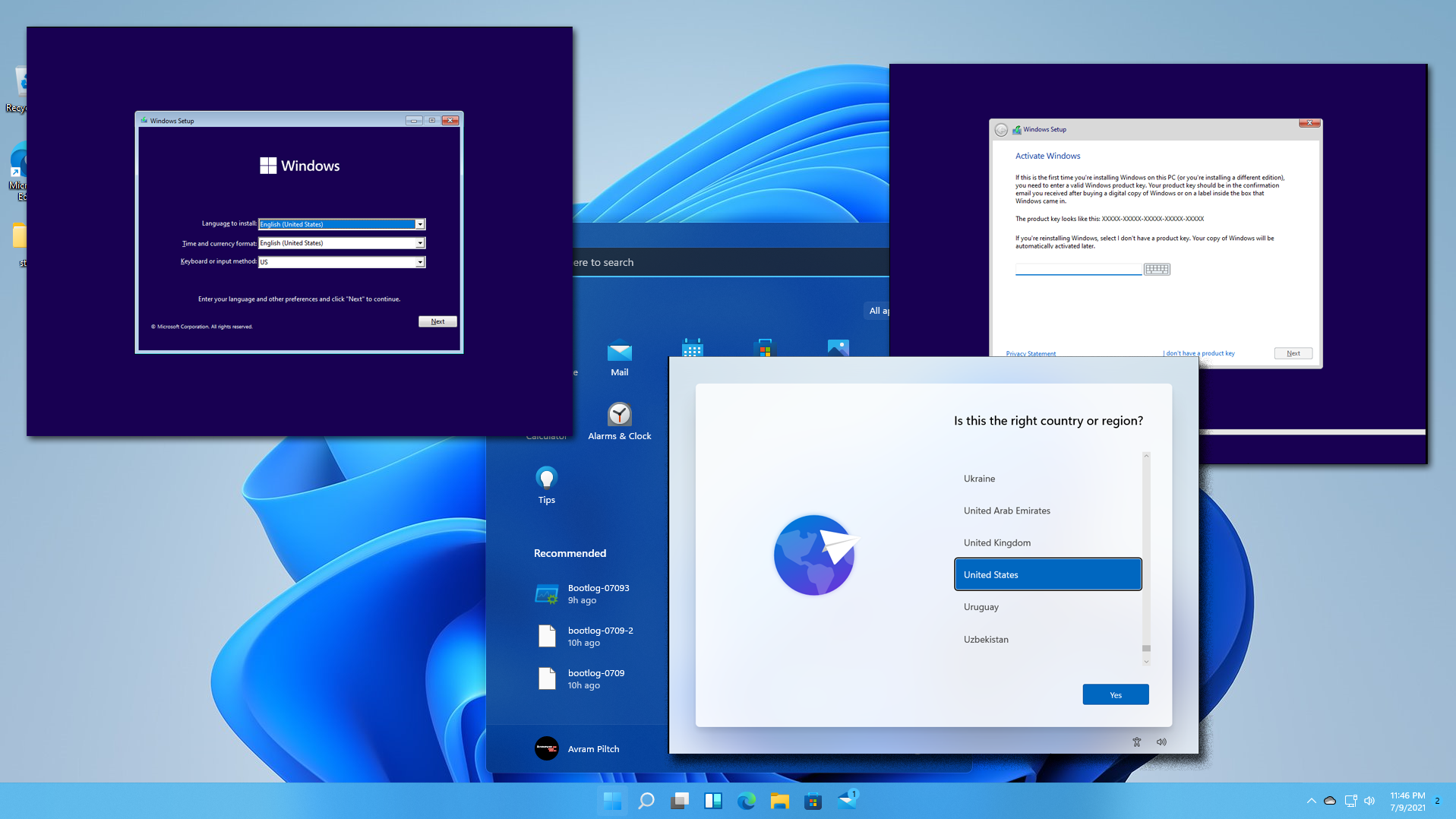
How to Download Windows 11 and Install It
Here's How to Make Your Windows Installation More Private

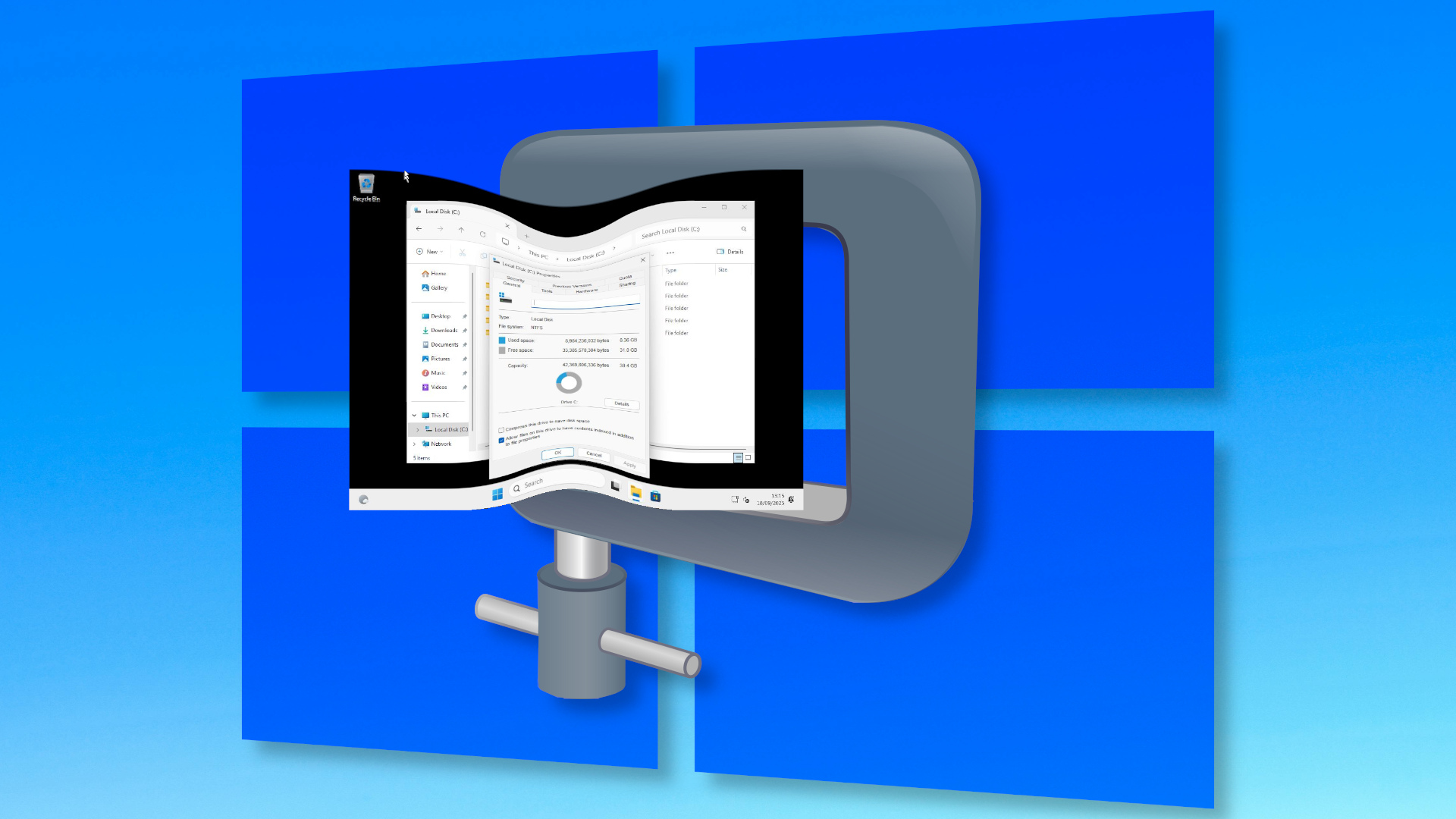
Here's how I installed Windows 11 using a nano-sized 2.4GB ISO — final install weighed in at a mere 8.36GB, two-thirds the size of a normal Windows install, courtesy of Nano11 Builder
How to declutter, quiet down, and take the AI out of Windows 11 25H2
How to Install or Remove Optional Features in Windows 11
7 Windows 11 apps I install first on every laptop and desktop PC I review