1/2
iOS 16: How to Delete a Lock Screen Wallpaper
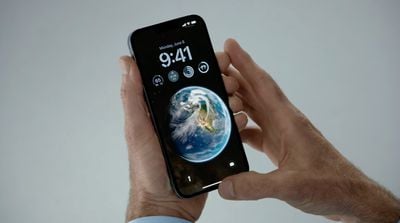
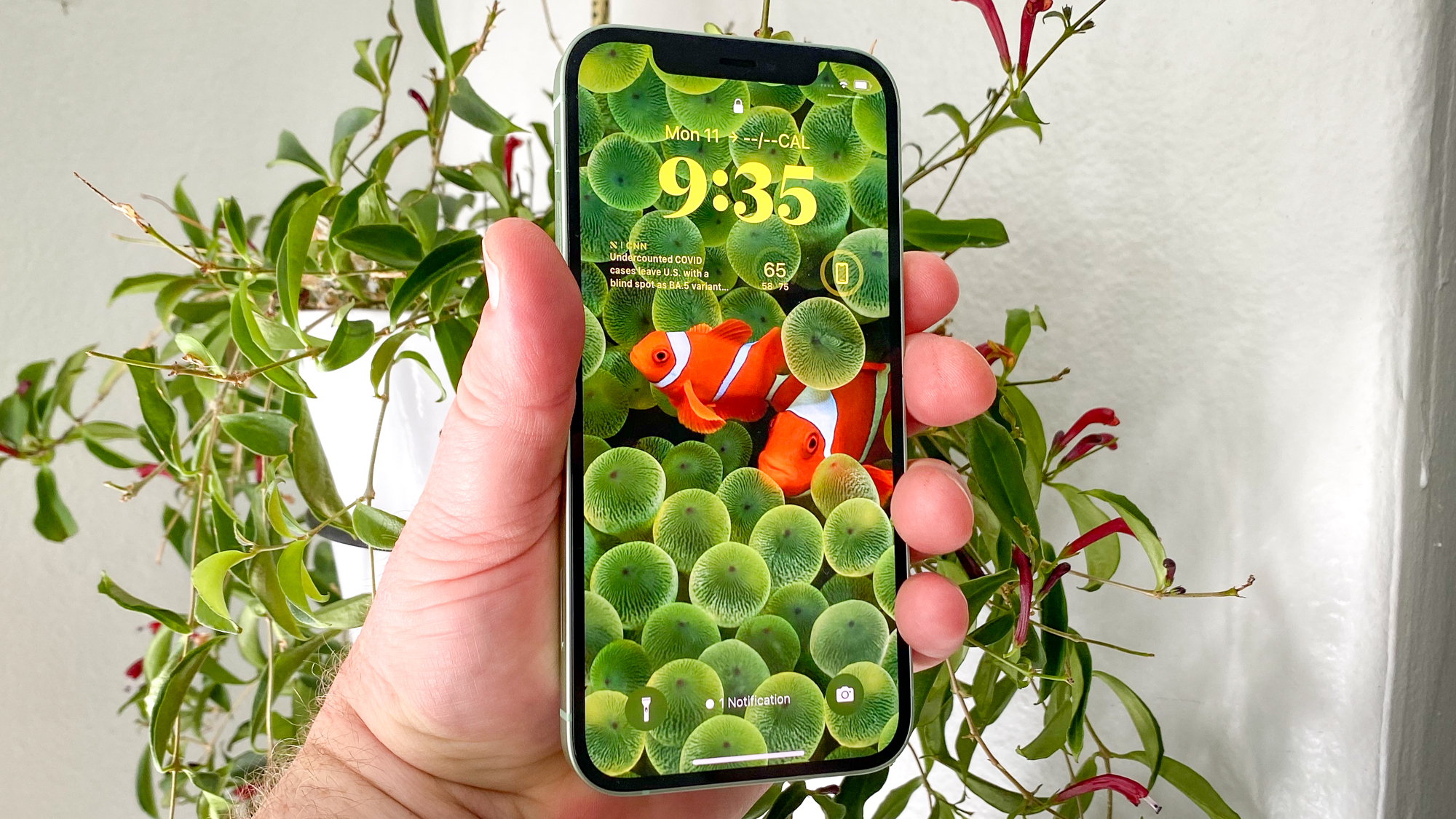
The iOS 16 update introduced a significant redesign of the Lock Screen, offering users extensive customization options. This overhaul allows for personalization of various elements, including the clock font's color and style, as well as the appearance of wallpaper images. A notable addition in iOS 16 is the integration of Lock Screen widgets, which provide quick access to app information without requiring navigation to the Home Screen.
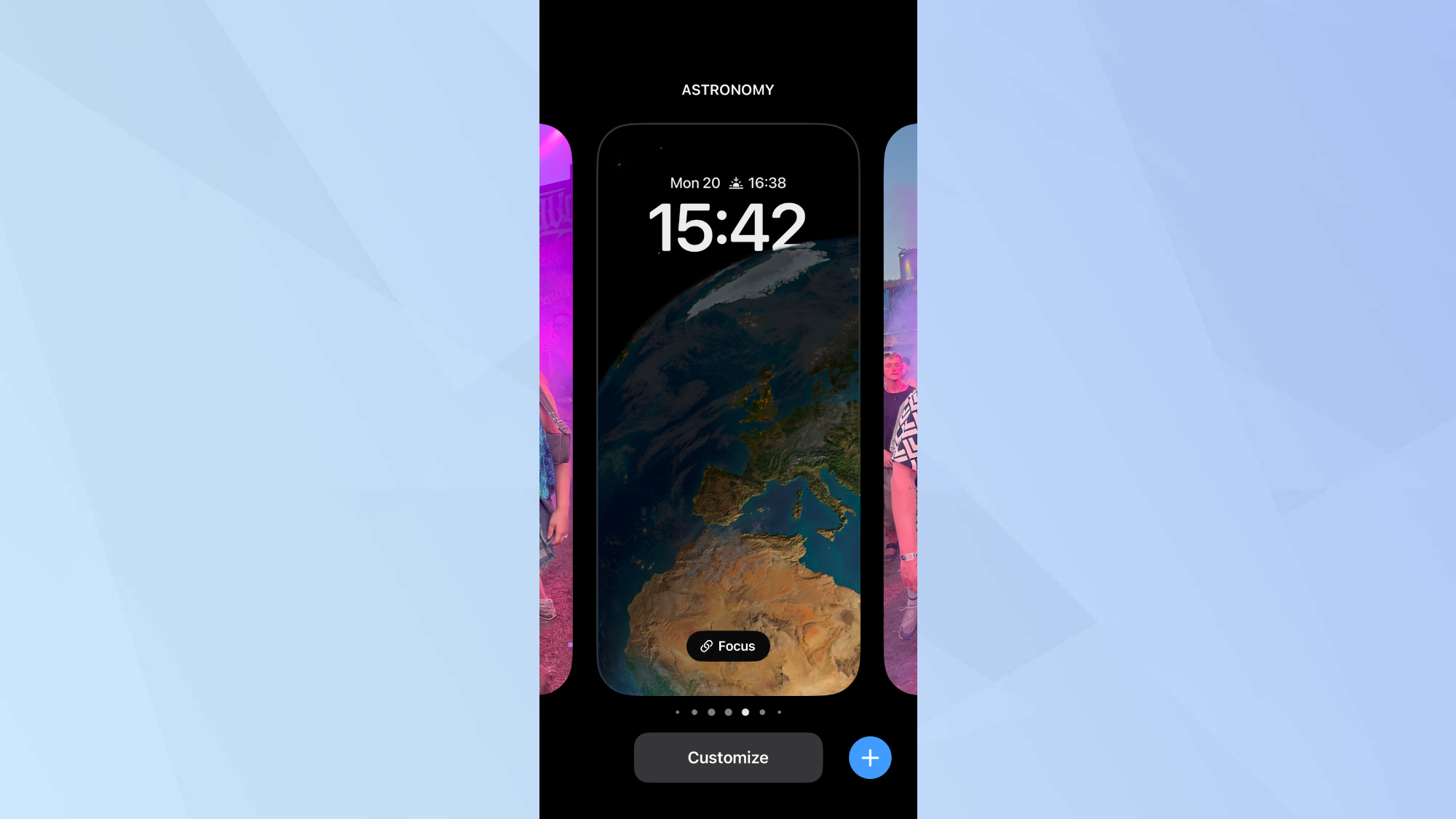
Central to these new customization features is the Lock Screen wallpaper gallery. This gallery enables users to create and store multiple distinct Lock Screen wallpapers, facilitating easy switching between them with a simple swipe gesture. This functionality mirrors the customization process found in Apple Watch, specifically how watch faces are managed and interchanged. The interface for managing these Lock Screens, including the deletion process, is intentionally designed to be intuitive and similar to the Apple Watch experience.
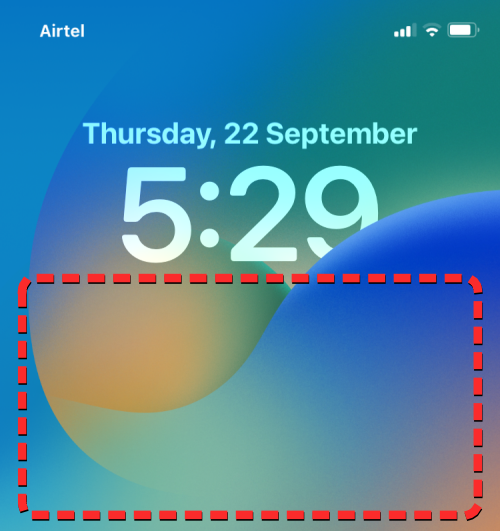
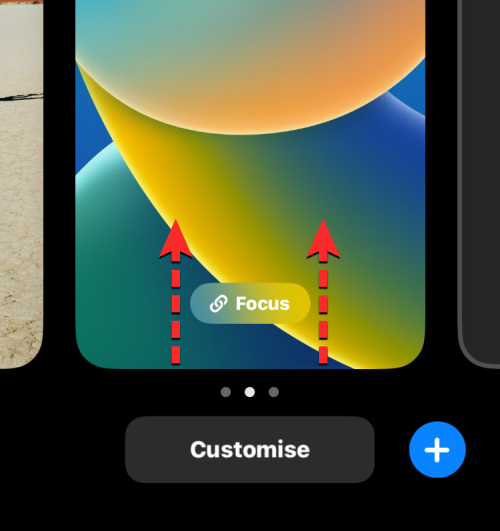
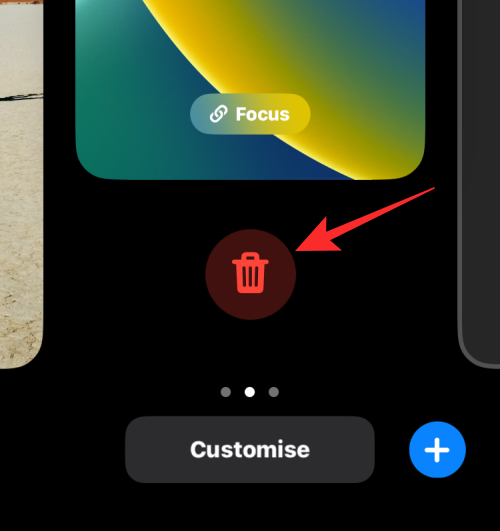
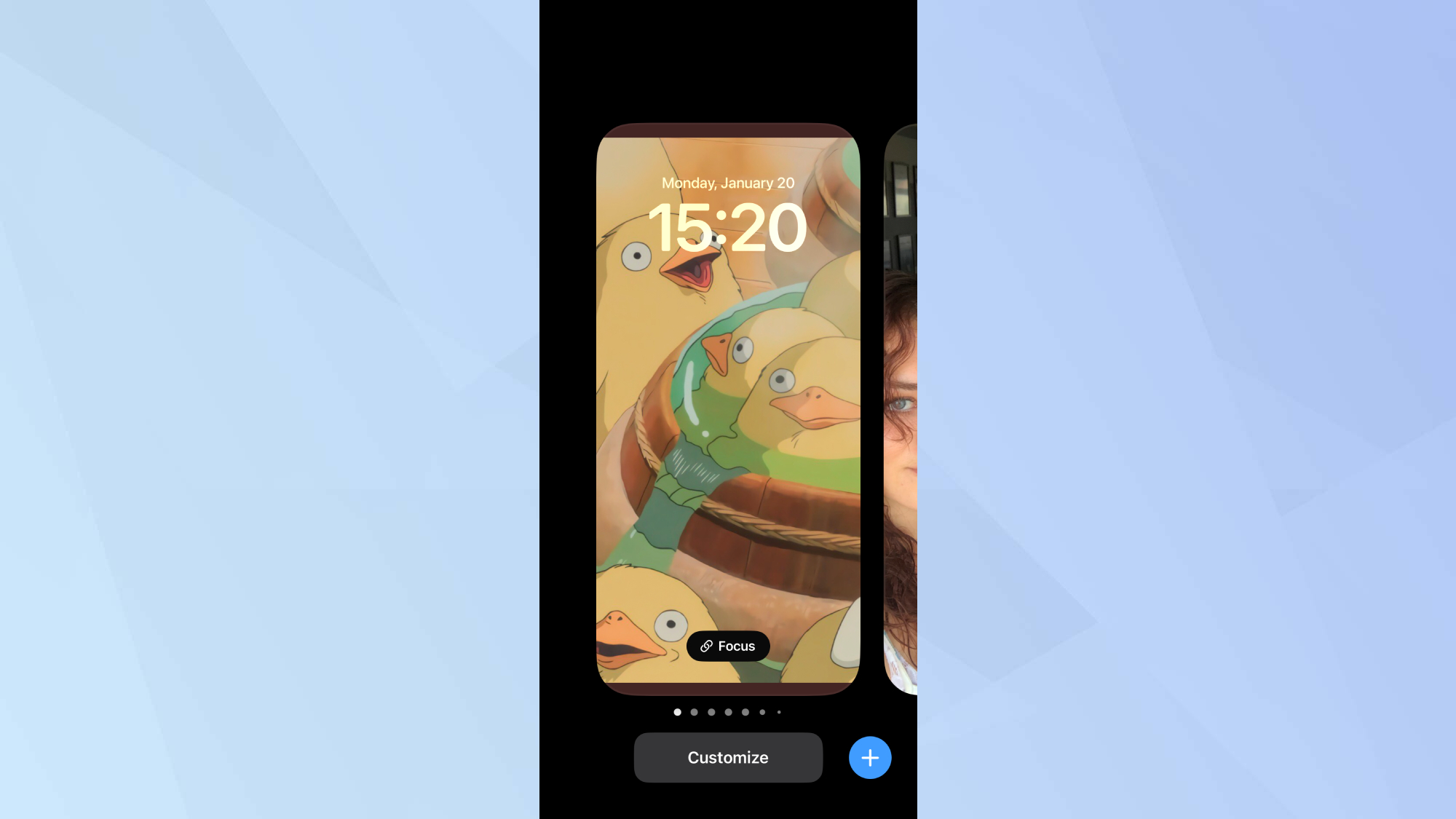
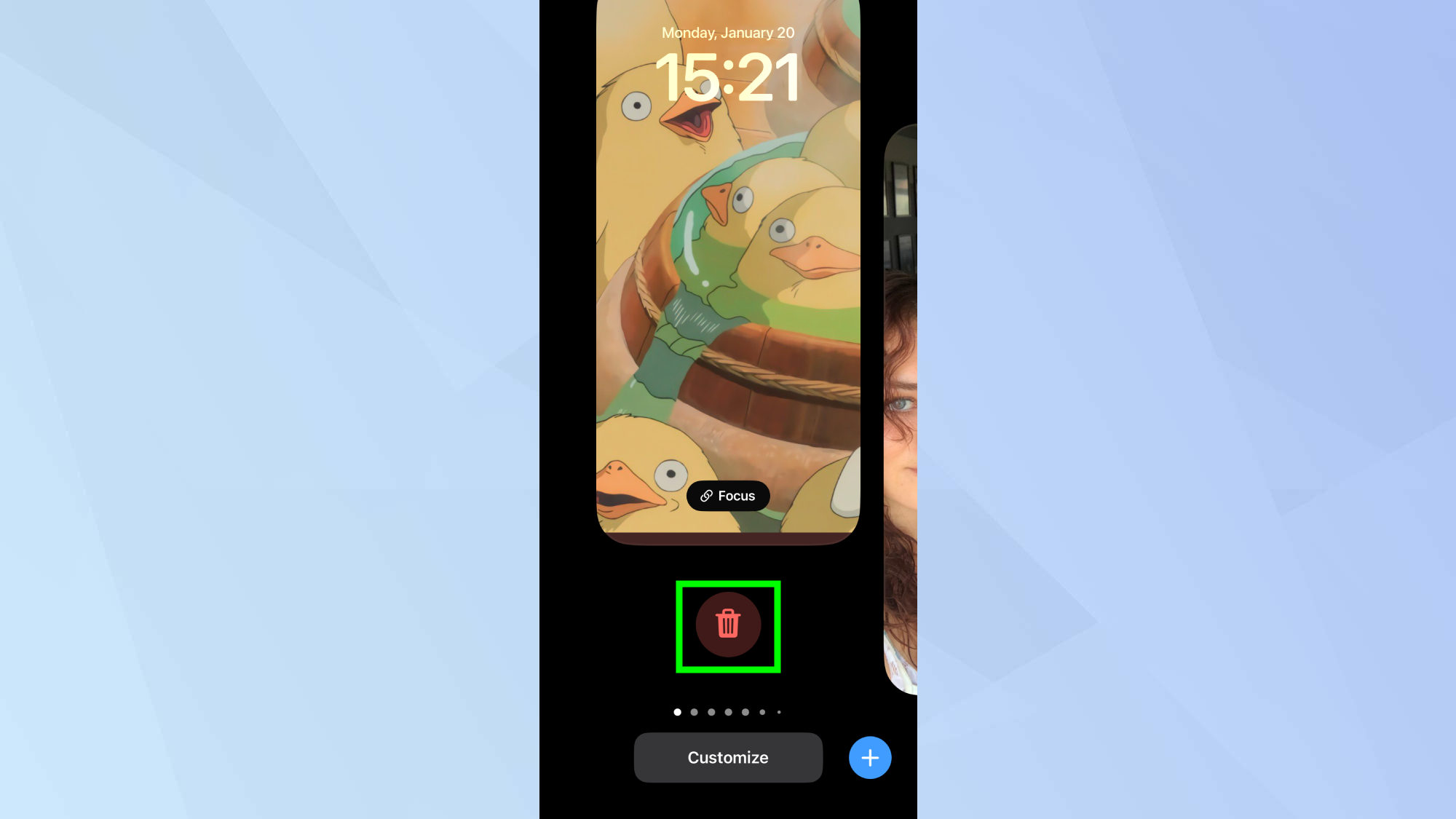
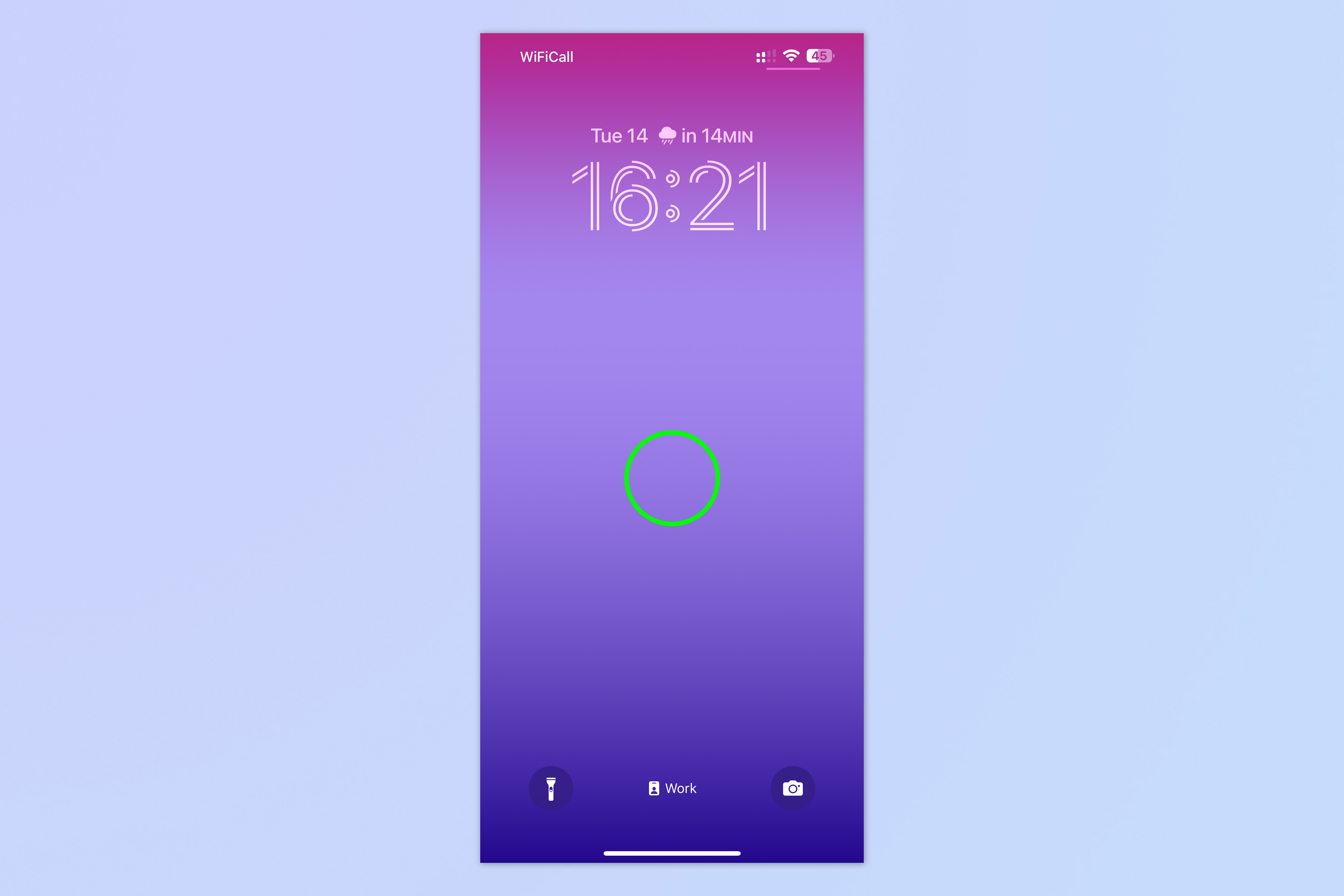
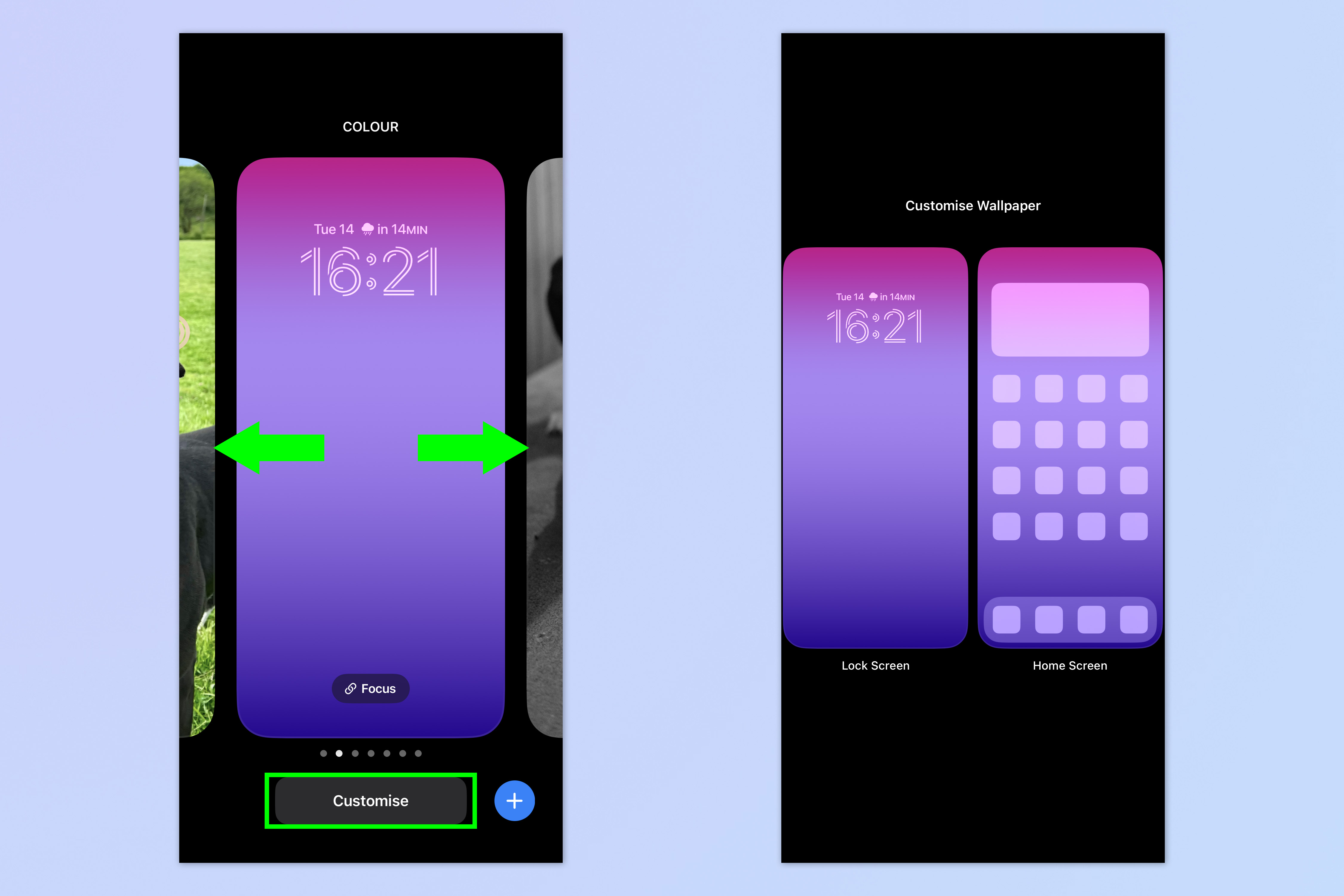
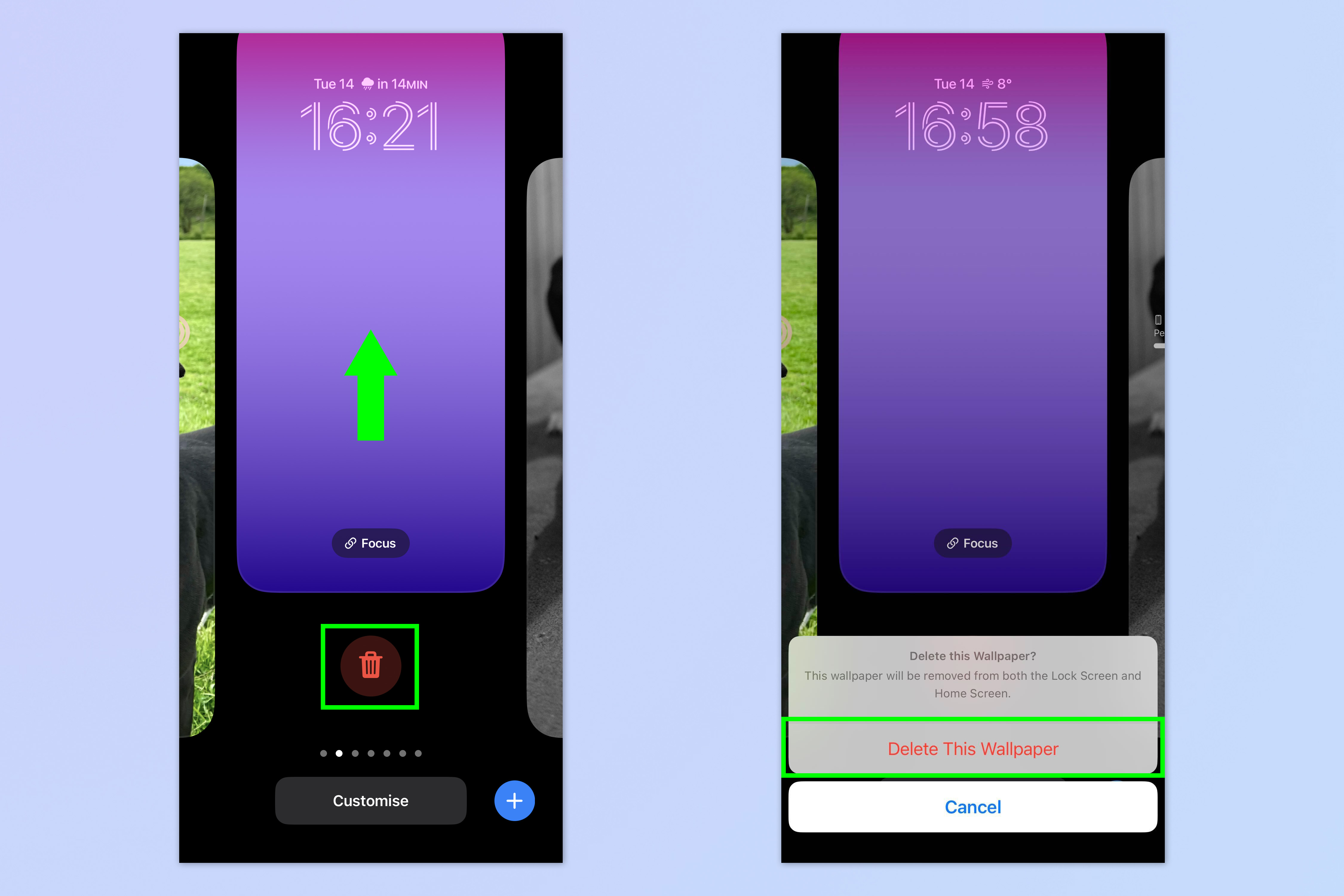
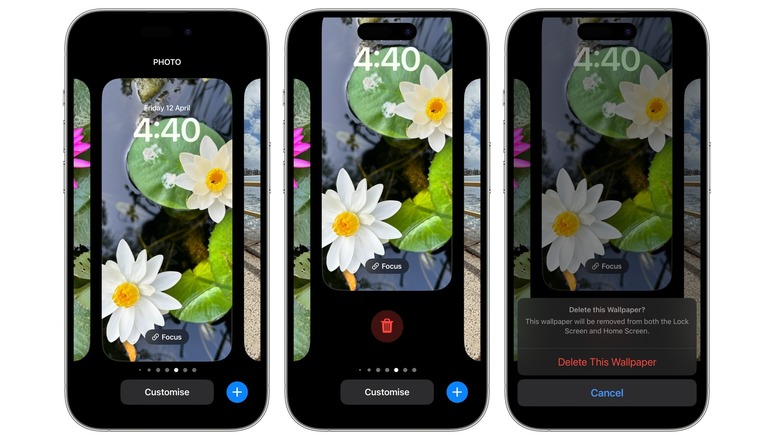
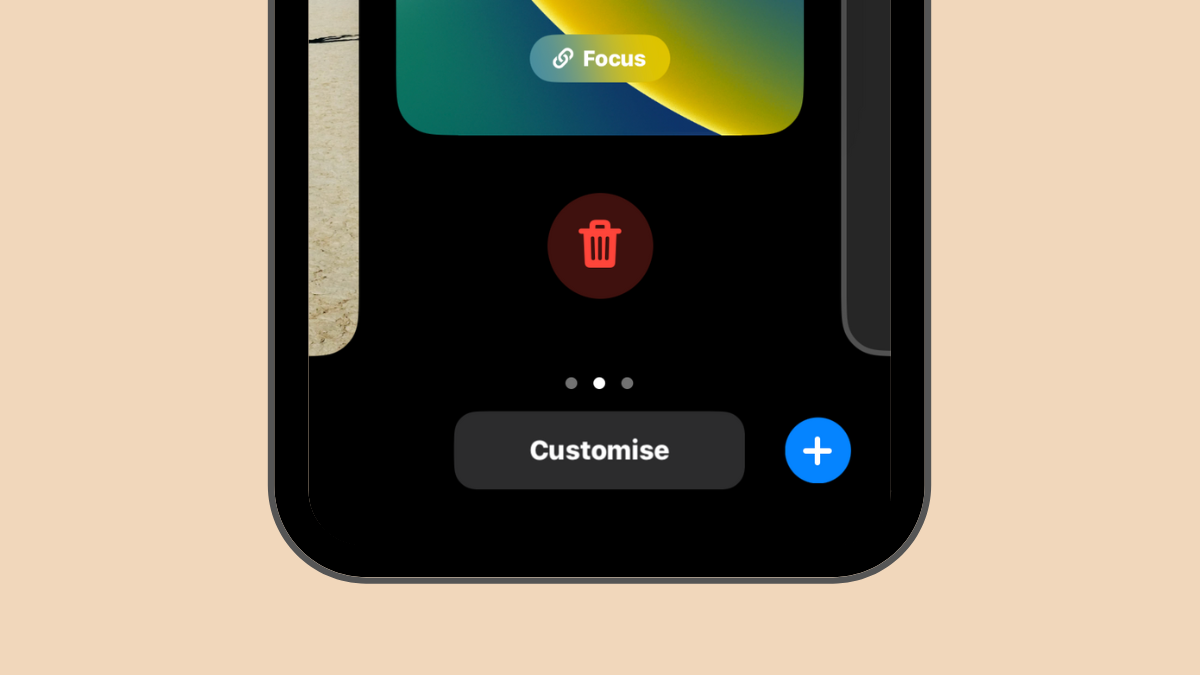
To delete a Lock Screen wallpaper in iOS 16, a straightforward procedure is followed. First, the user needs to unlock their iPhone using either Face ID or Touch ID to gain access to the device. Once unlocked, the user must press and hold on the Lock Screen. This action activates the wallpaper gallery interface, displaying all saved Lock Screen configurations. The user then navigates through the gallery by swiping left or right to locate the specific wallpaper they wish to remove. After identifying the target wallpaper, an upward swipe gesture on that selected wallpaper reveals a red trash icon.
Upon tapping the red trash icon, a confirmation prompt appears. The user must then tap 'Delete' to finalize the removal of the chosen Lock Screen wallpaper from their gallery. This process ensures that users can easily manage their collection of customized Lock Screens, adding new ones as desired and removing those no longer wanted. The ability to freely create and delete Lock Screens provides flexibility and control over the iPhone's personalized aesthetic, maintaining an uncluttered and relevant selection of wallpapers.
#iOS16 #LockScreen #Wallpaper #iPhoneCustomization #AppleTips #HowTo #iOS16 #LockScreen #Wallpaper #iPhoneCustomization #AppleTips #HowTo
0 comment in total
 No comments yet
You may also like
How to Delete a Wallpaper on iPhone

A Stress-Free Way to Remove Wallpaper

You’d Never Know That These Stylish Wallpapers Are Totally Removable
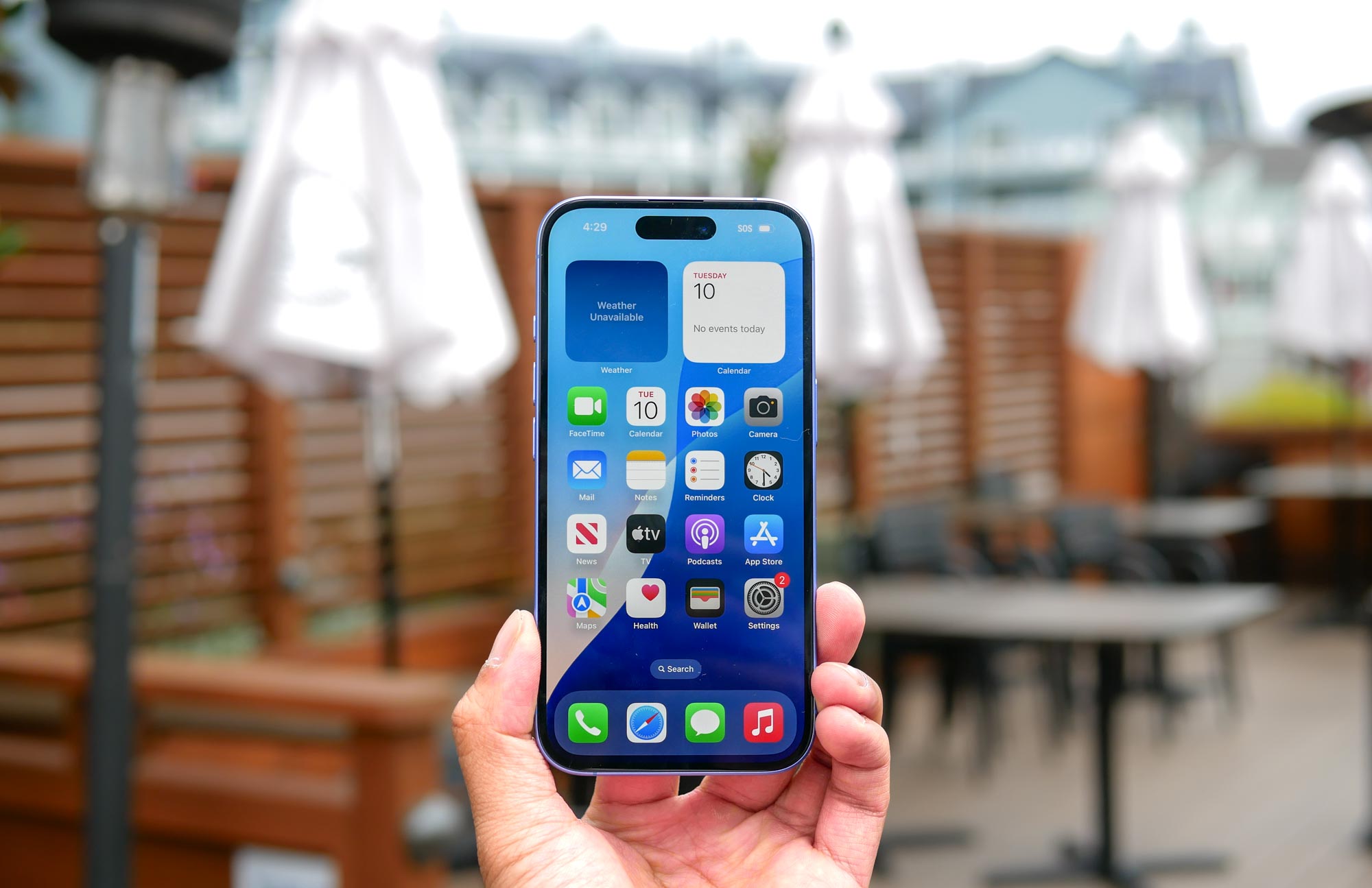
How to delete a wallpaper on your iPhone

9 Best Wallpaper Removers

Wallpaper
How to delete wallpapers on iPhone
3 ways to remove wallpaper quickly
How To Delete Wallpapers On Your iPhone

26 removable wallpapers to jazz up your boring rented walls
How to remove the wallpaper from your iPhone 14 Pro's always-on display
DIY Removable Wallpaper