
1/2
How To Delete Wallpapers On Your iPhone
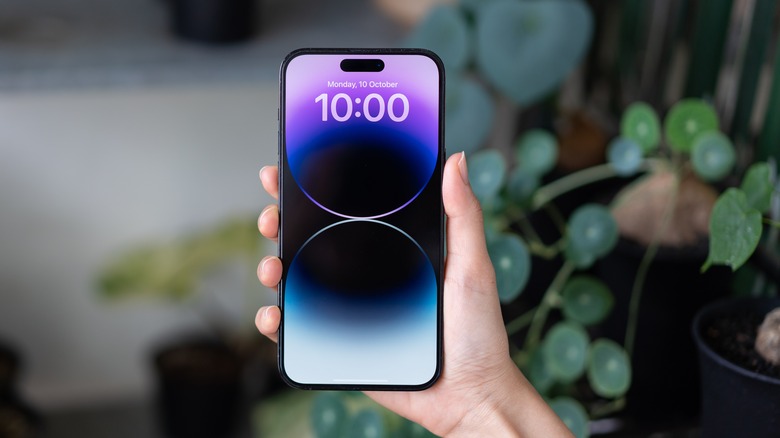
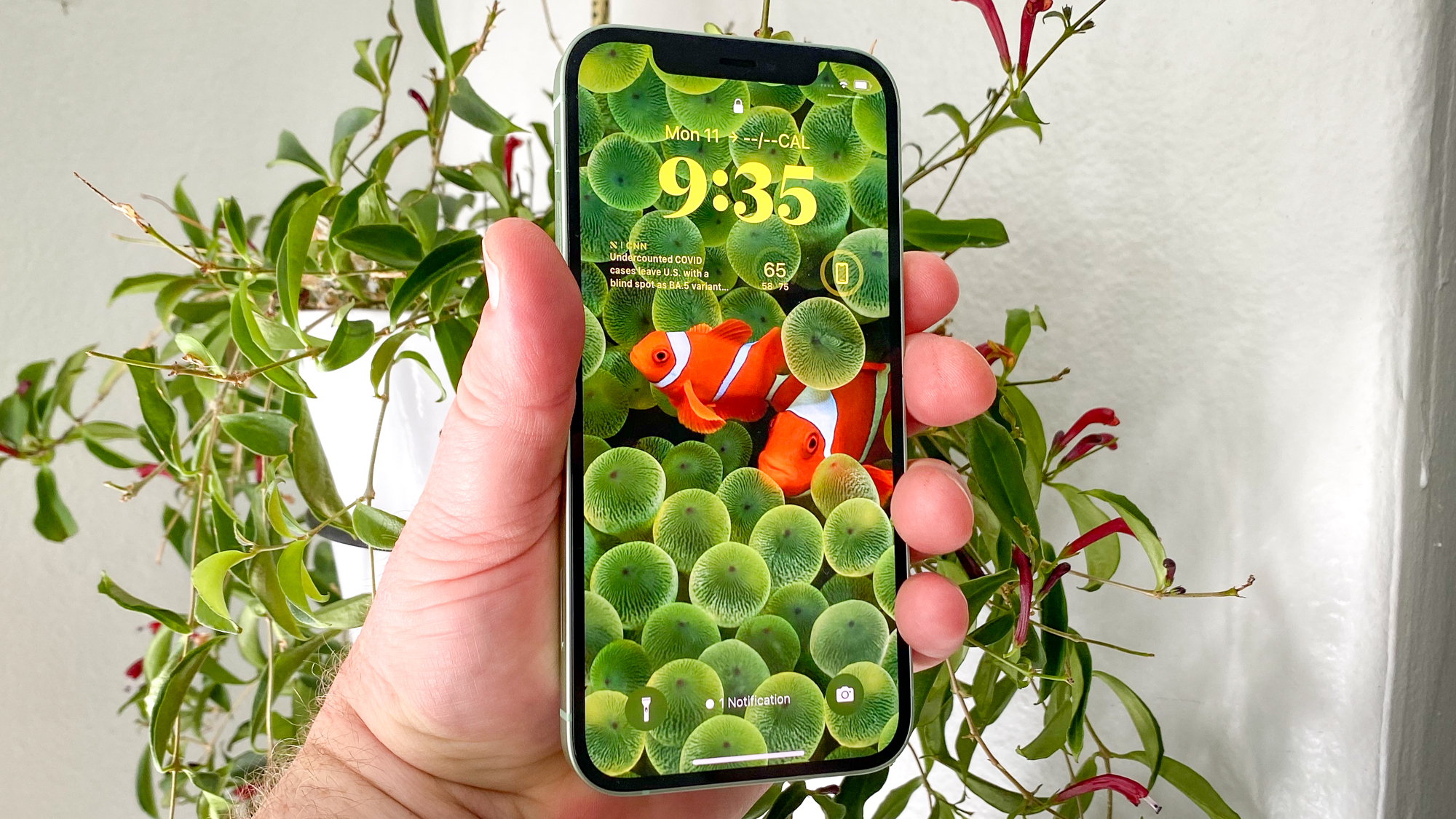
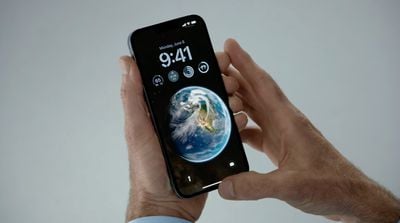
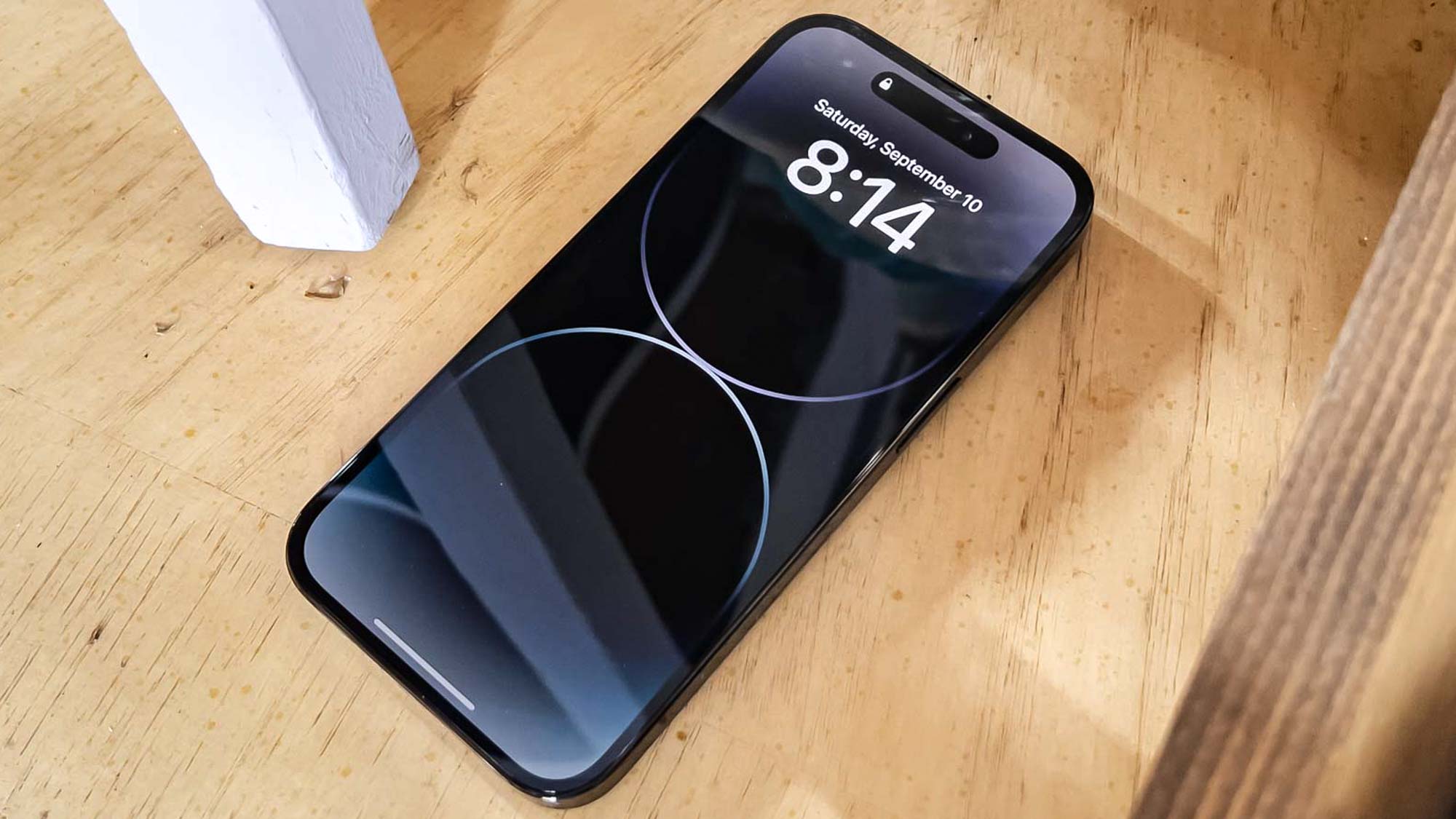
Apple introduced significant customization options for the iPhone lock screen with iOS 16, allowing users to personalize their devices more extensively. Key features include the ability to create a multilayered effect with lock screen photos, where subjects are placed in front of the clock, enhancing visual depth. Users can also customize the clock's appearance by choosing different fonts and colors for the date and time. Furthermore, the lock screen now supports widgets from various apps, including Apple's native applications like Weather, Calendar, Reminders, and Fitness, as well as popular third-party services such as Instagram, Spotify, Snapchat, and Gmail.
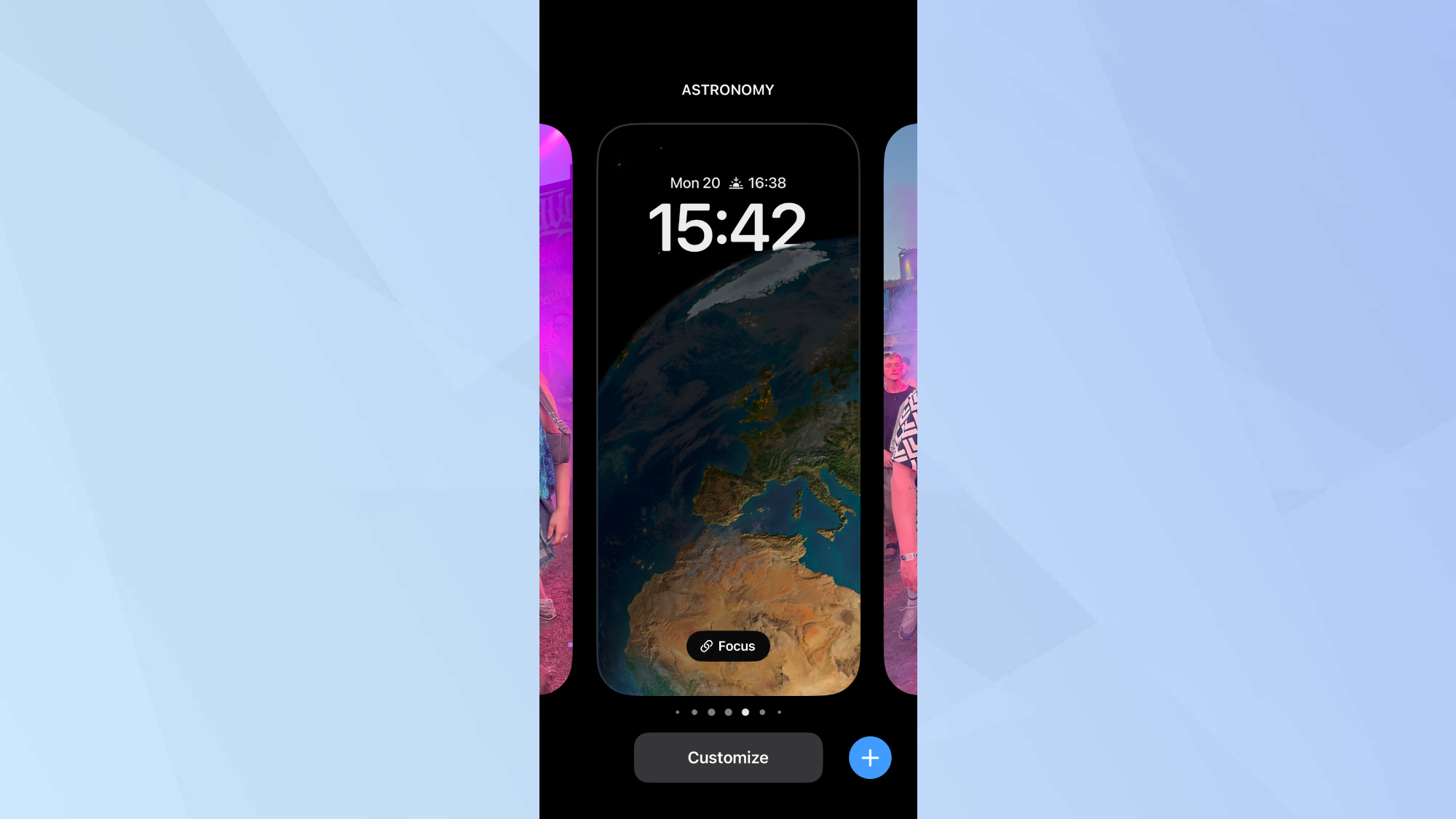
The lock screen also features a dedicated gallery page that allows users to browse a collection of stock wallpapers provided by Apple. Additionally, it suggests photos from the user's personal camera roll, categorized into sections like Featured, Pets, People, Nature, and Cities. A notable feature is the option to set a Live Photo as a wallpaper, which animates when the iPhone is picked up, adding a dynamic element to the lock screen experience. The ease with which users can switch between different lock screens means that many end up with multiple wallpapers saved on their devices.
While previous iOS versions allowed wallpaper deletion from the wallpaper settings menu, the process has since been streamlined to occur directly from the lock screen. This change makes it straightforward for users to manage their saved wallpapers. To delete a wallpaper, users need to access the lock screen gallery. This method requires Face ID to be set up on the iPhone for security and authentication purposes. If Face ID is not configured, users may need to enter their passcode to access the customization menu.
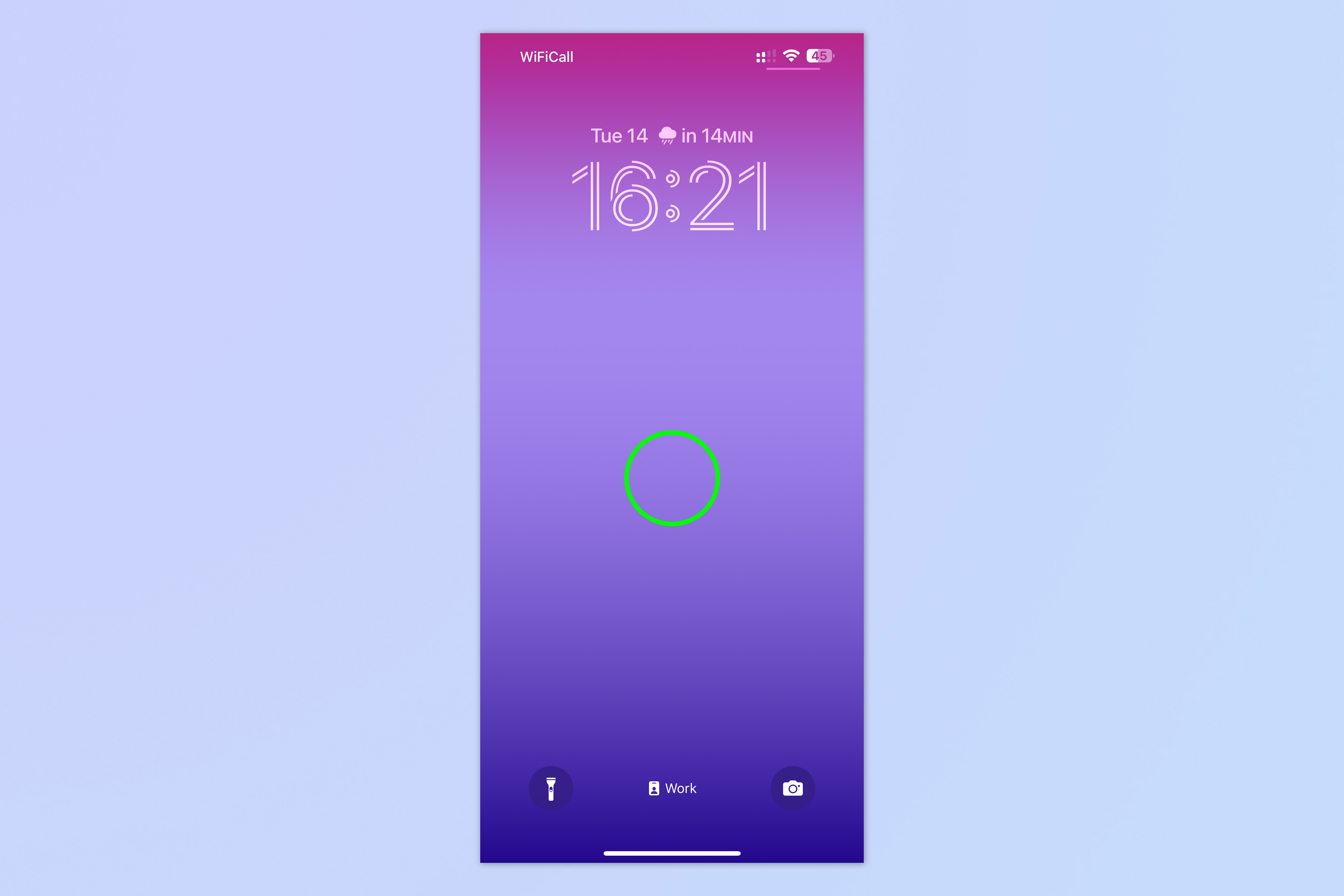
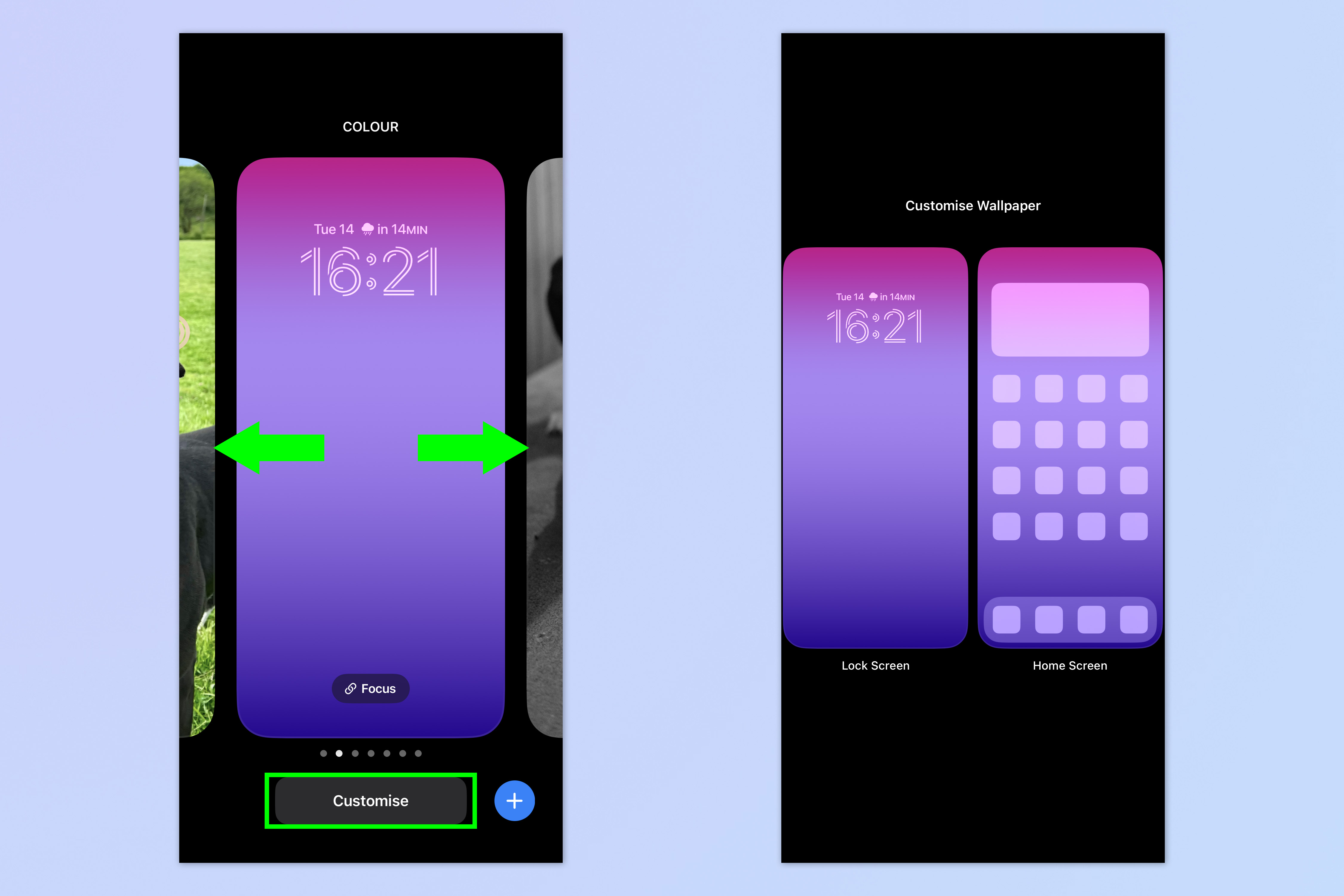
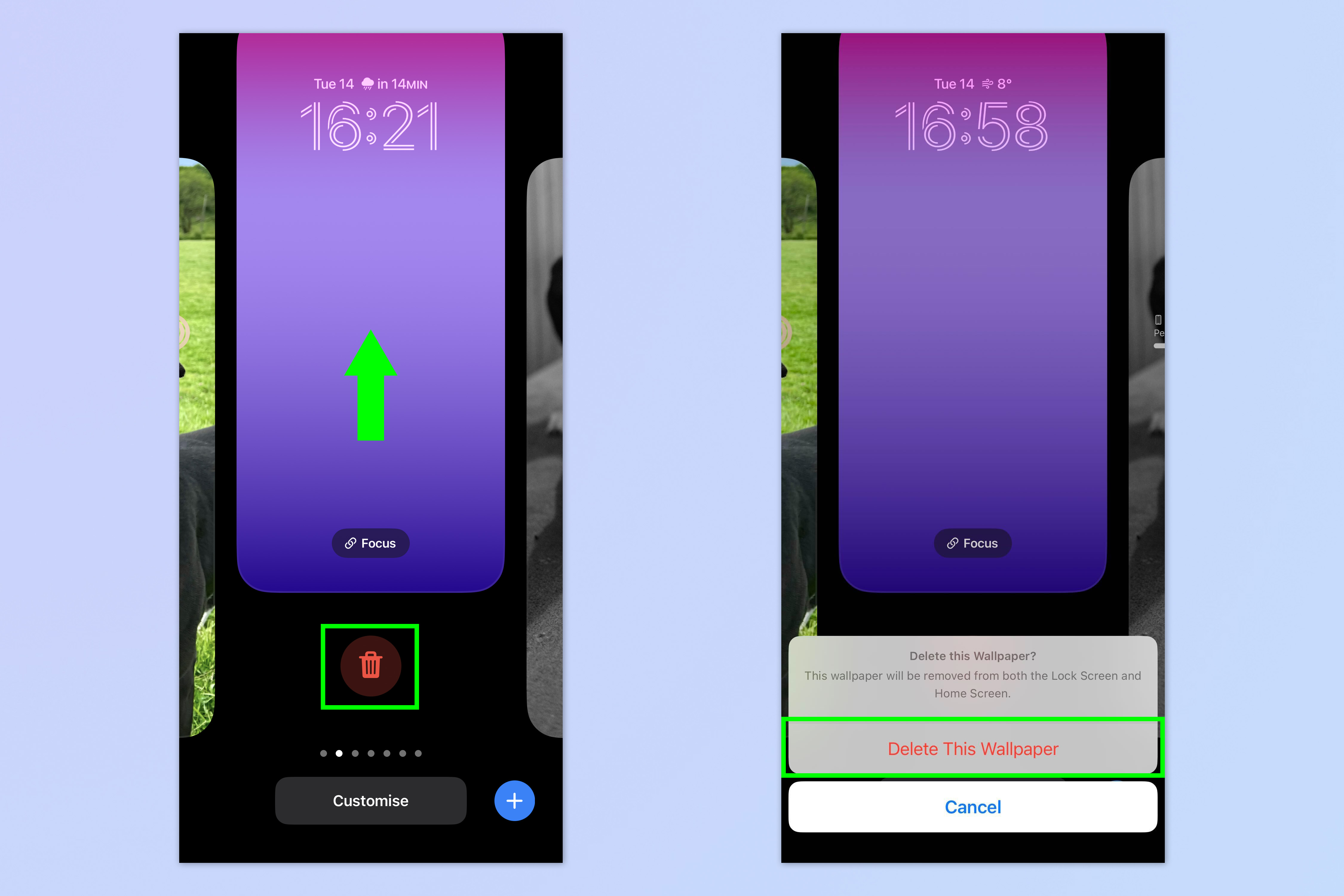
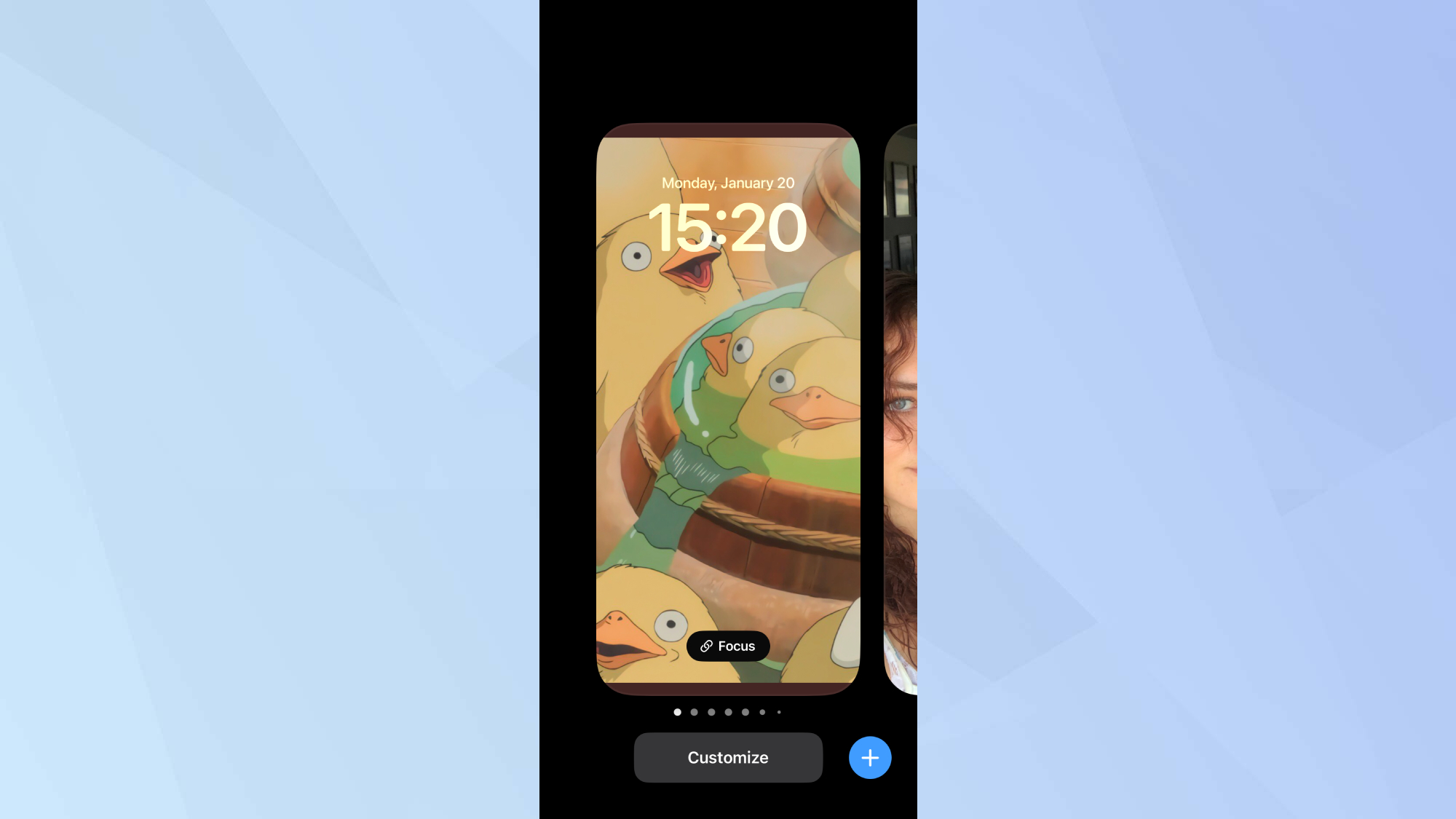
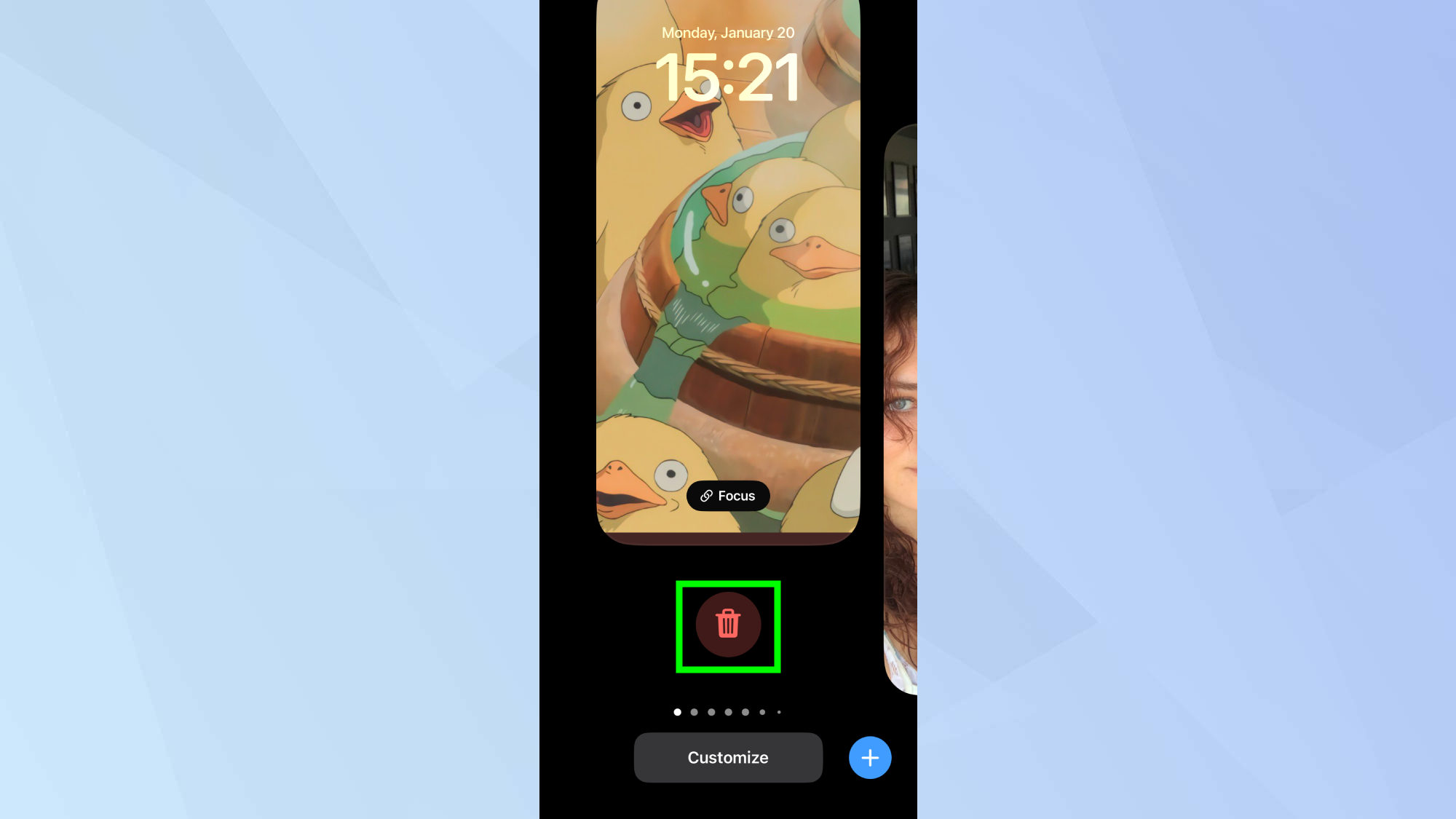
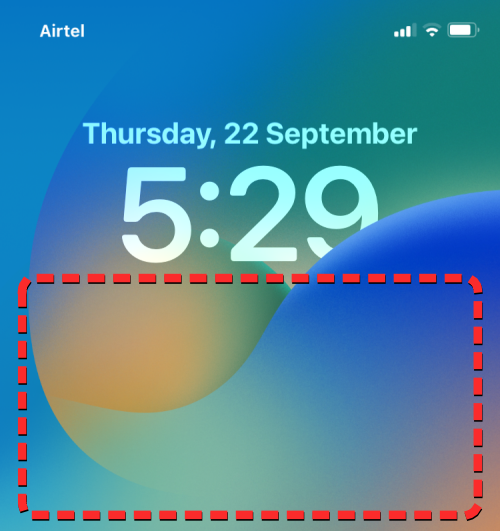
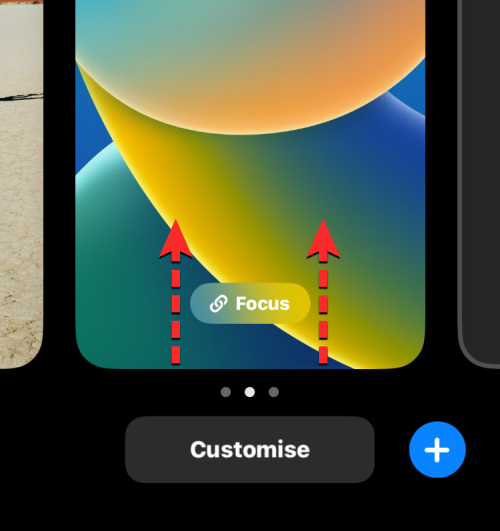
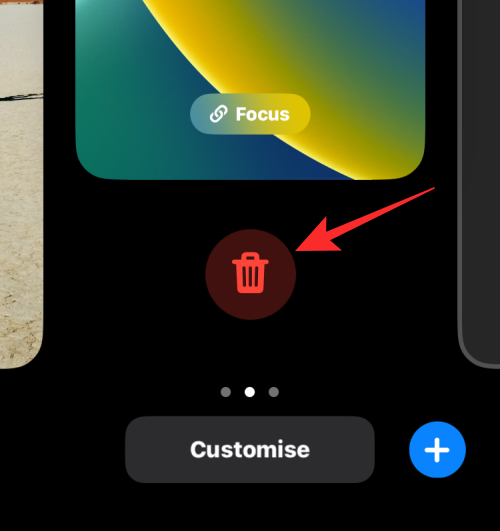
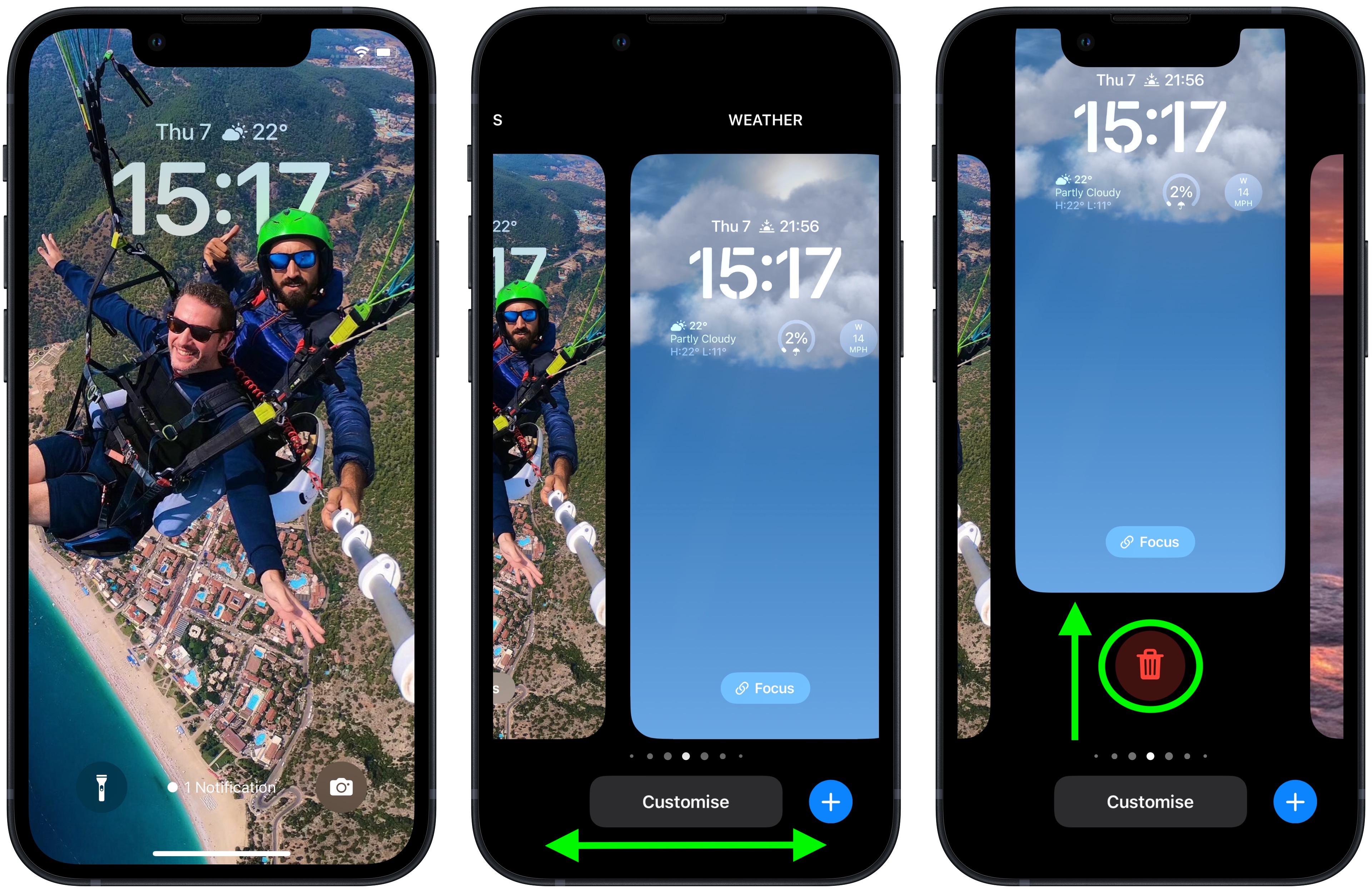
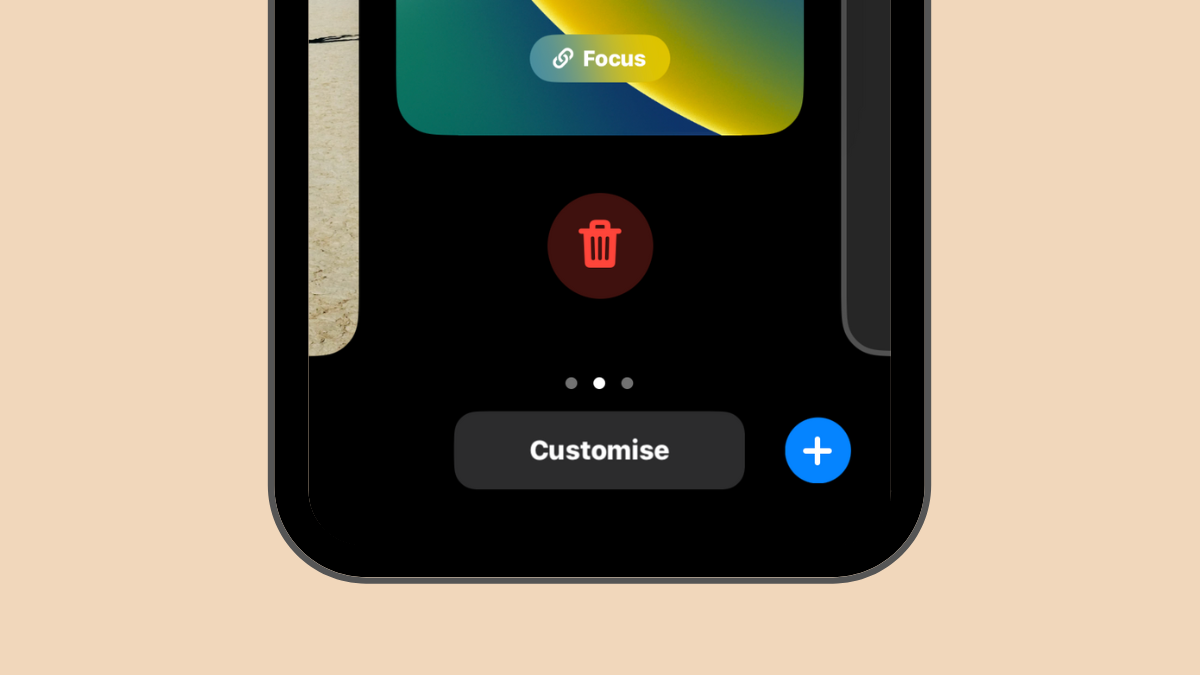
The deletion process involves a few simple steps. First, the user presses and holds the iPhone lock screen without swiping up to the home screen. This action opens the wallpaper gallery, displaying all saved wallpapers. Users can then swipe left or right to navigate through their collection. To remove a specific wallpaper, they swipe up on it. A red delete button will appear at the bottom of the screen, which, when tapped, prompts a confirmation message to "Delete This Wallpaper." After confirming, the wallpaper is permanently removed from the device. Following the deletion, users can either select another saved wallpaper or tap the blue '+' sign to add a new one from the gallery, ensuring their lock screen remains fresh and personalized.
#iPhone #iOS16 #WallpaperCustomization #LockScreen #AppleTips #TechTutorial #SmartphoneFeatures #iPhone #iOS16 #WallpaperCustomization #LockScreen #AppleTips #TechTutorial #SmartphoneFeatures
0 comment in total
 No comments yet
You may also like
How to delete wallpapers on iPhone

Wallpaper Weekends: Simply Black iPhone Wallpapers – Part 2


You’d Never Know That These Stylish Wallpapers Are Totally Removable

How to delete a wallpaper on your iPhone

20 Black AMOLED Wallpapers for iPhone 11 and 12
Say Goodbye to Damaged Walls—These 6 Removable Wallpapers Come Off Clean
How to Delete a Wallpaper on iPhone


3 ways to remove wallpaper quickly

26 removable wallpapers to jazz up your boring rented walls
iOS 16: How to Delete a Lock Screen Wallpaper
A Stress-Free Way to Remove Wallpaper
DIY Removable Wallpaper
How to remove the wallpaper from your iPhone 14 Pro's always-on display
9 Best Wallpaper Removers

If you have a black or jet black iPhone 7, you need these wallpapers