
1/37
How to Delete a Wallpaper on iPhone
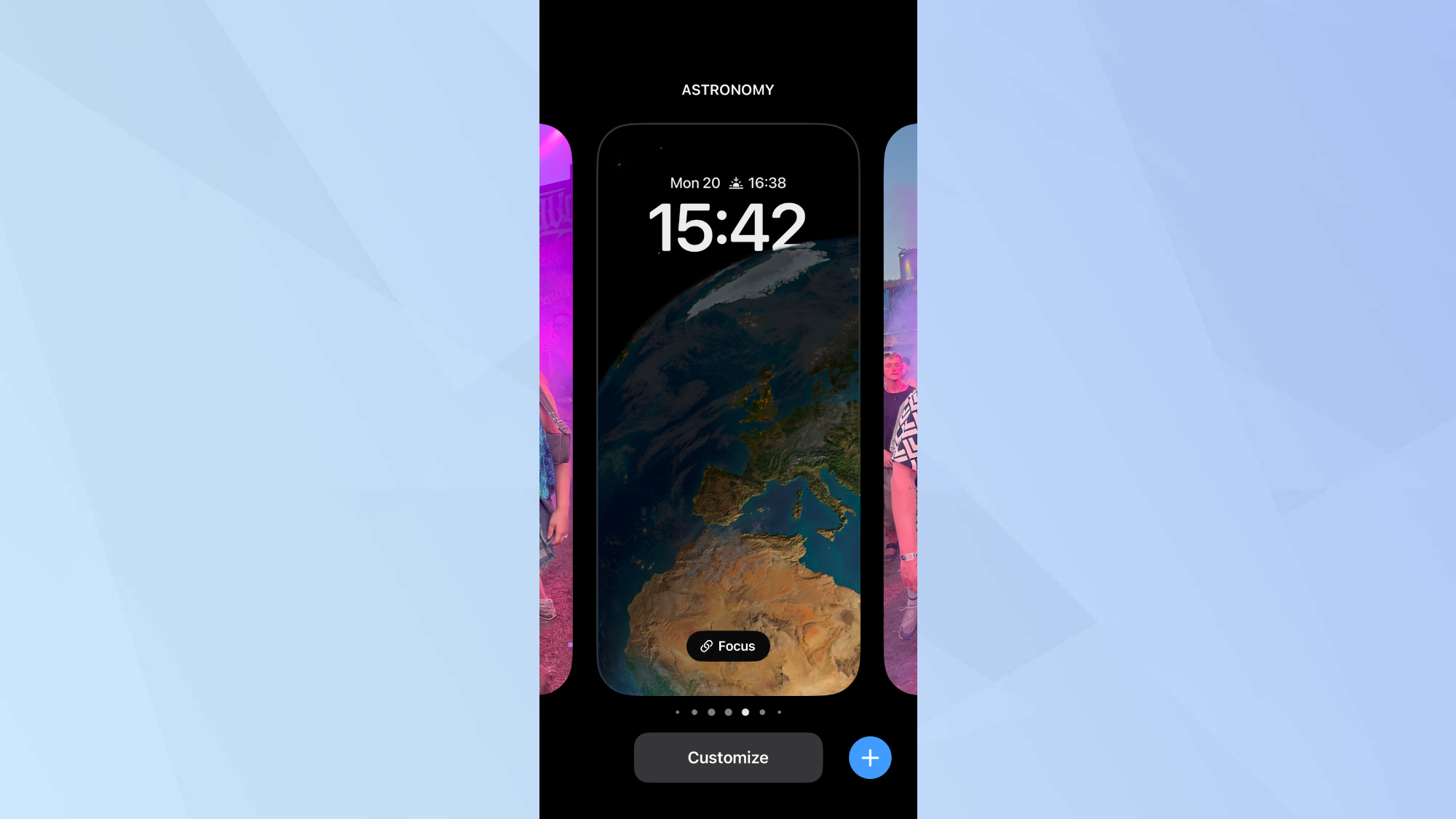
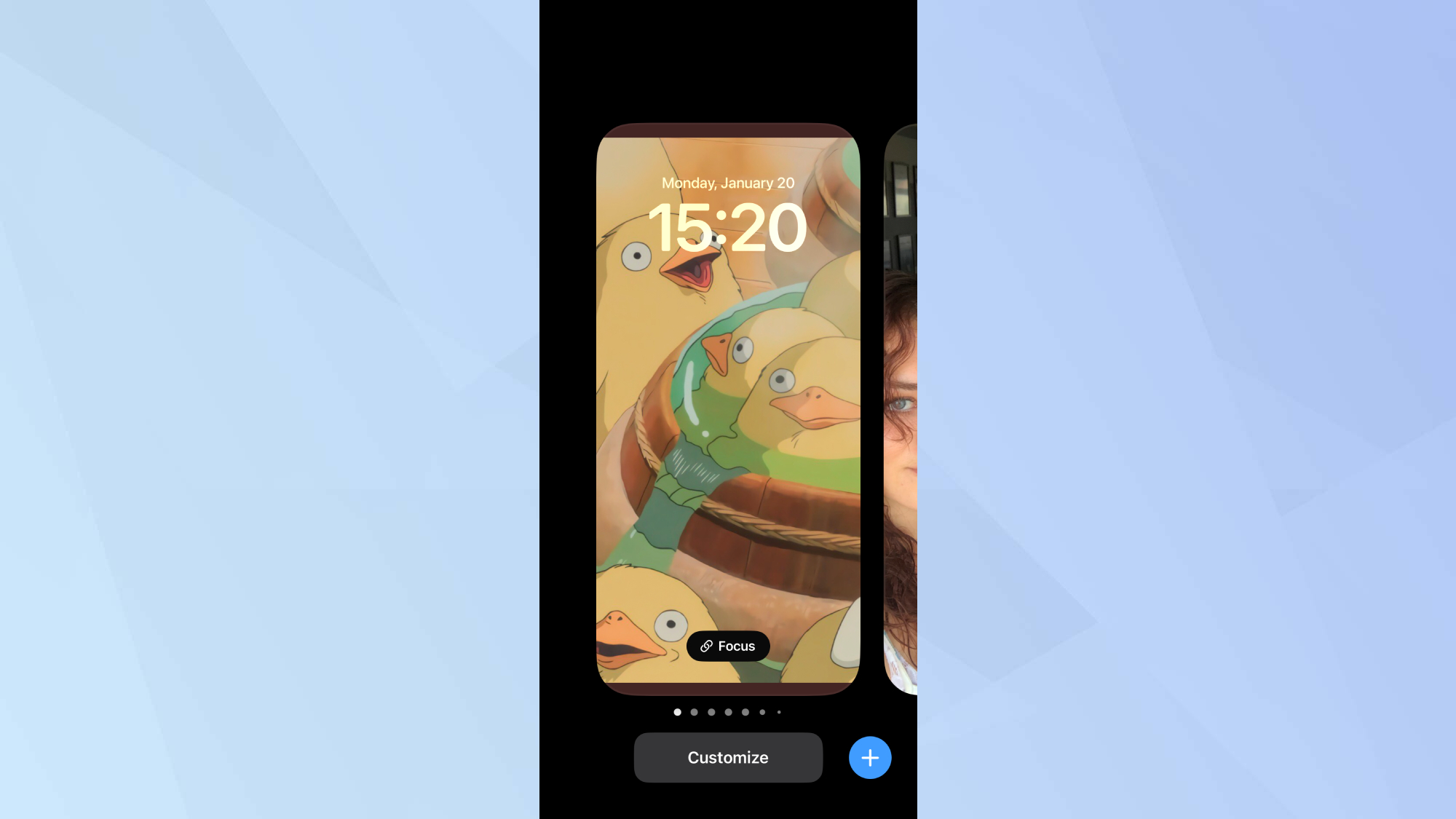
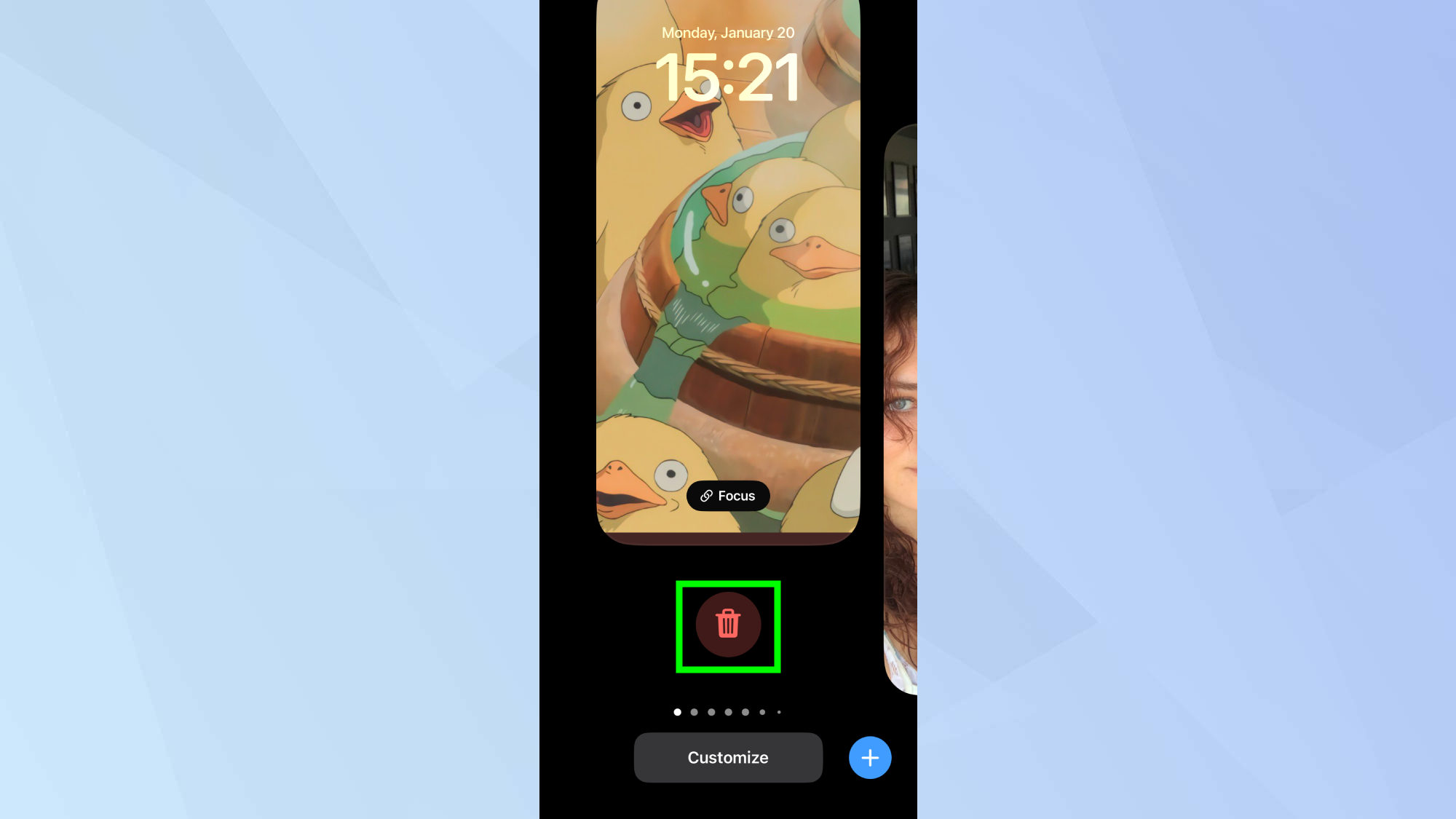
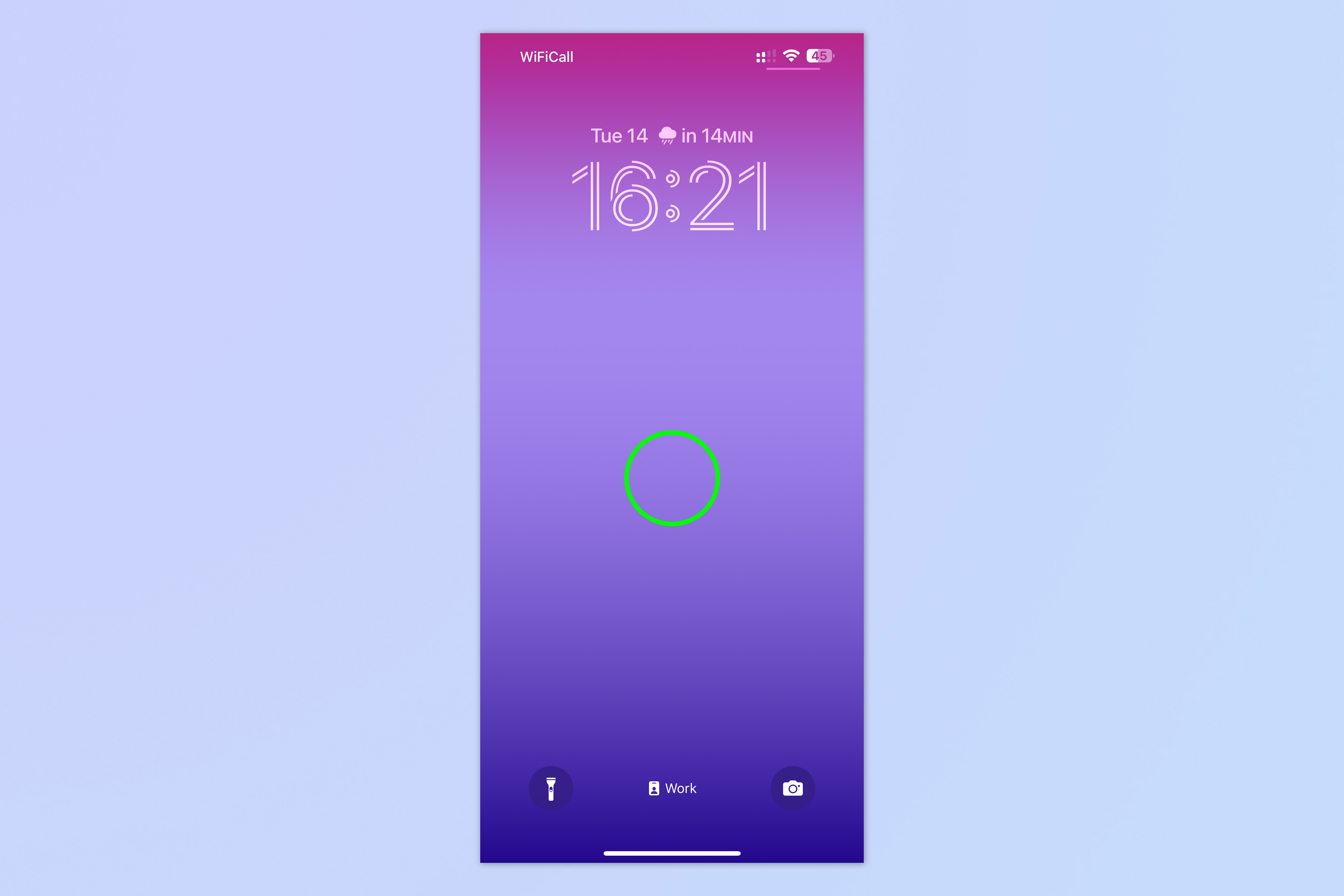
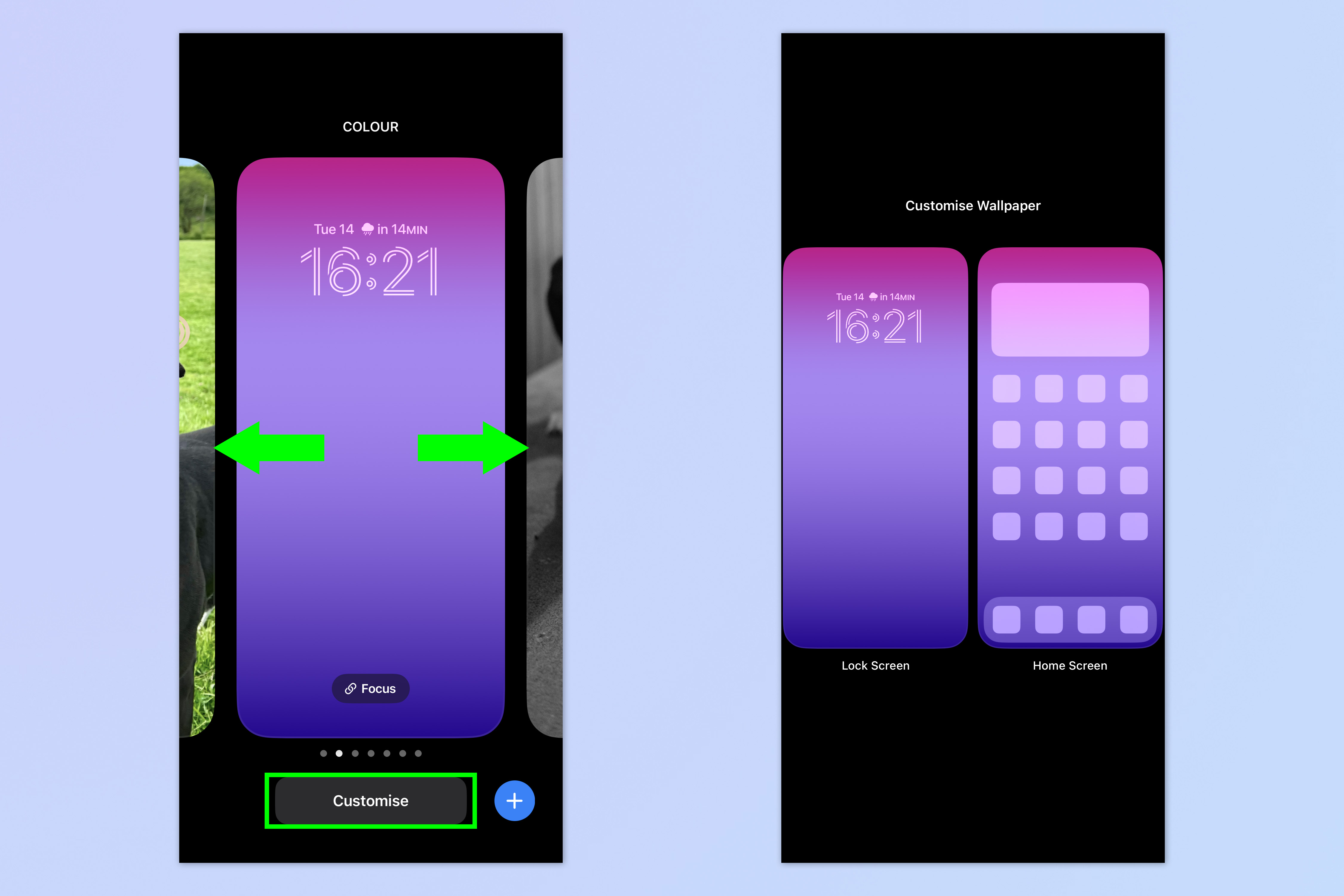
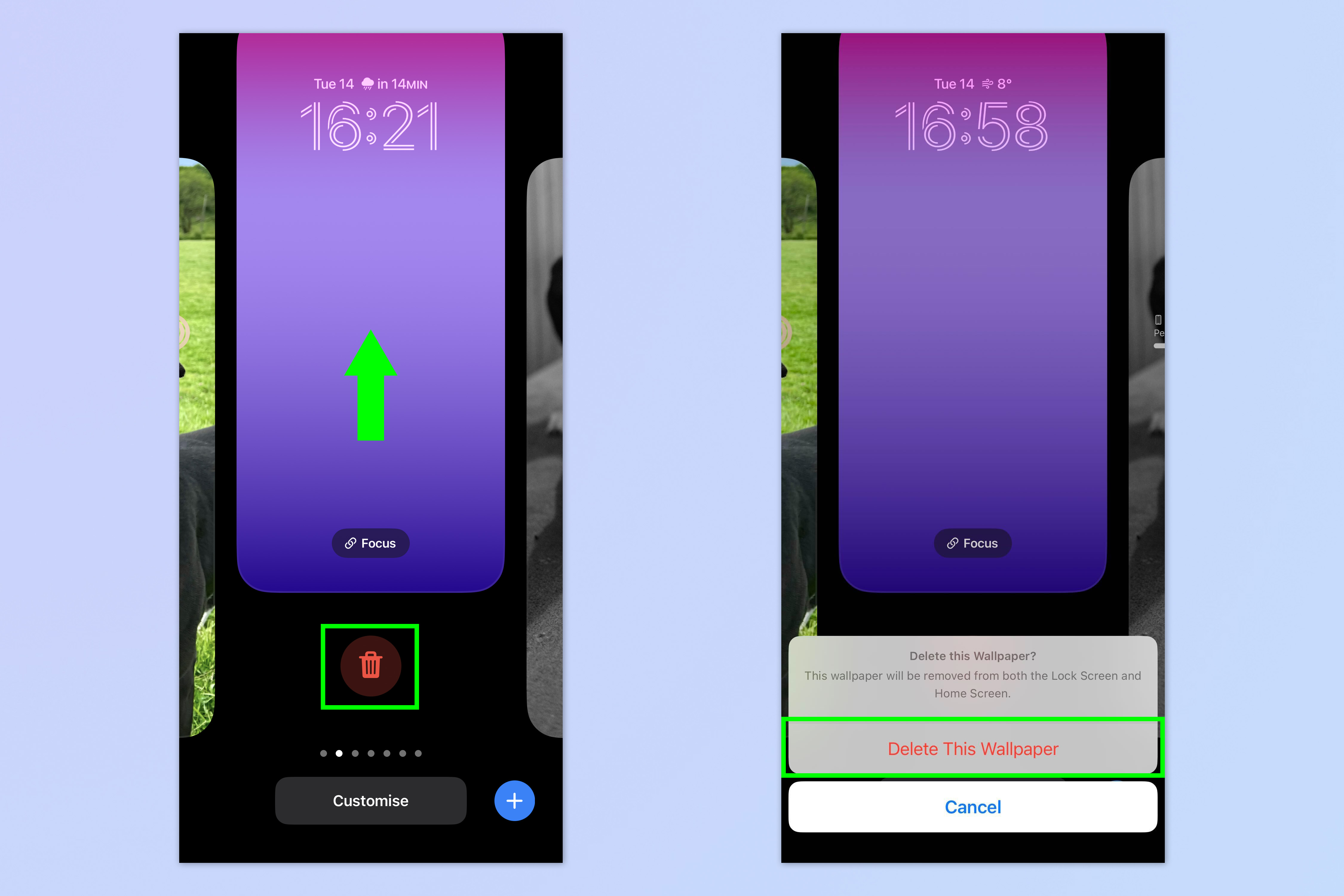
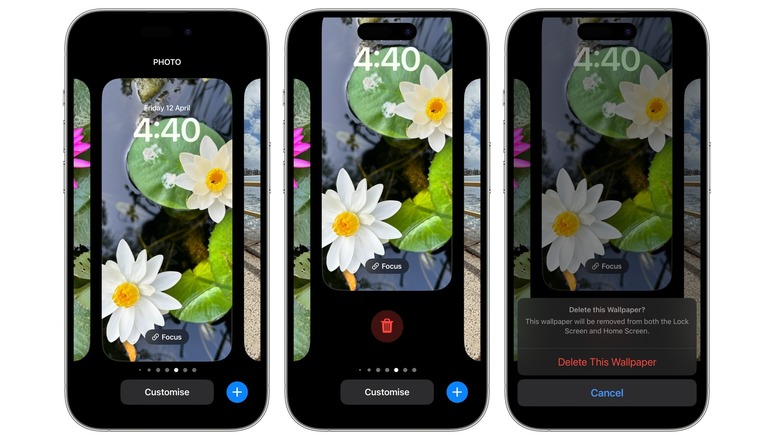
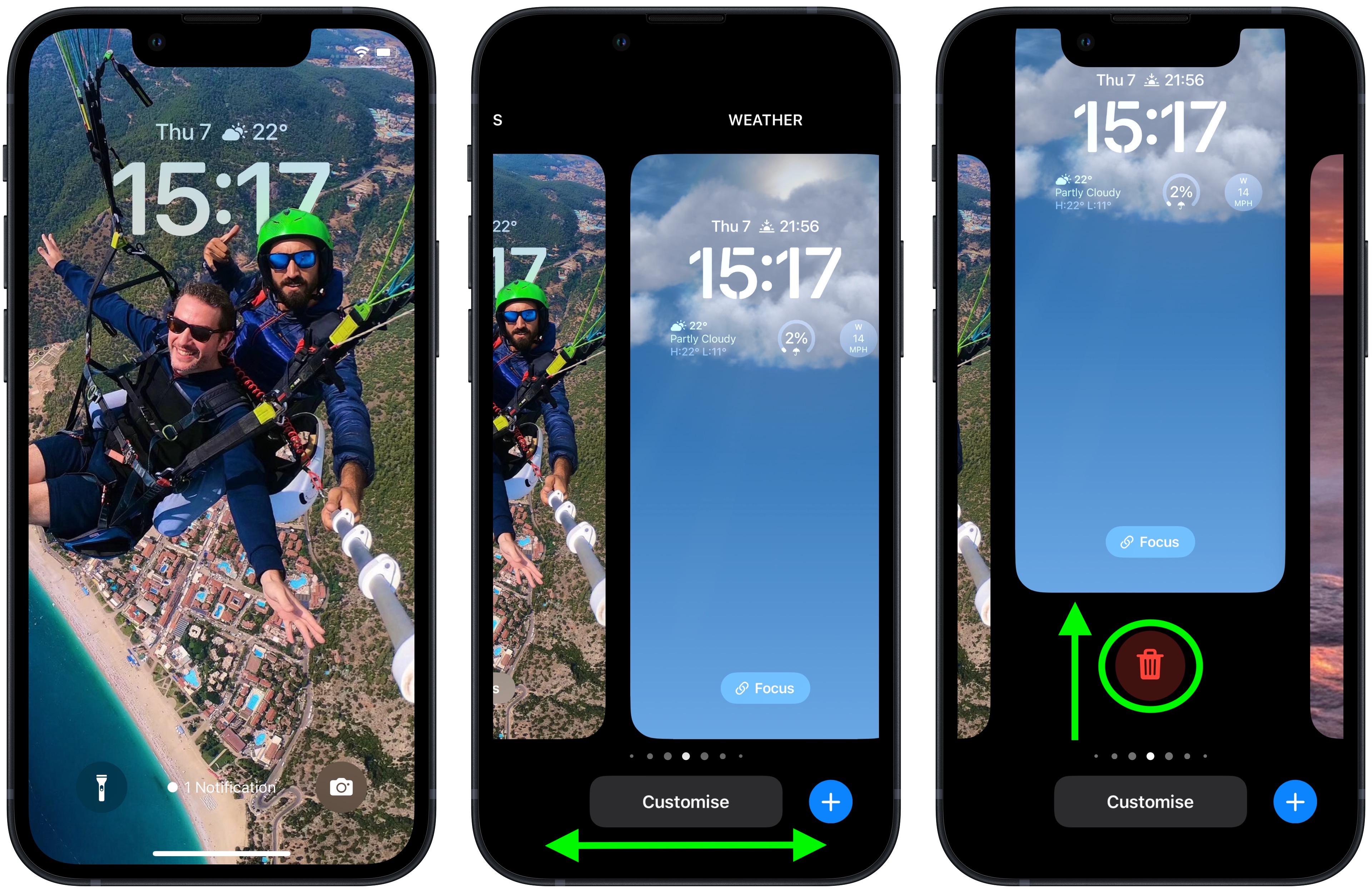
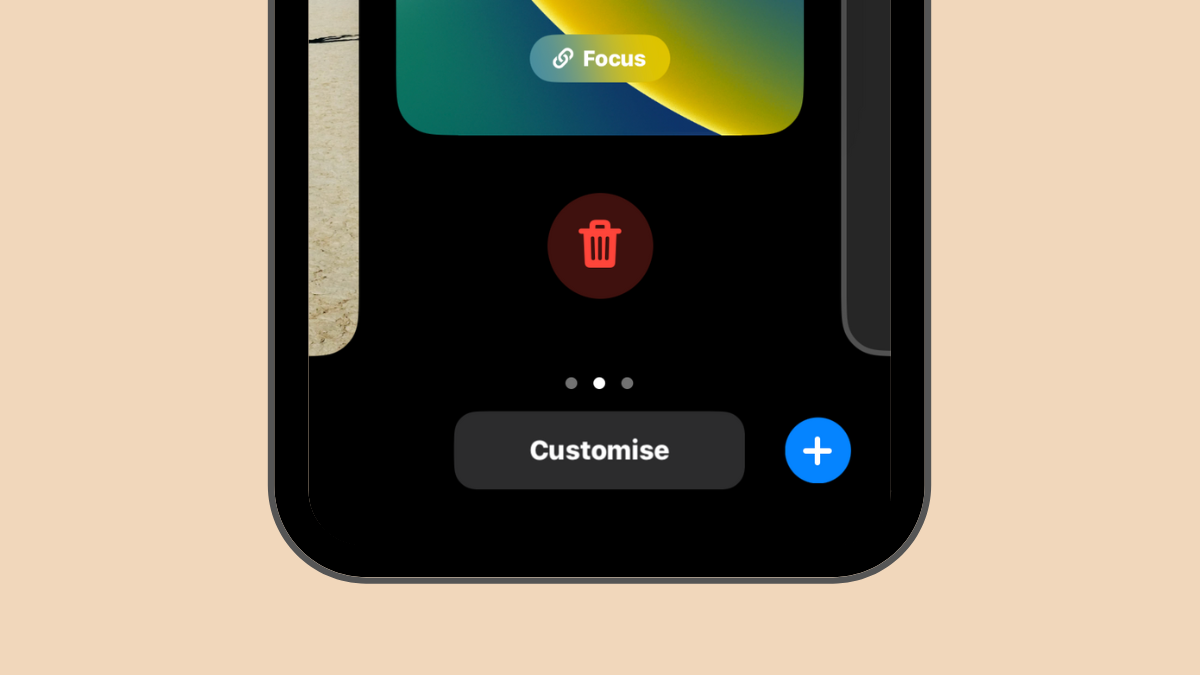
This article provides comprehensive instructions on managing wallpapers on an iPhone, covering deletion, replacement, and adding new wallpapers without removing existing ones. It details the process for deleting a lock screen wallpaper by long-pressing on the lock screen, swiping up on the unwanted wallpaper, and tapping the trash icon. A crucial point highlighted is that this deletion method only works if there is more than one wallpaper in the lock screen collection; the sole remaining wallpaper cannot be deleted directly.
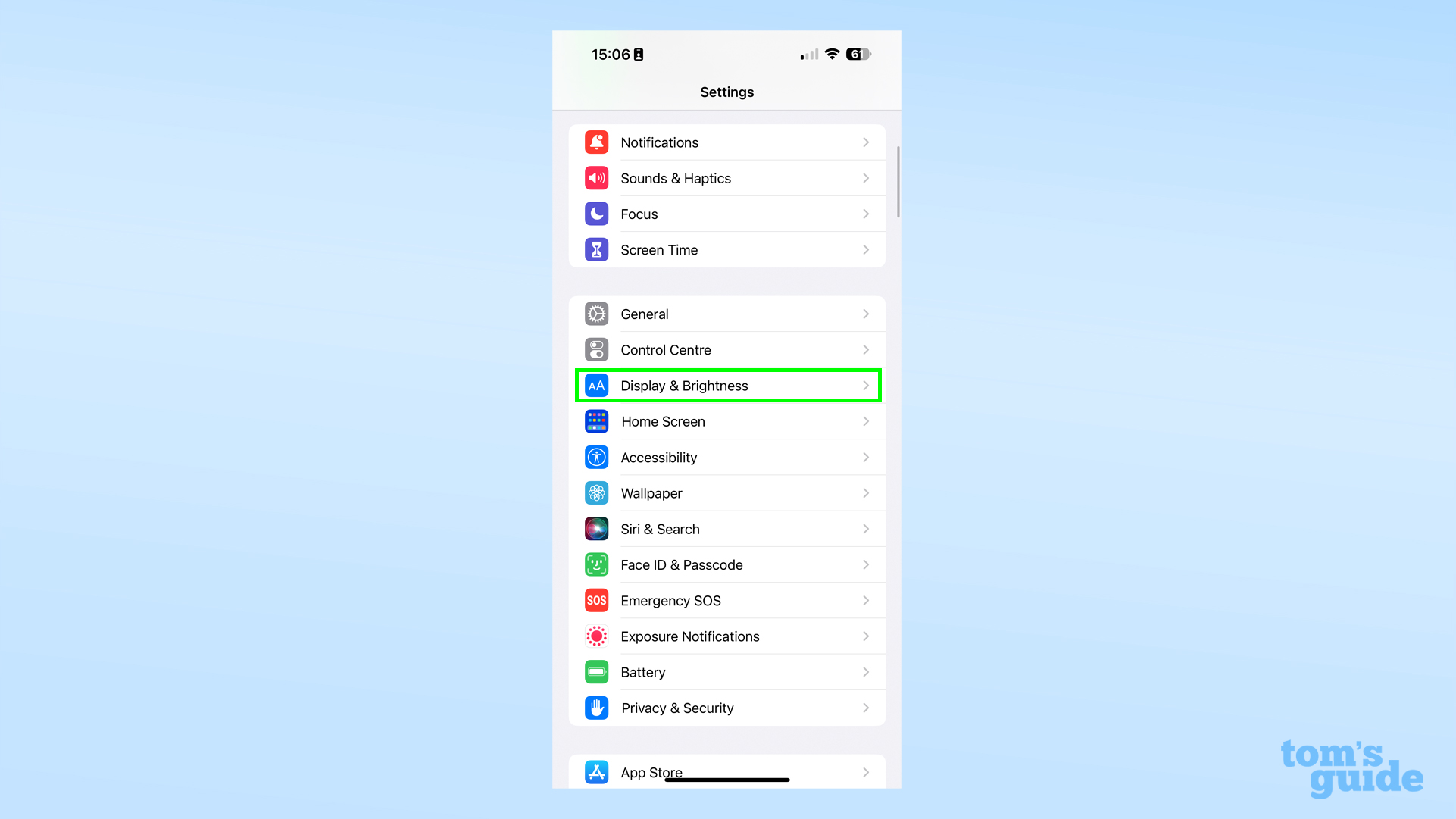
The article also explains how to replace existing wallpapers. If the current wallpaper was set from an image in the Photos app, it can be replaced with another image. This replacement can be done for both the lock screen and home screen simultaneously, or for the home screen independently. Two primary methods are outlined for replacing wallpapers: directly from the iOS lock screen and through the iOS Settings app. Both methods involve navigating to the wallpaper customization options and selecting a new image from the Photos library.
For users who wish to replace only the home screen wallpaper, the article offers specific steps. This process allows for different wallpapers on the lock screen and home screen. Options for the home screen wallpaper include pairing it with the lock screen wallpaper, applying a solid color, choosing a color gradient, or selecting a new photo. Additionally, there is an option to blur the home screen background when an image is used.
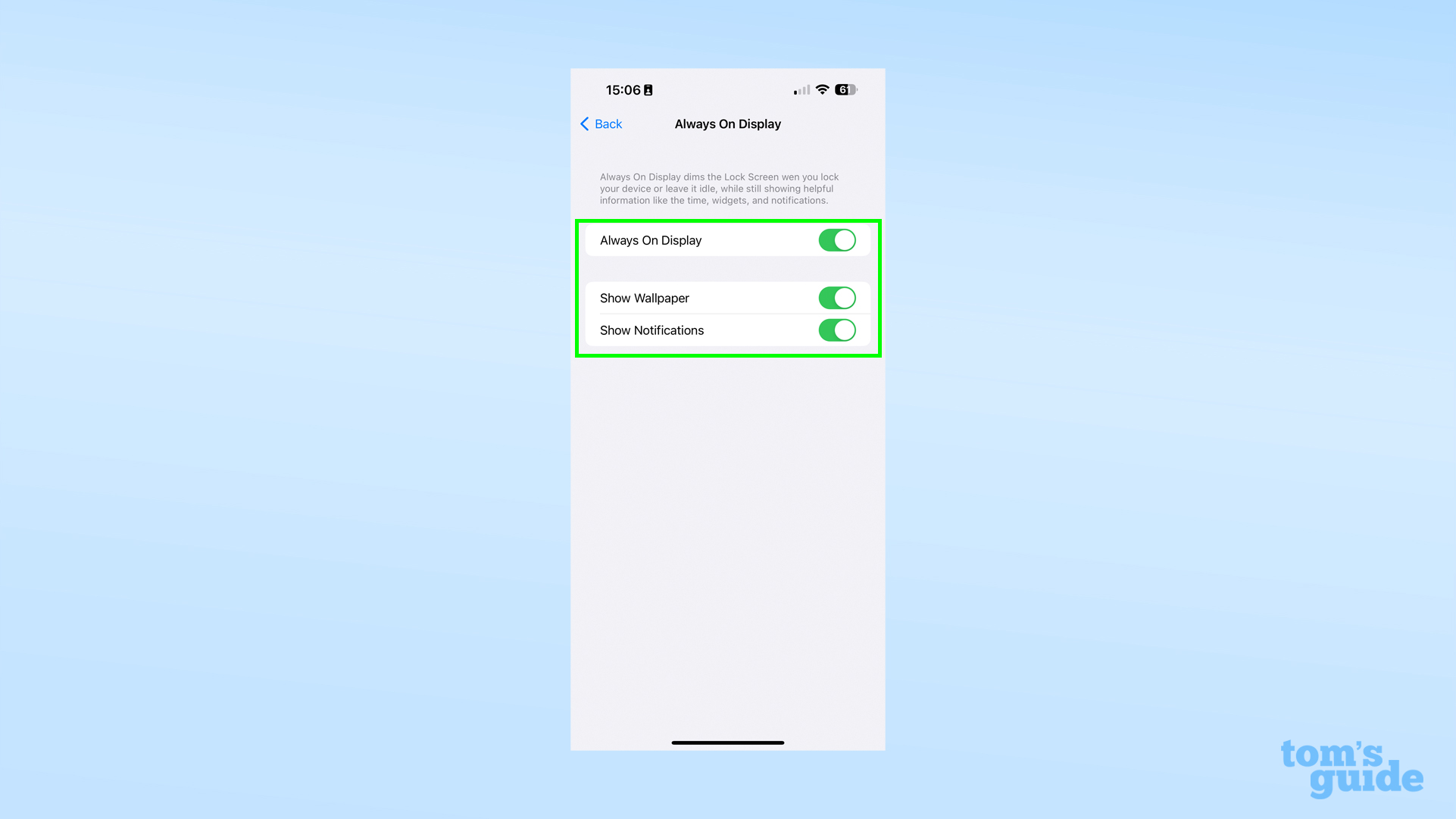
Finally, the article explains how to add a new wallpaper without deleting existing ones. This involves unlocking the iPhone, long-pressing the lock screen, tapping the '+' button, and choosing from various wallpaper styles such as Photos, Photo Shuffle, Emoji, Featured, Collections, Weather, Astronomy, or Color. After selecting and adding the new wallpaper, users can choose to set it as a wallpaper pair for both lock and home screens or customize the home screen separately. FAQs clarify that iOS typically only allows deletion of custom-created wallpapers from the lock screen and that the current wallpaper cannot be deleted if it is the only one. It also confirms the ability to use different wallpapers for the lock screen and home screen.
#iOS #iPhone #WallpaperManagement #LockScreen #HomeScreen #HowToGuide #Apple #iOS #iPhone #WallpaperManagement #LockScreen #HomeScreen #HowToGuide #Apple
0 comment in total
 No comments yet
You may also like
How to delete a wallpaper on your iPhone

Wallpaper Weekends: Simply Black iPhone Wallpapers – Part 2

DIY Removable Wallpaper
How to Apply (and Remove) Peel-and-Stick Wallpaper the Right Way
How to delete wallpapers on iPhone

20 Black AMOLED Wallpapers for iPhone 11 and 12
3 ways to remove wallpaper quickly
Everything you need to know about removable wallpaper

How to remove the wallpaper from your iPhone 14 Pro's always-on display
iOS 16: How to Delete a Lock Screen Wallpaper
Backdrop Just Released This Award-Winning Wallpaper in a Removable Version

Everything you need to know about removable wallpaper

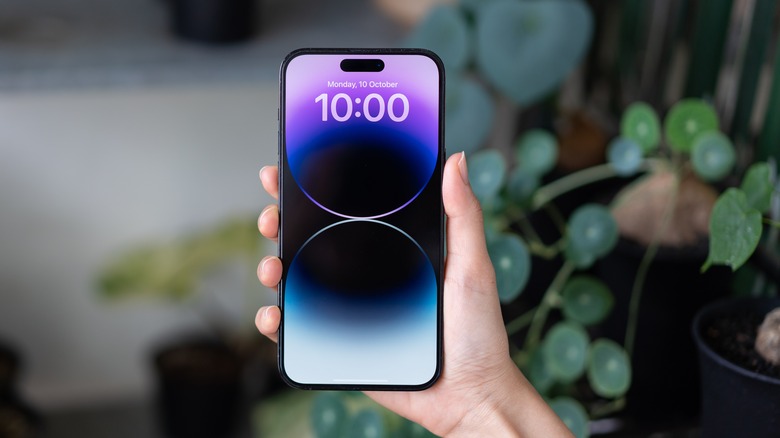
How To Delete Wallpapers On Your iPhone

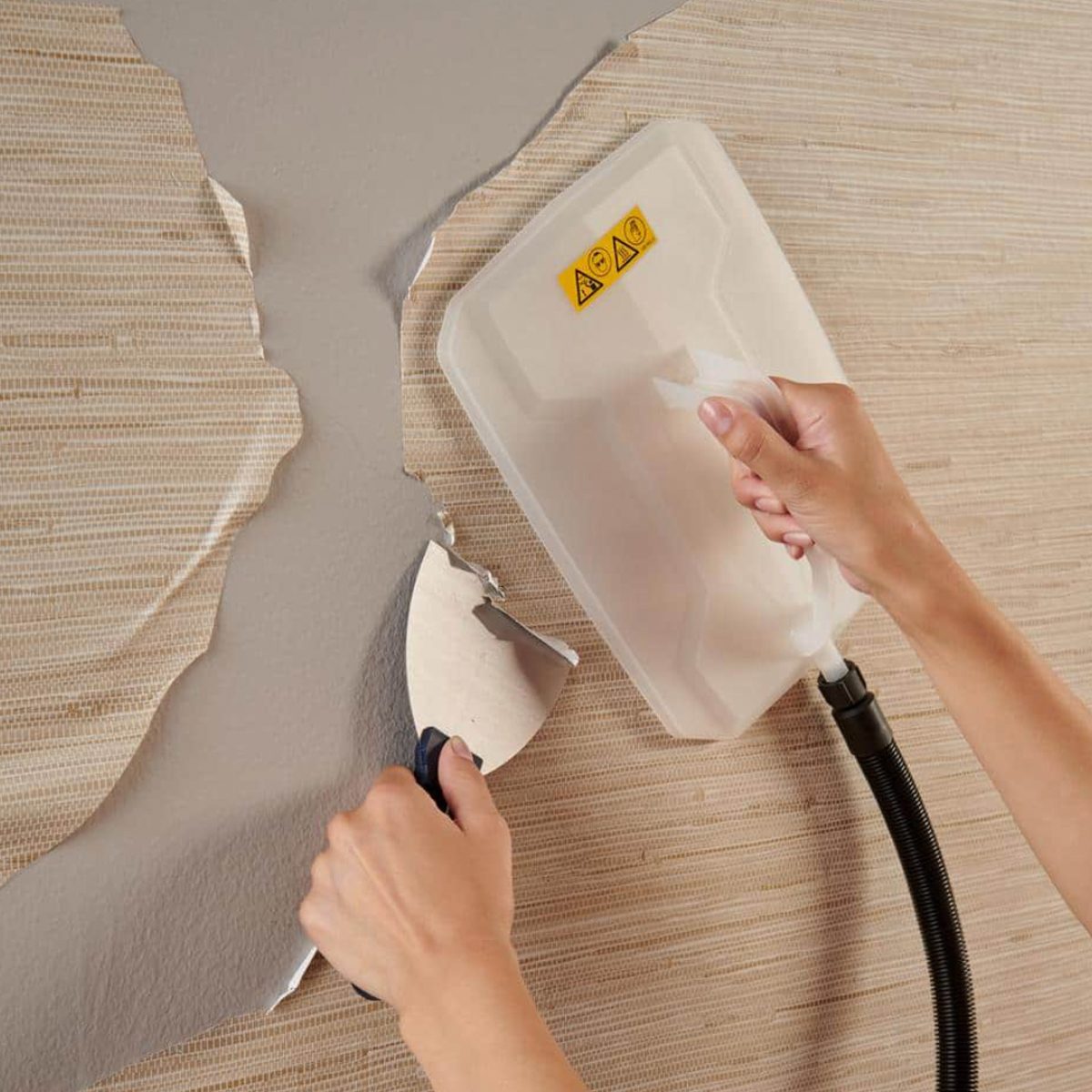
9 Best Wallpaper Removers


The 6 best removable wallpapers, according to an expert
Wallpaper

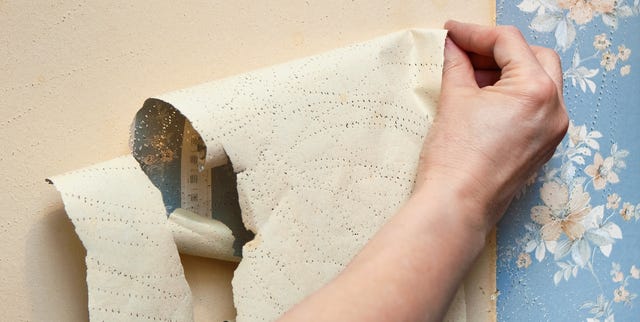
A Stress-Free Way to Remove Wallpaper


You’d Never Know That These Stylish Wallpapers Are Totally Removable
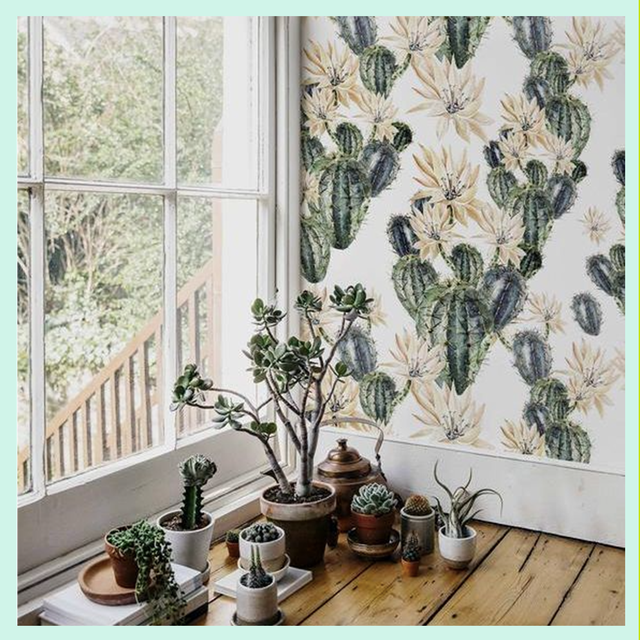
26 removable wallpapers to jazz up your boring rented walls
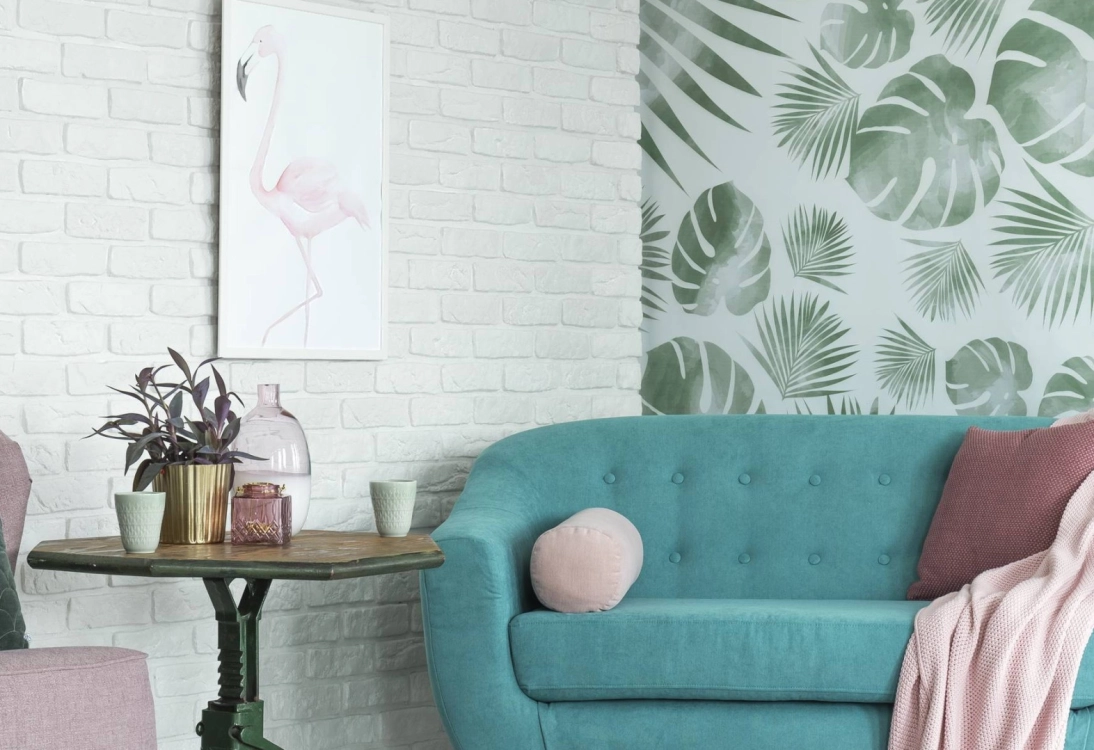
Transform Your Space: 7 Top Renter-Friendly Wallpaper Brands