
1/12
How to Install & Use the Window Maker Desktop Environment on Ubuntu
This article details the installation and usage of the Window Maker desktop environment on Ubuntu. Window Maker is a Linux desktop environment that aims to replicate the aesthetics and functionality of NeXTSTEP, which served as a foundational system for what would eventually become Apple's Mac OS X. Unlike many contemporary lightweight desktop environments, Window Maker intentionally omits common elements such as taskbars and traditional application menu buttons, offering a distinct and minimalist user experience. The environment has recently resumed active development after a seven-year hiatus, bringing a renewed focus to this unique offering for users who prefer a less cluttered and highly customizable desktop.
The article provides a step-by-step guide for obtaining and installing Window Maker on Ubuntu. It begins by noting that the most current versions of Window Maker are not yet available in Ubuntu's official software repositories. To circumvent this, users are advised to leverage an unofficial personal package archive (PPA) that hosts builds of Window Maker specifically for Ubuntu. Alternatively, the article mentions the option of compiling and installing the software from source for those with the technical expertise. For users who wish to test Window Maker without a full installation, the article suggests downloading a Window Maker Live ISO, a live CD distribution that was originally Ubuntu-based but has since transitioned to Debian.
For the installation process on Ubuntu, the guide outlines three main commands to be executed in the terminal. The first command, `sudo add-apt-repository ppa:profzoom/wmaker`, adds the designated PPA to the system's list of software sources. Following this, the command `sudo apt-get update` is used to refresh the package information, ensuring that the system recognizes the newly added packages from the PPA. Finally, `sudo apt-get install wmaker` initiates the installation of the Window Maker desktop environment itself. The article also notes that once more up-to-date packages become available in Ubuntu's official repositories, only the final installation command would be necessary.
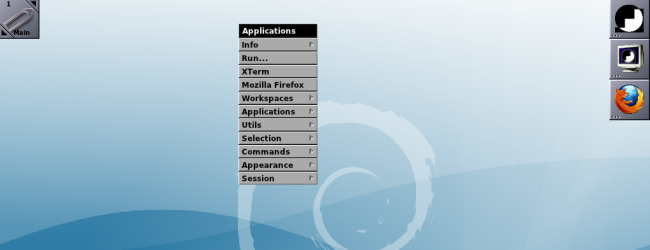
After successful installation, the article explains how to launch Window Maker. Users must first log out of their current session. Upon returning to the login screen, they can select "Window Maker" from the sessions menu before logging back in. The initial experience of Window Maker might be unfamiliar due to the absence of a visible applications menu or taskbar. The guide clarifies that users can access Window Maker’s primary menu by right-clicking on the desktop or pressing F12. This menu serves as the central point for launching applications and executing other system actions. It is also highlighted that this menu is fully configurable via Window Maker’s graphical preferences dialog.
The article further explains several core functionalities of Window Maker. Open applications are displayed in a dock located at the bottom of the screen. Users can also view a list of all open windows by middle-clicking on the desktop or pressing F11. By default, three essential icons are present on the screen: a computer monitor icon for launching a terminal, a top-right icon for accessing the preferences window, and a paperclip icon for managing virtual workspaces. The preferences window offers extensive customization options, allowing users to tailor various aspects of Window Maker, including its menu, workspaces, keyboard shortcuts, visual appearance, and fonts.
A useful feature for frequently accessed applications is also described: users can drag application icons from the dock to other areas of the screen to make them permanent. For example, dragging the Firefox icon to the top-right corner will dock it alongside the default preferences and terminal icons. This makes the application readily available for quick launching, even when not actively running. To conclude a session, users are instructed to right-click the desktop and select the "Exit" option found under the "Session" submenu.
#Linux #Ubuntu #WindowMaker #DesktopEnvironment #OpenSource #NeXTSTEP #TerminalCommands #Customization #LightweightDE #Linux #Ubuntu #WindowMaker #DesktopEnvironment #OpenSource #NeXTSTEP #TerminalCommands #Customization #LightweightDE
 Aún no hay comentarios
How to Activate the Dark and Light Wallpaper Variants in GNOME 42

How To Dual Boot Linux and Windows on any PC
How to Install and Use the Linux Bash Shell on Windows 10