
1/4
Automatically Change Color Scheme of Your Linux Terminal Based on Your Wallpaper
This article introduces Pywal, a Python-based command-line utility designed to automatically change the color scheme of a Linux terminal based on the colors extracted from the current desktop wallpaper. Pywal aims to enhance the aesthetic appeal of the Linux desktop environment by ensuring visual consistency between the wallpaper and the terminal interface. The article details the steps for installing and configuring Pywal, making it accessible to users with varying levels of Linux proficiency.
The installation process begins by emphasizing Pywal's Python foundation, making it compatible with any Linux distribution that supports Python. Users are guided to install `pip3` if it's not already present, with specific instructions for Debian/Ubuntu-based systems using `sudo apt install python3-pip`. Once `pip3` is installed, Pywal itself is installed globally using `sudo pip3 install pywal`. This straightforward installation ensures that the tool is readily available across the system.
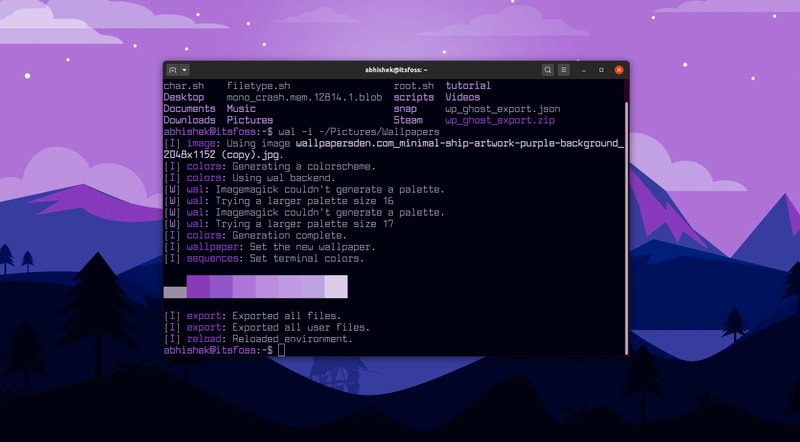
Following installation, the article explains how to use Pywal to apply a new color scheme. Users are instructed to execute the `wal -i path_to_wallpaper_file` command, where `path_to_wallpaper_file` is the location of their chosen wallpaper. Upon execution, Pywal analyzes the wallpaper's colors and instantly applies a harmonized color scheme to the currently open terminal. It also sets the specified image as the desktop background, demonstrating the immediate visual impact of the utility.
A key aspect addressed in the article is ensuring that newly opened terminal windows adopt the new color scheme. By default, Pywal only affects already running terminal sessions. To extend this functionality, users are advised to modify their shell's configuration file, typically `~/.bashrc` for Bash users. The article provides specific lines of code to add to `~/.bashrc`, which import the color scheme from Pywal's cache asynchronously. This modification ensures that any subsequent terminal launched will automatically use the Pywal-generated color scheme.
Furthermore, the article provides instructions on how to maintain the Pywal color scheme across system reboots. Since Pywal does not persist color schemes by default after a restart, users can add the `wal -R` command to their system's startup applications. This command restores the last-used Pywal color scheme, ensuring that the terminal's appearance remains consistent with the desktop background upon every system boot. An example for Ubuntu users using the 'Startup Applications' program is included, illustrating how to add the command with a descriptive name.
The article also touches upon Pywal's extensibility, highlighting its ability to customize other applications beyond the terminal. It mentions Pywal's plugin support for various tools like Vim, Emacs, Gnuplot, and CLI-Visualizer, as well as its compatibility with window managers such as i3 and Sway, and taskbars like Polybar. This broader customization capability allows users to achieve a more unified and personalized desktop experience. The article concludes by inviting user feedback and suggestions for other similar utilities to be featured in the 'Terminal Tuesday' series, underscoring the community-driven aspect of desktop customization in Linux.
#LinuxTerminal #ColorScheme #Pywal #DesktopCustomization #WallpaperIntegration #ShellConfiguration #Command-LineTool #LinuxTerminal #ColorScheme #Pywal #DesktopCustomization #WallpaperIntegration #ShellConfiguration #Command-LineTool
0 comment in total
 No comments yet
You may also like
Setting Up Wallpapers With Hyprpaper in Hyprland

Choosing Wallpaper Is a Big Deal—But Backdrop’s New Design Makes It Easy

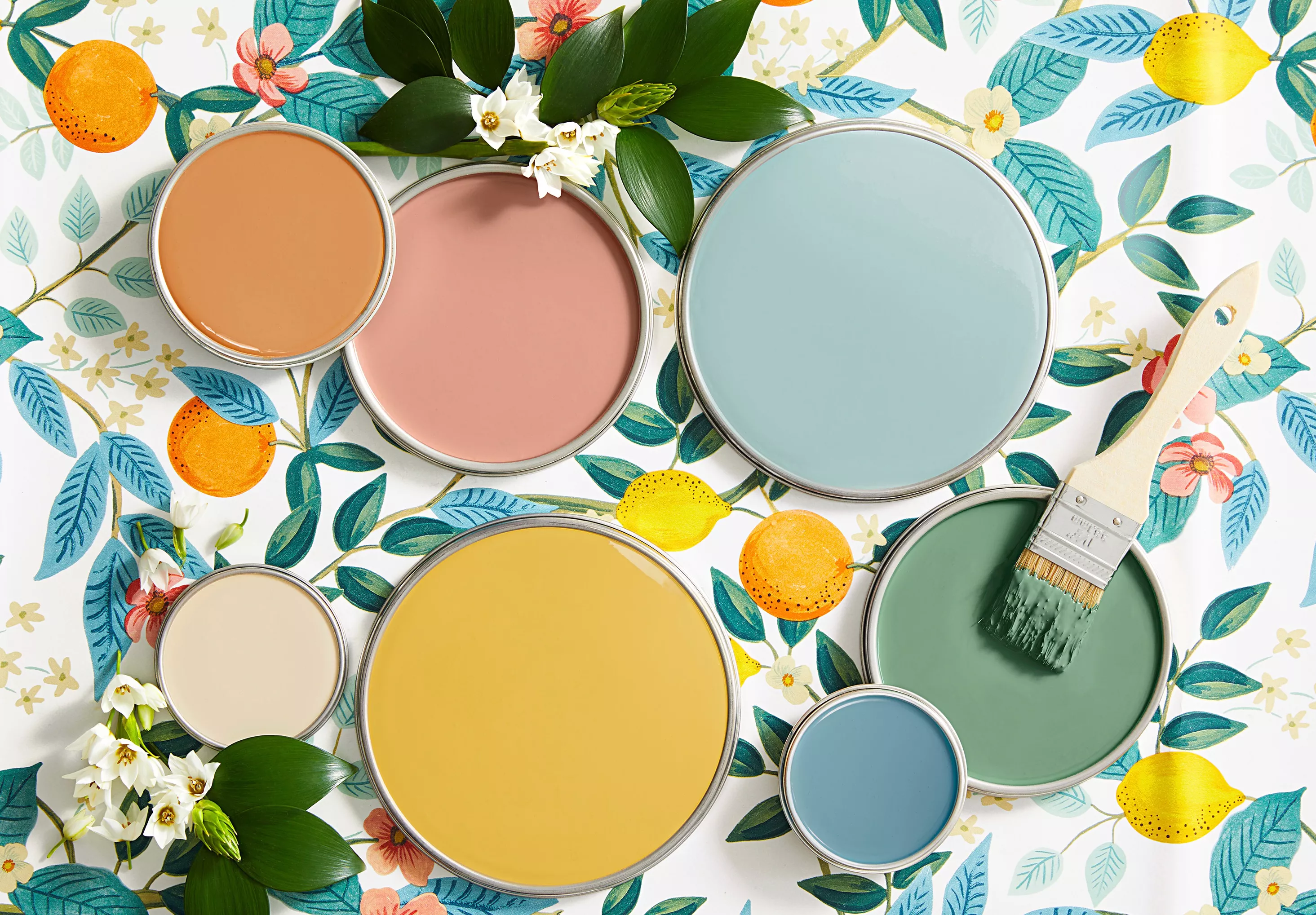
How to Pick Paint to Match Your Wallpaper: 5 Expert Tips

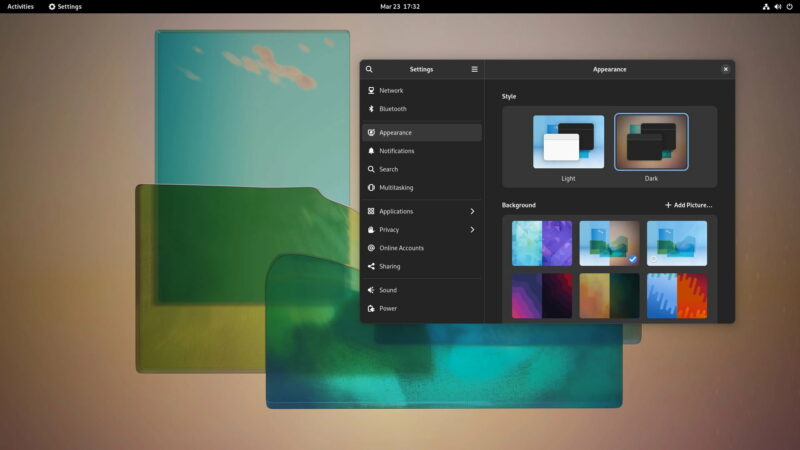
How to Activate the Dark and Light Wallpaper Variants in GNOME 42

The Google Pixel 2 has a dark theme when you change your wallpaper

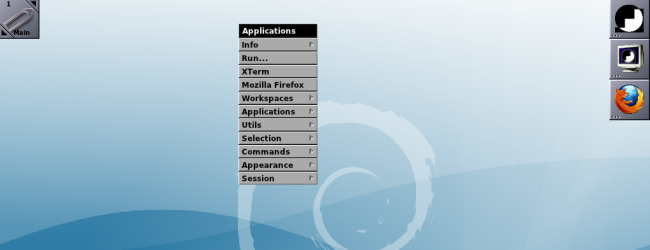
How to Install & Use the Window Maker Desktop Environment on Ubuntu


Wallpaper Paste

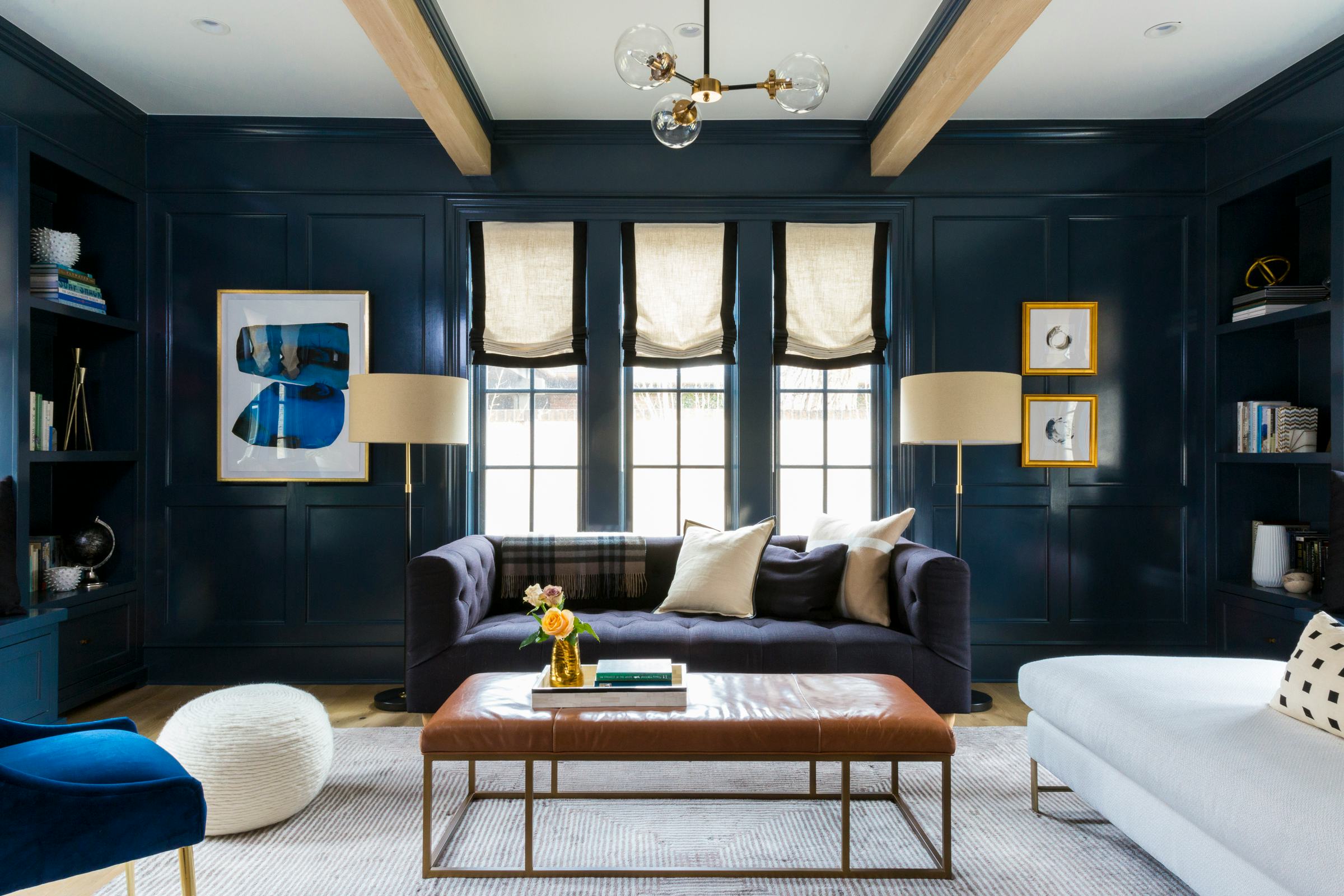
This Color Will Transform Your Living Room Instantly
How to Install and Use the Linux Bash Shell on Windows 10

How To Use Two Different Wallpapers for ‘Light’ and ‘Dark’ Mode on Android

Transform your room with peel and stick wallpaper