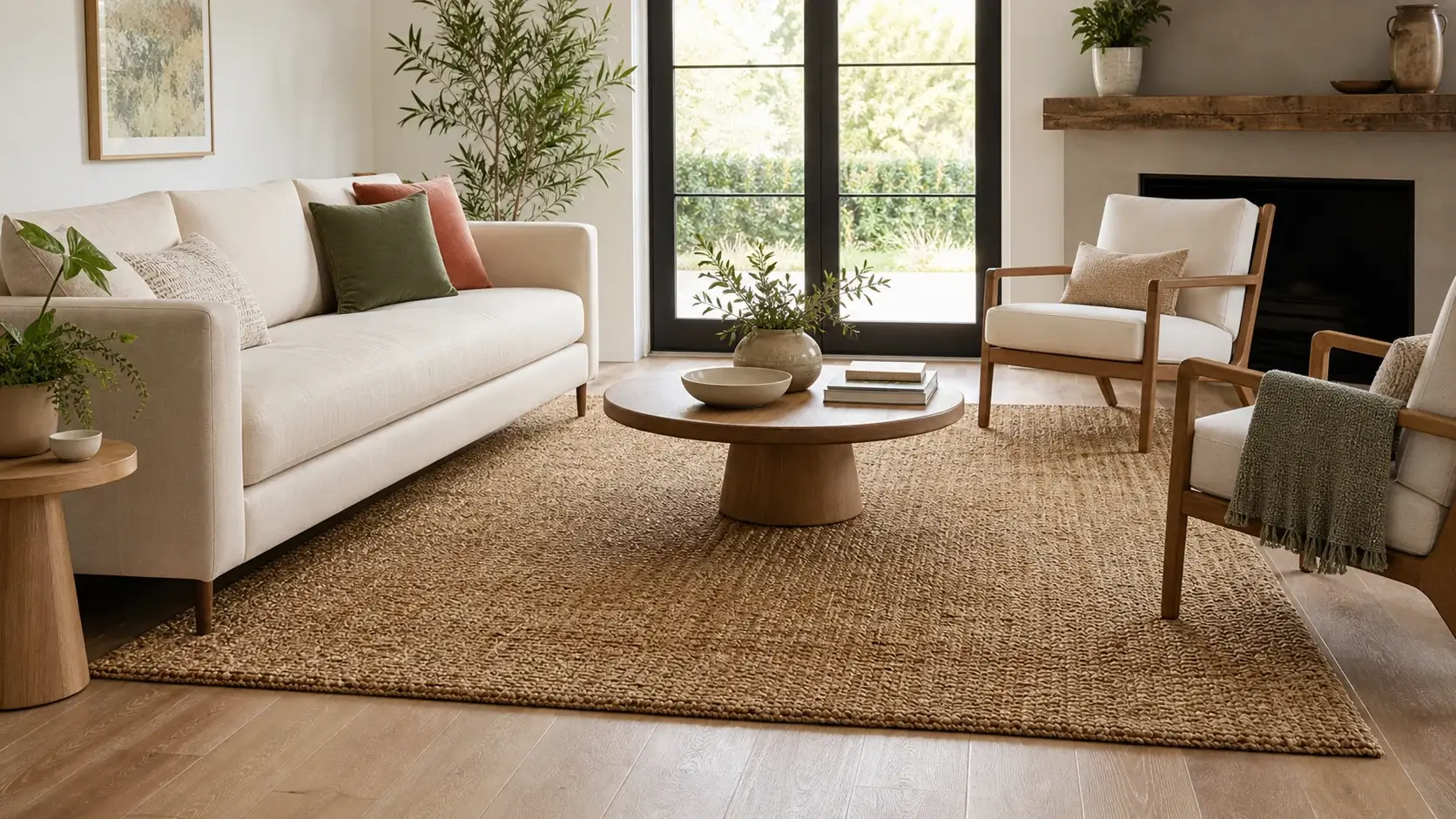
Show size and proportion
Help shoppers understand how physical dimensions relate to furniture, fixtures, and open wall area.

Help shoppers preview framed art, mirrors, and selected wall decor at realistic scale before they return to the product page.
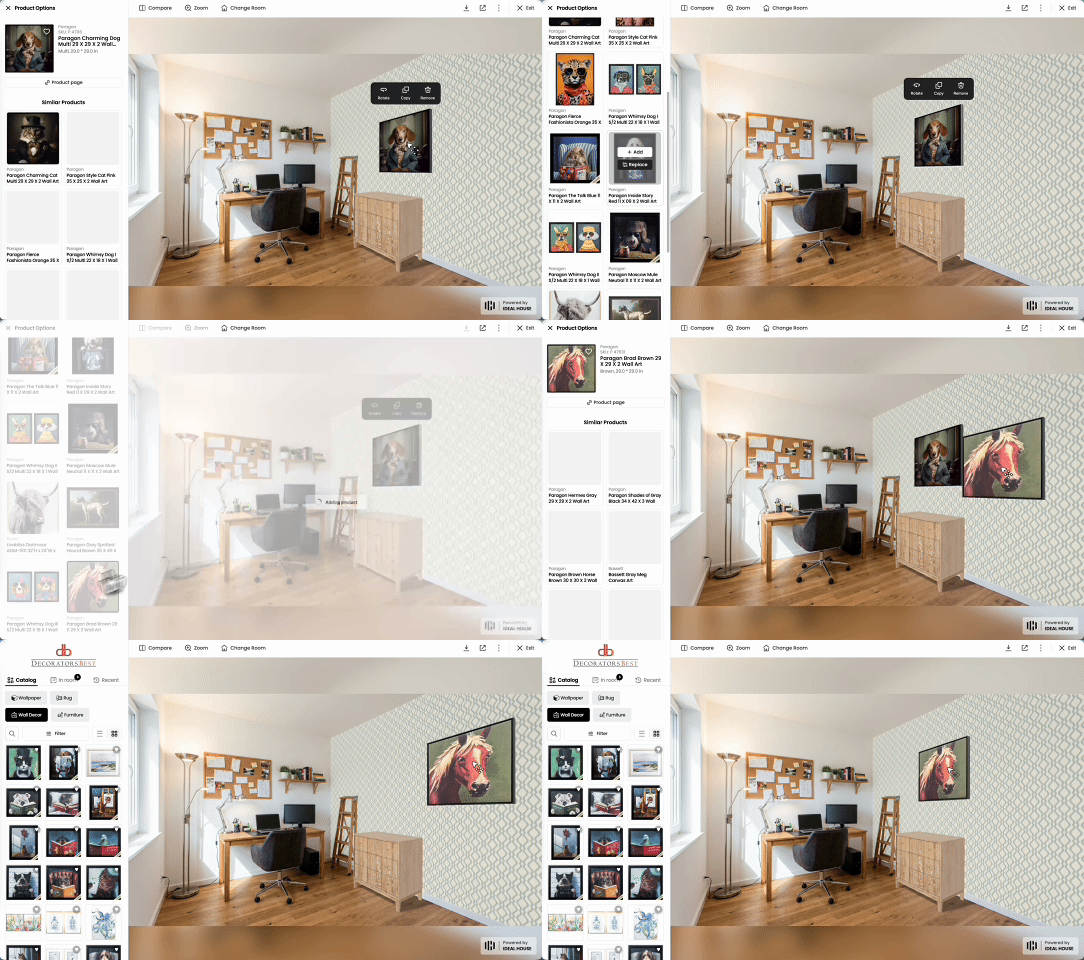
Merchant workflow
Connect selected wall products to a dimension-aware room preview, then keep a clear path back to the product page.
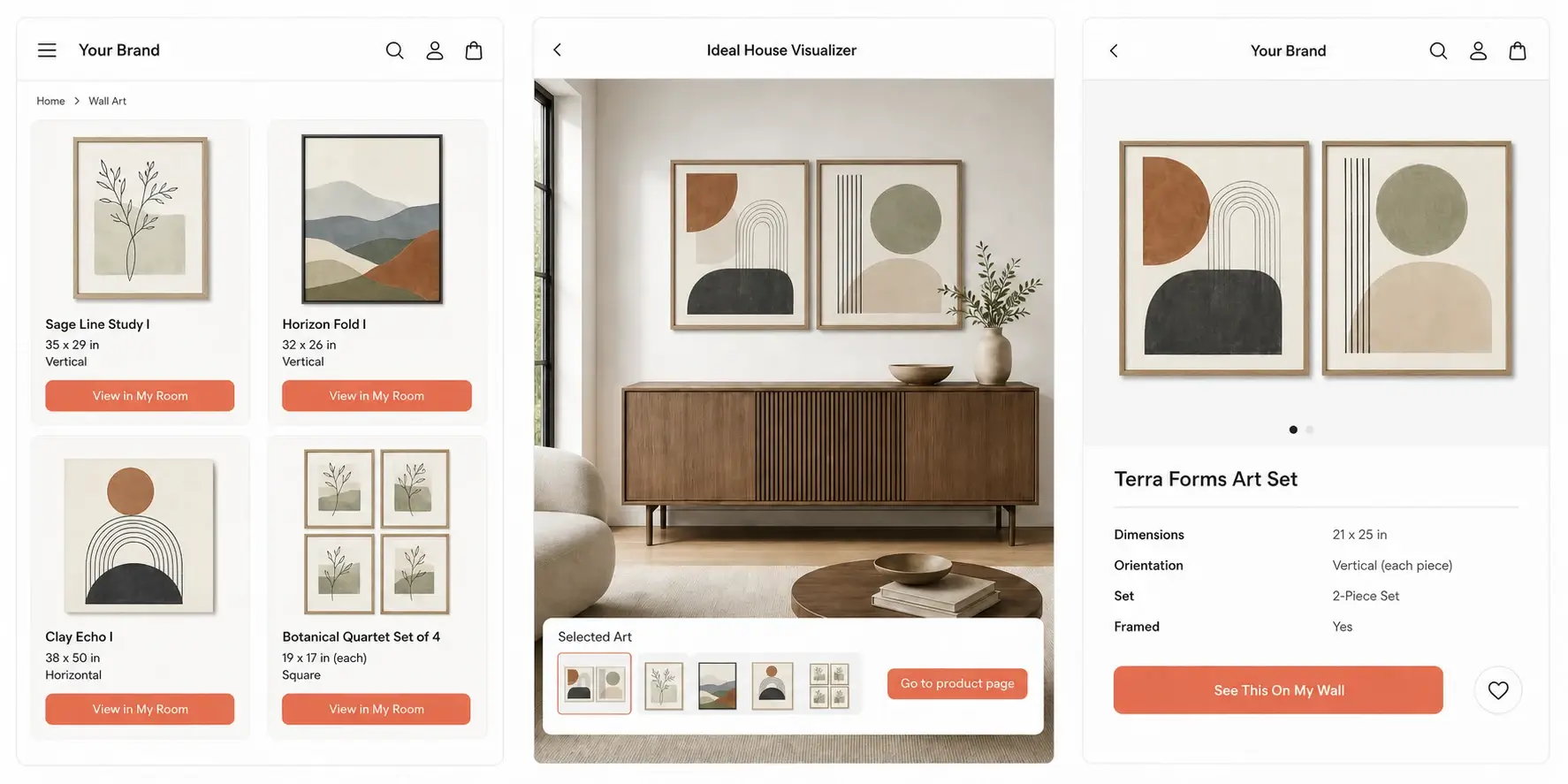
Let shoppers open a preview from preview-ready products while browsing a collection.
Carry the selected product and dimensions into the visualizer to preview placement and proportion.
Keep the selected product in context and provide a clear way back to its product page.
Dimension-aware workflow
Carry the selected artwork, mirror, or supported decor format into room preview with its dimensions and orientation, then return shoppers to the same product page.
Why merchants use it
Product images do not show whether an artwork, mirror, or selected wall object will feel too small, too dominant, or correctly positioned in a furnished room.
Help shoppers understand how physical dimensions relate to furniture, fixtures, and open wall area.
Show selected wall products in a room before shoppers move back to the PDP.
Start with preview-ready SKUs and expand after product readiness and interaction patterns are clear.
Rollout path
Wall art previews need clean front-facing images, physical dimensions, orientation, and correct single-item or set relationships. A focused launch proves those inputs before broader coverage.
Connect handles, SKUs, product URLs, singles, sets, mirrors, and supported decor types.
Confirm image quality, dimensions, orientation, product status, and supported placement logic.
Start with a branded portal or selected collection-page entry points.
See which products, formats, wall positions, and room scenes shoppers use.
Add more collections and PDP entry points after dimensions and placement quality are stable.
Merchant fit
The strongest first fit is a merchant with a real catalog, stable product URLs, accurate dimensions, and shoppers who need to judge placement and scale.
Help shoppers compare formats and sizes across collection pages before they return to a PDP.
Collection-led previewPreview selected products at wall scale when the catalog includes accurate dimensions and imagery.
Catalog readiness firstStart with supported framed products and expand after placement logic is validated.
Selected SKU pilotIdentify preview-ready formats and products before expanding coverage across sellers.
Category expansion pathEvaluation
The first decision is whether imagery, dimensions, and product relationships can produce a useful wall-scale preview. Ideal House supports a focused catalog path before wider storefront coverage. For broader platform evaluation, see our Roomvo alternative and Wizart alternative guides.
Related visualizers
FAQ
It is a room preview experience that lets shoppers see how framed art, mirrors, and selected wall decor fit on a wall before returning to the product page.
Yes. A focused pilot can start from product names, product URLs, product handles, front-facing images, physical dimensions, and stable SKU groups.
Yes. Collection-led preview flows can help shoppers open selected wall products in room context while they compare formats and sizes.
Yes. The storefront experience can return shoppers to the same artwork, mirror, or selected format after the wall-scale preview.
Yes. Size variants can be previewed when each option is mapped to accurate physical dimensions and the correct product relationship.
Start with one focused wall art collection, validate front-facing images, physical dimensions, orientation, set relationships, and product status, then launch a pilot before expanding coverage.
Review front-facing images, physical dimensions, orientation, sets, and product mappings before adding more collections or storefront entry points.
Get a catalog readiness check