
1/20
How to Install or Remove Optional Features in Windows 11
Windows 11 includes various features, some of which are not installed by default, such as the Windows Subsystem for Linux and different language packs. Users also have the option to remove features that come pre-installed. This article provides a comprehensive guide on how to manage these optional features, offering methods for both graphical interfaces and command-line operations.
Two primary graphical methods for managing optional features are detailed: using the Settings app and the Control Panel app. For the Settings app, the process involves navigating to 'System' then 'Optional Features' and clicking 'View Features.' From there, users can see a list of installed features and access an option to add more. To install a new feature, users select 'See Available Features,' tick the desired features, and click 'Next' or 'Add.' The system then automatically installs them. To remove features via the Settings app, users select the unwanted features from the 'See Added Features' list and click 'Remove.' This method allows for multiple selections for batch uninstallation.
Alternatively, the Control Panel offers another graphical approach. Users can access the 'Programs and Features' section by searching for 'control panel' in the Start Menu and then clicking 'Uninstall a program.' This section lists installed programs and features, allowing for uninstallation, modification, or repair. For features that can be turned on or off without full uninstallation, users can search for 'Turn Windows features on or off' in the Start Menu. This opens a separate 'Windows Features' window, which is also accessible via 'More Windows features' at the bottom of the Settings app. This window presents a checklist of features that can be toggled on or off, providing granular control over system functionalities.
For users who prefer command-line interfaces, the article explains how to manage optional features using the Terminal with administrative privileges. To open the Terminal with administrative access, users press Windows+X and select 'Terminal (Admin).' A list of all available features, indicating whether they are enabled or disabled, can be obtained using the command 'Get-WindowsOptionalFeature -Online'. To disable a feature, the command 'Disable-WindowsOptionalFeature -FeatureName [FeatureName] -Online' is used, replacing '[FeatureName]' with the actual name of the feature. Conversely, to enable a feature, the command is 'Enable-WindowsOptionalFeature -FeatureName [FeatureName] -Online'. The article notes that some changes made through the Terminal may require a system restart to take full effect, ensuring that the feature functions correctly or is completely removed.
#Windows11 #OptionalFeatures #SystemSettings #ControlPanel #CommandPrompt #WindowsSubsystemForLinux #LanguagePacks #FeatureManagement #OperatingSystem #Windows11 #OptionalFeatures #SystemSettings #ControlPanel #CommandPrompt #WindowsSubsystemForLinux #LanguagePacks #FeatureManagement #OperatingSystem
 まだコメントはありません
How to Install Windows 11 Without All the Extra Junk

How to declutter, quiet down, and take the AI out of Windows 11 25H2
Here's How to Make Your Windows Installation More Private
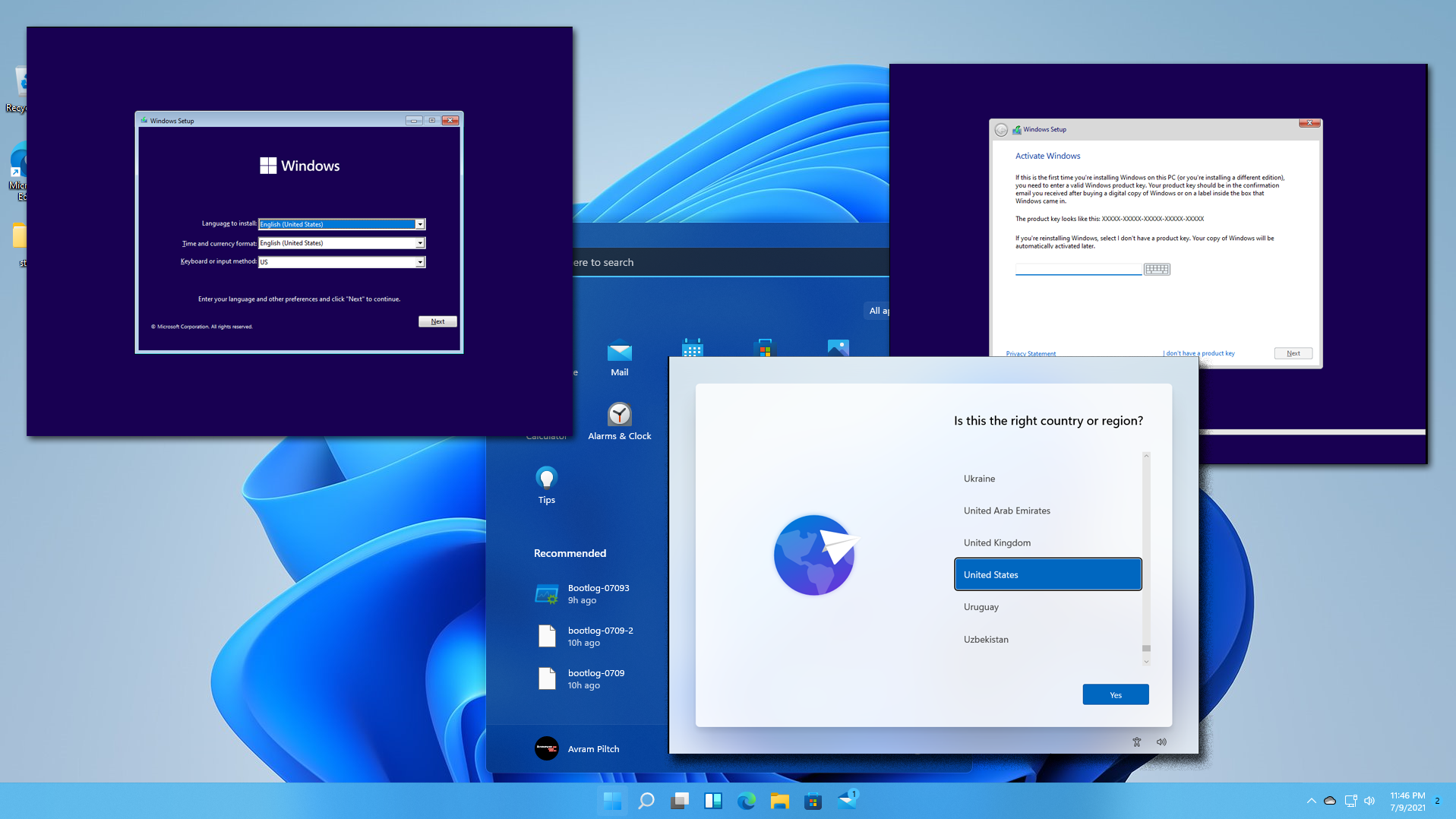
How to Download Windows 11 and Install It
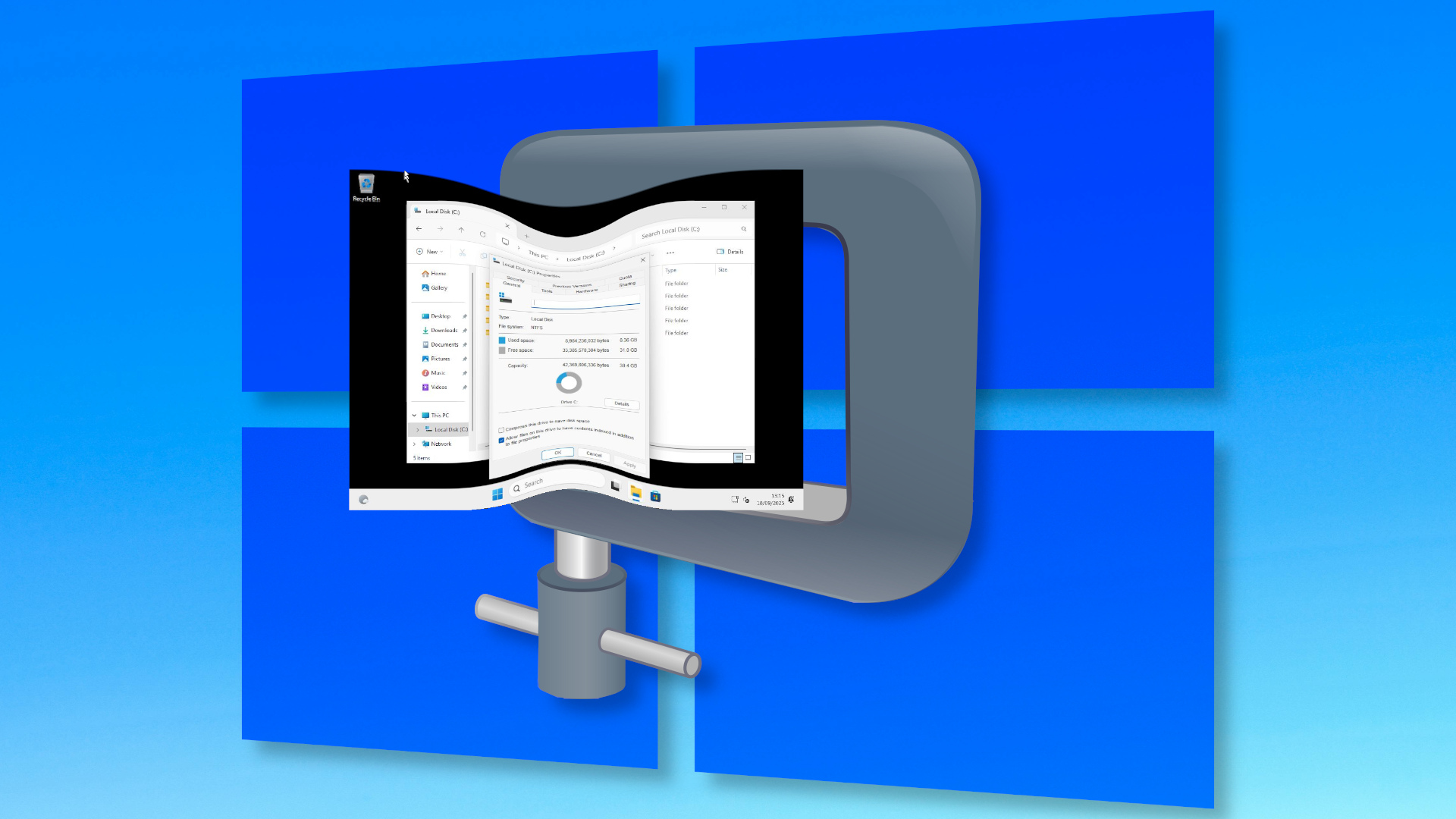
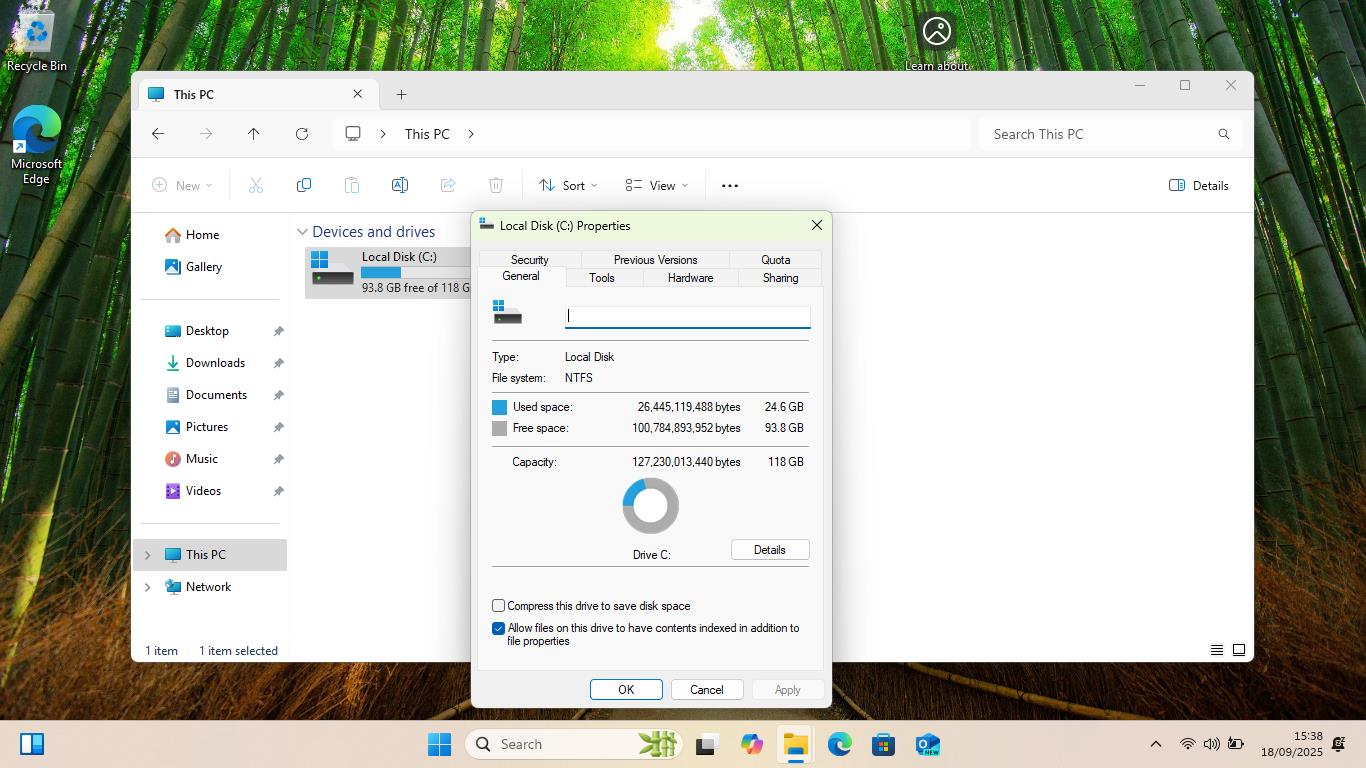
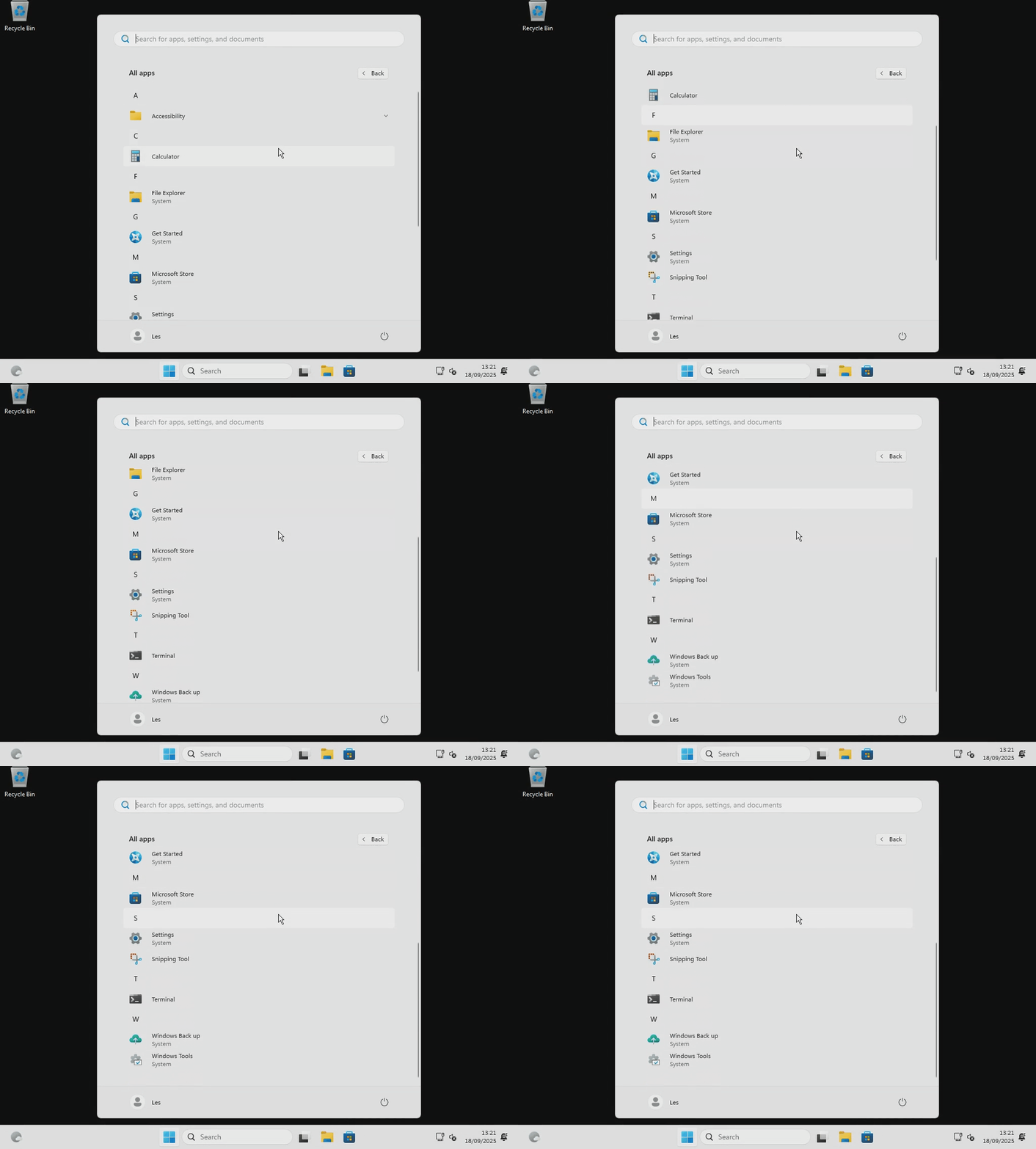
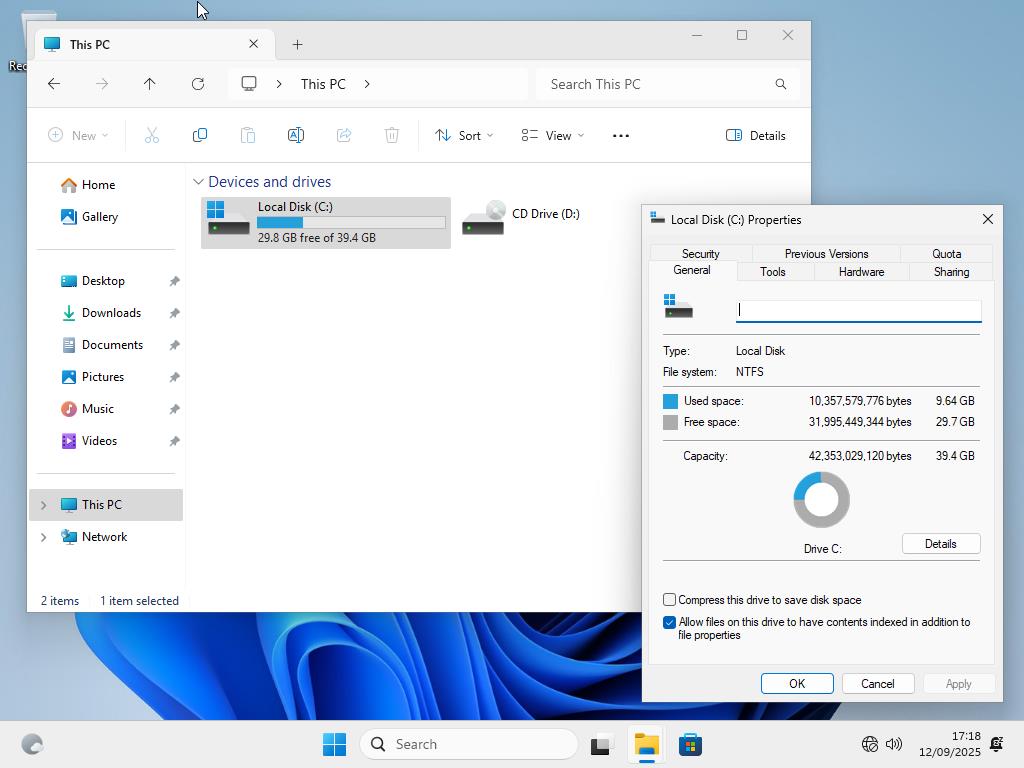
Here's how I installed Windows 11 using a nano-sized 2.4GB ISO — final install weighed in at a mere 8.36GB, two-thirds the size of a normal Windows install, courtesy of Nano11 Builder