
1/3
Govee Envisual TV Backlight T2 Review
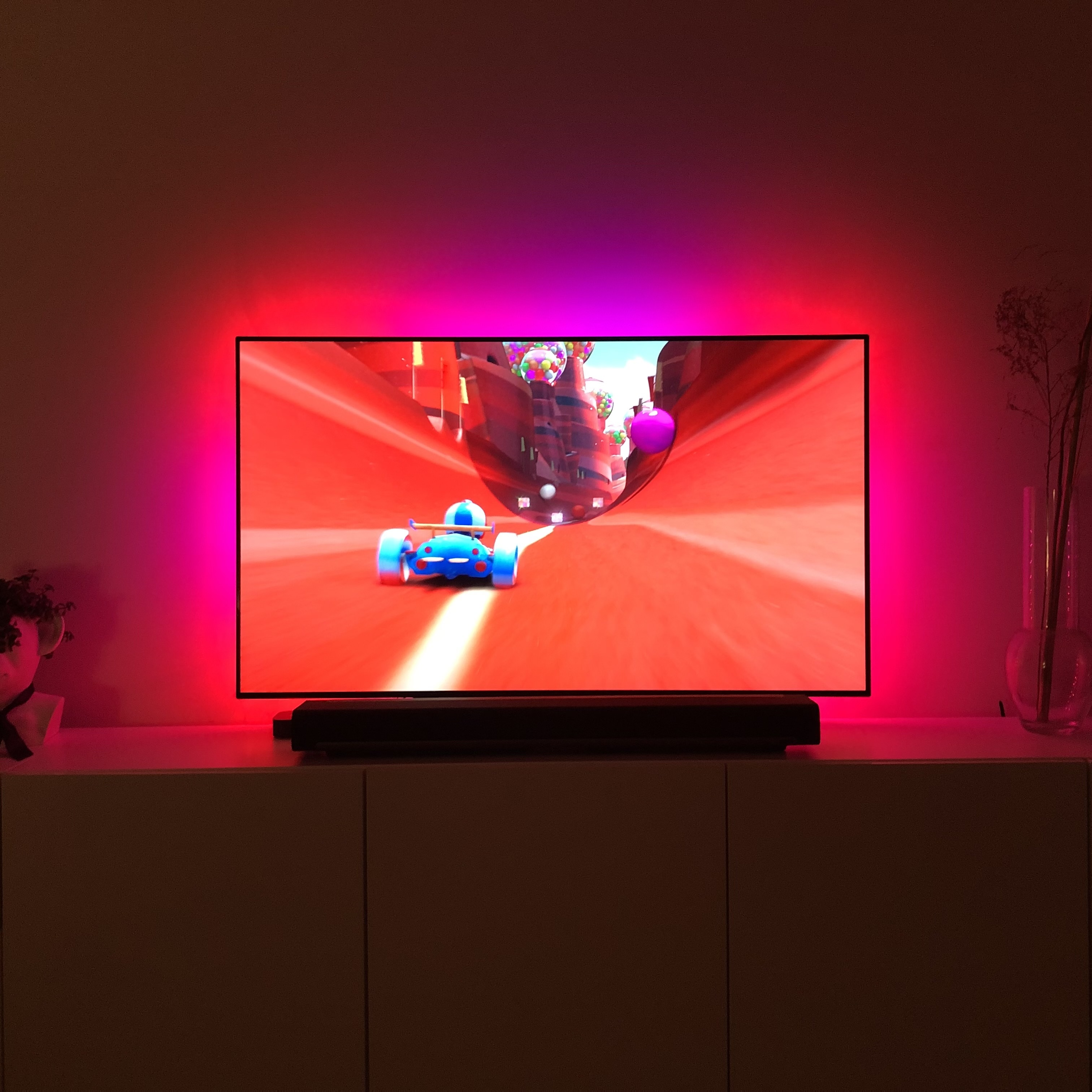
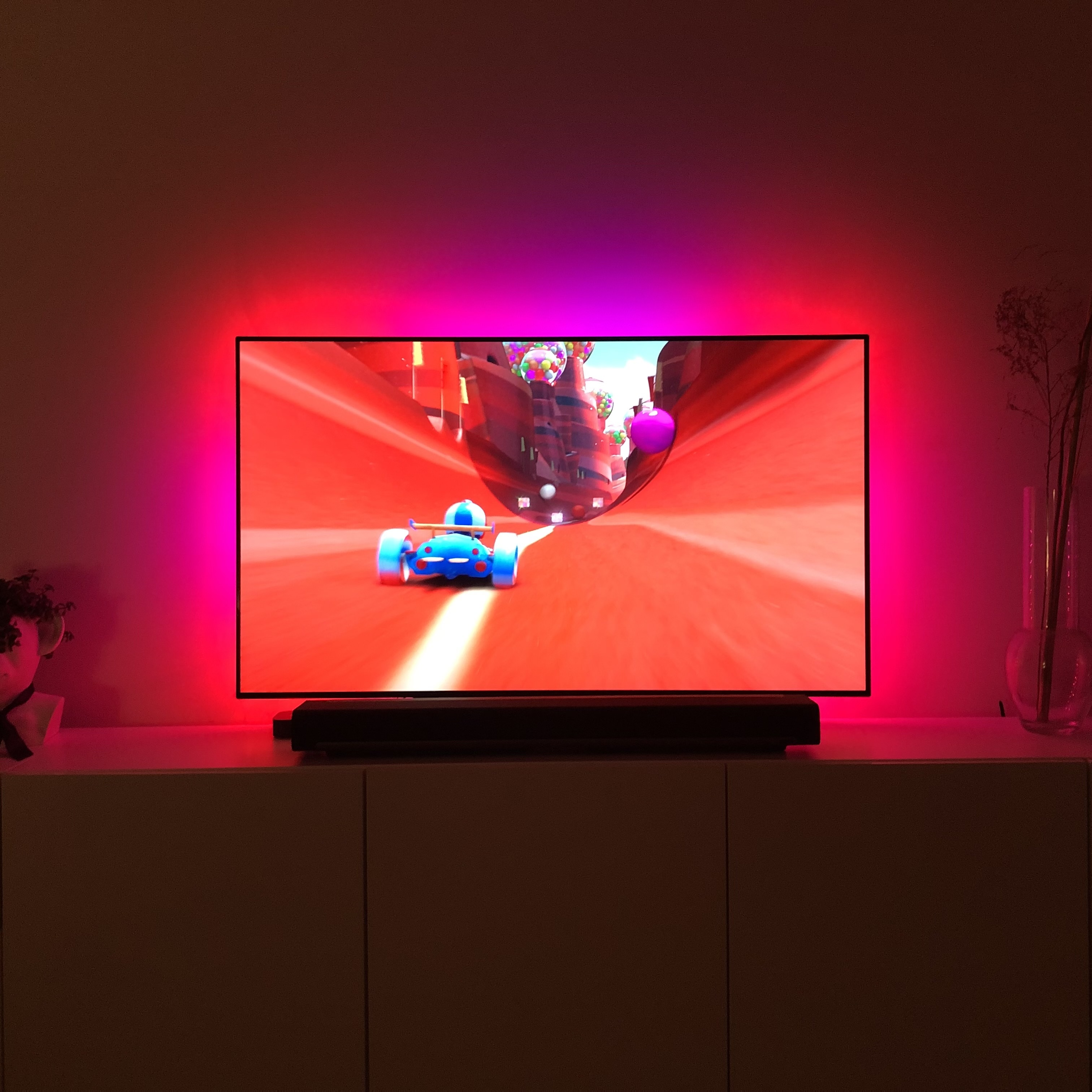
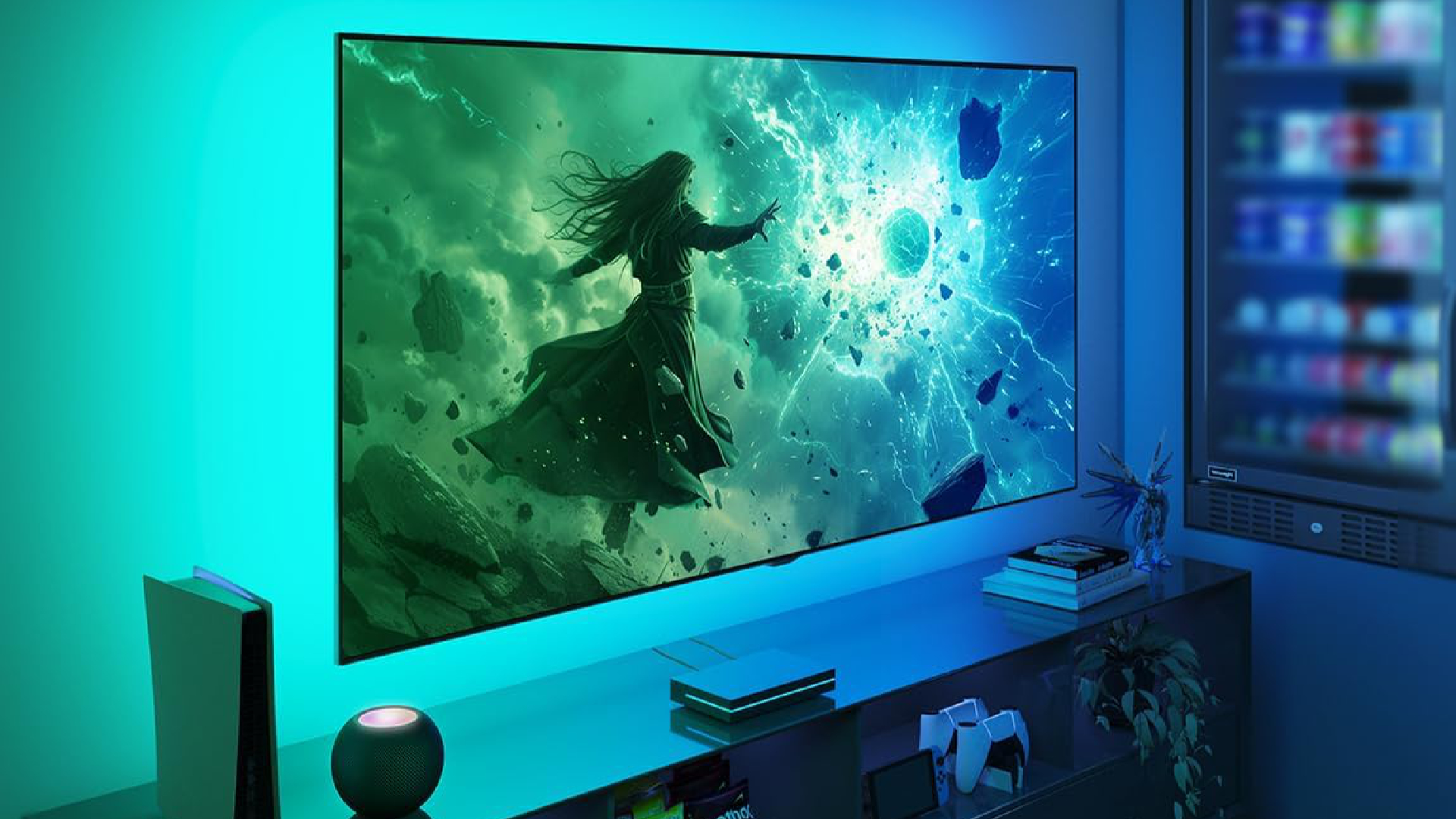
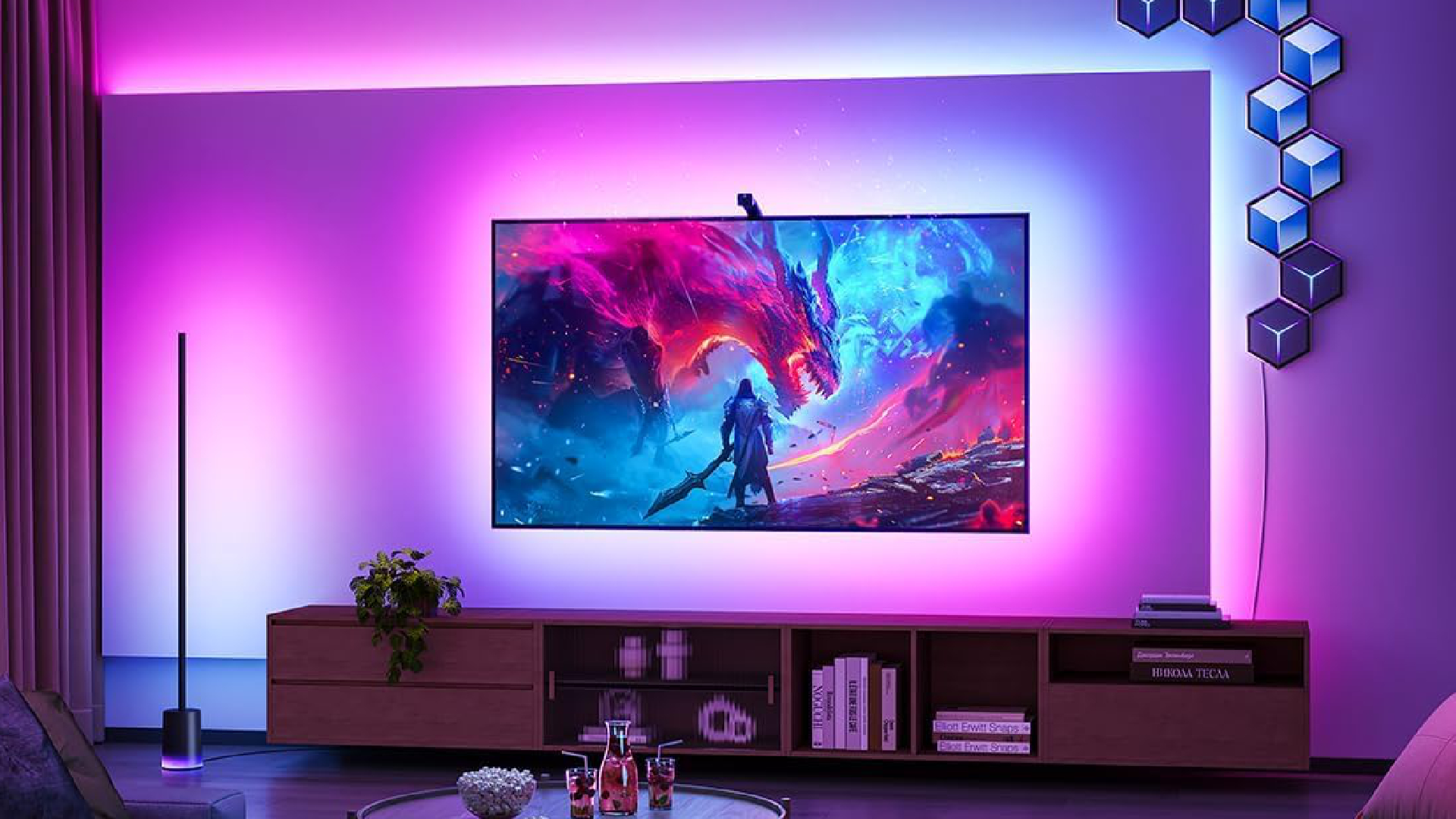
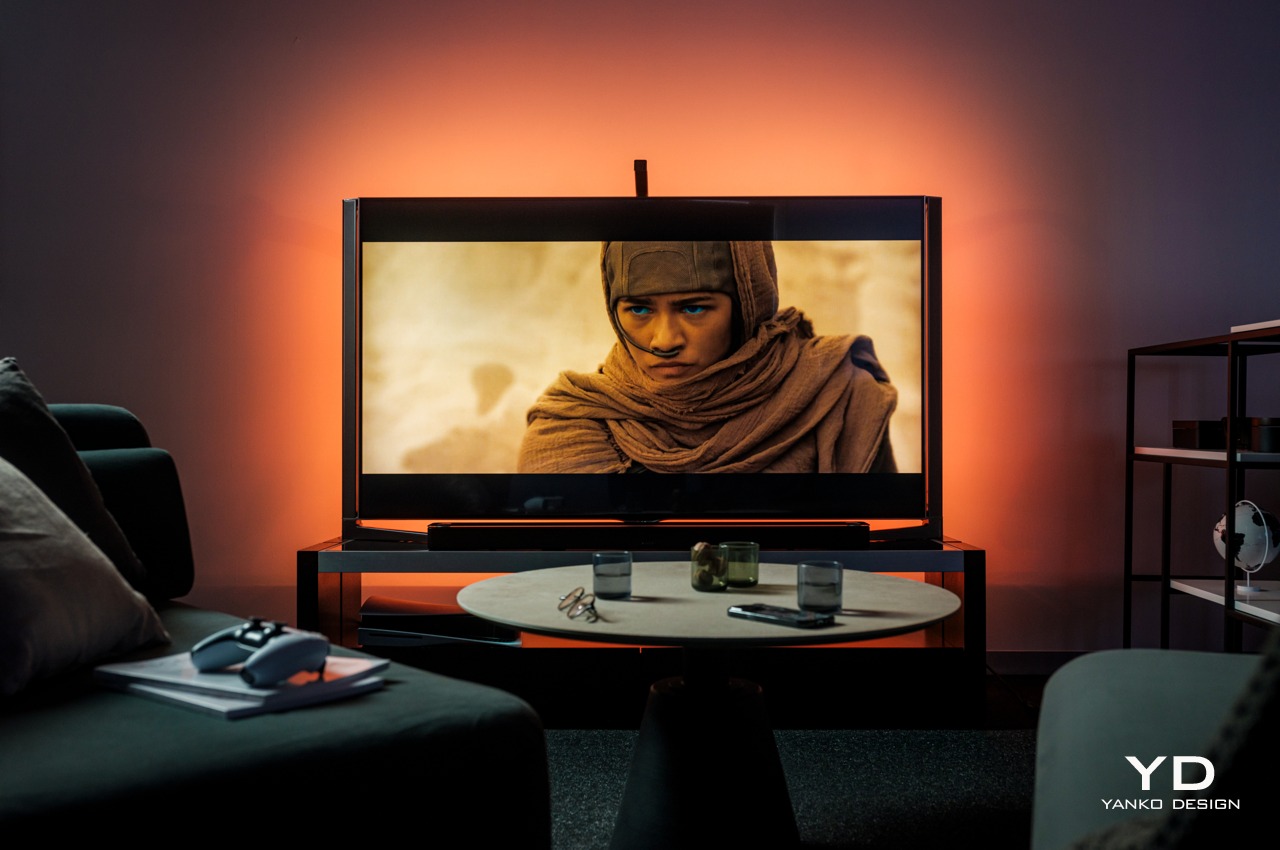
Govee has released an updated version of its Envisual TV Backlight T2 kit, expanding its compatibility to include TVs up to 100 inches. The new kit features a dual-camera system and enhanced software, offering greater accuracy, customization, and user-friendliness than its predecessor. This review details the specifications, contents, installation process, and configuration of the Govee T2.
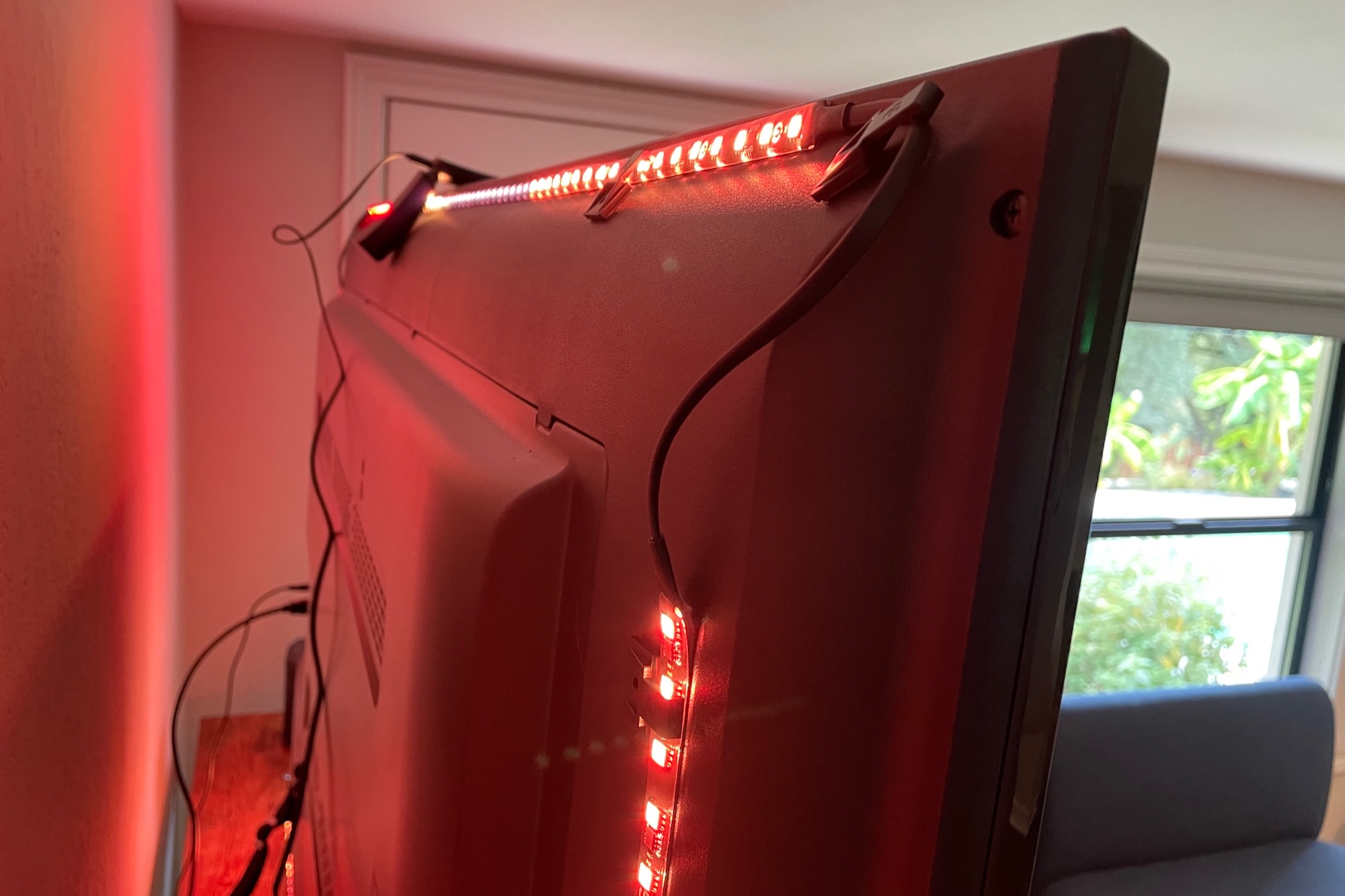
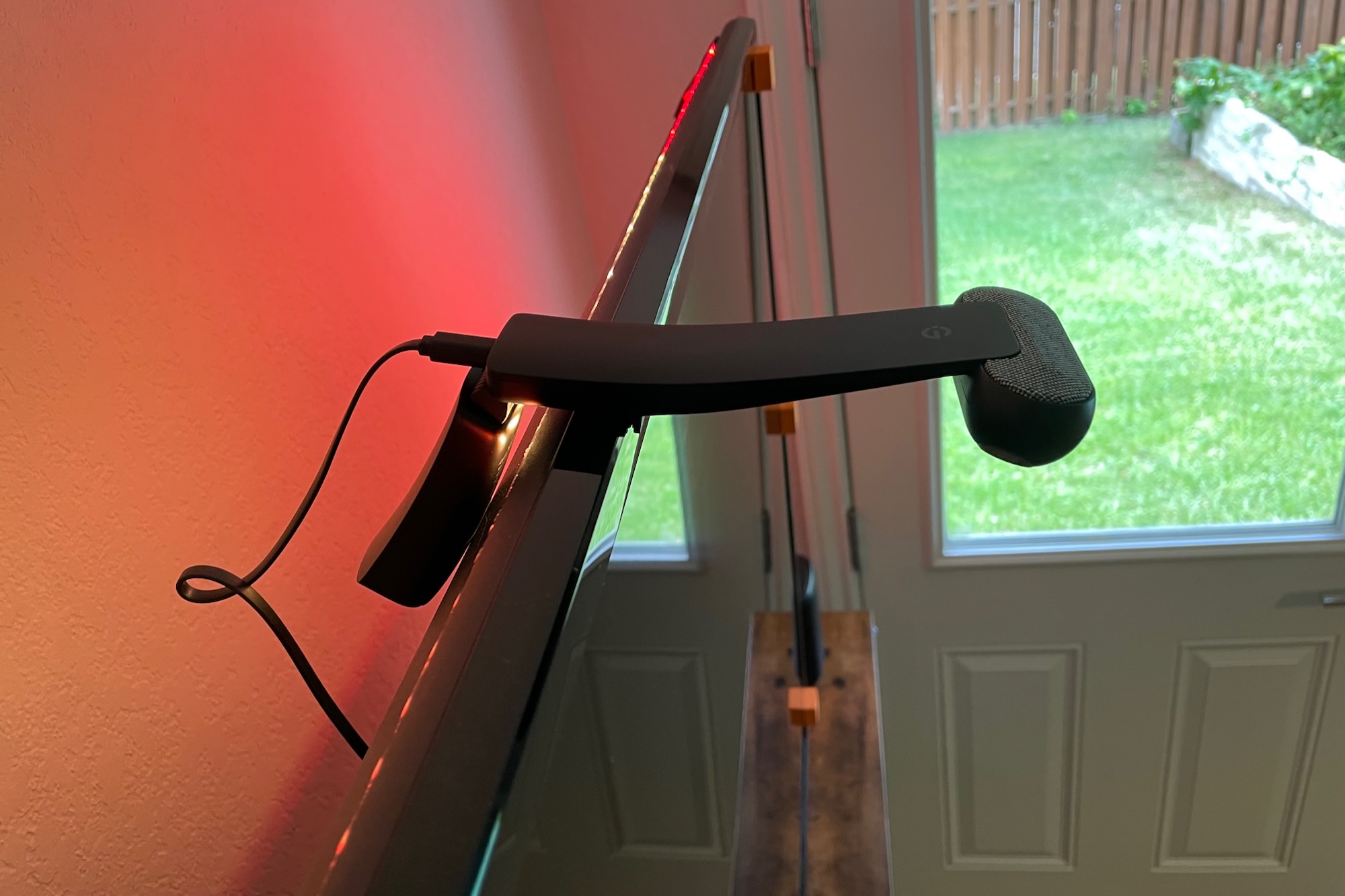
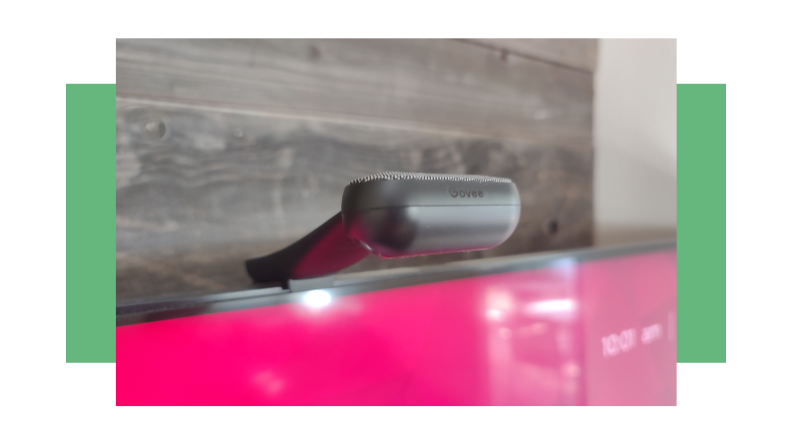
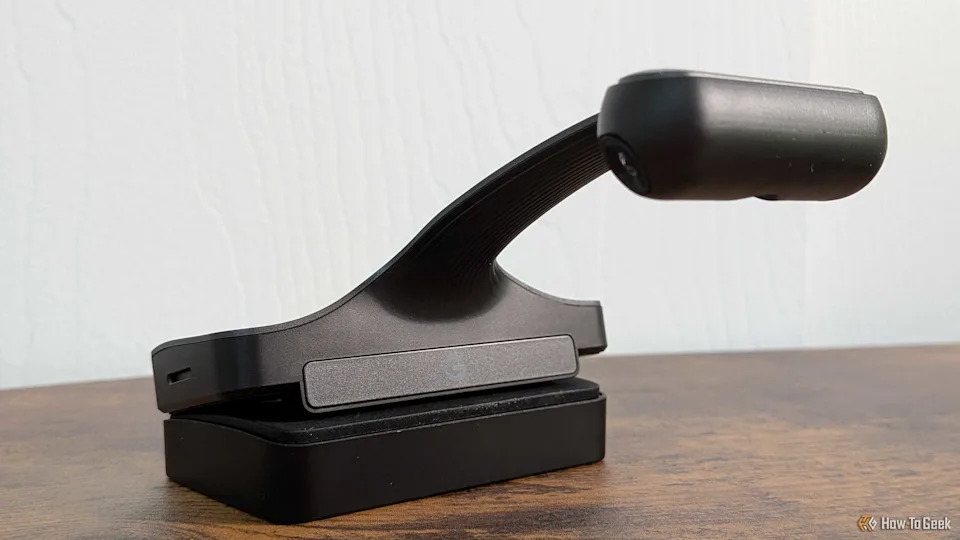
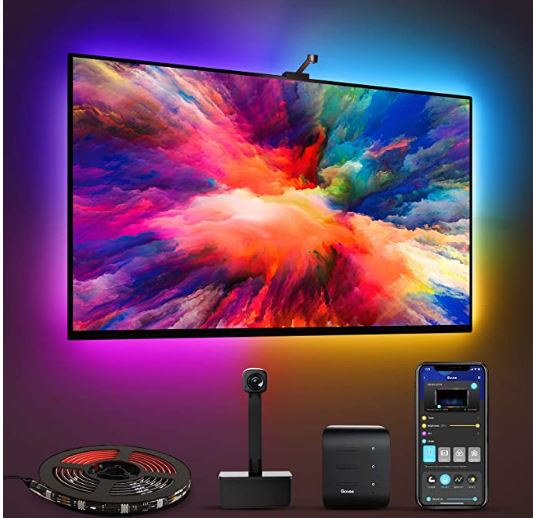
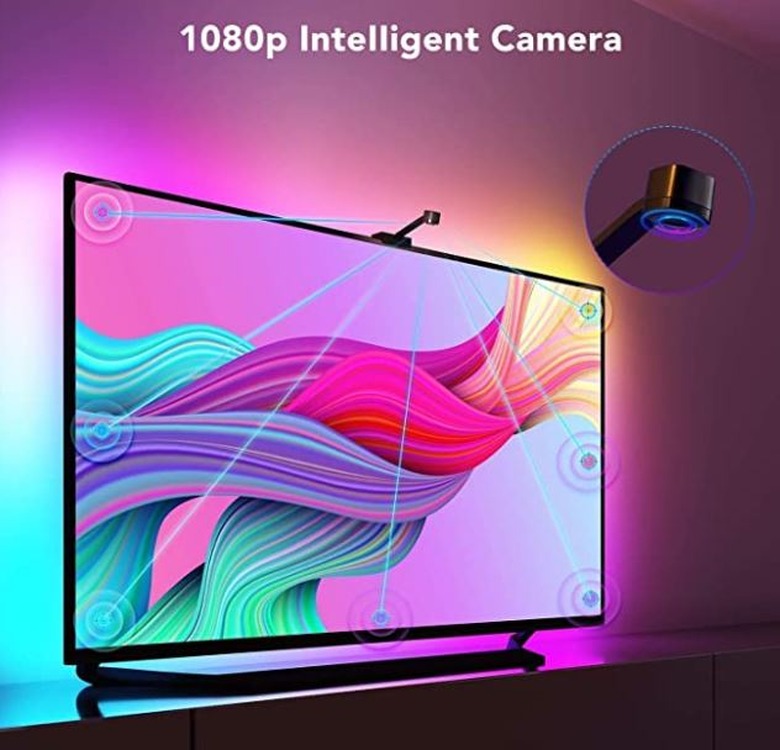
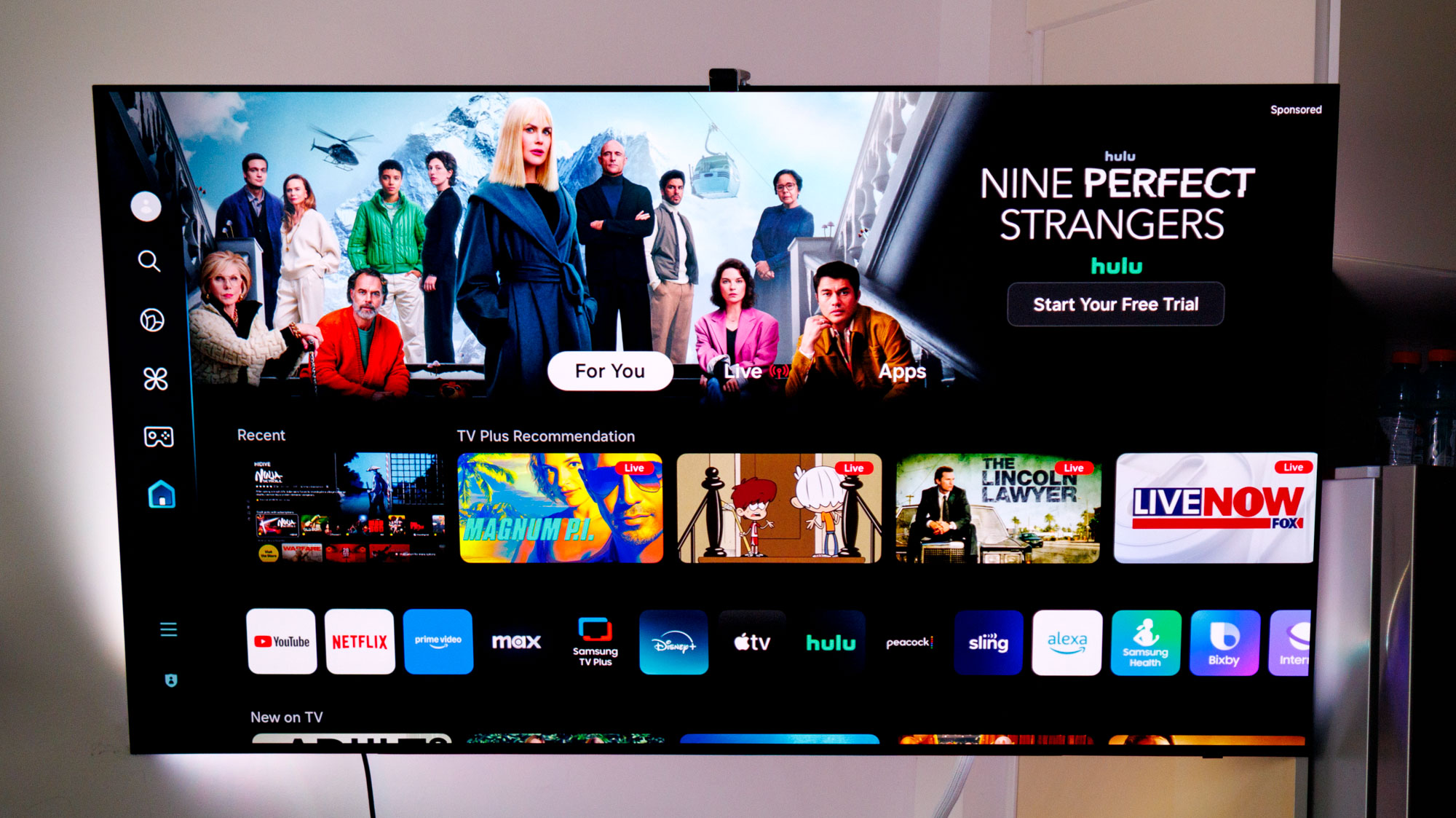
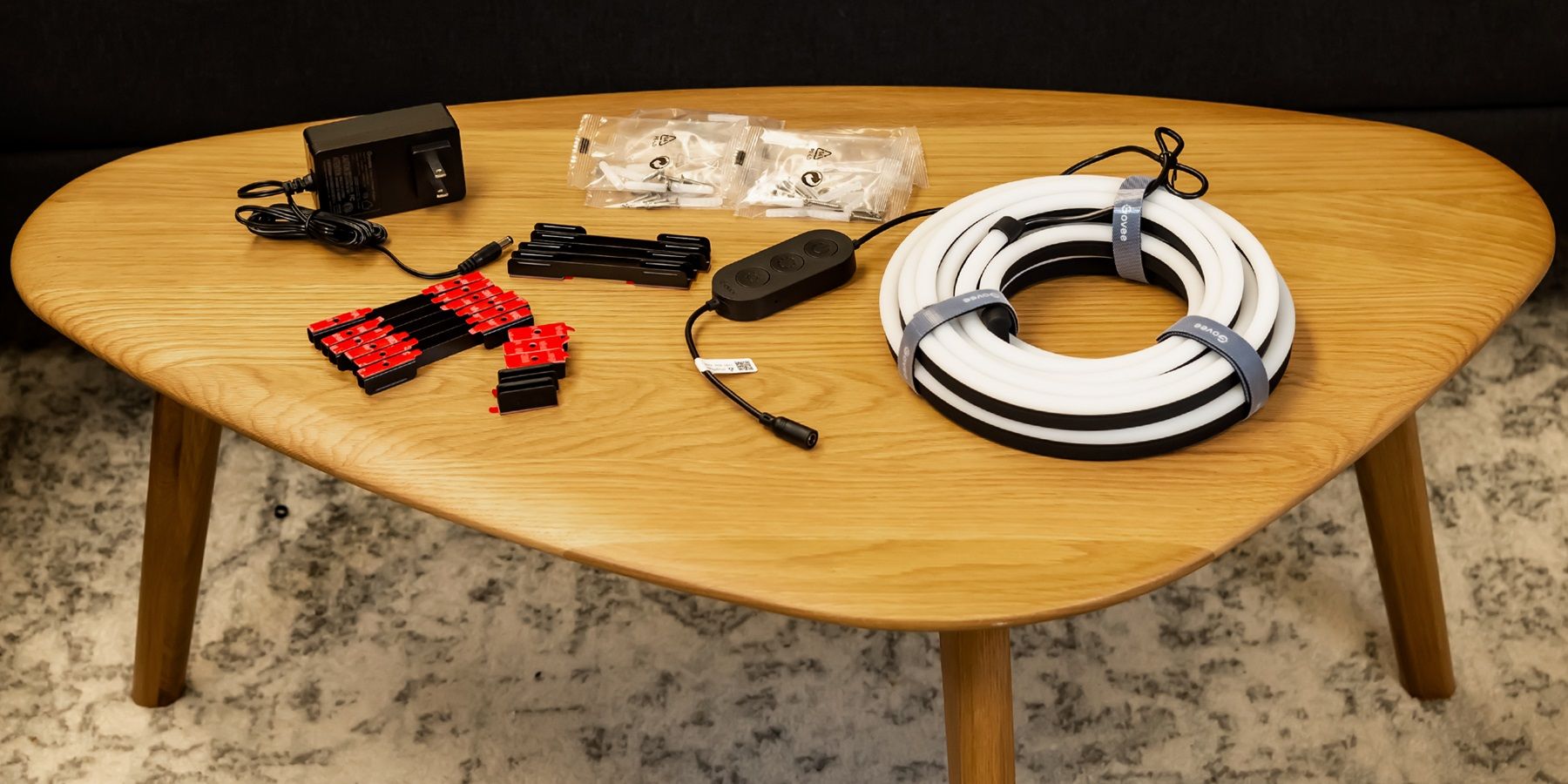
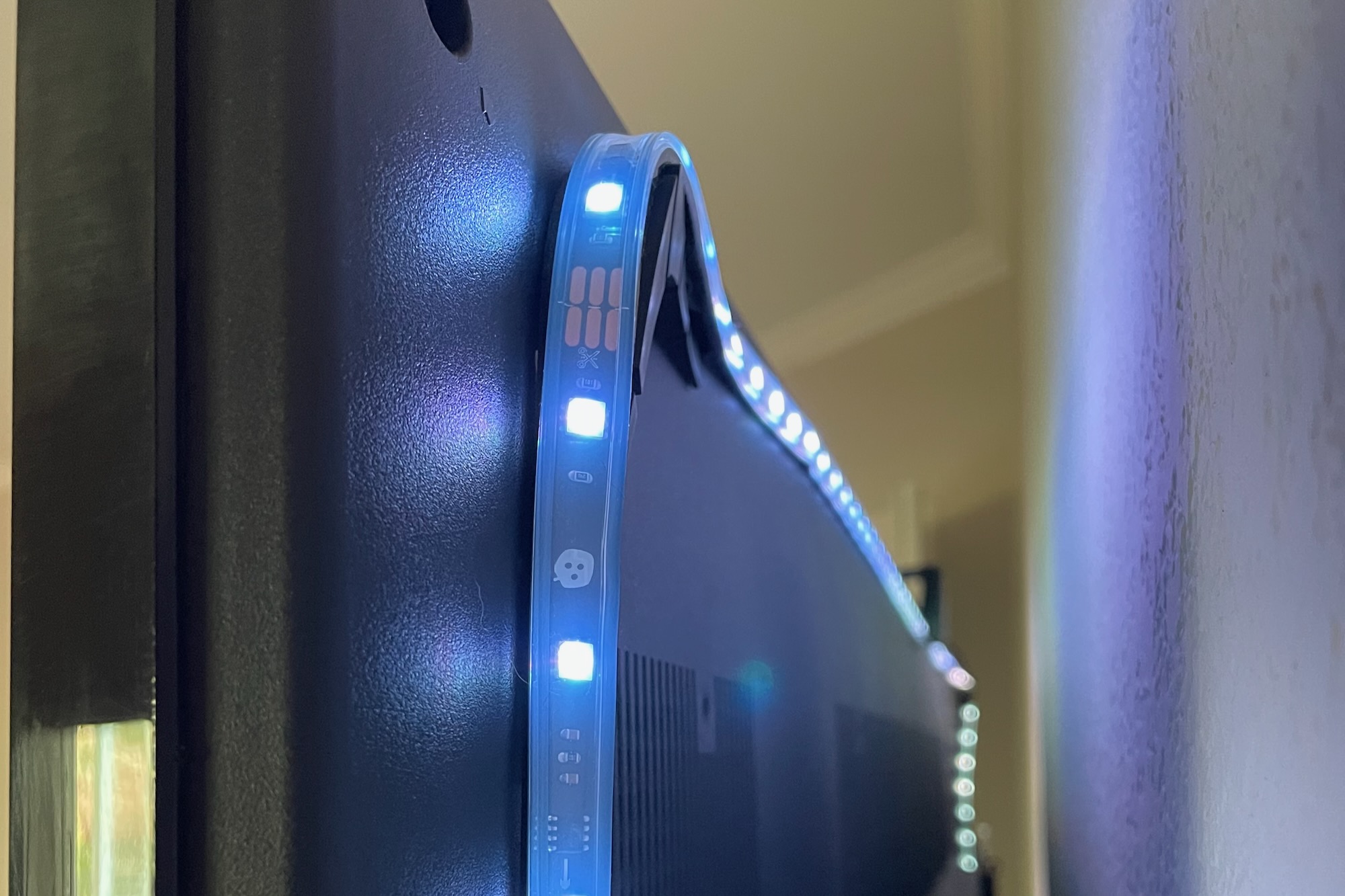
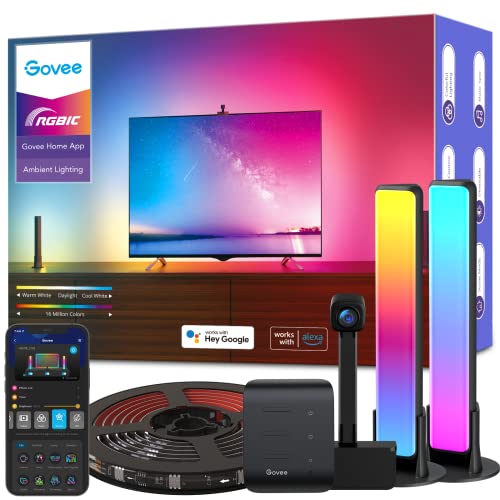
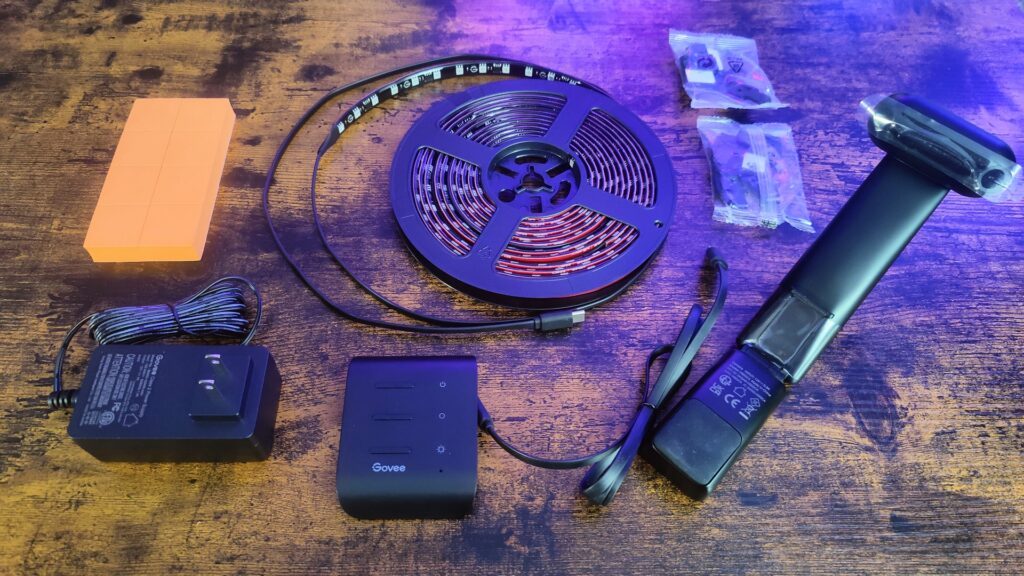
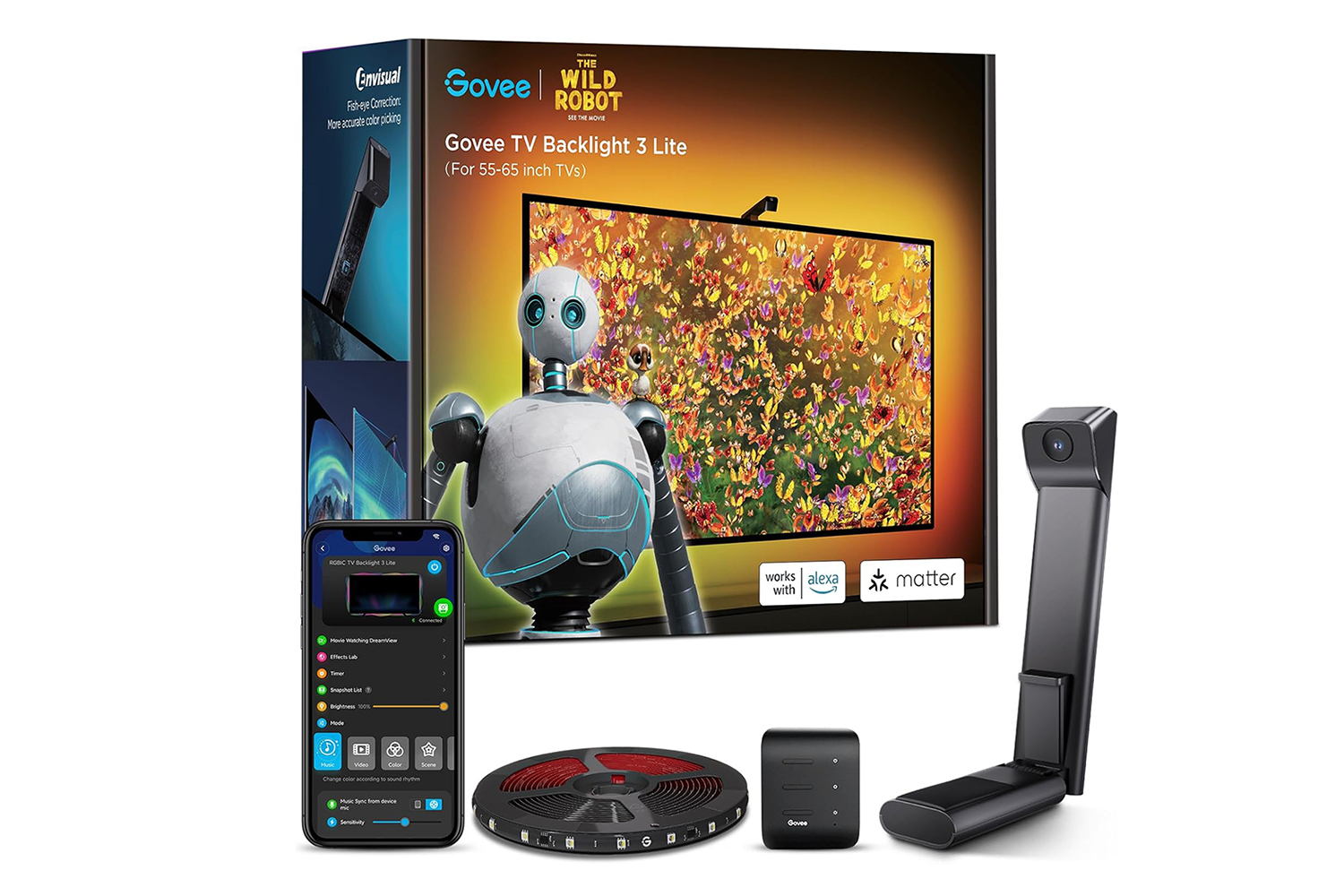
The T2 kit is available in three lengths to accommodate 55-65 inch, 75-85 inch, and 98-100 inch TVs, with prices ranging from $119.99 to $159.99. Each kit includes a camera, a controller, and a lightstrip, along with a power adapter, reinforcement clips, and orange foam squares for calibration. The lightstrips are designed with a 16:9 aspect ratio and feature 60 LEDs per meter for precise color matching. The lightstrip itself is composed of four individual pieces connected by wires, enabling it to conform to the TV's edges. A crucial aspect of the T2 is its dual-camera setup, which is more effective at capturing screen content than single-camera systems. This camera unit sits on top of the TV and is secured by a counterweight.
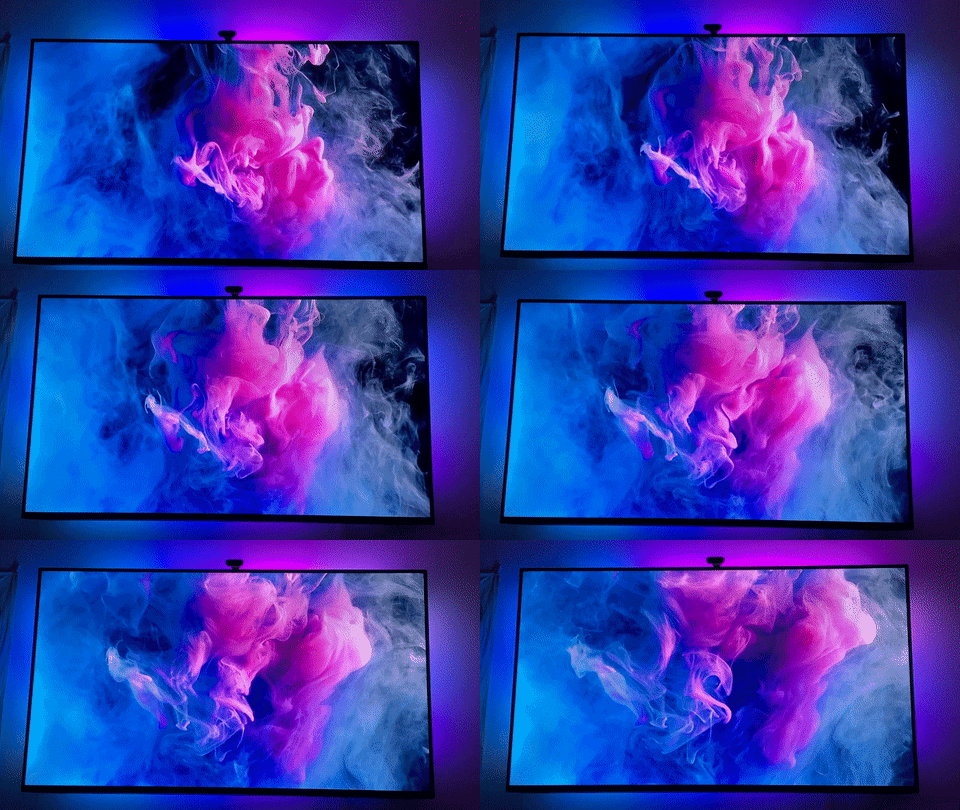
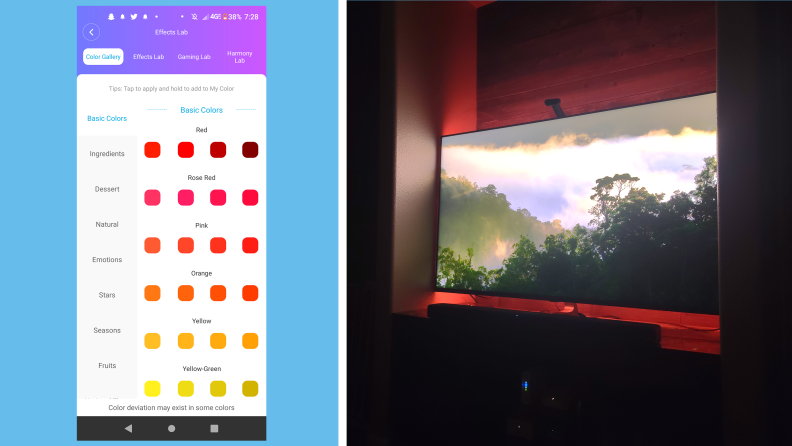
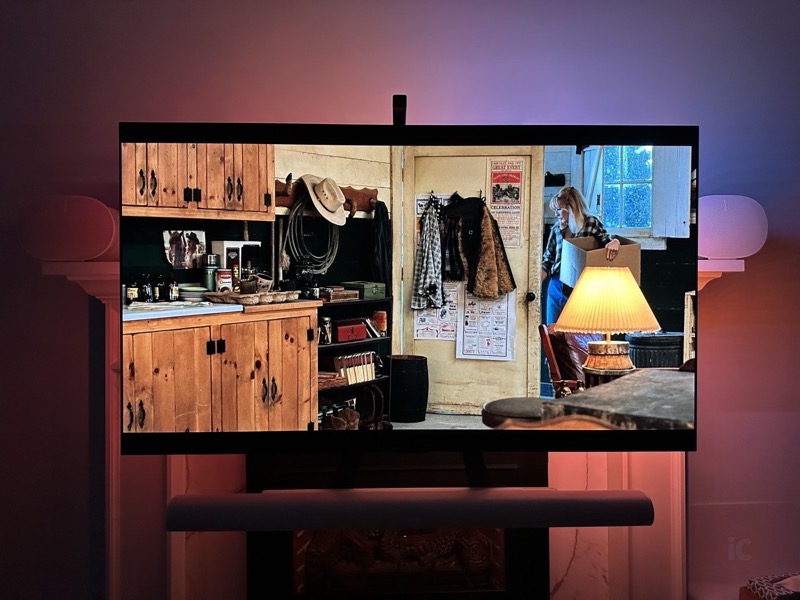
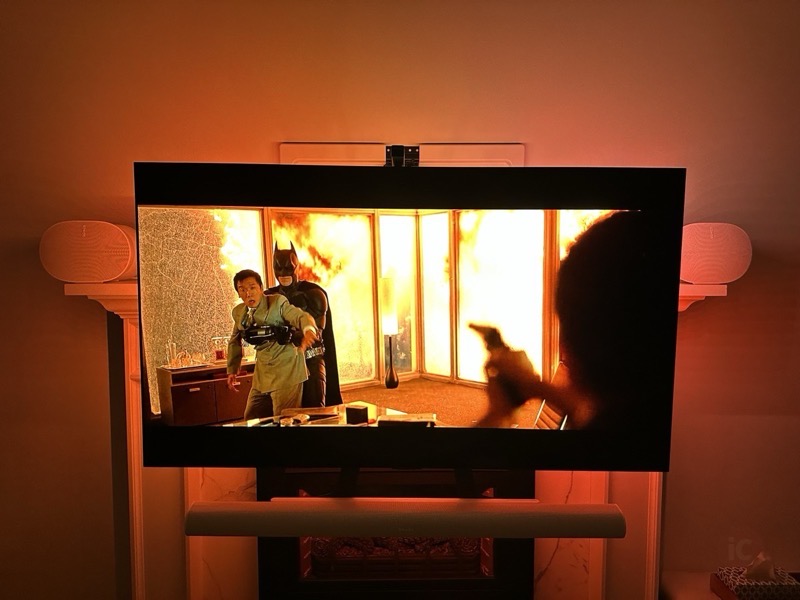
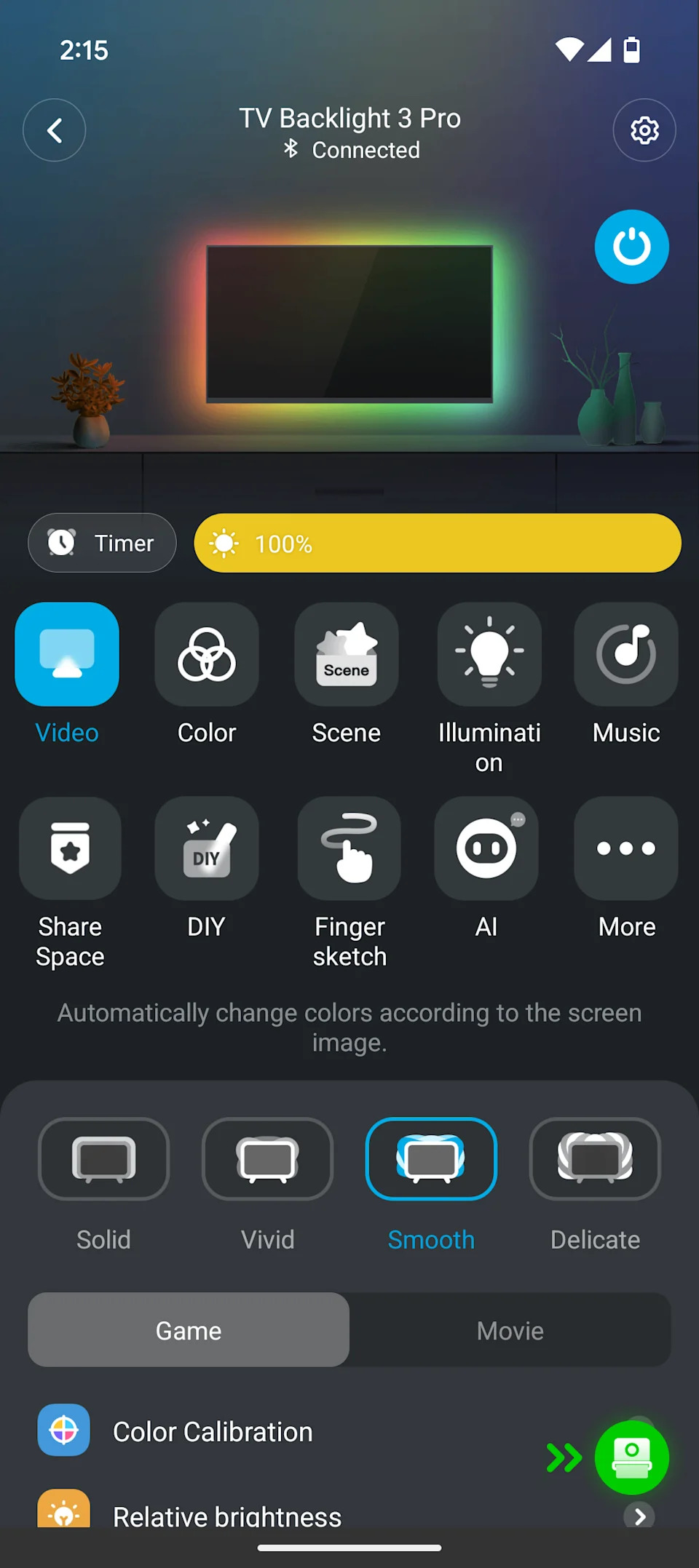
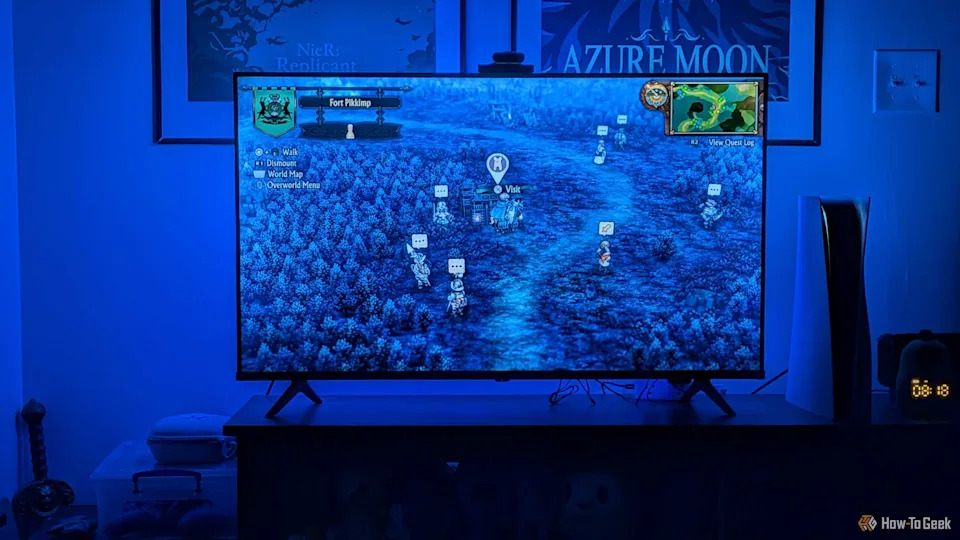
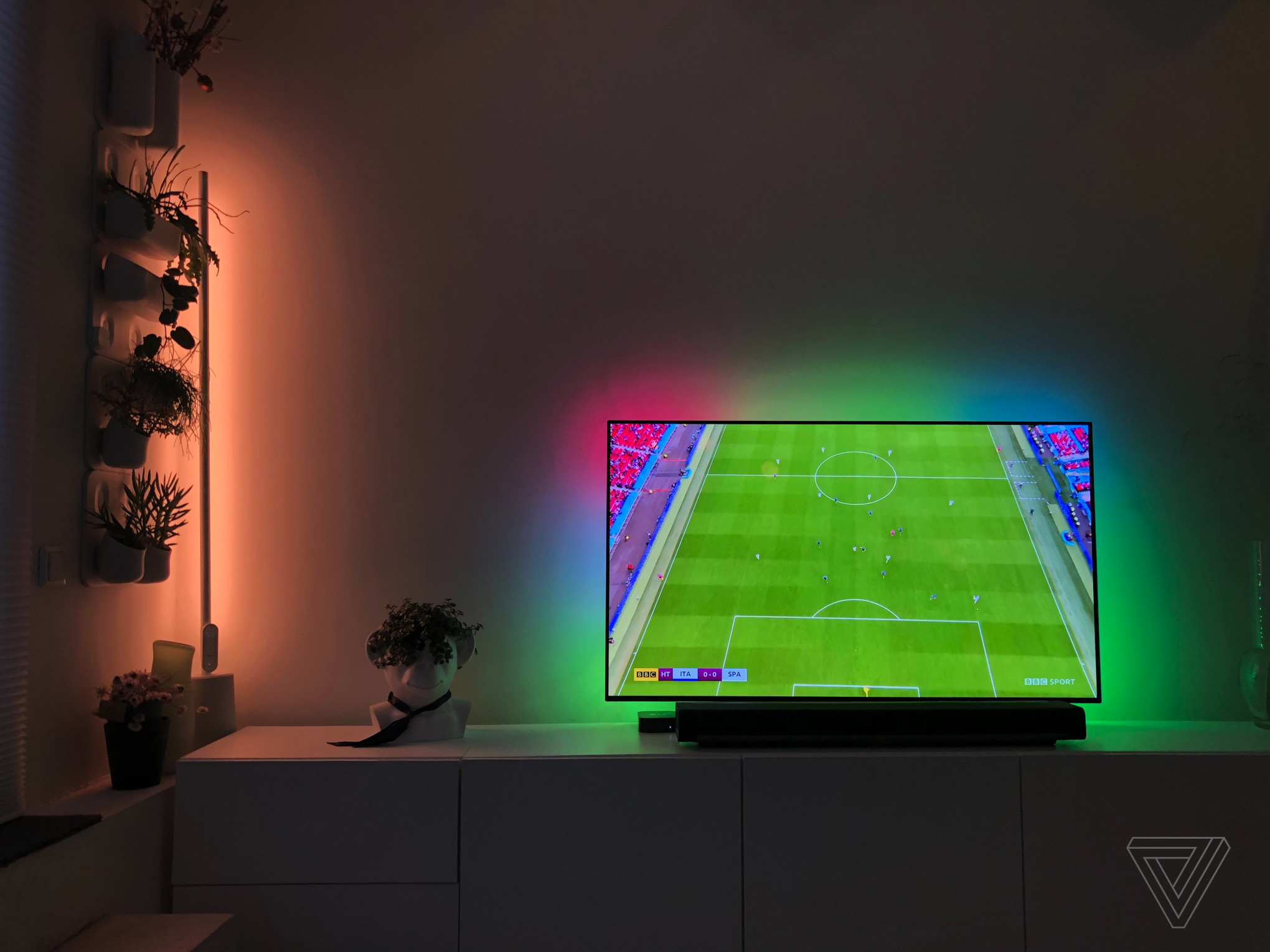
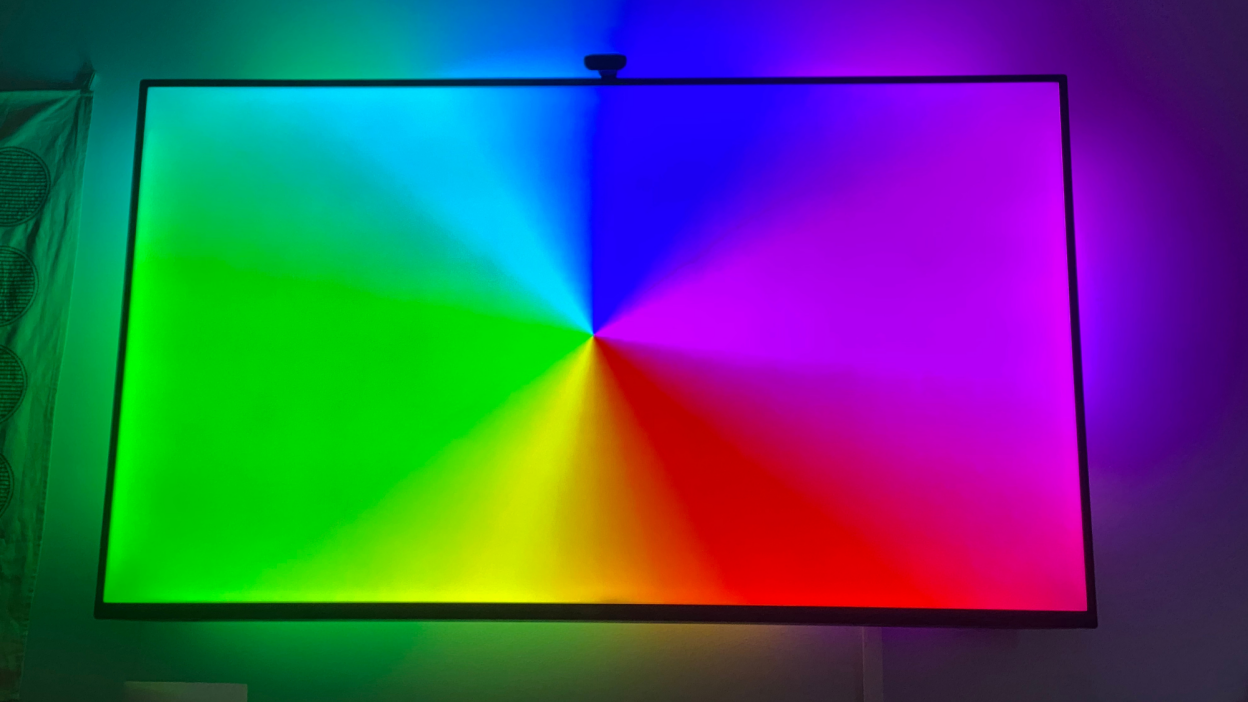
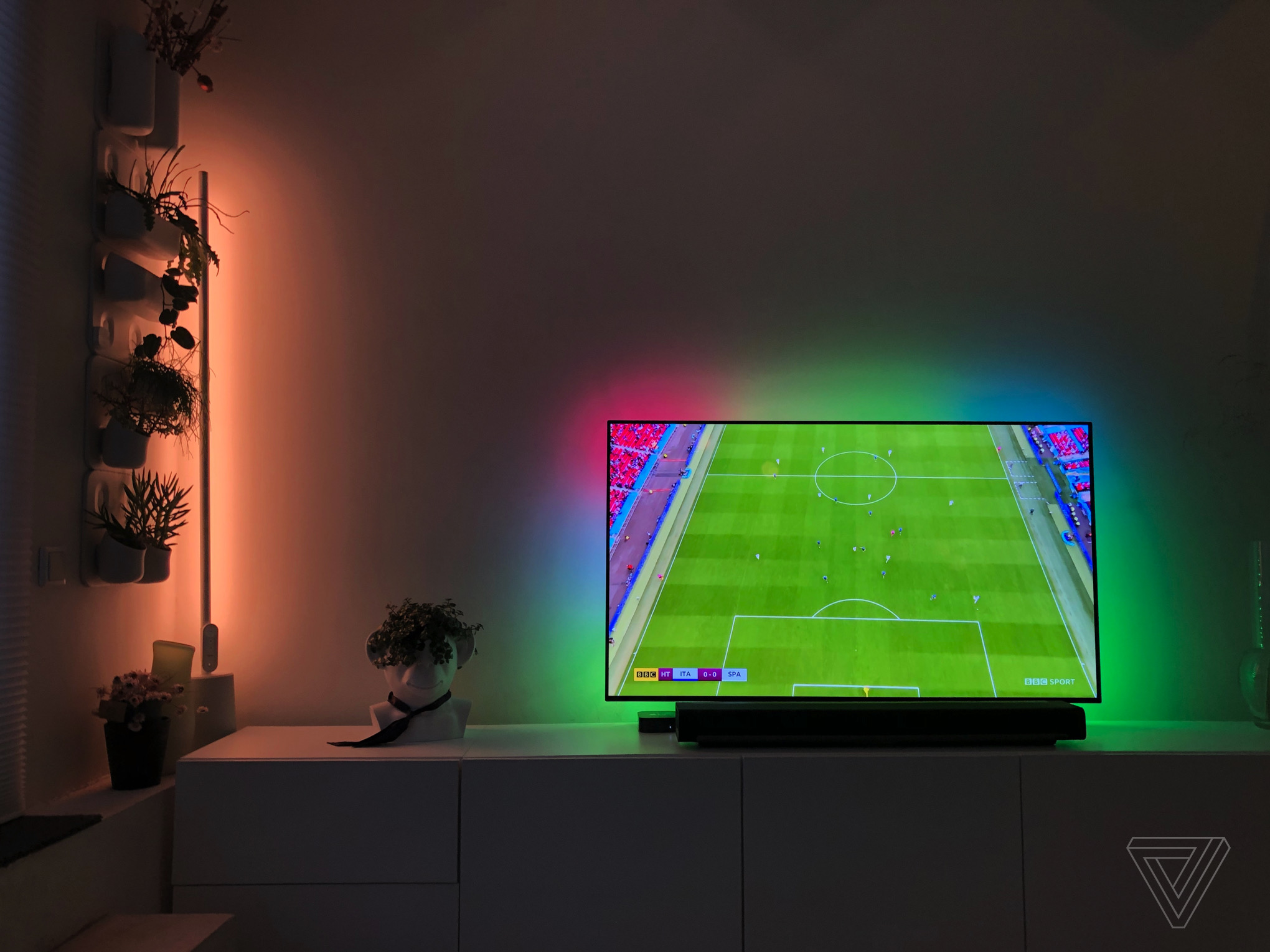
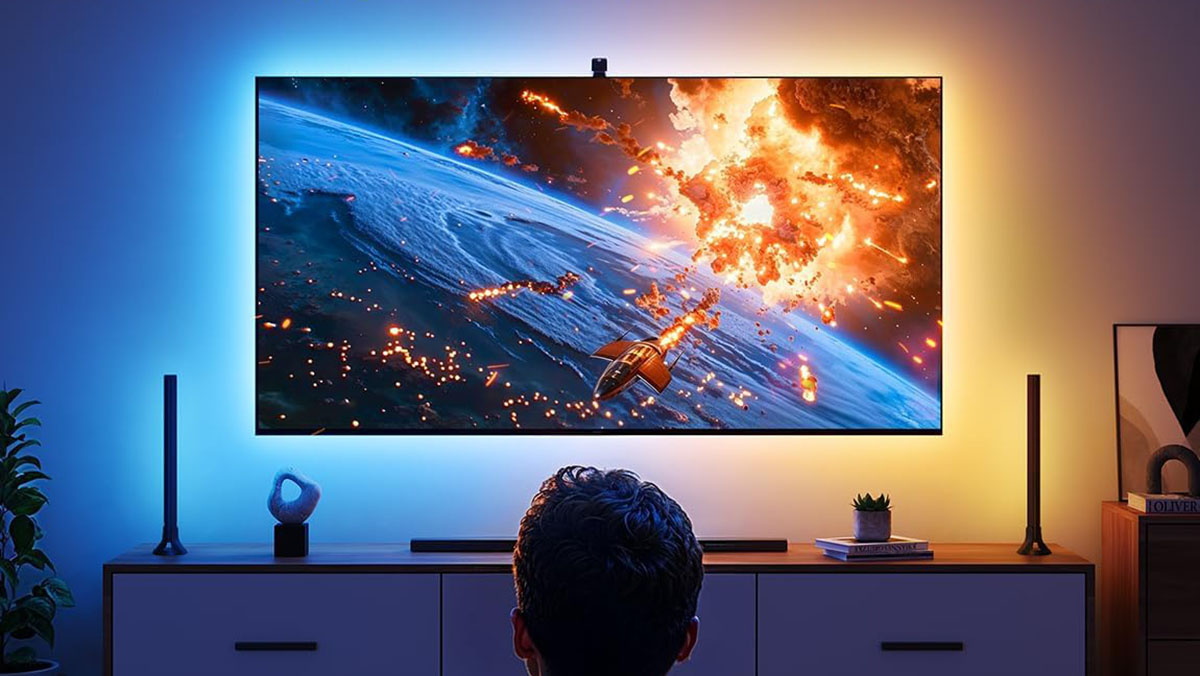
The T2's control unit utilizes Govee's Envisual technology to divide the screen capture into multiple zones. Color data from each zone is then transmitted to the lightstrip, creating a screen-mirroring effect. Beyond screen mirroring, the T2 offers various lighting modes, including a single hue or multi-color display, music mode which synchronizes lights with audio, and Scene mode with numerous preset lighting effects accessible via the Govee app. Users can also create custom light shows in DIY mode. DreamView mode allows for synchronization with other Govee lighting kits, extending the screen mirroring across an entire room.
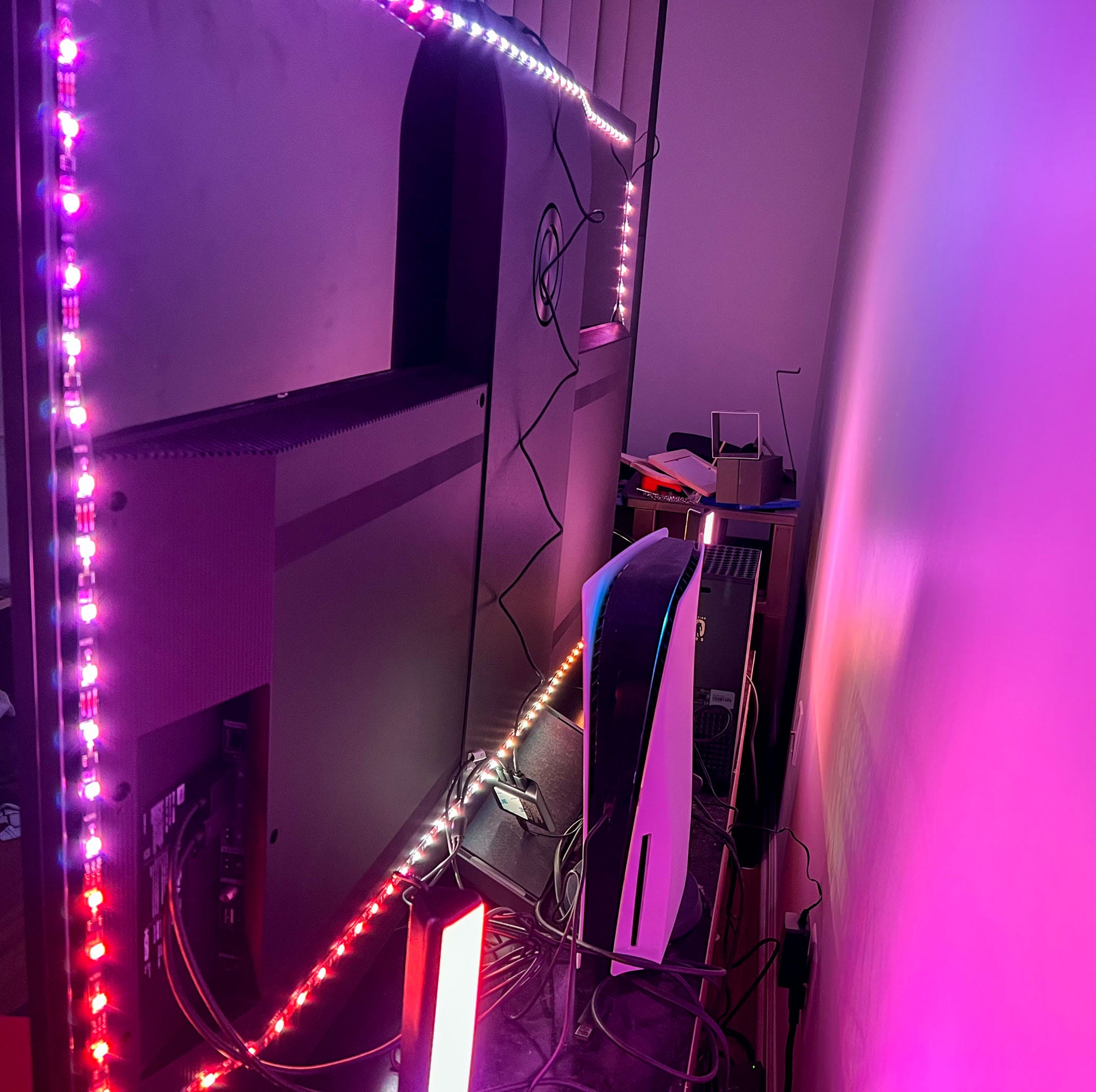
Installation involves cleaning the TV's back, applying the lightstrip sections along the edges, and using retaining clips for security. The lightstrips are not trimmable, making it important to select the correct size for the TV. The camera mount is positioned at the top-center of the TV, with an optional double-sided tape for stability. The Govee controller, which handles power and basic functionality, connects the camera, lightstrip, and power adapter and can be mounted on the TV's back, though most control is managed through the Govee app.
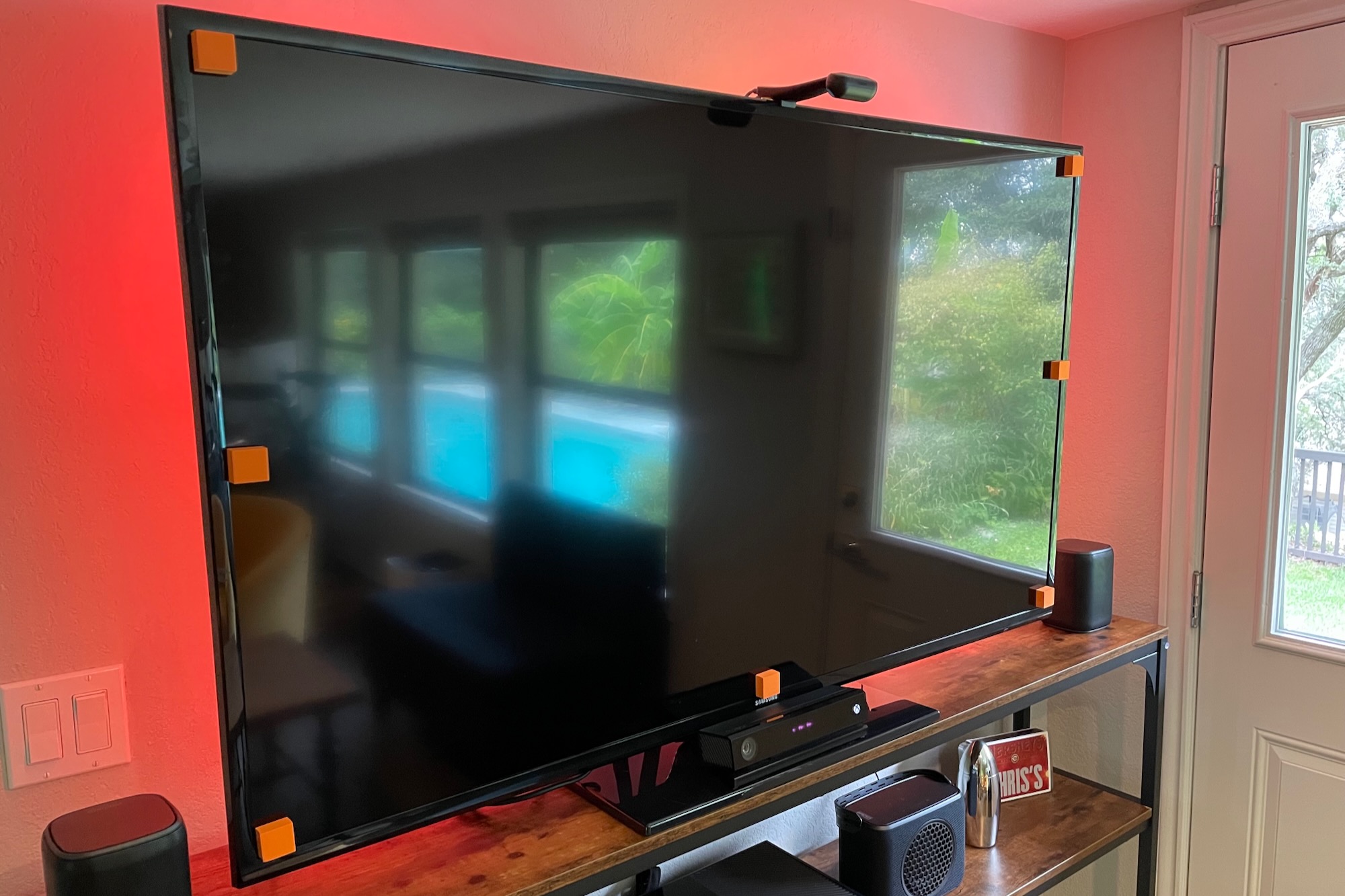
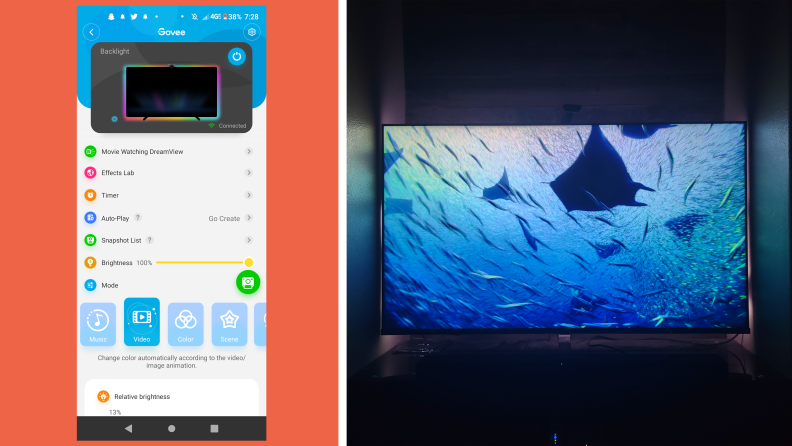
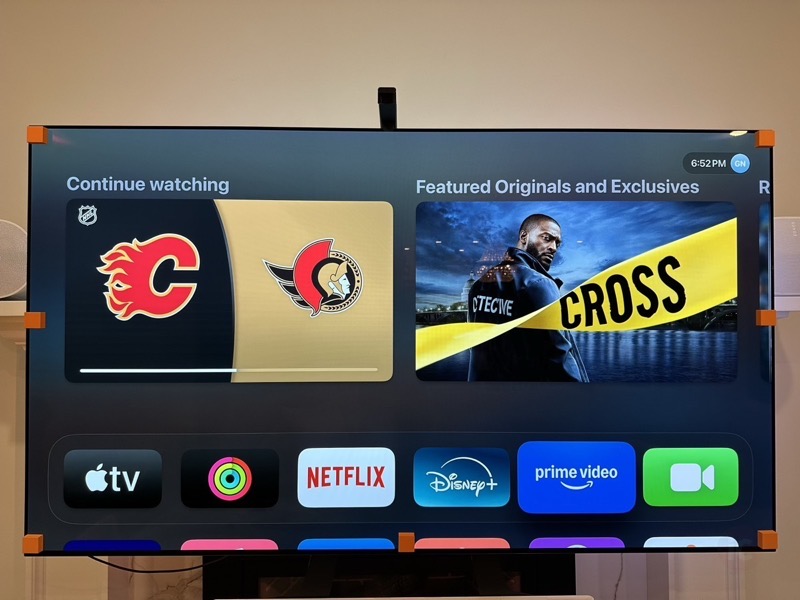
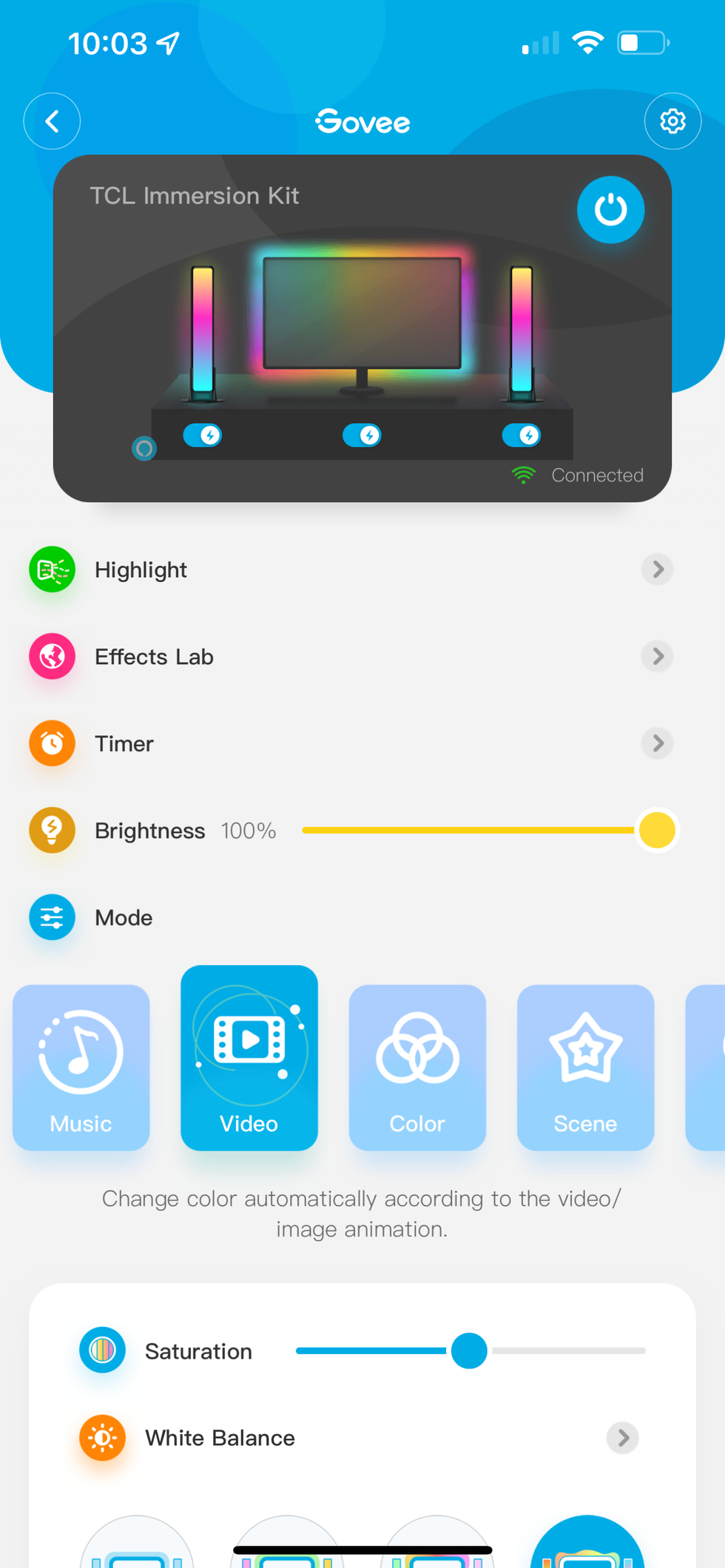
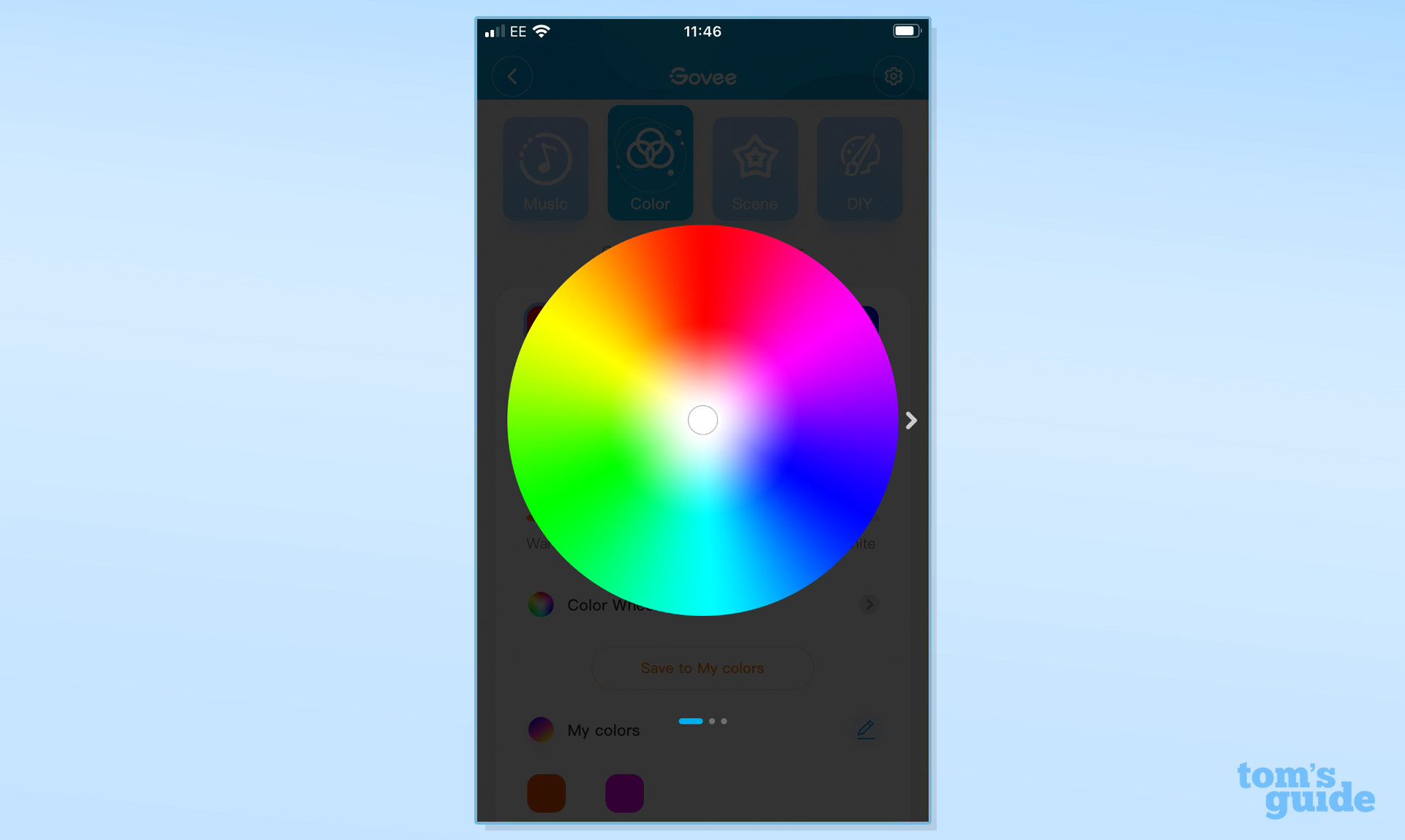
Configuration through the Govee app is essential for optimal visual performance. After connecting to a 2.4gHz WiFi network, the app guides users through a calibration process involving attaching foam blocks to the screen's corners and mid-points to define the screen boundaries for the camera. While there's an alternative YouTube video for calibration, using the physical foam blocks is recommended. After camera setup, users can fine-tune lighting effects, including saturation, brightness, and white color temperature. Initial default settings may be overly vibrant, requiring adjustments to achieve a balanced effect that enhances rather than overwhelms the viewing experience. The customizability offered through the Govee app allows users to tailor the backlight to their preferences, ultimately contributing to a more immersive cinematic and gaming experience.
#Govee #EnvisualT2 #TVBacklight #SmartHomeLighting #RGBLighting #ScreenMirroring #TechReview #HomeEntertainment #GamingSetup #Govee #EnvisualT2 #TVBacklight #SmartHomeLighting #RGBLighting #ScreenMirroring #TechReview #HomeEntertainment #GamingSetup
0 comment in total
 No comments yet
You may also like
Govee Envisual TV Backlight T2 review: A worthy upgrade

Govee’s Newest TV Backlight Produces Vivid Colors in the Light and the Dark
Govee Neon Rope Light 2 Review
Govee TV Backlight 3 Lite with Dune-themed Packaging Review: Elevating Your Home Theater Experience
Review: Govee’s Envisual TV Backlight T2 syncs to your TV for stunning visuals

This inexpensive backlight makes your big TV even more immersive
Govee TV Backlight Is Priced Lower Than Ever, Rare Discount Ahead of Black Friday

Govee Ambient RGBWW Portable Table Lamp review

Govee’s awesome new TV backlights will brighten up your home movie nights

Govee TV Backlight Going for Peanuts if You're Prime, Now at All-Time Low in Early Black Friday Sale
Nanoleaf 4D Review: Immersive TV Bias Lighting For Less
Govee x Evangelion Gaming Lights Collection Review
Govee LED Strip Backlight With Dual Cameras Listed as a 4.5-Star Best-Selling Prime Day Deal
This Awesome TV Backlight Kit Glows The Same Colors As The Images On Your Screen

Govee x JBL Table Lamp 2 Pro review: a bold, imaginative fusion of light and sound
Lepro TB1 AI Smart Table Light Review

Govee TV Backlight 3 Lite Review: Elevating the TV Watching Experience
TV backlights take your movies and shows to the next level — here's my top picks

Looking to Boost Your Home Theater Setup? Get Reactive Backlighting.
Govee's TV Backlight 3 Lite kit syncs to your TV and audio for dazzling immersive lighting at $100 low (Reg. $150), more