
1/4
How to turn the Philips Hue Dimmer Switch into a HomeKit control panel
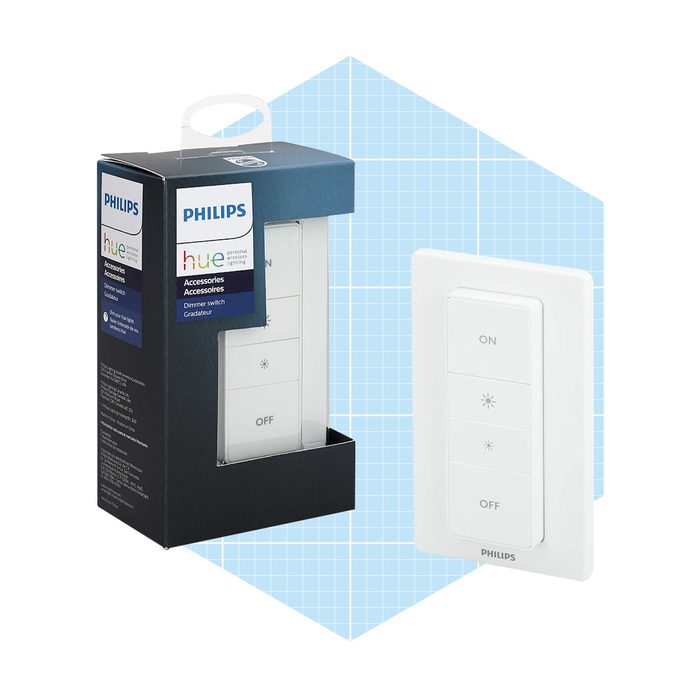
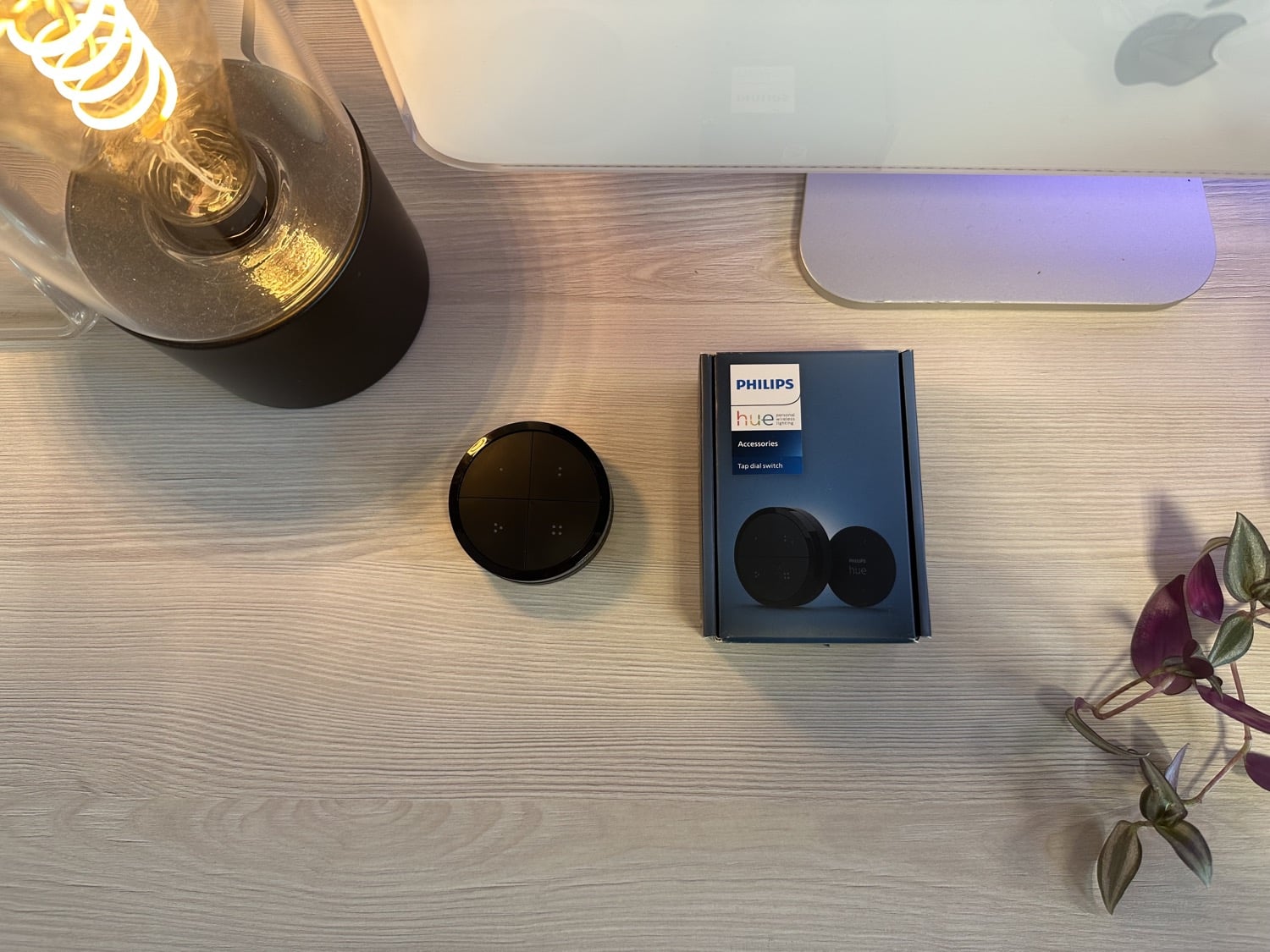
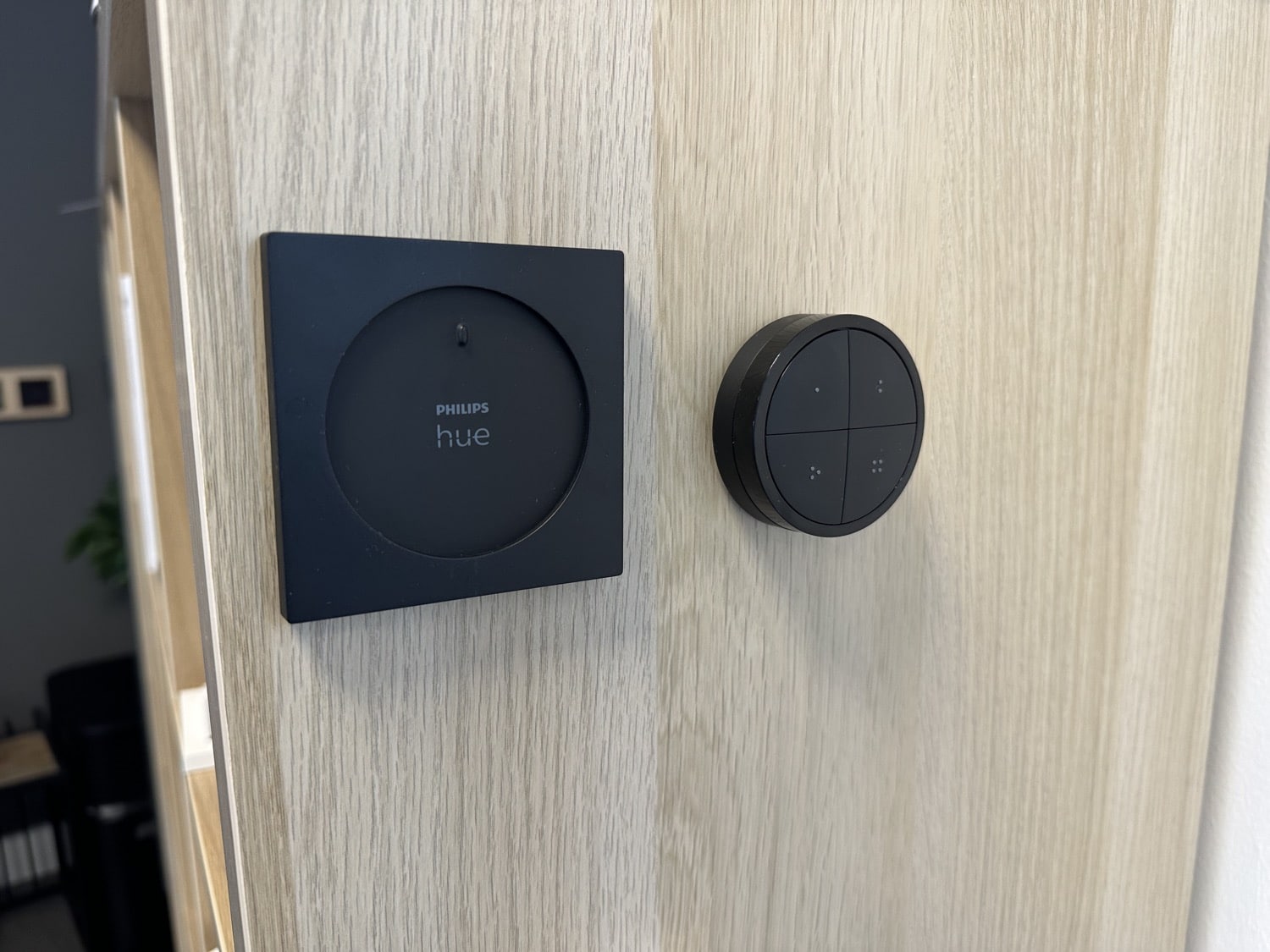
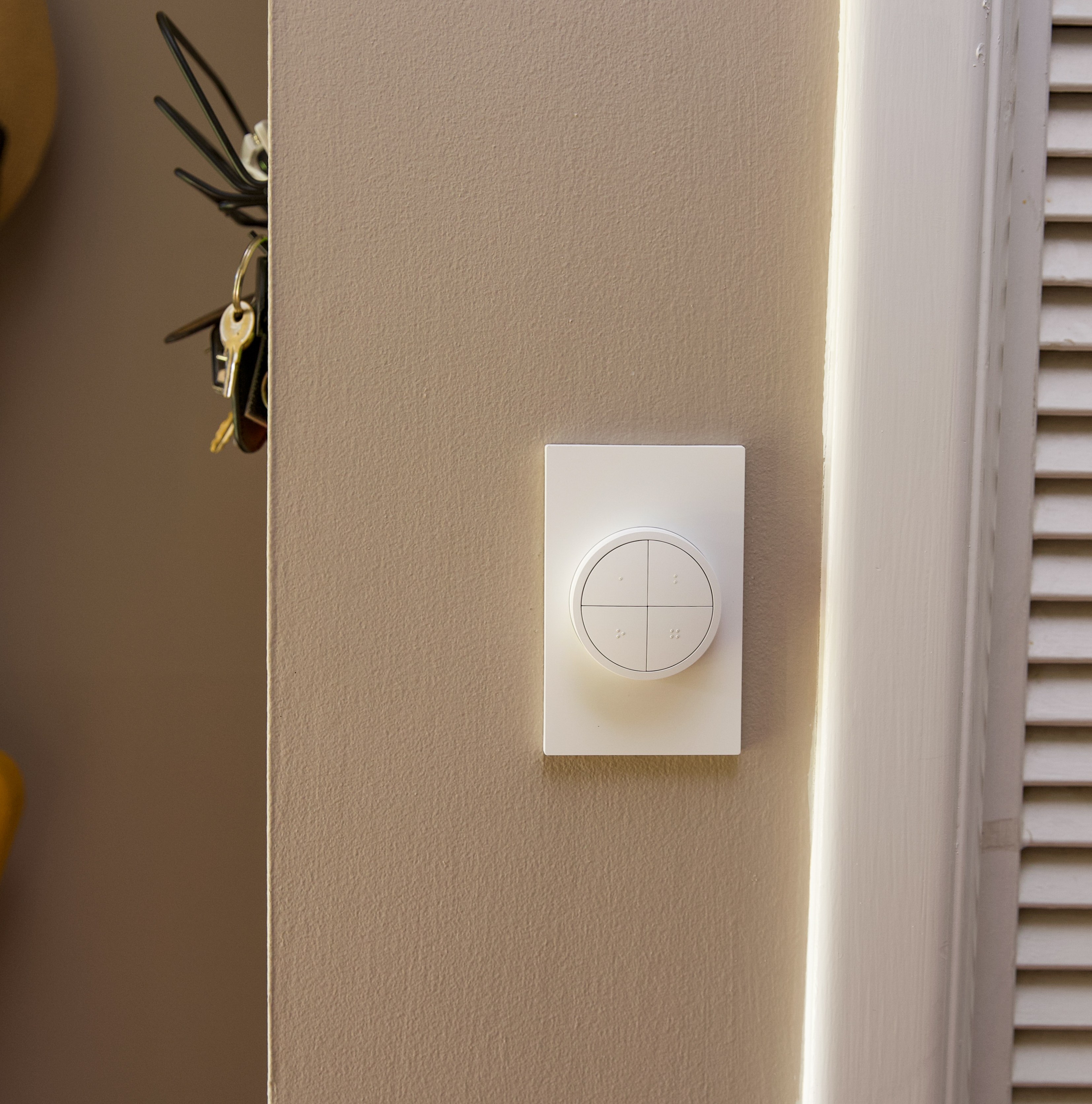
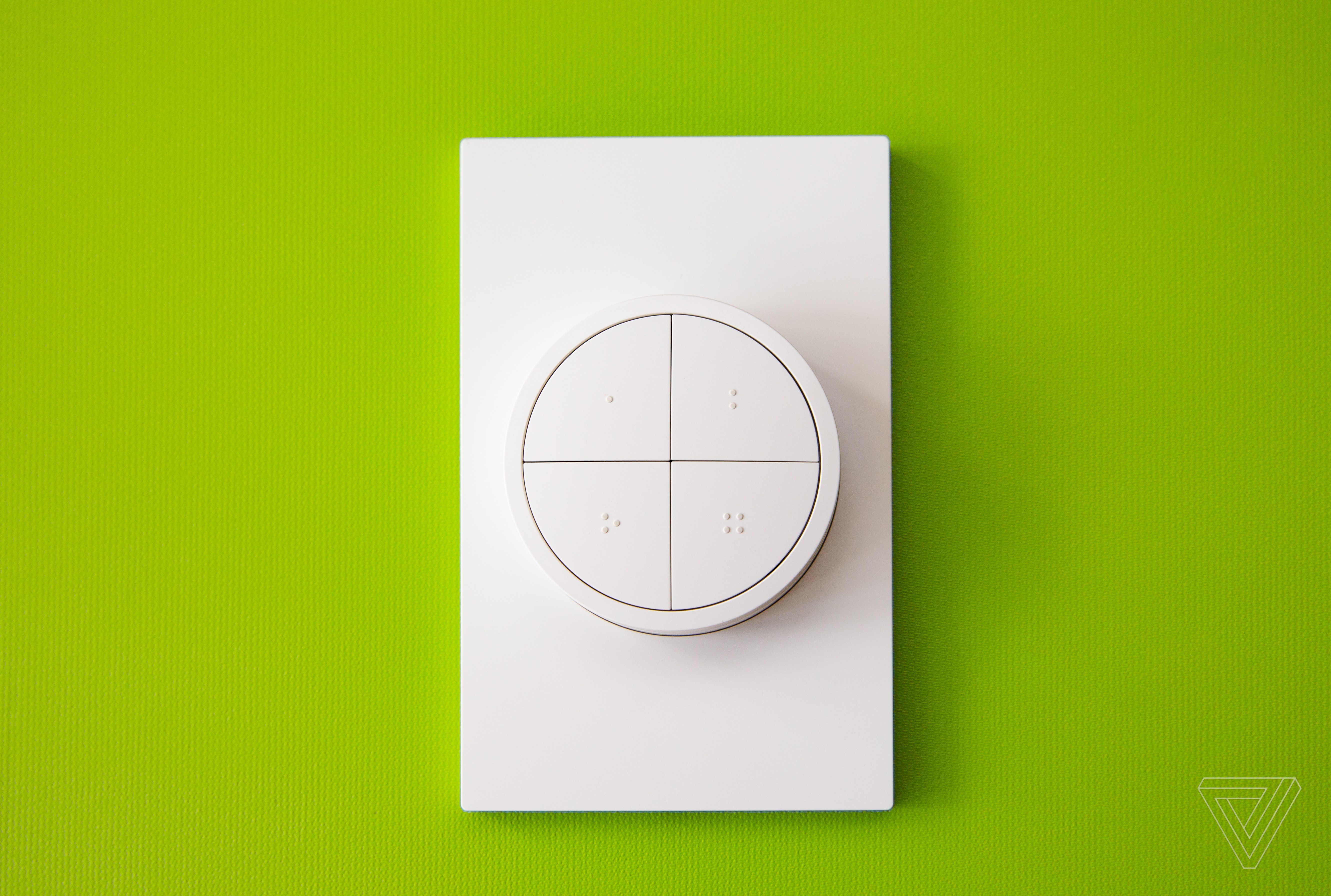
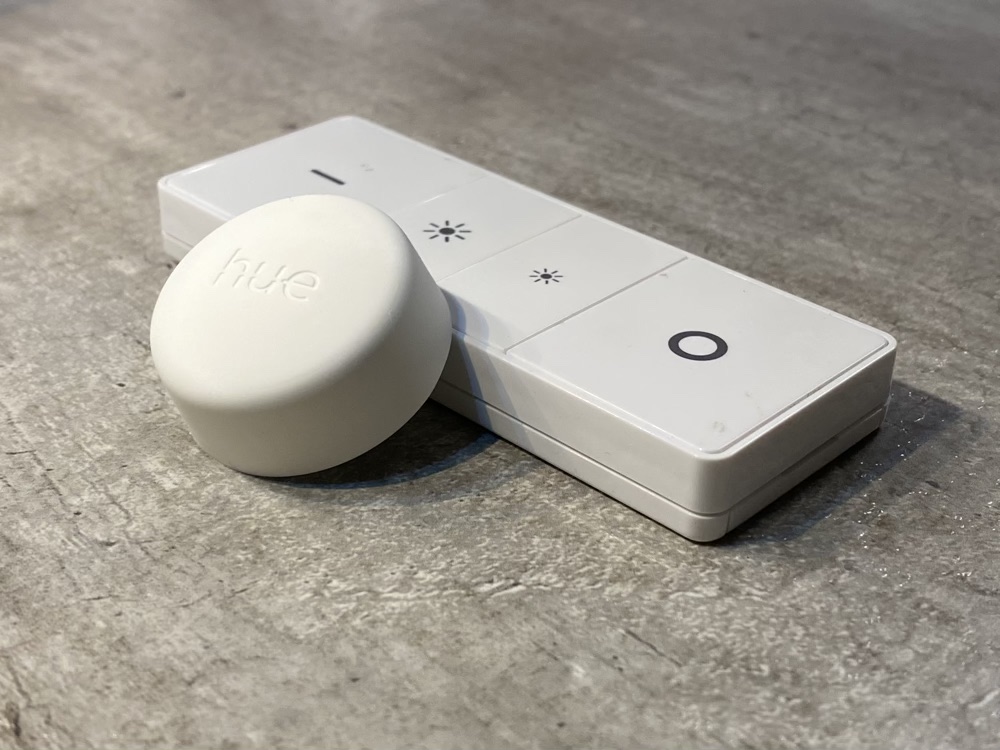
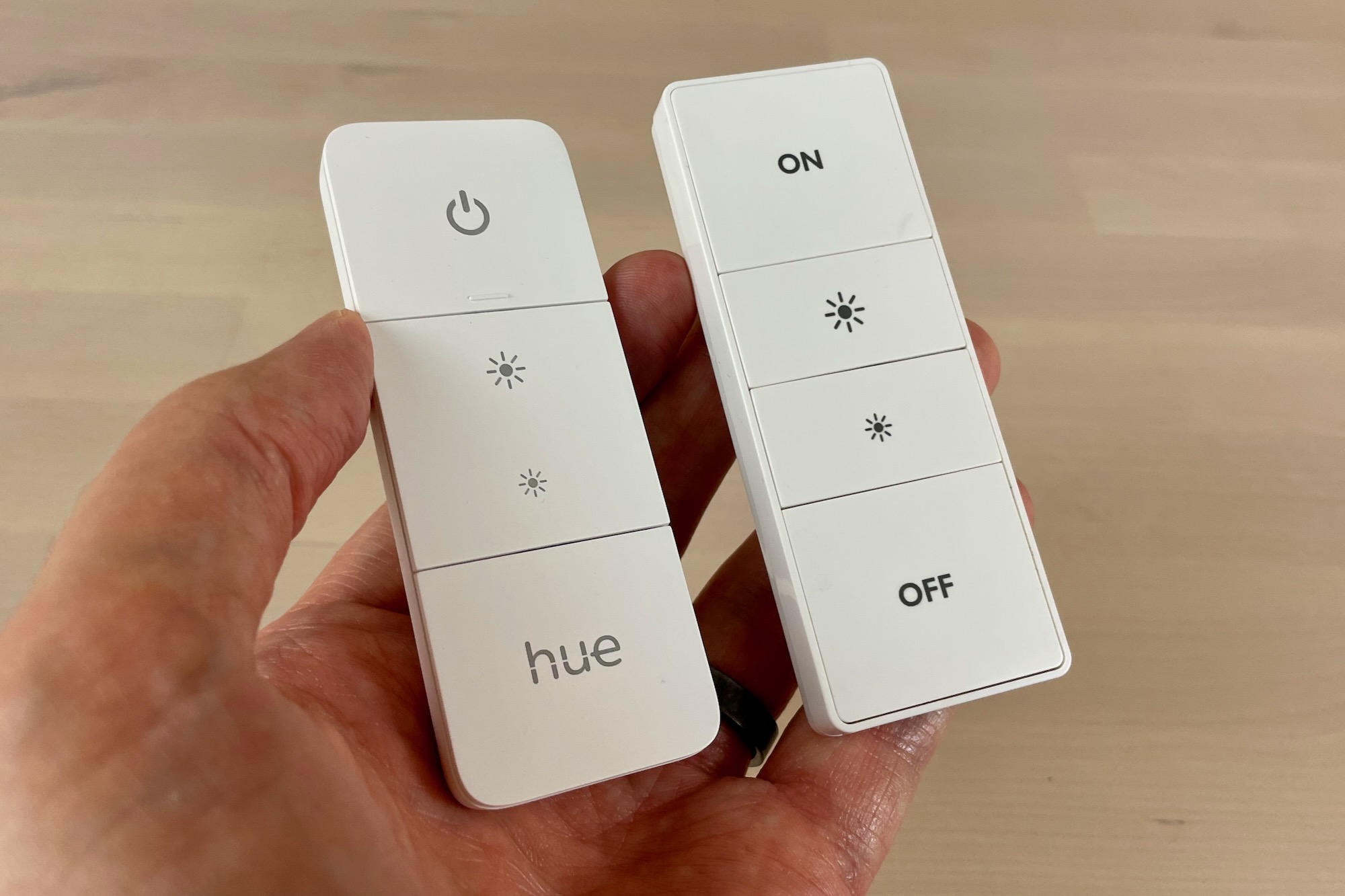
The Philips Hue Dimmer Switch is a versatile smart home device capable of controlling more than just Philips Hue smart bulbs. By integrating it with Apple's HomeKit platform, users can assign various functions to its four buttons, allowing for comprehensive control over a wide range of HomeKit-enabled devices. This guide details the process of configuring the Hue Dimmer Switch within HomeKit, transforming it into a personalized control panel for a smart home ecosystem.
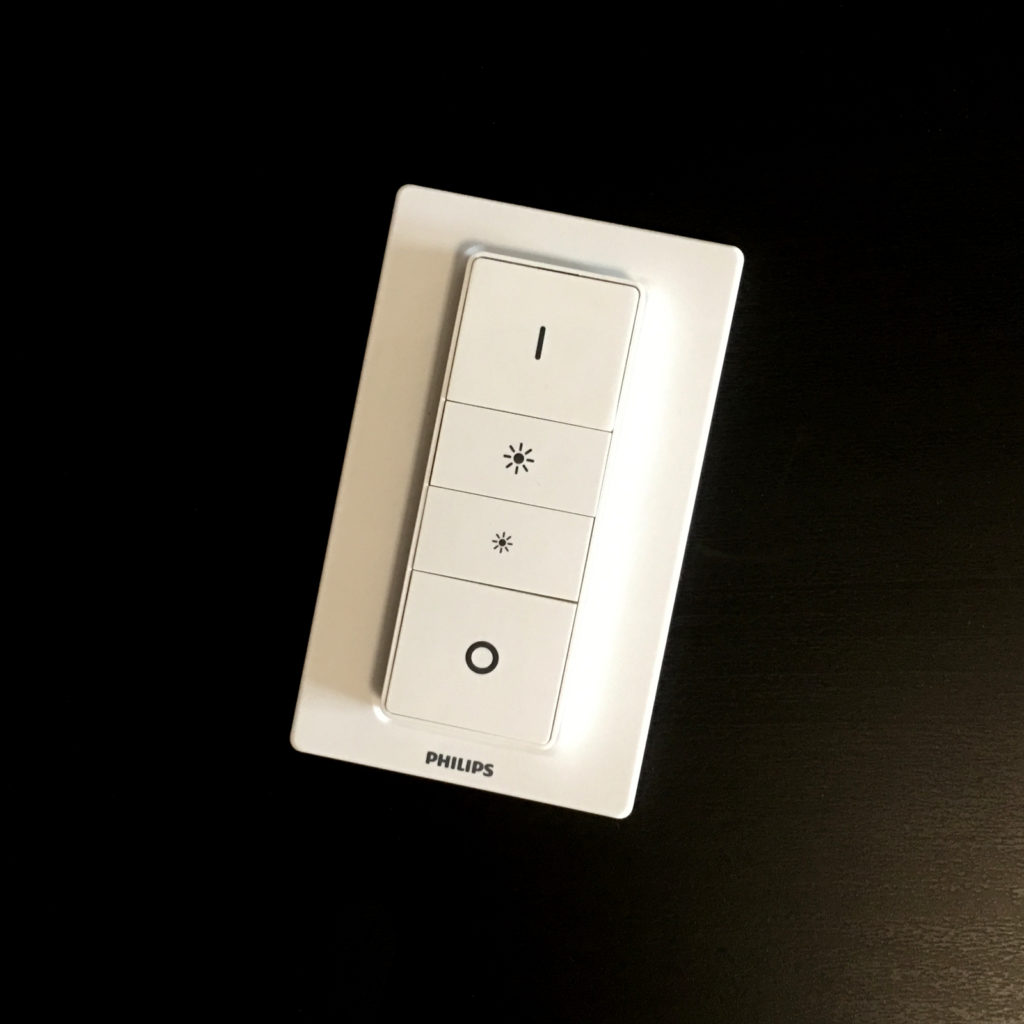
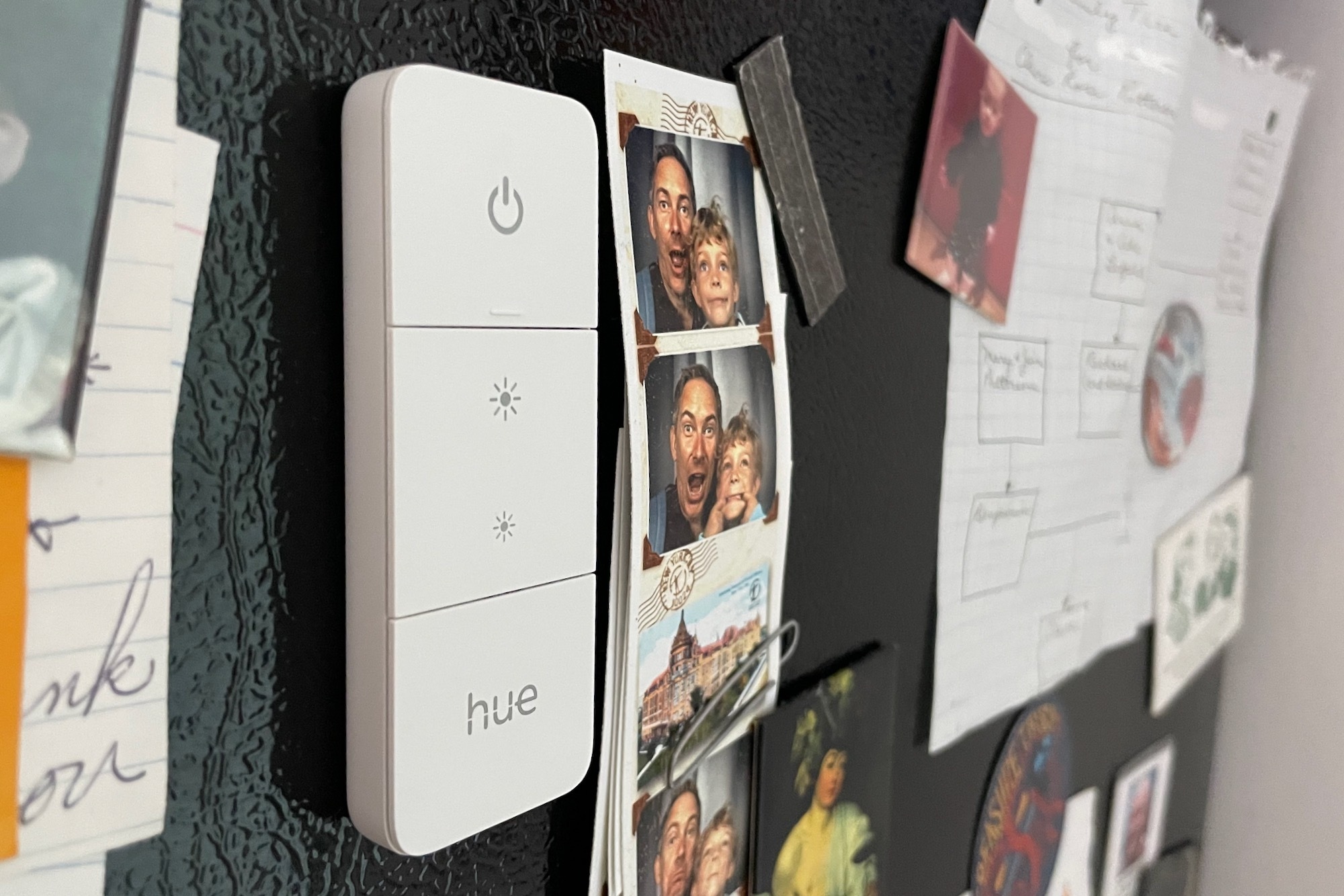
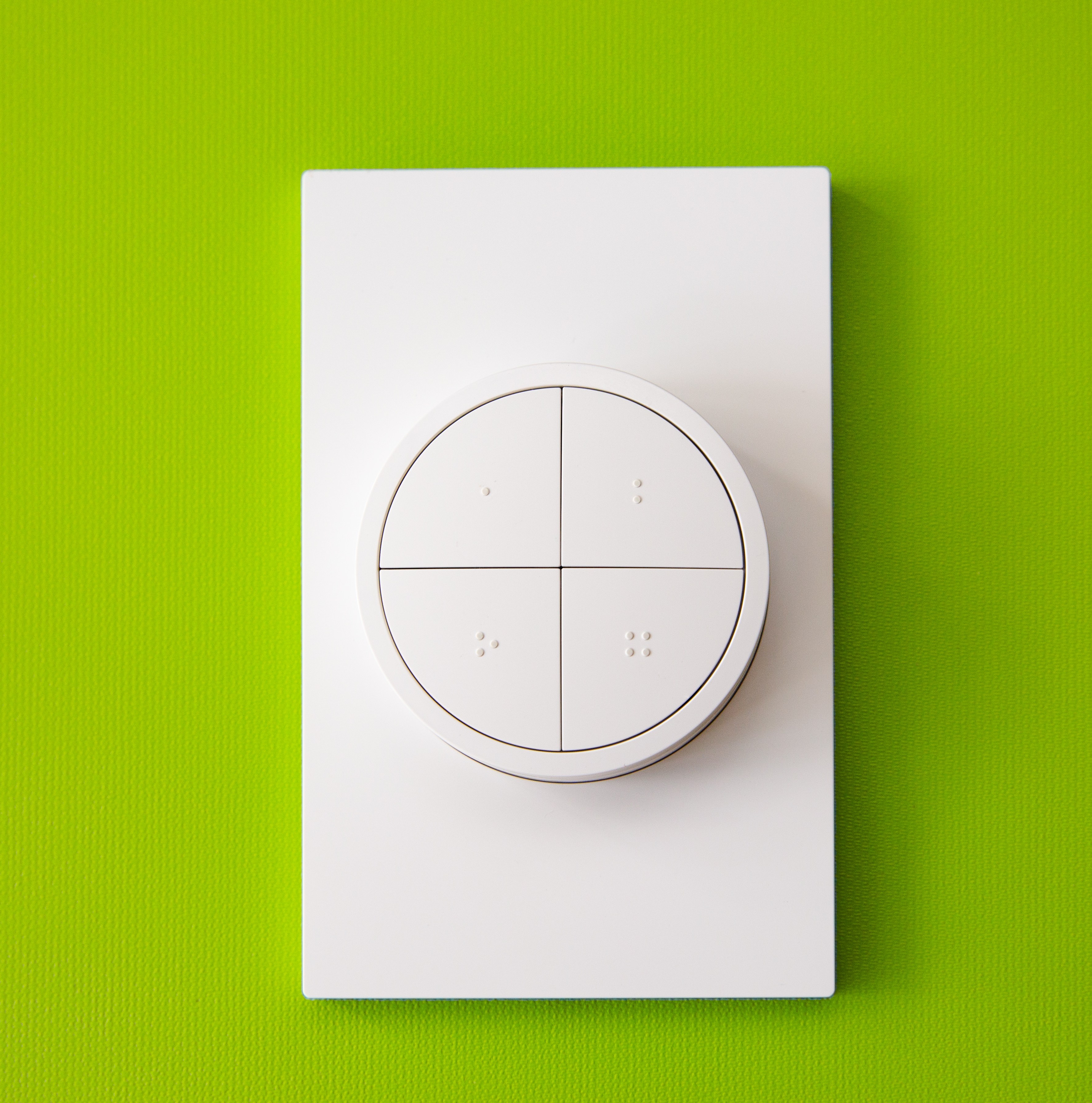
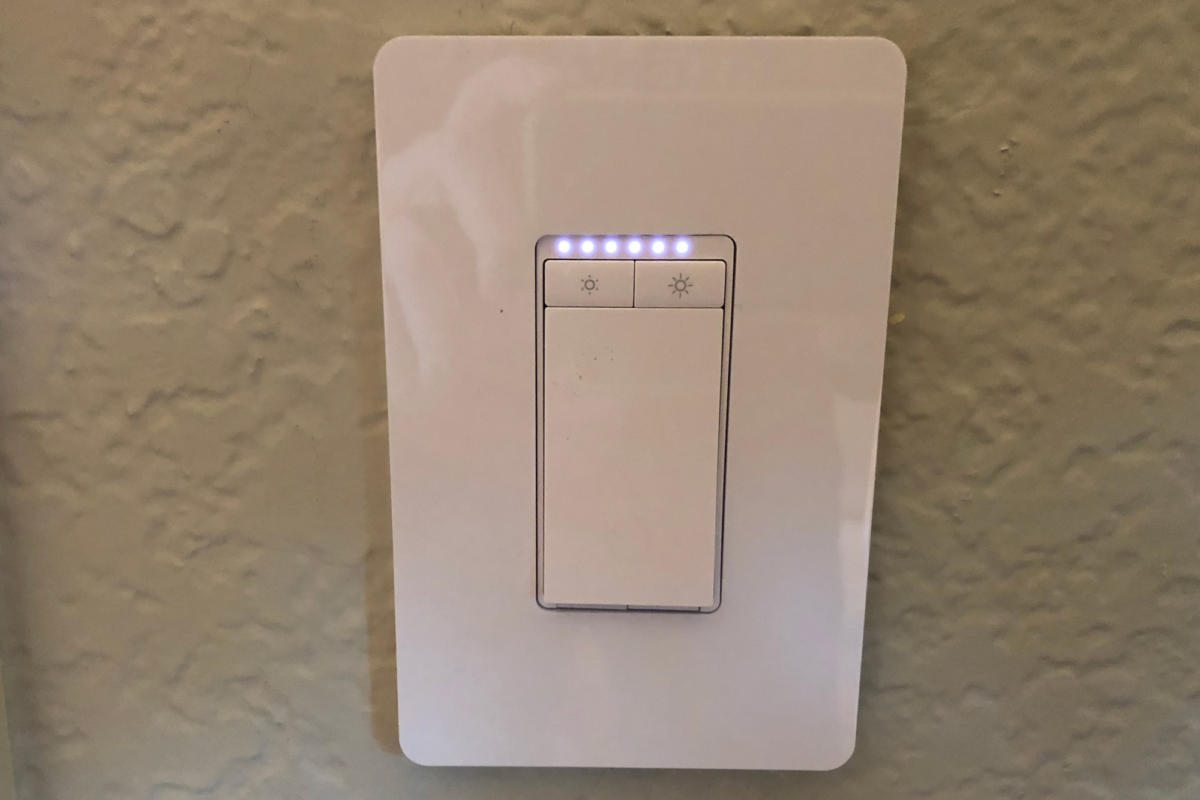
The primary motivation for integrating the Dimmer Switch with HomeKit often stems from a desire for more granular control than the standard Hue settings offer. For instance, the default Hue app might not allow users to customize the specific 'off' behavior of the Power button. By shifting control to HomeKit, each of the four buttons—Power, Hue, and the two dimmer buttons—can be individually configured to trigger specific scenes or control distinct accessories. This enables scenarios where the Power button activates a desired light scene without a default on/off toggle, and the dimmer and Hue buttons manage separate lighting configurations.
Beyond lighting, a HomeKit-configured Hue Dimmer Switch gains the ability to control virtually any compatible smart device. This includes smart plugs, air purifiers, smart locks, and even televisions. The flexibility offered by HomeKit allows users to create a centralized control point for diverse smart home functionalities.
However, there are specific prerequisites and trade-offs associated with this HomeKit integration. A crucial requirement is the possession of a Hue Bridge. While newer Hue smart lights might support Bluetooth control without a Bridge, the Dimmer Switch necessitates the Bridge for HomeKit connectivity. Existing Hue users are likely to already own this device. Furthermore, configuring the Dimmer Switch in HomeKit means relinquishing all configuration options within the native Hue app. This includes advanced features such as time-based light scenes and the ability to assign multiple actions to successive button presses (second, third, fourth, or fifth presses).
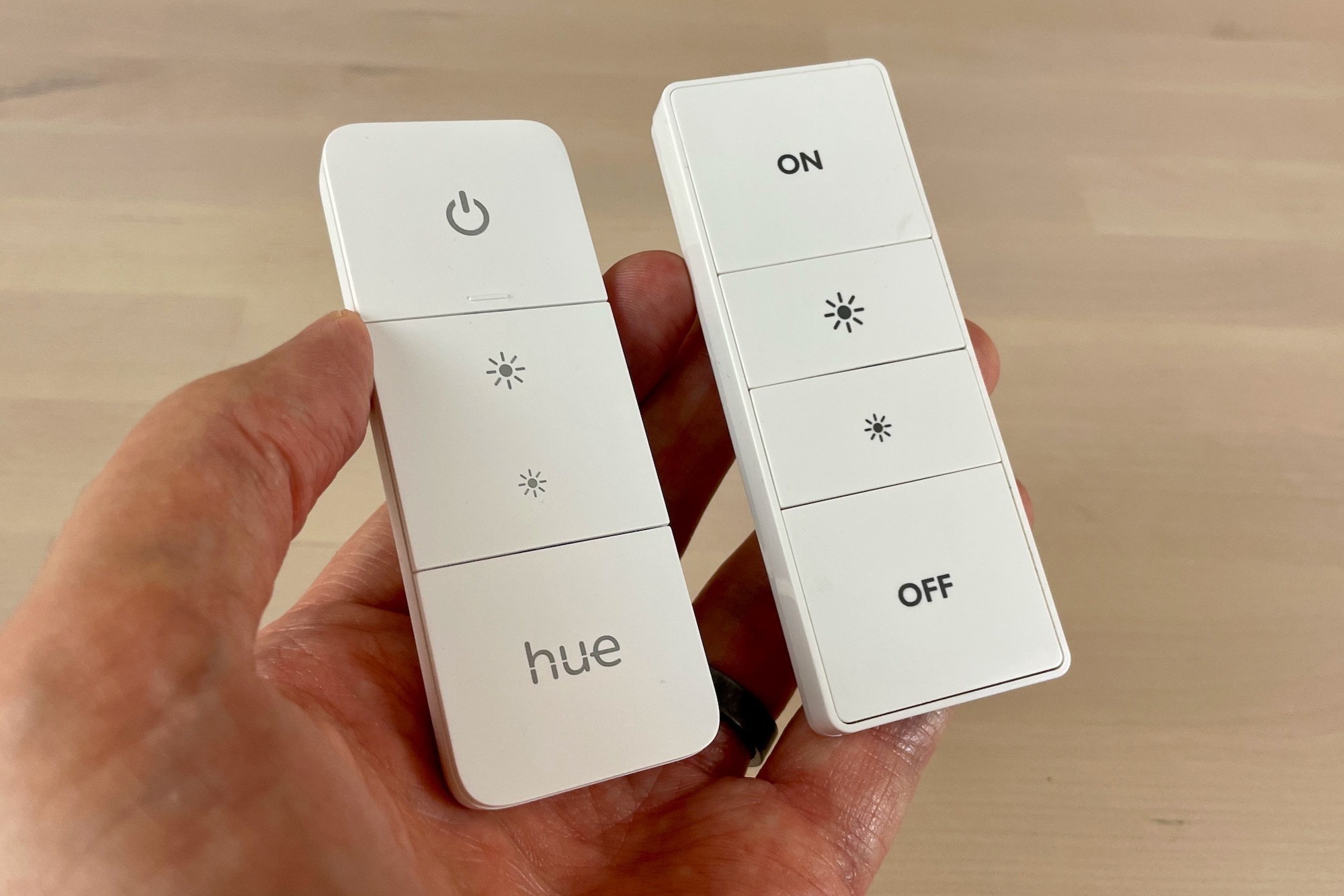
While HomeKit does support double- and long-press options for some smart switches, the Hue Dimmer Switch is not among them for these advanced functionalities. Similarly, HomeKit's ability to configure time-of-day options for button presses is limited to a single time-of-day setting, making it less robust than the Hue app's multi-time period options. This guide assumes the user already possesses a Hue Dimmer Switch (either first or second generation) and a Hue Bridge. For those new to the Hue ecosystem, consulting a review on how to add the dimmer switch to a Hue setup is recommended prior to HomeKit integration.
The customization process begins within the Hue app. Users navigate to Settings > Accessories, select the desired dimmer switch, and then tap 'Set up in Apple Home.' A warning will appear regarding the removal of the current Hue configuration, which users must confirm. Subsequently, the Apple Home app is launched, where the dimmer switch's icon can be long-pressed to access its button configuration. Each button (labeled Button 1, Button 2, etc.) can then be assigned to trigger HomeKit scenes or control specific accessories. Users can select multiple scenes or accessories and then fine-tune their behavior. For instance, if controlling a HomeKit-enabled TV, users can specify whether the button turns it on or off or switches to a particular input. An optional 'Turn Off' setting allows for automatic deactivation after a specified period, ranging from 'Never' to 'After 4 hours.' The 'Test This Action' feature allows users to verify the configuration before finalizing. Once satisfied, the settings are saved, and the process can be repeated for other buttons. It is always possible to revert to Hue app management by reconfiguring the dimmer switch within the Hue app.
#PhilipsHue #HomeKit #SmartHome #DimmerSwitch #HomeAutomation #SmartLighting #AppleHome #TechTutorial #SmartDevices #PhilipsHue #HomeKit #SmartHome #DimmerSwitch #HomeAutomation #SmartLighting #AppleHome #TechTutorial #SmartDevices
0 comment in total
 No comments yet
You may also like
Philips Hue Dimmer Switch (review)

I Almost Installed a Dimmer Switch, But I Tried Philips Hue Smart Bulbs Instead
ORVIBO Smart Dimmer Switch with Touchscreen review

Community question of the week: Hue light bulbs and light switches with dimmers
Philips Hue Dimmer Switch (2021) review: The aging Hue dimmer switch gets a welcome revamp
Hue Tap Dial switch with mini mount unboxed
Hue Smart Button: Dimming function always affects all lamps in the room
The Best Smart Switches for Your Smart Home

Dimmer switch, Smart Button or Friends of Hue: Which switch is the right one?
The new Philips Hue dimmer switch is remarkable
9 Things you never knew you could do with smart lights

iDevices Dimmer Switch and Wall Outlet review: Smart home control—no hub required
Philips Hue Dimmer Switch with HomeKit in 2019
Philips Hue Tap Dial switch review: a smooth way to control your smart lights
TP-Link Smart Wi-Fi Light Switch, Dimmer HS220 review: A solid competitor in the in-wall dimmer space
Review: Insteon Dimmer Switch is no ordinary light switch

The 8 Best Smart Light Switches and Dimmers of 2025

Philips Hue Wall Switch Module review: smart-ish, at last
Wemo Wi-Fi Smart Dimmer Light Switch review
Resetting Philips Hue lamps with the new dimmer switch