
1/6
How to Activate the Dark and Light Wallpaper Variants in GNOME 42
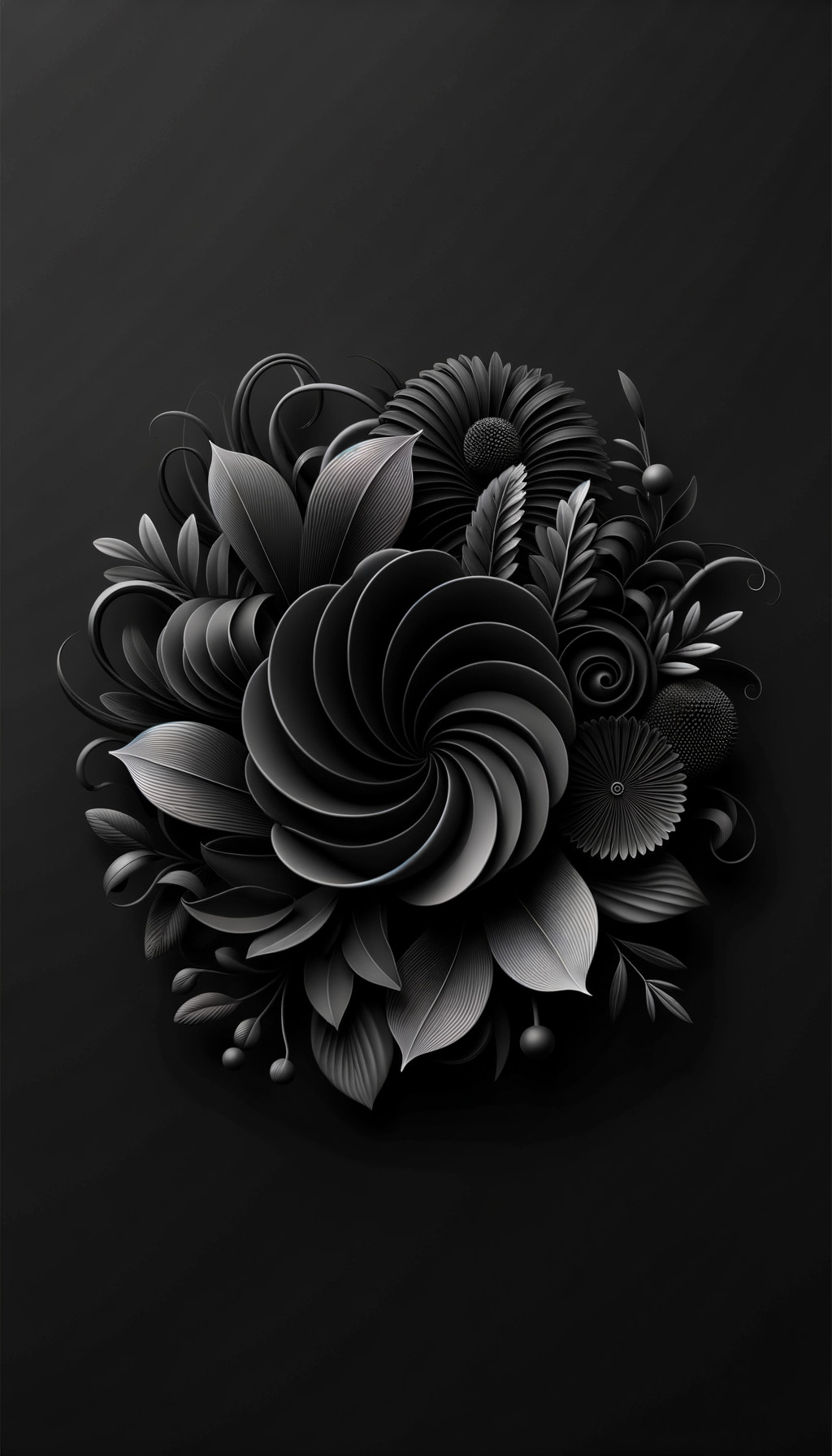
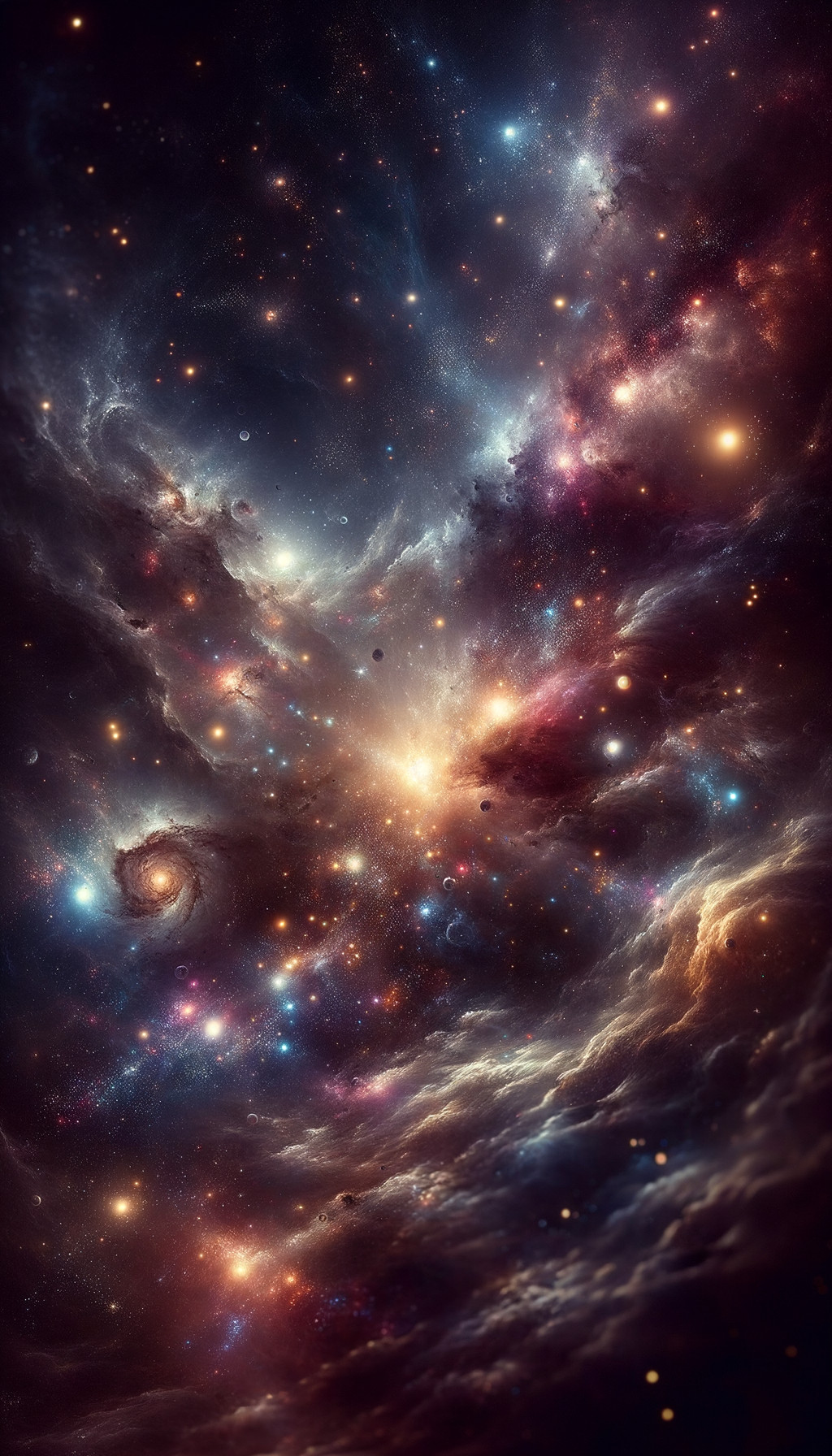
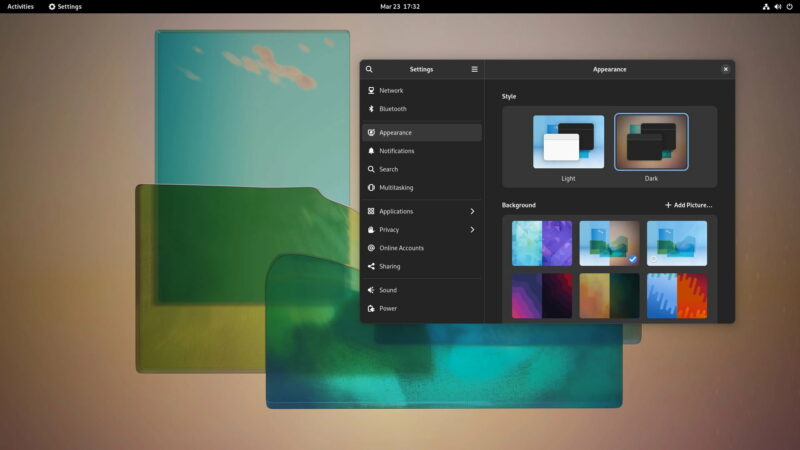
GNOME 42 introduced a new feature allowing for dual-tone wallpapers that automatically adapt to the system's dark or light mode. This means that when a user switches between light and dark themes, the wallpaper also changes its variant accordingly, providing a more cohesive visual experience. The feature is accessible through the Background section within the Settings > Appearance menu. However, users might encounter an issue where this functionality is not immediately available, presenting an empty Background section in the settings.
This article addresses the common problem of missing dark and light wallpaper variants in GNOME 42. It outlines a straightforward solution for users experiencing this issue, particularly for those running Arch-based distributions. The primary fix involves installing the `gnome-backgrounds` package using the distribution's package manager. For Arch-based systems, the command `sudo pacman -S gnome-backgrounds` is specified. Before proceeding with the installation, users are advised to verify that their system is indeed running GNOME 42 by checking the "About" section in their system settings. The installation of this package is designed to be seamless, with changes taking effect immediately without requiring a restart or even a logout. Once installed, the dual-mode wallpapers should appear in the Background section, allowing users to select a pair that dynamically adjusts with their system theme.
While the `gnome-backgrounds` package provides a selection of pre-designed dual-themed wallpapers, the article also caters to advanced users who wish to create their own custom dark and light mode wallpaper sets. This more involved process requires users to download two distinct images, one for the light mode (e.g., `image-l.jpg`) and one for the dark mode (e.g., `image-d.jpg`). These images then need to be placed into a specific directory: either `/usr/share/gnome-background-properties` for system-wide availability or `~/.local/share/gnome-background-properties` for a single user. Following this, users must create a custom XML file within the `gnome-background-properties` folder. This XML file, based on a template from GNOME's GitLab repository, needs to be edited to specify the paths to the custom light and dark wallpaper images. Once the XML file is correctly configured and saved, the custom dual-themed wallpapers become selectable from the system settings. The article acknowledges that this advanced method requires a certain level of technical proficiency and also references a video tutorial for those needing further visual guidance.
#GNOME42 #LinuxCustomization #DesktopEnvironment #DarkModeBanner #LightModeBanner #WallpaperManagement #ArchLinux #SoftwareInstallation #GNOME42 #LinuxCustomization #DesktopEnvironment #DarkModeBanner #LightModeBanner #WallpaperManagement #ArchLinux #SoftwareInstallation
 Комментариев пока нет
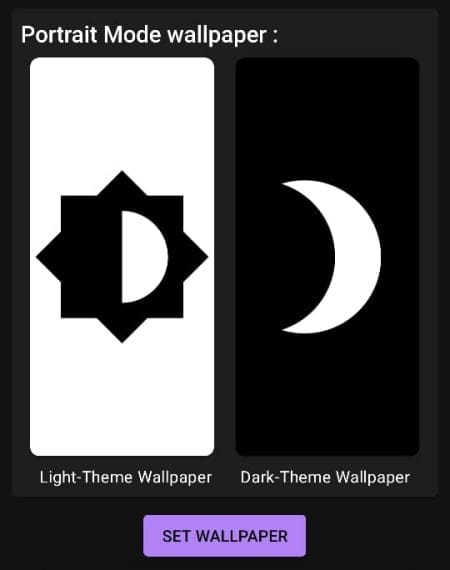
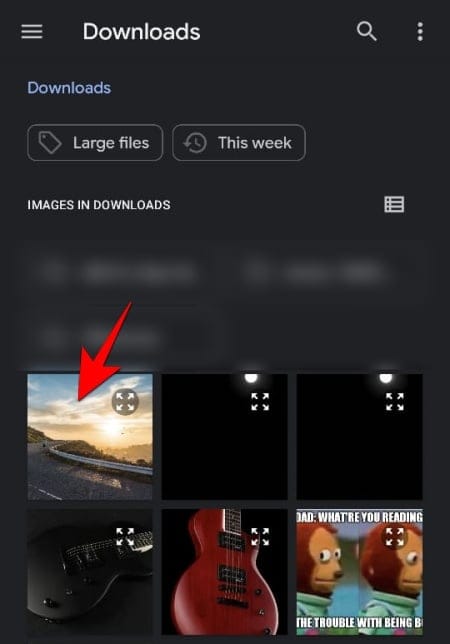
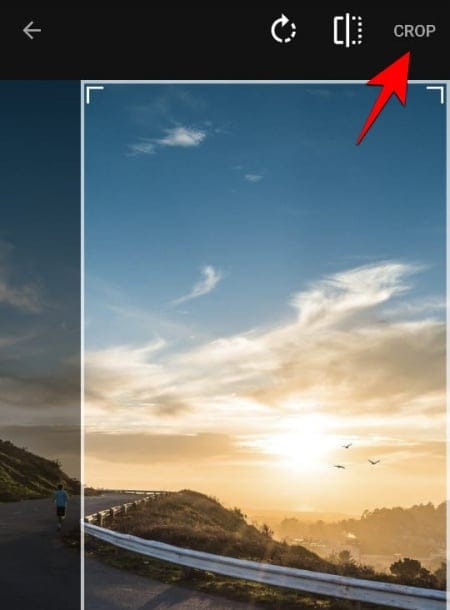
How To Use Two Different Wallpapers for ‘Light’ and ‘Dark’ Mode on Android


The Google Pixel 2 has a dark theme when you change your wallpaper

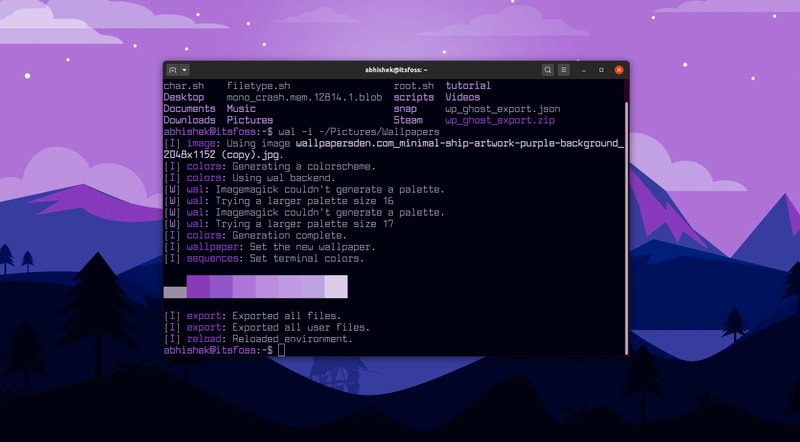
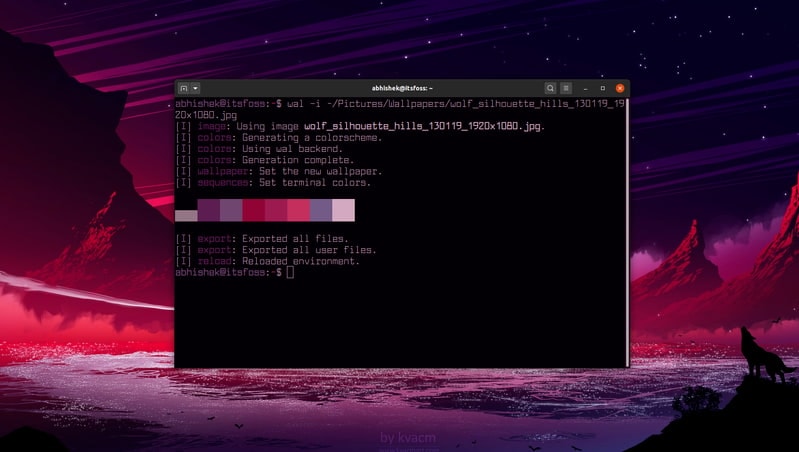
Automatically Change Color Scheme of Your Linux Terminal Based on Your Wallpaper

How to force Google Pixel’s ‘dark mode’ with any wallpaper w/ ‘LWP+’
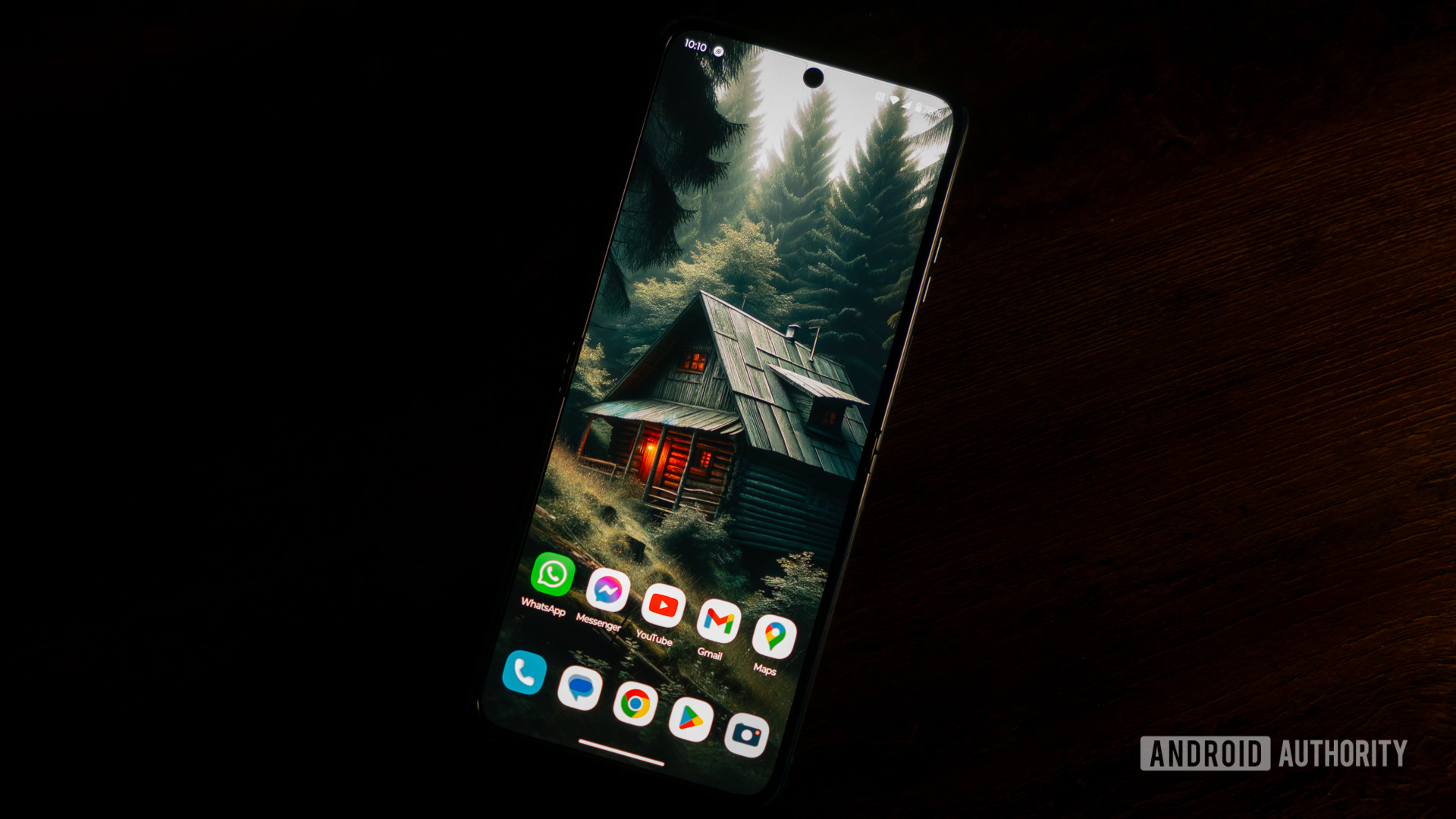
Download these dark wallpapers for your phone