
1/4
How to download and install Java 21 on Windows
Java 21, the latest long-term support (LTS) release of the Java Development Kit (JDK), was released in September 2023. While interim releases occur every six months, LTS versions are recommended for production environments due to their stability and extended support. This guide outlines the steps to download and install Java 21 on a Windows operating system.
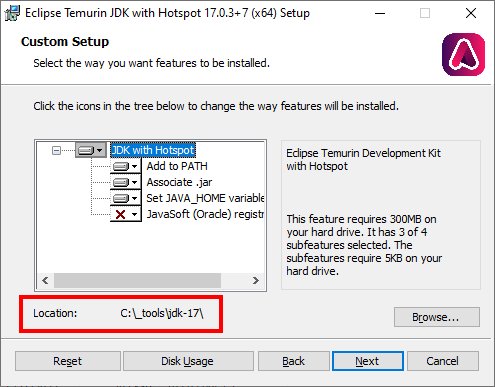
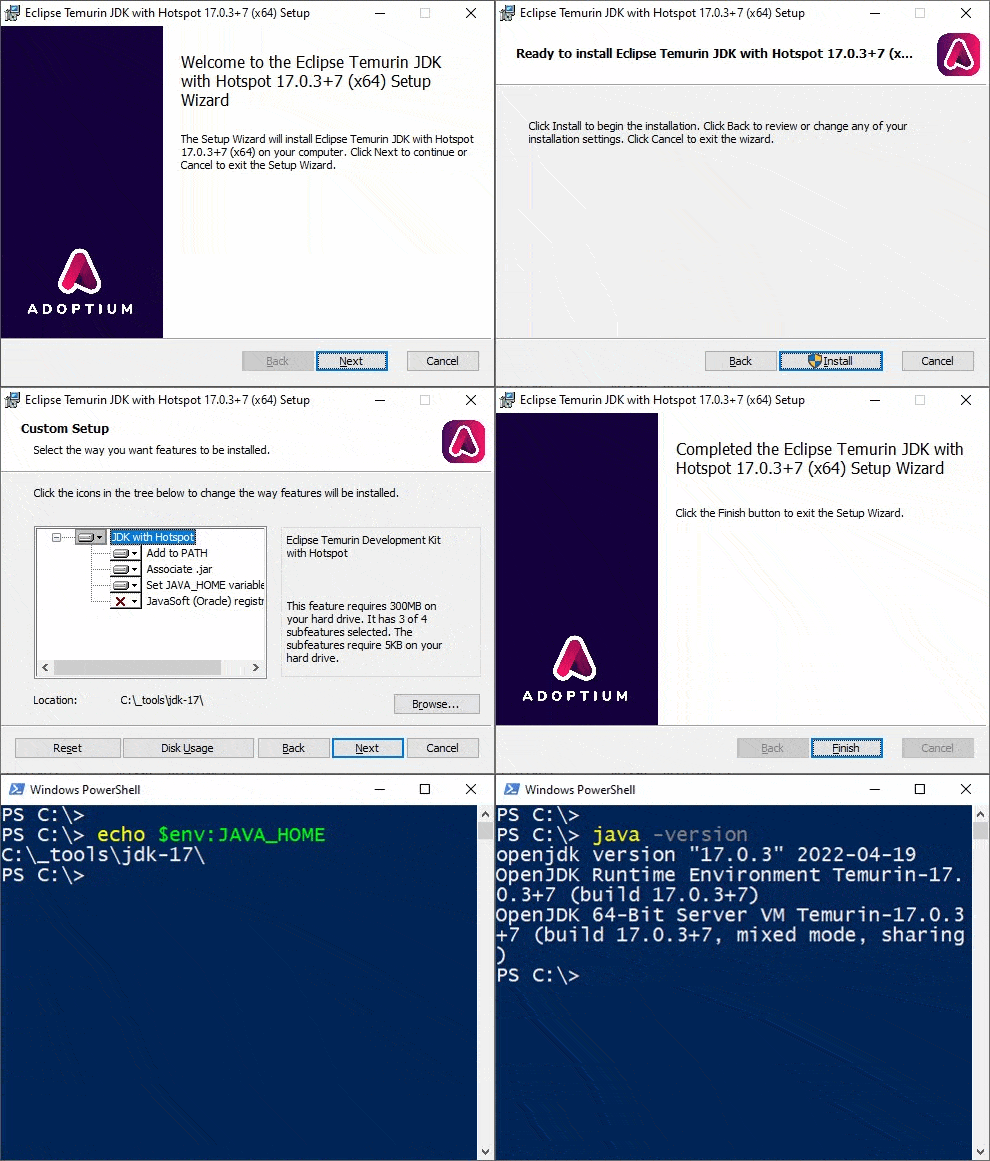
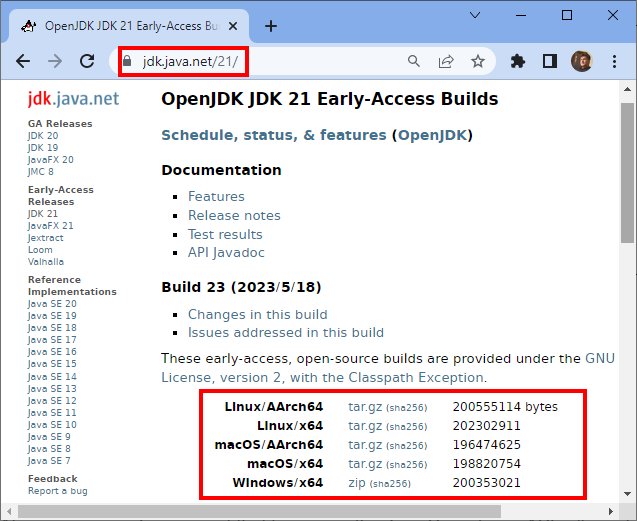
The installation process begins with downloading the Java 21 JDK. Users can obtain the official OpenJDK distribution from Oracle via jdk.java.net. Alternatively, other reputable distributions such as Azul, Red Hat, or the Eclipse Adoptium Temurin edition are also available. Once downloaded, the JDK comes as a zip file. The contents of this zip file, specifically the folder named `java-21`, should be extracted to a chosen location on the local file system. A common practice is to place it in a dedicated tools directory, such as `C:\_tools`.
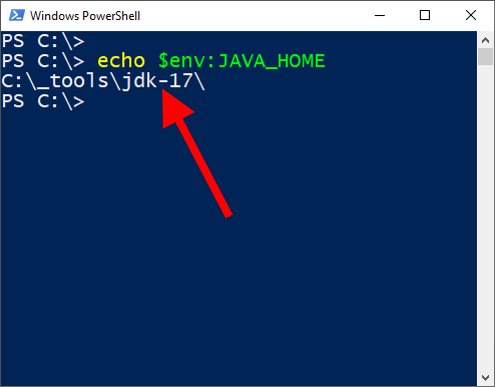
A crucial step in configuring the Java environment is setting the `JAVA_HOME` environment variable. This variable should point to the directory where the Java 21 JDK has been extracted (e.g., `C:\_tools\java-21`). Although Java installations can function without `JAVA_HOME`, setting it serves two primary purposes: it informs other programs that depend on Java about the JDK's location, and in environments with multiple JDK installations, it specifies the preferred Java instance to use.
Following the `JAVA_HOME` configuration, the `\bin` directory of the Java 21 JDK must be added to the operating system's `PATH` variable. This action makes the Java runtime and various essential utilities accessible through the command line. Unlike `JAVA_HOME`, which points to the root of the installation folder, the `PATH` variable must specifically point to the `\bin` subdirectory. This directory contains critical tools such as the Java compiler, the Java runtime executable, the JShell REPL tool, the JavaP decompiler, the JDeps dependency checker, the JavaDoc generator, and the JAR signer utility.
To verify a successful Java 21 installation, users can open a terminal window and execute the command `java -version`. The output of this command should confirm the installation of the Java 21 early edition. With the installation complete, developers can begin compiling code and exploring the new features and functionalities introduced in Java 21. These include exciting preview features and core enhancements like unnamed classes, instance main methods, unnamed patterns, Generational ZGC, record patterns, switch pattern matching, sequenced collections, virtual threads, and the Vector API. Additionally, Java 21 supports build features for tools like Apache Maven. These advancements are expected to significantly influence how programmers approach DevOps and modern software development practices.
#Java21Installation #JDKDownload #WindowsOperatingSystem #JAVAHOME #PATHConfiguration #JavaFeatures #OpenJDK #SoftwareDevelopment #DevOps #Java21Installation #JDKDownload #WindowsOperatingSystem #JAVAHOME #PATHConfiguration #JavaFeatures #OpenJDK #SoftwareDevelopment #DevOps
 Noch keine Kommentare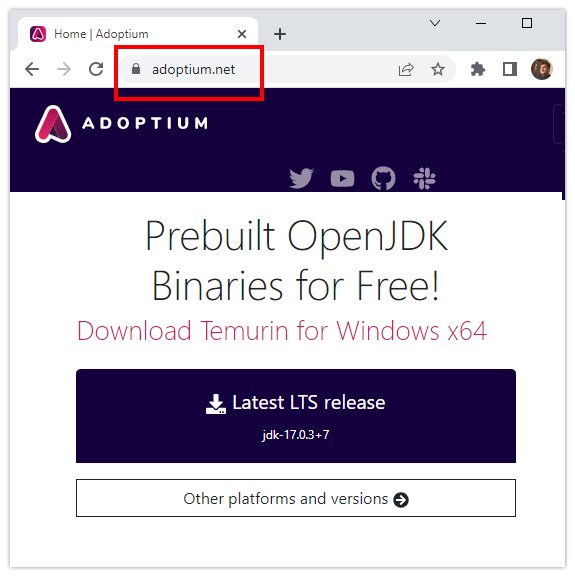
How do I install Java on Windows?
How to Download Windows 11 and Install It
Install Maven on Windows